Xero Integration
Connect Xero to Cooledge so invoices, payments, supplier bills and credit notes sync across without double entry
Xero Integration
Connect Xero once and your paperwork keeps itself up to date.
- Invoices that are Sent, Part-Paid or Paid can all go to Xero, one at a time or in a batch
- Payments, supplier bills and credit notes go across too, with the PDF attached
- Payments and voids entered in Xero come back into Cooledge on their own
- Connect in about a minute from Settings → Integrations, no accountant required
- One accounting provider at a time, so it is Xero or QuickBooks, not both
The Xero integration links your Cooledge invoicing to your Xero organisation, so the work you do in the field ends up in your books without anyone re-keying it. This page covers the Xero side: connecting, the settings that are specific to Xero and what to do when the connection drops.
The day to day sync itself, the badges, batch approving and troubleshooting are the same whichever provider you use, and they live in one place: Accounting Sync.
Connecting Xero
- Log into the Cooledge Portal at app.cooledge.com.au
- Go to Settings → Integrations
- Find the Xero tile and click Connect
- You are sent to Xero to sign in
- Choose the organisation you want Cooledge connected to, and approve access
- You land back in Cooledge, and the Xero tile now shows your organisation name
If your Xero login has more than one organisation, choose only the one for this business. An organisation that another Cooledge business is already connected to cannot be connected again here.
That is the whole connection. Nothing syncs until you approve an invoice, so you can connect now and start pushing invoices whenever you are ready.
Straight after connecting, Cooledge checks whether Xero already uses any of your next invoice numbers. Owners and admins can run it again any time with Check invoice numbers on the Xero tile. If Xero already uses some of them, set Next Job Number and Next Standalone Invoice Number above your highest Xero invoice number, or Cooledge sends those invoices as CE- numbers. See Understanding Invoice Numbers.
Xero Settings
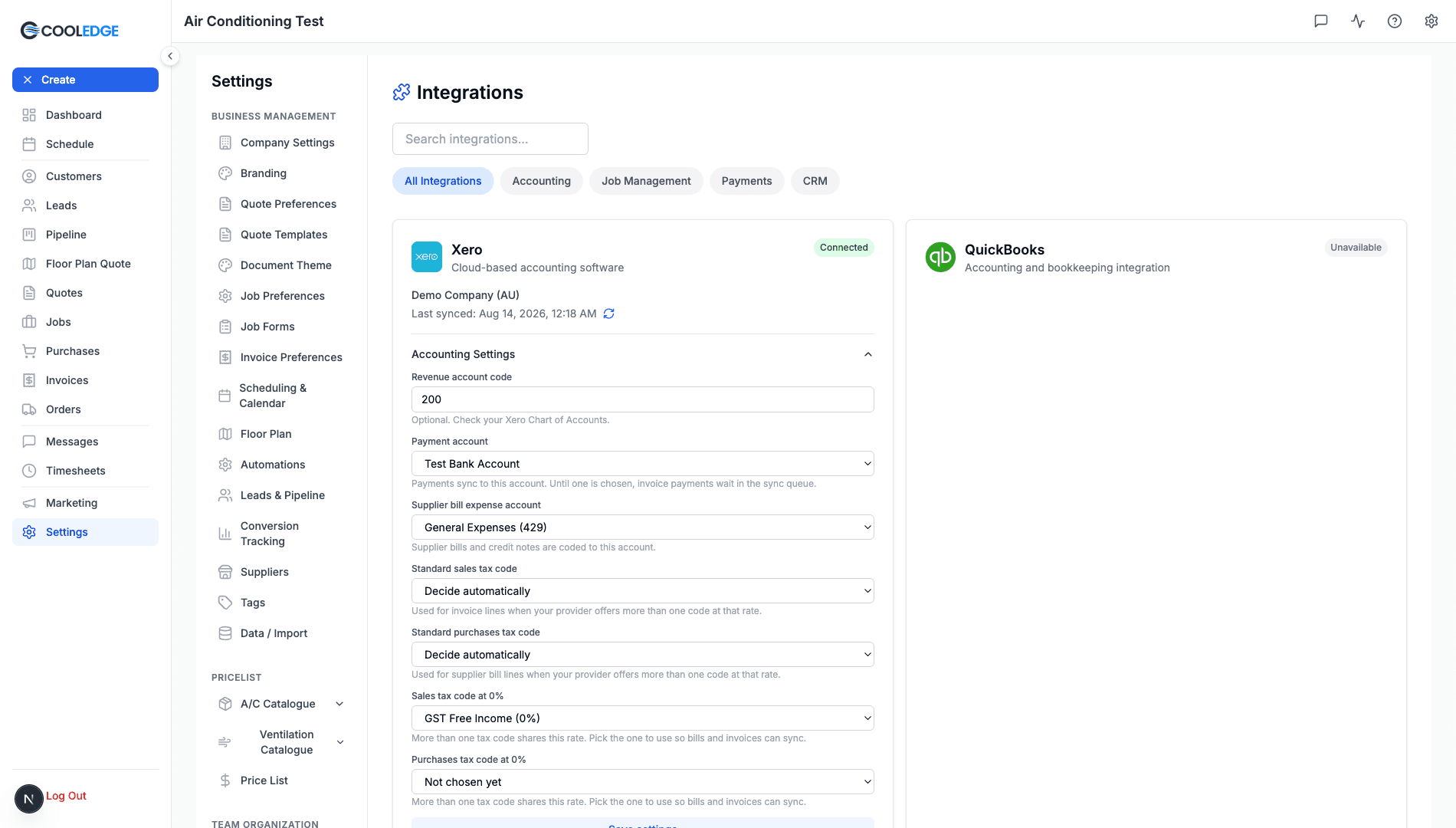
Once you are connected, open Accounting Settings under Settings → Integrations. These are the fields that matter for Xero:
| Setting | What it does |
|---|---|
| Revenue account code | Optional. The Xero account code your sales get recorded against. The helper text says Optional. Check your Xero Chart of Accounts. Most businesses use their standard sales account |
| Payment account | Payments sync to this account. Until one is chosen, invoice payments wait in the sync queue |
| Supplier bill expense account | Supplier bills and credit notes are coded to this account |
| Standard sales tax code | Used for invoice lines when Xero offers more than one code at that rate |
| Standard purchases tax code | Used for supplier bill lines when Xero offers more than one code at that rate |
| Sales tax code at 0% | One of these appears for each rate where Xero has more than one matching code, so you can pick the one to use |
Click Save settings when you are done.
If you leave a required account blank, nothing breaks and nothing is lost. Documents that need it simply sit On hold until you fill it in. When you save, everything waiting is released and the confirmation tells you how many, for example Accounting settings saved. 4 queued items released.
On GST: Australian GST is normally one rate, so the tax code pickers usually take care of themselves. The extra ones only appear when your Xero organisation has more than one tax code sitting at the same rate. Cooledge will not guess between them, so it asks you once and then remembers.
The Xero Tile
The connected tile shows two useful things: your Xero organisation name, so you can confirm you are pointed at the right set of books, and a Last synced timestamp such as Last synced: Aug 14, 2026, 12:18 AM.
Last synced means the last time a document actually moved, not the last time Cooledge spoke to Xero. On a quiet week that timestamp can look old while the connection is perfectly healthy. It is a record of activity, not a heartbeat.
While Xero is connected, the QuickBooks tile shows Unavailable with Disconnect Xero to connect QuickBooks. Only one accounting provider can be connected at a time.
When the Connection Expires
Xero connections need reauthorising from time to time. It is normal and it is not a sign anything is broken.
When it happens you will see a banner reading Xero has stopped accepting our connection. Invoices, bills and payments are waiting in the sync queue until you reconnect. with a Reconnect Xero link.
Click it and sign in to Xero again. Everything that was held while the connection was down is released and sent, so you do not need to find those invoices and re-approve them one by one.
You may also see individual documents sitting on On hold with Your accounting connection needs reauthorising. Reconnect it to keep syncing. Same cause, same fix.
Disconnecting Xero
- Go to Settings → Integrations
- Click Disconnect on the Xero tile
Careful: disconnecting takes effect immediately and there is no confirmation prompt. One click and it is done.
Nothing already in Xero is touched or deleted. In Cooledge, anything still waiting to sync goes On hold with The accounting connection was removed. Reconnect it to keep syncing., and the sync buttons, badges and filters disappear from the app until a provider is connected again. Reconnect whenever you like and the held work goes through.
Disconnecting is also how you switch. If you are moving from Xero to QuickBooks Online, disconnect Xero first, then connect QuickBooks.
Using the Sync Day to Day
Everything past this point works identically for Xero and QuickBooks, so it is documented once in Accounting Sync:
- Which invoices can be approved and how to approve one at a time
- Batch approving from the invoices list, with the Ready to sync card and the accounting filter
- What every sync badge means and when Retry is offered
- Payments and voids travelling in both directions
- Supplier bills and credit notes, which sync automatically and lock afterwards
- Editing an invoice after it has synced
- The full list of On hold and Needs attention messages and how to clear each one
Common Questions
Do I need Xero to use Cooledge? No. Xero is optional. Cooledge invoices, takes payments and chases money on its own.
Which invoices can I push? Sent, Part-Paid and Paid. Drafts and voided invoices cannot be pushed. This is a change from how the integration used to work, when only fully settled invoices were eligible.
Where do the invoices land in Xero?
Under Business → Invoices, with the same invoice number as in Cooledge (unless Xero already uses that number for an invoice Cooledge did not create, in which case it is sent as CE- plus the number), the line items, the tax and your invoice PDF attached.
What account code should I use? Whichever sales account your accountant already uses in your Chart of Accounts. It is optional, so if you are not sure, leave it blank and ask them later.
If I edit an invoice in Xero, does it come back to Cooledge? Only payments and voids come back. Changes to amounts, line items, invoice numbers or contacts stay in Xero. Cooledge is the source of truth for the invoice your customer received, so edit it in Cooledge and let it re-sync.
Cooledge created a new contact in Xero instead of matching my existing one. Why? Contacts are matched on the customer's details, so a different email address or a differently spelled business name will create a new contact. Merge the duplicate in Xero and tidy the customer record in Cooledge so the next invoice matches.
Can I connect two Xero organisations? No. One organisation, one connection. Reconnect to point Cooledge at a different organisation.
Is it secure? Yes. The connection uses Xero's standard authorisation flow. Cooledge only gets the access you approve and you can revoke it from either end at any time.
Related Articles:
- Accounting Sync →: The full sync workflow, badges and troubleshooting
- QuickBooks Integration →: Connect QuickBooks Online instead of Xero
- Creating Invoices →: Invoice basics
- Sending Invoices and Getting Paid →: Sending, payments and reminders
- Supplier Bills and Credit Notes →: Recording supplier costs against a job
Need a hand connecting Xero? Email us at support@cooledge.com.au
Was this article helpful?
Let us know if you found this information useful.
Still need help? Contact support
In this article
Use your browser's search (Ctrl+F) to quickly find specific topics within this article.
Browse all help articles →Related Articles
Accounting Sync
How invoices, payments, supplier bills and credit notes move between Cooledge and your accounting software, what comes back and how to clear anything that stalls
Automating Cooledge with the API and MCP
How to connect scripts, AI assistants and other software to your Cooledge account the supported way, and why signing in with a script is not it.
Conversion Tracking Setup
Send your Cooledge booking and lead conversions to Google Analytics, Google Ads and Meta so you can measure and optimise your ad spend