Understanding Invoice Numbers
Learn how invoice numbering works for job-linked and standalone invoices
Understanding Invoice Numbers
How Invoice Numbering Works
Invoices use different numbering systems depending on whether they're linked to a job or standalone.
Job-Linked Invoices
When you create an invoice for a job, the invoice number matches the job number.
Format:
- The job's own invoice: same as the job number (e.g.
1042) - Partial invoices: job number + sequence (e.g.
1042-2,1042-3)
Example:
- Job #1042 → the job invoice is
1042 - First partial invoice on that job:
1042-2 - Second partial:
1042-3
Why this matters:
- Easy to match invoices to jobs
- The customer sees a familiar job number
- All invoices for a job group together by number
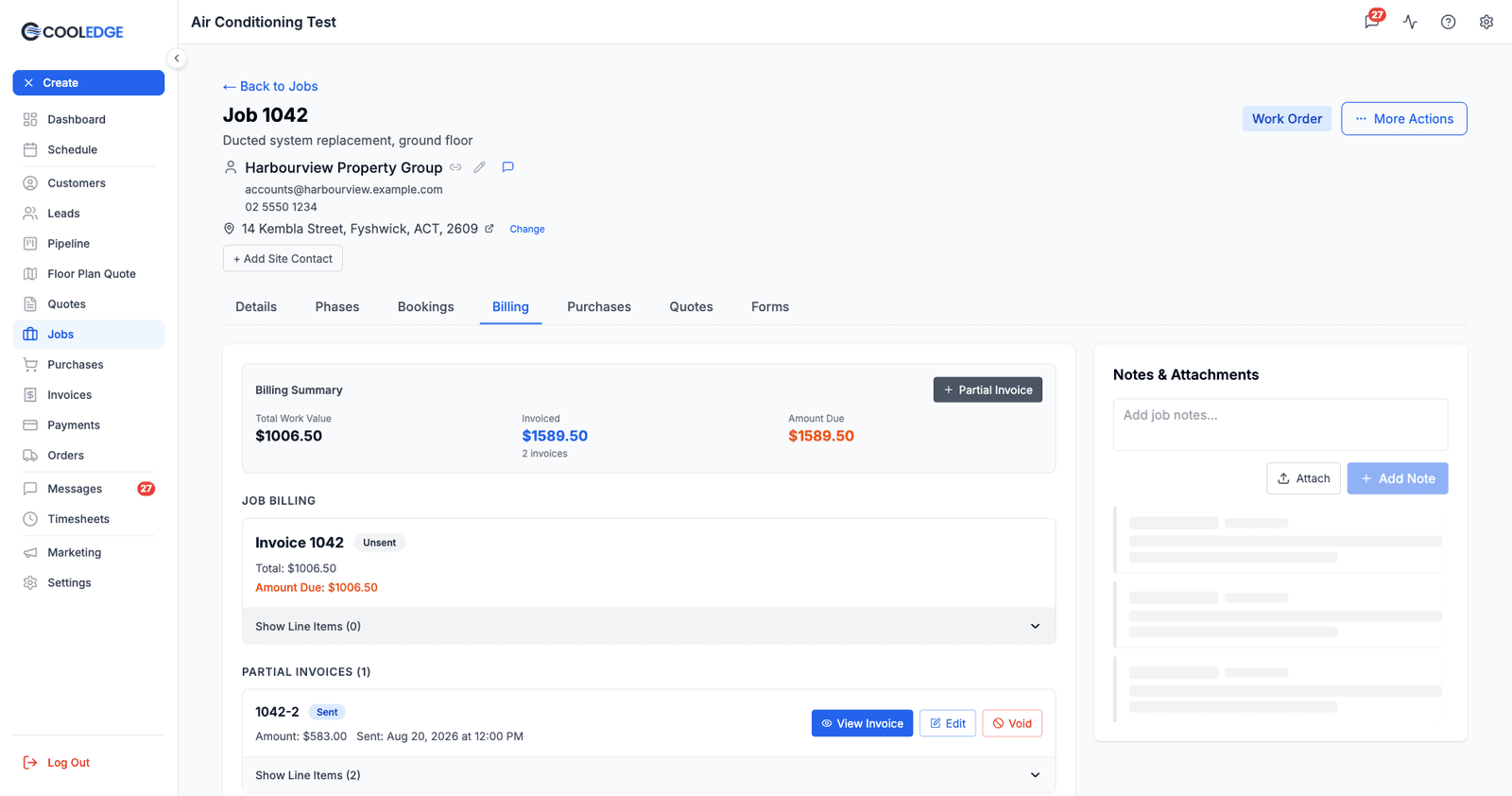
You can see both on the job's Billing tab. The job invoice sits under Job Billing, and anything extra is listed under Partial Invoices, which is also where the + Partial Invoice button raises them.
Standalone Invoices
Standalone invoices (not linked to a job) use a different system to avoid confusion with job numbers.
Format:
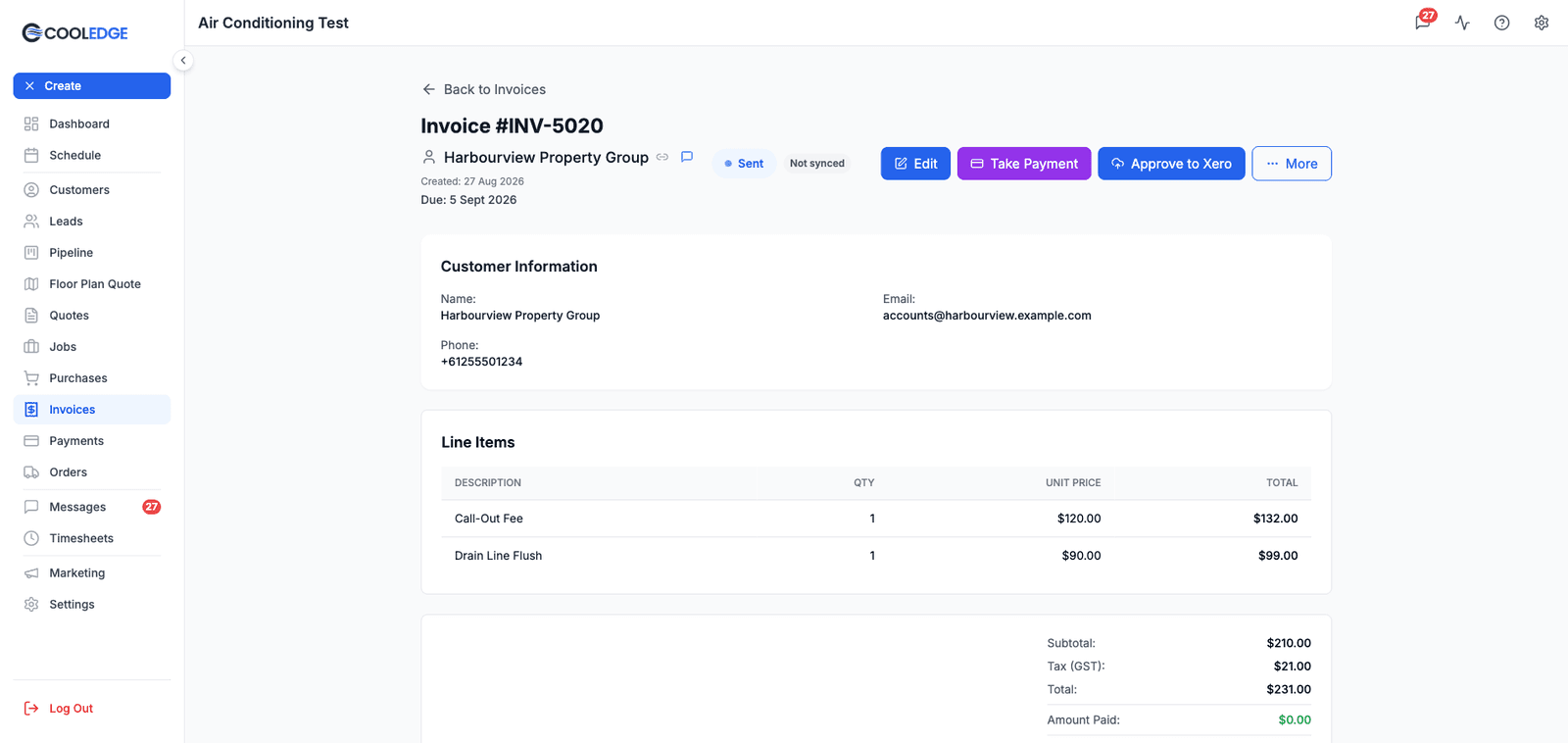
INV-prefix + number (e.g.INV-5020)
Example:
- First standalone invoice:
INV-5000 - Second standalone invoice:
INV-5001
Standalone invoices get their own counter, which starts at 5000 unless you change it. The INV- prefix is a default too, not a fixed rule, and you can change it in Settings.
Sequence Numbers Explained
For Job Invoices
The sequence number shows which invoice this is for the job. The first invoice just shows the job number (like 1042) without a -1 suffix, because most jobs only have one invoice and it looks cleaner. The next one becomes 1042-2, then 1042-3, and so on.
When You Need Multiple Invoices
You'll create multiple invoices for a job when:
- Progress billing: Invoice as work completes in stages
- Additional work: Customer adds scope mid-job
- Partial invoicing: Bill for materials first, labor later
- Variations: Changes from original quote
Example scenario:
- Initial install completed → Invoice
1042for $5,000 - Customer adds an extra unit → Invoice
1042-2for $2,000 - Final cleanup work → Invoice
1042-3for $500
All three invoices link to Job #1042, and the Billing Summary at the top of the job's Billing tab adds them up for you.
Starting Numbers
Job numbers start at 1000. Standalone invoice numbers start at 5000.
Why not start at 1?
- Four digits look more established than "#1"
- Easier to say on the phone
- Starting the two counters in different ranges keeps job invoices and standalone invoices visually distinct
Both starting points are configurable:
| Setting | Where |
|---|---|
| Next Job Number | Settings > Job Preferences, under Job Numbering |
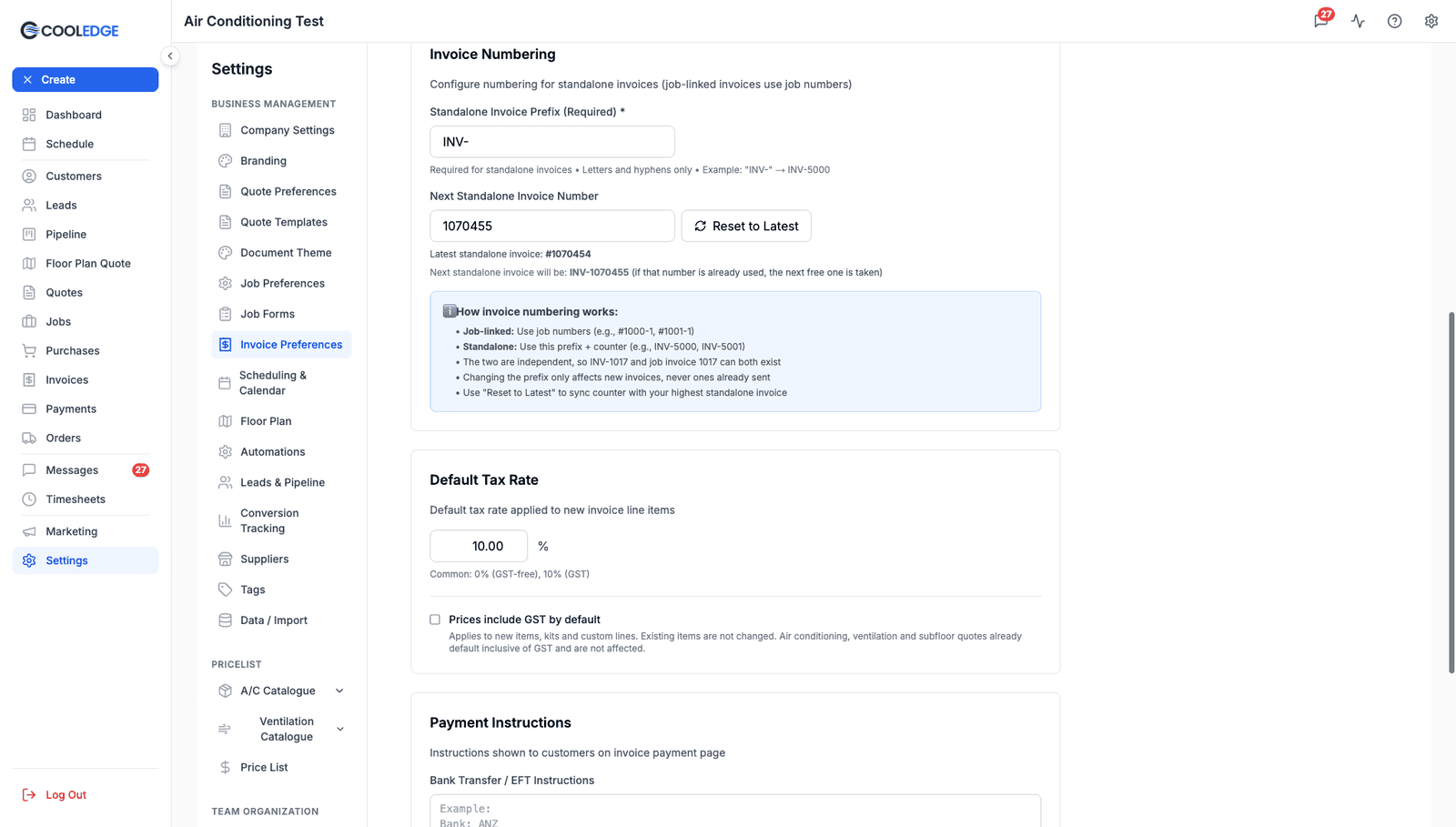
| Next Standalone Invoice Number | Settings > Invoice Preferences, under Invoice Numbering |
| Standalone Invoice Prefix | Settings > Invoice Preferences, under Invoice Numbering |
Number Allocation
Numbers are allocated automatically when you create jobs or invoices:
For Jobs:
- You create a job
- System finds next available job number
- Number assigned permanently
For Standalone Invoices:
- You create a standalone invoice
- Cooledge starts at the counter in Invoice Preferences
- If that number is already used in the same prefix, it steps forward one at a time until it finds a free one
- The number is assigned permanently and the counter moves on
For Job Invoices:
- You create an invoice for a job
- The invoice takes the job's number
- The sequence increments for each further partial invoice on that job
The two number ranges are independent. Job invoices and standalone invoices live in separate namespaces, so INV-1017 and job invoice 1017 can both exist without clashing, and neither one blocks the other:
| What you're numbering | Reads from | Looks like | Collides with |
|---|---|---|---|
| Job invoice | The job's number | 1042, 1042-2 | Other invoices on the same job only |
| Standalone invoice | The invoice counter + prefix | INV-5020 | Other invoices with the same prefix only |
What You Can't Change
Once an invoice is created, its number cannot be changed:
- They're permanent records
- Used in accounting and tax
- Changing them would break audit trails
- Payments are linked to invoice numbers
If you need to "change" a number:
- Void/delete the wrong invoice
- Create a new invoice (gets new number)
- Re-enter the details
Reading Invoice Numbers
When you see an invoice number, here's what it tells you:
Format: 1042
- Job-linked invoice
- The job invoice for Job #1042
- The only invoice on this job so far
Format: 1042-2
- Job-linked invoice
- A partial invoice on Job #1042
- There's at least one other invoice for this job
Format: INV-5020
- Standalone invoice
- Not linked to any job
- Direct customer billing
Format: INV-5020-2
- This doesn't exist
- Standalone invoices don't have sequences
- Always just one invoice per standalone number
At a glance:
| You see | It means | Linked to a job? |
|---|---|---|
1042 | The job invoice for Job #1042 | Yes |
1042-2 | The first partial invoice on Job #1042, so there is at least one other | Yes |
INV-5020 | A standalone invoice, using your invoice prefix and counter | No |
ABC-5020 | The same thing, if you changed your prefix to ABC- | No |
INV-5020-2 | Nothing. Standalone invoices never carry a sequence | n/a |
Invoice Lists and Sorting
In the Invoices page, invoices sort by creation date by default, but you can see their numbers:
Job invoices group together naturally:
- 1042 (Job #1042)
- 1042-2 (Job #1042)
- 1043 (Job #1043)
Standalone invoices appear separate:
- INV-5020
- INV-5021
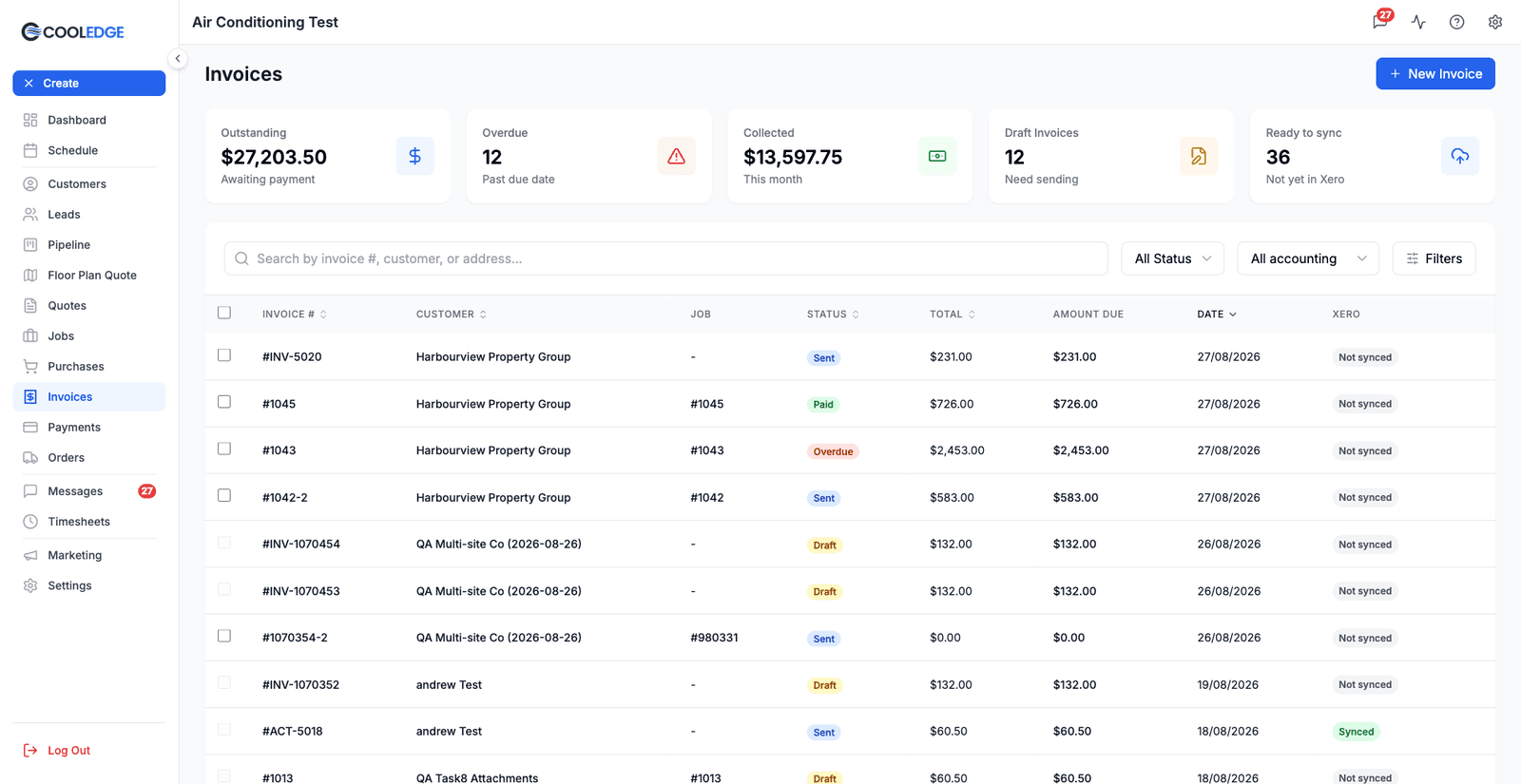
On the mobile app. The numbers are identical. The mobile invoice list is the app's Search screen with the Invoices filter on, and it prints the same references (1042, 1042-2, INV-5020), so a number you read on your phone is the same invoice you would open on the portal. Its search box matches invoice numbers the same way.
One thing to expect there: a job's first invoice does not appear in the mobile list while it is still a Draft. It is the job's billing container rather than a document, so it is filtered out until it has been sent. Open it from the job if you need it before then.
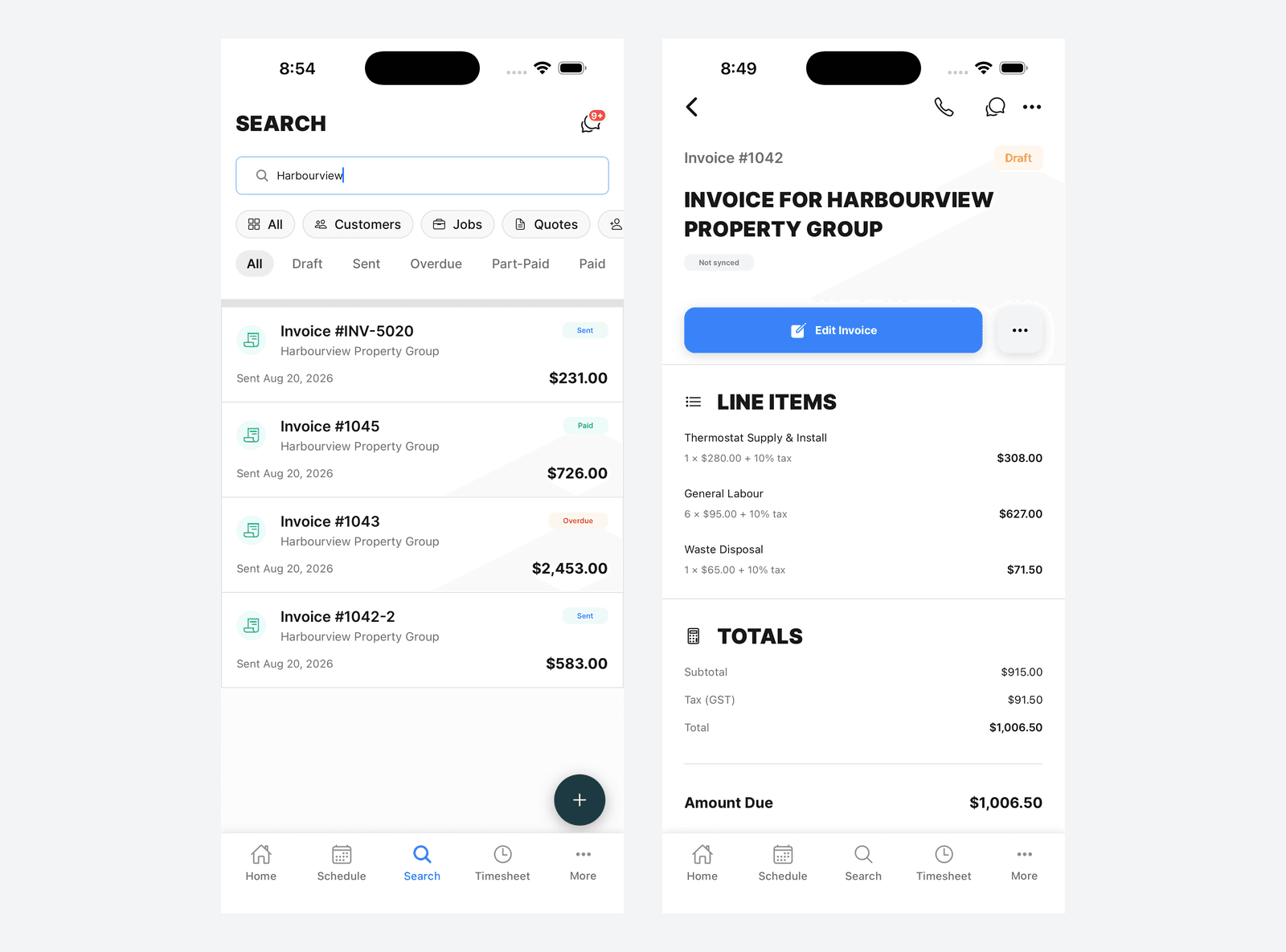
Searching by number: Type the number into the search box at the top of the Invoices page:
- Search "1042" → finds
1042and1042-2 - Search "INV-5020" → finds
INV-5020
Number Gaps
You might notice gaps in your numbering sequence:
Job numbers: 1000, 1001, 1005, 1010
- Jobs 1002-1004 might have been deleted
- Cooledge skips numbers that are already used
Standalone invoices: INV-5000, INV-5003, INV-5010
- The counter may have been moved forward in Invoice Preferences
- Or invoices in between were deleted
Gaps are normal and don't affect anything. Numbering doesn't need to be continuous, and a gap in your invoice numbers is not a sign that anything went wrong.
Customer View
Customers see the invoice number on:
- Email subject lines
- PDF invoices
- Payment pages
- Receipts
They use it to:
- Reference invoices when calling you
- Match invoices to jobs
- Track payments
Make sure your team knows invoice numbers when customers ask "What's the invoice for Job 1042?"
Common Questions
Can I customise the invoice number format? Partly. You can change the prefix used for standalone invoices in Settings > Invoice Preferences: letters and hyphens only, up to ten characters, no digits (the counter supplies the number). What you cannot change is the shape: job invoices always use the job number, and standalone invoices are always prefix + counter. Changing the prefix only affects new invoices, never ones already sent.
Can I manually set an invoice number? Not on an individual invoice. You can move the counter, though: set Next Standalone Invoice Number in Invoice Preferences, or use Reset to Latest to snap it to your highest standalone invoice plus one. The next invoice starts from that number, stepping past any that are already taken.
What happens if I delete an invoice? The number is not reused. Deleted invoice numbers stay "used" to maintain audit trail integrity.
Do invoice numbers reset each year? No. They continue incrementing indefinitely. Some businesses prefer continuous numbering for simplicity.
Can I see what invoice numbers are coming next? Yes. Settings > Invoice Preferences shows Next Standalone Invoice Number and spells out what the next one will be, and Settings > Job Preferences shows Next Job Number.
Related Articles
- Creating Invoices - How to create job-linked and standalone invoices
- Editing Invoice Line Items - Modify invoice details
- Sending Invoices - Send an invoice and collect payment
- Creating and Managing Jobs - Understand job numbering
Was this article helpful?
Let us know if you found this information useful.
Still need help? Contact support
In this article
Use your browser's search (Ctrl+F) to quickly find specific topics within this article.
Browse all help articles →Related Articles
Creating Invoices
Learn how to create job-linked and standalone invoices, with automatic deposit deductions
Editing Invoice Line Items
Add, edit and remove line items on invoices including quantities, prices and tax calculations
Managing Payments
Find every payment in one place, reverse a payment that was recorded wrongly and link a payment to one already entered in your accounting software