Accounting Sync
How invoices, payments, supplier bills and credit notes move between Cooledge and your accounting software, what comes back and how to clear anything that stalls
Accounting Sync
Your invoices, payments and supplier paperwork land in your accounting software without you typing any of it twice.
- Approve invoices that are Sent, Part-Paid or Paid, one at a time or up to 100 at once
- Payments you record in Cooledge push across, and payments added at your provider come back
- Supplier bills and credit notes sync on their own, no button to press
- A sync badge on every document tells you exactly where it is, with Retry when it needs another go
- Nothing gets silently overwritten. Anything Cooledge cannot decide on its own is flagged for you
This guide covers the sync itself, and it works the same way whether you use Xero or QuickBooks Online. Connecting is the part that differs, so start with Xero Integration or QuickBooks Integration, then come back here.
You can only have one accounting provider connected at a time. Until one is connected, none of the sync buttons, badges or filters described below appear anywhere in Cooledge.
What Syncs
Out of Cooledge
When you approve an invoice, this is what lands at your provider:
- The invoice with all its line items, descriptions, quantities and prices
- The customer, matched to an existing contact or created as a new one
- The tax code on every line
- Your branded invoice PDF as an attachment
- The job reference, when the invoice is linked to a job
A quote deposit is its own invoice, numbered with a -2 suffix, and the job's base invoice carries a matching negative line for it. Both push, and the deposit money pushes as a real payment against the deposit invoice, so your revenue, your GST and the cash you have actually received all stay correct in your books.
A deposit invoice sitting on Draft does not push at all. Nothing exists at your provider until you send it or the deposit is paid, which is exactly right: there is nothing for them to see yet.
Payments you record in Cooledge push to the payment account you nominate in settings. Supplier bills and supplier credit notes push with their attachment, coded to your supplier bill expense account.
Back into Cooledge
This is the two-way part, and it is deliberately narrow. Only three things are ever written back:
- Payments added at your provider, against an invoice that Cooledge pushed. They appear as payments on the Cooledge invoice and can move it to Part-Paid or Paid.
- Voids and deletions at your provider. Cooledge voids its copy of the document and reverses any payments that came from the provider.
- A supplier bill marked fully paid at your provider sets the Cooledge bill to paid.
What Does Not Come Back
Everything else stays where it is. Explicitly, none of this flows back into Cooledge:
- Customers and contacts
- Amounts, totals and invoice numbers
- Line items, descriptions or tax settings
- Any document Cooledge never pushed in the first place
- Payments against documents Cooledge never pushed
Your local amounts are never overwritten. If a payment is changed at your provider, Cooledge raises a flag instead of rewriting your record, so you get to decide which figure is right. Cooledge is the source of truth for the paperwork your customer sees.
Which Invoices Can Be Approved
An invoice can be approved when it is Sent, Part-Paid or Paid. Never Draft, never Void.
If an invoice is not eligible, the approve button is simply not there, and its checkbox in the invoices list is disabled. There is no message on the invoice explaining why. Check the invoice status: nine times out of ten it is still a draft.
Approving One Invoice
In the portal:
- Go to Invoices and open the invoice
- Click Approve to Xero (or Approve to QuickBooks)
- You get a toast reading Invoice queued for Xero sync
The badge moves to Queued, then Syncing, then Xero: Synced. A background worker picks up queued work every 2 minutes, so give it a couple of minutes before you go looking for it at your provider.
The button changes wording depending on where the invoice is up to. After a failure it reads Retry Xero. On an invoice you previously dismissed it reads Push to Xero anyway.
On the mobile app, open the invoice, open the Invoice Actions sheet and tap Approve to QuickBooks, which carries the subtitle Send this invoice to QuickBooks.
Batch Approving From the Invoices List
Most people do this once a week rather than invoice by invoice.
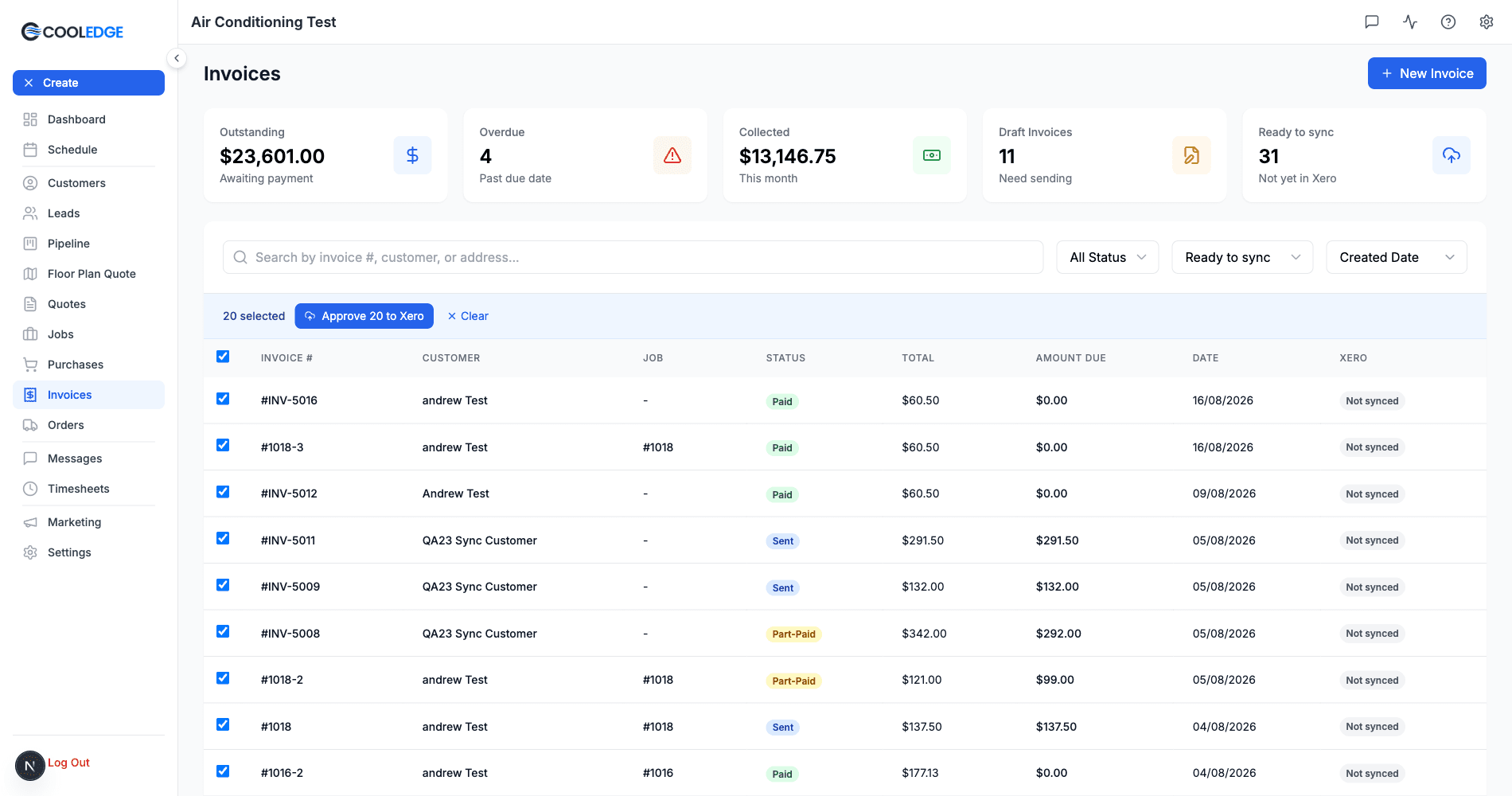
- Go to Invoices
- Click the Ready to sync card at the top of the page. Its sub-label reads Not yet in Xero or Not yet in QuickBooks, and clicking it applies the matching filter
- Tick the rows you want. The select-all checkbox ticks only the approvable rows on that page, so it will never catch a draft
- The bar at the bottom shows 20 selected, with Approve 20 to Xero and Clear
- Click the approve button. You can send up to 100 invoices in one go
You get a result toast like 7 invoices queued for Xero sync. Anything skipped is grouped by reason, for example 3 skipped: not sent yet or 2 skipped: already synced, so you can see at a glance what did not go.
Two things worth knowing about the selection: it clears whenever you change a filter, sort, search or page, and it does not carry across pages. Work one page at a time.
What the Badges Mean
Every invoice, bill and credit note carries a sync badge.
| Badge | What it means | Retry offered? |
|---|---|---|
| Not synced | Never pushed. Approve it whenever you are ready | No |
| Queued | Waiting for the next sync run | No |
| Syncing | On its way right now | No |
| Xero: Synced or QuickBooks: Synced | It is in your accounting software | No |
| Sync failed | Something went wrong. Worth another go | Yes |
| Needs attention | Someone has to make a decision. The reason is shown with the badge | Yes, plus Dismiss |
| On hold | Waiting on a setting or a reconnect | Yes, once you have fixed the cause |
| Won't sync | Dismissed on purpose | No |
The provider name is only ever prefixed on the synced state. Every other badge shows the bare label, so you will never see "Xero: Needs attention".
There is no popover and no link through to the document at your provider. The reason text shows as a tooltip on the badge in lists, and as a sentence underneath the badge on detail pages.
Invoice numbers already used at your provider. If Xero or QuickBooks already has an invoice with the same number that Cooledge did not create, Cooledge sends yours as CE- plus the number (for example CE-1367) and never changes the existing invoice. The invoice page then shows In Xero as CE-1367 (or In QuickBooks as CE-1367) under the badge.
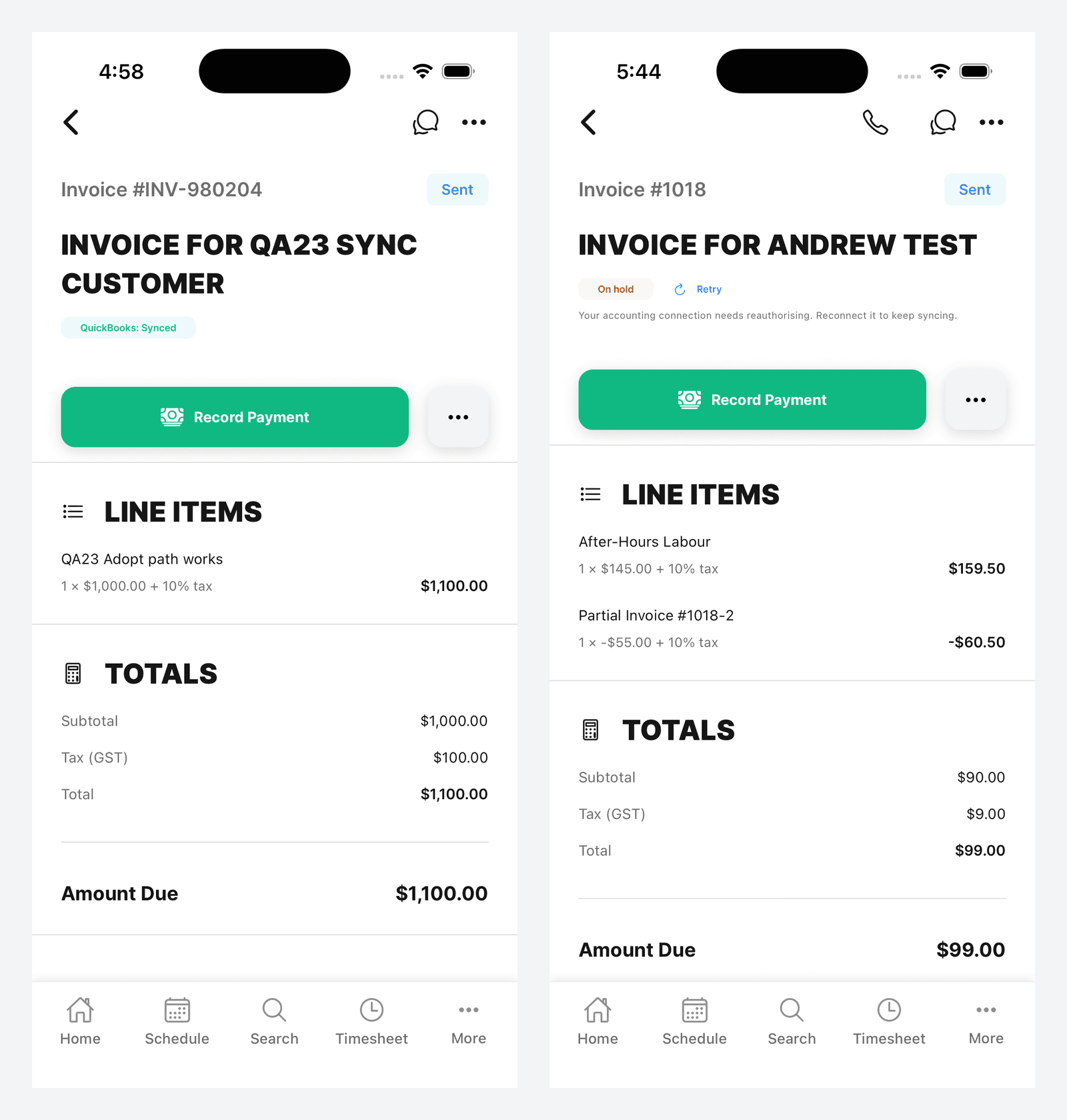
Where the badges appear
- Invoices list: the badge only, no actions
- Invoice detail: the badge, the reason, Retry and Dismiss
- Purchases hub: on bill and credit note rows, with Retry and Dismiss
- Invoice detail again: a badge per payment, so you can see which payment is holding things up
- Mobile: the badge and its actions on invoice detail
Filtering the Invoices List
The accounting filter on the invoices list has exactly these options: All accounting, Ready to sync, Not synced, Queued, Synced, Needs attention, Held, Failed and Won't sync.
Two quirks to remember:
- The filter says Held and Failed where the badge says On hold and Sync failed. Same thing, shorter word
- Ready to sync is a wider net than Not synced. It also picks up failed and needs-attention invoices, so it means everything you could approve right now
Payments
Going out. Payments you record in Cooledge push to the payment account you nominate in accounting settings. Until you choose one, invoice payments sit in the queue on hold rather than failing.
Coming back. A payment entered against the invoice at your provider comes back into Cooledge as a payment, and can move the invoice to Part-Paid or Paid.
Worth knowing before you do a big catch-up. An invoice that reaches Paid because of a payment at your provider fires everything a payment recorded in Cooledge fires, including the paid notification to your customer and the review request automation. If you are about to mark a stack of old invoices as paid in your accounting software, expect those emails and review requests to go out.
If a payment is later changed or removed at your provider, Cooledge does not rewrite its own record. It flags the invoice as Needs attention and leaves the decision to you. The exception is a payment deleted and re-entered at your provider for the same amount: the new one replaces the old one in Cooledge.
Already matched it yourself? If a payment is entered in your accounting software for money Cooledge already recorded, Cooledge links the two instead of counting it twice. When it cannot tell which payment is which, the push is refused because the invoice has no balance left. That payment then offers Link to accounting, which points Cooledge at the payment already sitting there and clears the flag.
Recorded a payment that should not be there? Reverse it from the Payments page or from the invoice. The invoice recalculates, and if the payment had already reached your provider the invoice is flagged so you know to remove it there too.
Voids
Voided at your provider. Cooledge voids its copy and reverses any payments that came from the provider. If that invoice has payments taken in Cooledge, nothing is changed automatically. It is flagged Needs attention instead, because real money went through it on your side.
Voided in Cooledge after it synced. Voiding an invoice in Cooledge also voids it at your provider, even when its badge shows Needs attention or Sync failed. This cannot always be finished for you, usually because your provider will not void a document that has payments applied to it. When that happens the badge turns to Needs attention with either Your accounting provider refused to void this document. Void it there instead. or This was voided here after it synced. Void it at your provider too. Both mean the same job for you: void the copy at your provider, then dismiss the Cooledge document so it stops trying.
Supplier Bills and Credit Notes
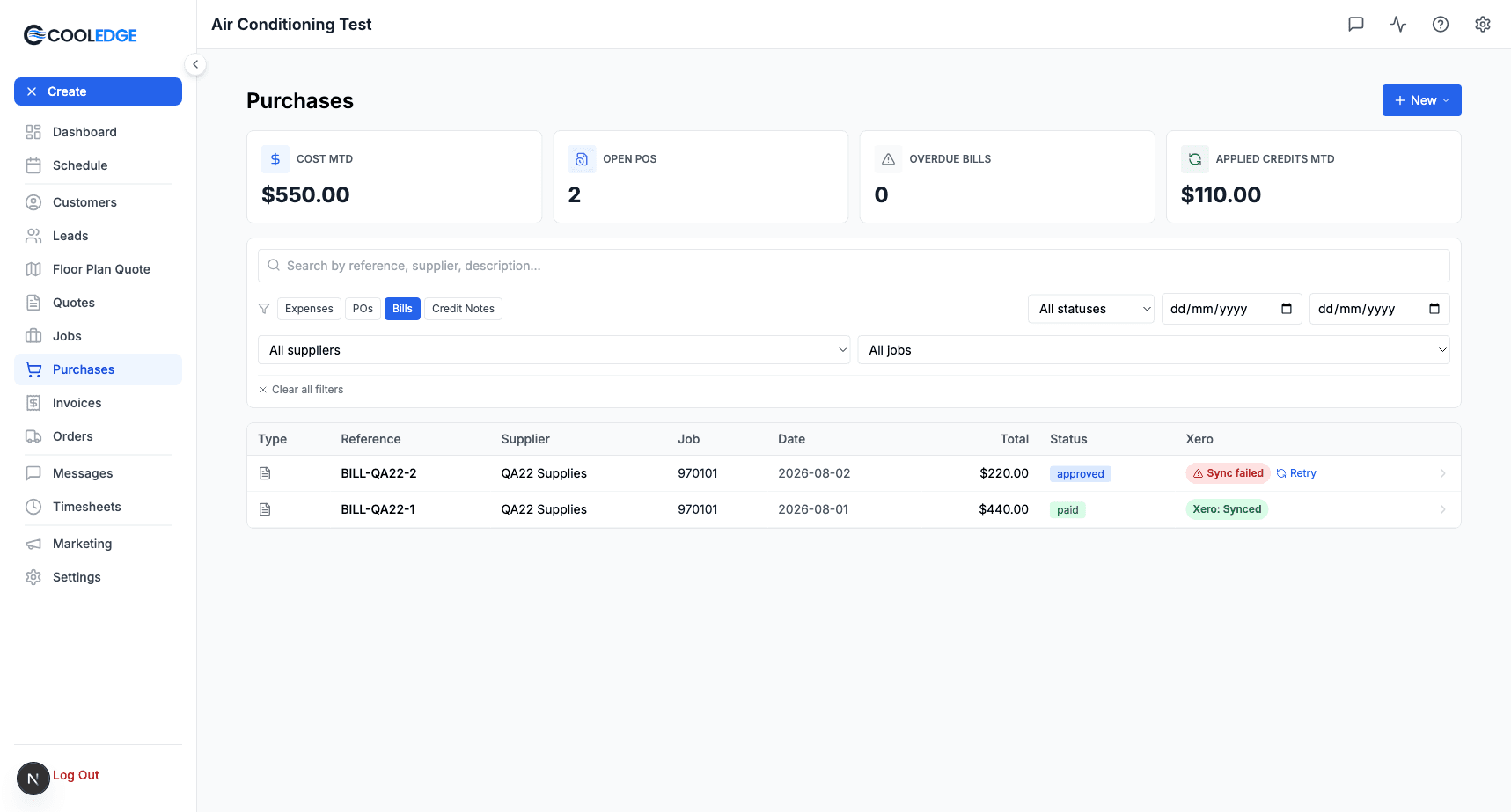
There is no approve button for supplier paperwork, because it syncs on its own:
- A supplier bill syncs when it moves from draft to approved
- A credit note syncs when it moves from draft to applied
Both are coded to the account you set as Supplier bill expense account, and both push with their attachment. Badges, Retry and Dismiss live on the bill and credit note rows in the Purchases hub.
They lock once they have synced. After a bill or credit note reaches your provider its money, supplier and dates are locked, and its lines cannot be changed. You will see: This bill has synced to Xero; edit it there or add a credit note. Status changes are still allowed, so you can still move it from approved to paid, or void it.
Two other things to know:
- Marking a supplier bill fully paid at your provider sets the Cooledge bill to paid
- Voiding a supplier credit note at your provider sends no signal back to Cooledge, so void it in Cooledge as well
More on the paperwork itself in Supplier Bills and Credit Notes.
Editing an Invoice After It Has Synced
Editing a synced invoice regenerates the PDF and pushes the updated version across, so the copy at your provider always matches the PDF your customer is holding. What you are allowed to change depends on the invoice status, and the rules are the same in the portal and on mobile.
| Invoice status | Line items | Notes and due date | Void |
|---|---|---|---|
| Draft | Yes | Yes | Yes |
| Sent | Yes. This re-issues the invoice and re-syncs it | Yes | Yes |
| Part-Paid | Yes, as long as the new total is not below what has already been paid | Yes | No |
| Paid | No | Yes | No |
If your provider refuses the change because payments are applied at their end, the invoice flags Needs attention with Your accounting provider will not change the amounts on a document that has payments applied. Remove the payment there, then retry.
How Quickly It Syncs
Work you queue in Cooledge is picked up by a background worker that runs every 2 minutes.
Changes made at your provider come in through webhooks, so they usually land within a minute or two. A safety net sweep also runs regularly in case a webhook goes missing, so anything that slips through is picked up within half an hour at the latest. If something has been sitting for longer than that, it is not a timing problem. Check the badge.
Accounts and Tax Codes
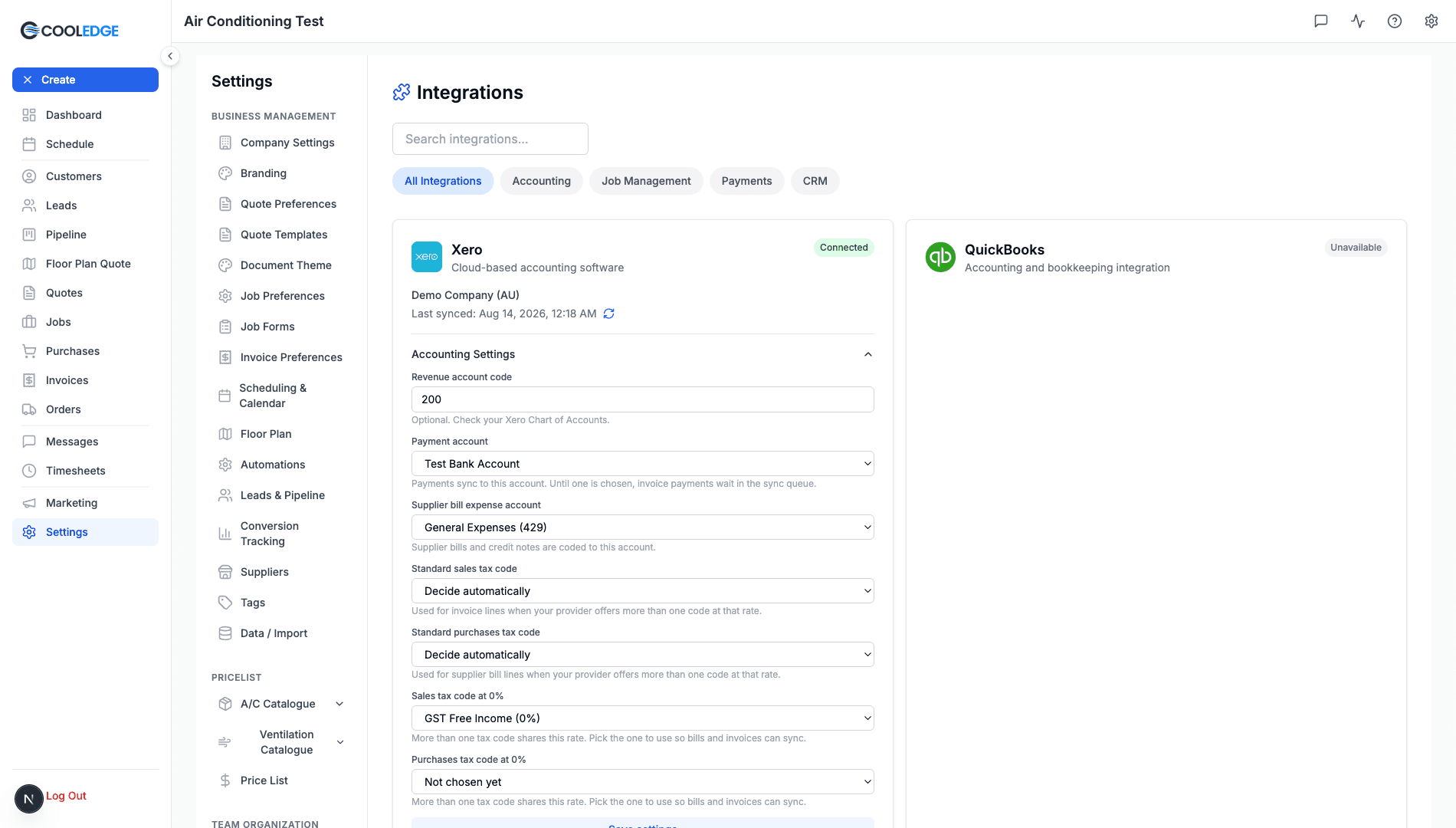
Go to Settings → Integrations → Accounting Settings.
| Setting | What it does |
|---|---|
| Revenue account code (Xero) or Income account or item (QuickBooks) | Optional. Where your sales get recorded. Check your chart of accounts, or ask your accountant |
| Payment account | Payments sync to this account. Until one is chosen, invoice payments wait in the sync queue |
| Supplier bill expense account | Supplier bills and credit notes are coded to this account |
| Standard sales tax code | Used for invoice lines when your provider offers more than one code at that rate |
| Standard purchases tax code | Used for supplier bill lines when your provider offers more than one code at that rate |
| Sales tax code at 0% | One of these appears for each rate where your provider has more than one matching code, so you can pick which one to use |
Click Save settings when you are done.
What happens when one is missing. Documents that need a setting you have not filled in go On hold rather than failing outright. Nothing is lost. Fill the setting in, hit save, and everything waiting on it releases itself. The save confirmation tells you how many, for example Accounting settings saved. 4 queued items released.
In Australia GST is normally a single rate, so tax codes usually look after themselves. The extra pickers only turn up when your provider has more than one code sitting at the same rate and Cooledge will not guess between them.
Troubleshooting
On Hold: Waiting on Something You Control
These clear themselves. Fix the cause and the held documents go on their own, though Retry is there if you want to push one along.
| What it says | What to do |
|---|---|
| Your accounting connection needs reauthorising. Reconnect it to keep syncing. | Go to Settings → Integrations and reconnect. This is routine, connections expire from time to time |
| The accounting connection was removed. Reconnect it to keep syncing. | The connection was disconnected here, or access was revoked at your provider. Connect it again |
| Choose a payment account in accounting settings. | Set Payment account in Accounting Settings and save |
| Choose a purchases expense account in accounting settings. | Set Supplier bill expense account in Accounting Settings and save |
| Two tax codes share this rate. Pick one in accounting settings. | More than one tax code at your provider sits at that rate, so Cooledge will not choose for you. Pick one in the tax code picker for that rate and save |
Needs Attention: Someone Has to Decide
These will not clear on their own, because Cooledge is not willing to guess with your numbers. Fix the cause, then hit Retry.
| What it says | What to do |
|---|---|
| This invoice number is already used in your accounting software by an invoice CoolEdge did not create. Rename that invoice there, then push again. | Both the number and its CE- version are taken by invoices Cooledge did not create. Rename one of those two in your accounting software, then press Push again |
| This document uses a tax rate your accounting provider does not offer. | Either add the missing rate at your provider, or change the tax on the Cooledge document to one your provider has |
| A line on this document does not add up. Fix the amounts and try again. | Open the document and check the quantity, the price and the line total against each other. Correct whichever is wrong |
| The deposit line could not be matched to a quote payment. | The invoice carries a deposit with no payment record behind it. Record the deposit as a payment on the invoice |
| This deposit could apply to more than one invoice. Assign it to one. | The job has more than one invoice the deposit could sit against. Assign it to the right one |
| The deposit here does not match the payments recorded against it. | The deposit amount and the payments recorded against it disagree. Fix whichever is wrong |
| The payment is larger than the balance owing at your provider. | The same money has almost always been entered at your provider already. Use Link to accounting on that payment to point Cooledge at the one that is already there, which clears the flag in one step. If the two amounts differ, reverse the Cooledge payment instead. See Managing Payments |
| A reversed payment is still applied in your accounting software. Remove it there to match. | You reversed a payment here that had already been pushed across. Cooledge does not delete rows from your ledger, so remove that payment at your provider, then Retry. See Managing Payments |
| Your accounting provider refused to void this document. Void it there instead. | Usually payments applied at their end. Void or credit it at your provider, then dismiss the Cooledge document |
| Your accounting provider will not change the amounts on a document that has payments applied. Remove the payment there, then retry. | Remove the payment at your provider, retry the sync, then put the payment back |
| A payment now shows a different amount at your accounting provider. | Cooledge will not overwrite your figures. Work out which amount is right and correct the other one |
| A payment recorded here is no longer at your accounting provider. Enter it there again, or reverse it here to match. | It was deleted at your provider. Re-enter it there if it was genuine, or reverse it in Cooledge if it was not |
| A payment imported from your accounting provider was deleted there. Remove it here to match, or enter it there again. | Use Remove on that payment in the invoice's Payment History (owners and admins), or re-enter it at your provider |
| Your provider voided this, but payments were taken here. | Cooledge has left the invoice alone because money went through it on your side. Decide whether to credit the customer here, or reinstate the invoice at your provider |
| This is void here and still live at your accounting provider. | Void the copy at your provider too |
| This bill no longer exists at your accounting provider. | It was deleted there. Re-enter it at your provider, or dismiss the Cooledge bill |
| This was voided here after it synced. Void it at your provider too. | Void the copy at your provider |
Sync Failed
Sync failed is the retryable one. Something went wrong in transit rather than in your data. Hit Retry. If the same invoice fails repeatedly, check the reason text under the badge, because it usually names the problem.
Dismissing a Document
Dismiss is offered on Needs attention only. It tells Cooledge to stop trying to sync that document in either direction, and the badge becomes Won't sync. Use it when you have already sorted the document out by hand at your provider and you just want Cooledge to leave it alone.
Three things to be clear about:
- A dismissed invoice can still be pushed later. The button on the invoice reads Push to Xero anyway
- Dismissing a bill does not unlock it for editing. A bill that has synced stays locked either way
- Dismissed documents are still easy to find. The accounting filter on the invoices list has a Won't sync option
Common Questions
Do I have to approve every invoice by hand? Yes, approving is deliberate. You choose what goes into your books. Batch approving from the invoices list makes it a weekly job rather than a daily one.
Can I push a part-paid invoice? Yes. Sent, Part-Paid and Paid are all eligible. Only drafts and voids are out.
If I fix a customer's address in Xero, does it come back? No. Customers and contacts only travel one way. The same goes for amounts, invoice numbers, line items and tax settings.
Why is my supplier bill locked? Because it has synced. Change it at your provider, or record a credit note in Cooledge. Status changes are still allowed.
Something has been Queued for an hour. Is it stuck? Probably on hold behind a missing setting or an expired connection rather than genuinely queued. Open the document and read the reason under the badge.
Can I connect Xero and QuickBooks at the same time? No, one provider at a time. Disconnect the current one first.
Related Articles:
- Xero Integration →: Connecting Xero and its settings
- QuickBooks Integration →: Connecting QuickBooks Online and its settings
- Creating Invoices →: Building an invoice in the first place
- Sending Invoices and Getting Paid →: Sending, payments and reminders
- Supplier Bills and Credit Notes →: Recording what your suppliers charge you
- Understanding Deposits →: How deposits sit against an invoice
Need a hand with accounting sync? Email us at support@cooledge.com.au
Was this article helpful?
Let us know if you found this information useful.
Still need help? Contact support
In this article
Use your browser's search (Ctrl+F) to quickly find specific topics within this article.
Browse all help articles →Related Articles
Automating Cooledge with the API and MCP
How to connect scripts, AI assistants and other software to your Cooledge account the supported way, and why signing in with a script is not it.
Conversion Tracking Setup
Send your Cooledge booking and lead conversions to Google Analytics, Google Ads and Meta so you can measure and optimise your ad spend
Connecting Cooledge with the API and webhooks
Cooledge has a developer API, real-time webhooks and an MCP server so you can connect it to your own systems and to AI assistants like Claude. Create and manage your own API keys and connected apps in Settings, on the Growth and Scale plans.