Team Inbox
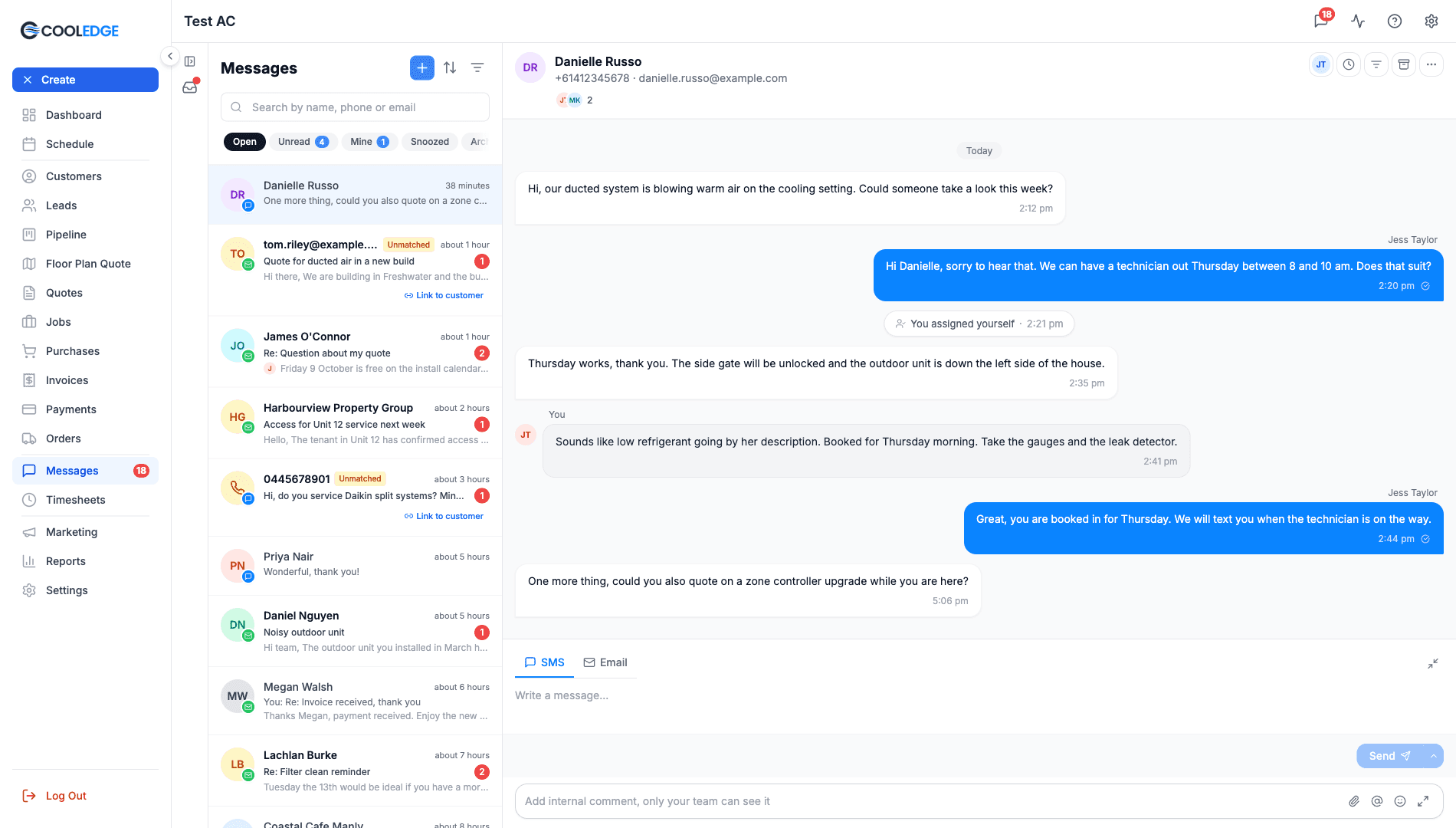
Share Messages with your team: assign conversations, follow them in Mine, leave internal comments and @mention a teammate
Team Inbox
One inbox the whole team works from, without stepping on each other.
- Assign a conversation so everyone knows who is looking after it
- Mine collects the open conversations you are assigned to or following
- Leave internal comments and @mention a teammate. The customer never sees them
- See which teammates have seen a conversation and who has not
- Small markers in the thread record who assigned, archived or snoozed it and when
Team Inbox adds the team tools to Messages. Customer emails and texts still land in the same place. What changes is that you can hand a conversation to a person, talk about it privately beside the customer's messages and keep your own list of what you are following.
Who Gets It
By plan
| Feature | Starter | Growth and Scale (and trials) |
|---|---|---|
| Open, Unread, Archived and Trash views | Yes | Yes |
| Archive, Trash, Restore and Mark as Unread | Yes | Yes |
| Send later and undo send | Yes | Yes |
| Assigning conversations and the Mine view | No | Yes |
| Internal comments and @mentions | No | Yes |
| Participants | No | Yes |
| Snooze and the Snoozed view | No | Yes |
On Starter the team features are hidden. You will not see Mine, Snoozed, Assign, the comment bar or Send and snooze….
By role
| Role | Portal | Mobile app |
|---|---|---|
| Owners and admins | Yes | Yes |
| Team members | No. The portal is for owners and admins | Yes |
| Restricted team members | No | No. They have no inbox |
Team members see every conversation with a known customer. They can comment, assign, snooze, archive, trash, subscribe and add participants. They never see messages from unmatched senders. Those are for owners and admins only.
One-person businesses. If you are the only person in the business there is nobody to hand a conversation to, so Mine, Assign, participants and the Assignee filter are hidden. Comments and Snooze stay, so you can still leave yourself a note on a conversation.
The Views
The pills across the top of Messages are the same on the portal and in the app.
| View | What is in it |
|---|---|
| Open | Every active conversation |
| Unread | Conversations you have not read. Unread is per person, so a teammate reading one does not clear it for you |
| Mine | Conversations you are assigned to or following |
| Snoozed | Conversations hidden until a set time |
| Archived | Conversations the team has finished with |
| Trash | Conversations moved to Trash. Nothing in here is deleted |
On the portal the pills scroll sideways, so drag or scroll the row to reach Archived and Trash.
Unread and Mine carry a count. The count on Mine is the unread conversations in it, not the total.
On the portal, the filter icon narrows the list by Channel (Email or SMS) and by Assignee (Unassigned, Me or a teammate's name). Here Unassigned means no teammate has been assigned. The sort icon offers Most Recent, Oldest First and Unread First. The app has the same filters as chips on its search page and has no sort.
See Snooze, Archive and Trash for what each of those states does.
Assigning a Conversation
On the portal
- Open the conversation
- Click the Assign icon in the thread header. If it is already assigned, the tooltip reads Assigned to and the person's name
- Pick Assign to me or a teammate. You are in the list too, shown with (you) after your name
Assign to me only shows when the conversation is not already yours. Unassign only shows once someone is assigned. To hand a conversation back, open the same menu and choose Unassign.
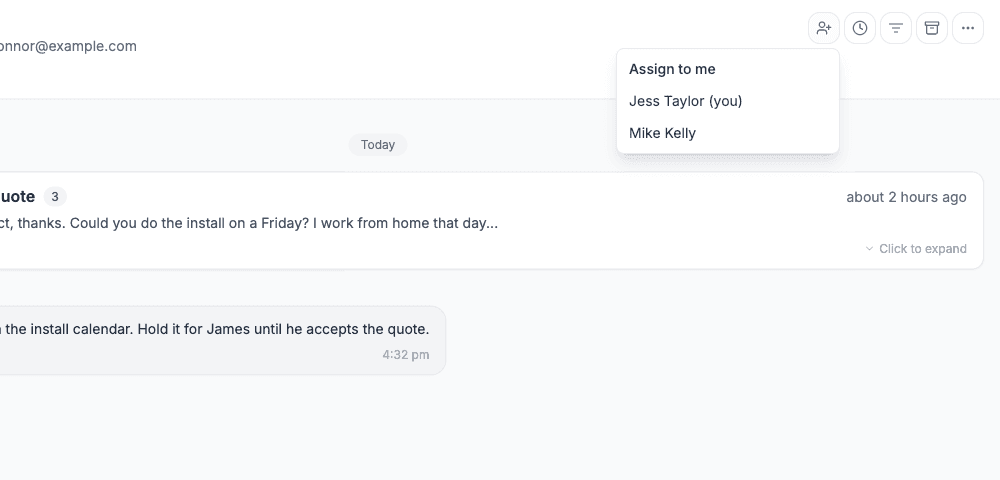
In the app, tap … in the thread header and choose Assign, or tap the assignee's face in the header.
Worth knowing:
- The person you assign is sent a push notification on their phone titled Assigned to you. Assigning yourself sends nothing
- There is no email and no pop-up on the portal for an assignment. On the portal, watch the count on Mine
- Only owners and admins can be assigned a conversation from an unmatched sender
- The list does not show who a conversation is assigned to. Open the conversation or use the Assignee filter
Mine
Mine is the list of conversations you follow. You follow a conversation when you are its assignee or one of its participants. You become a participant when:
- You are assigned to it
- You leave a comment on it
- A teammate @mentions you in a comment
- A teammate adds you with + in Participants
- You press Subscribe
- You reply to the customer yourself. Automated messages sent in your name do not count
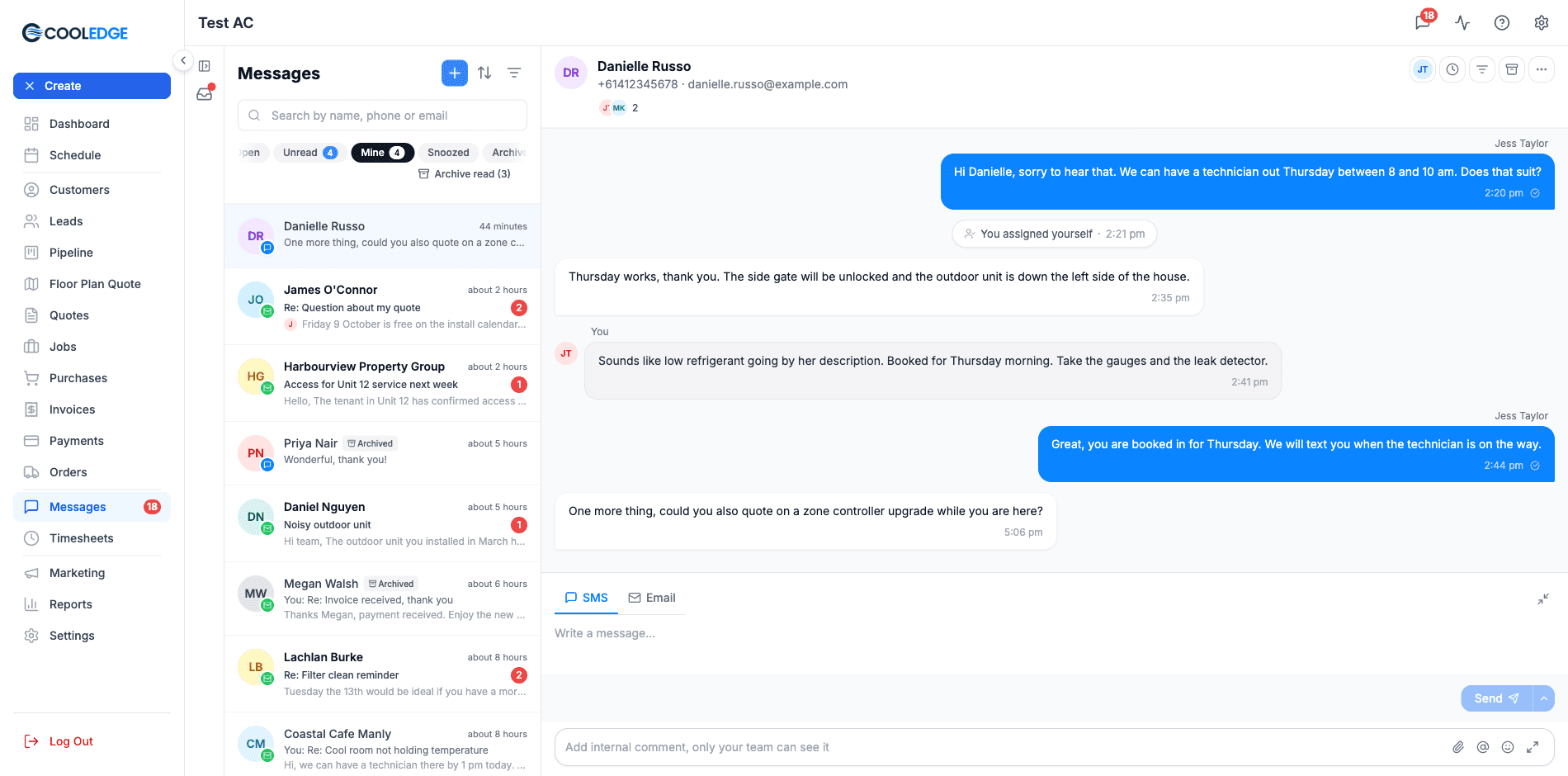
What stays in Mine. Every open conversation you follow. With the default setting it also keeps conversations a teammate has archived that you have not archived yourself. Those carry an Archived badge. Snoozed and trashed conversations are in nobody's Mine.
Archive for me. When a teammate has archived a conversation and it is still in your Mine, the header button reads Archive for me. It takes the conversation out of your Mine only. You see Archived for you, with an Undo that puts it Back in your Mine.
Archive read. In the Mine view, Archive read clears out every conversation you have already read that a teammate has archived. The button shows how many it will clear and offers an Undo afterwards.
Prefer a tidier Mine? You can have teammate-archived conversations leave your Mine as soon as you have read them. See Personal Settings below.
Participants and "Seen"
Under the contact's name in the thread header, the portal shows the participants as overlapping initials with a count. Click them to open Participants.
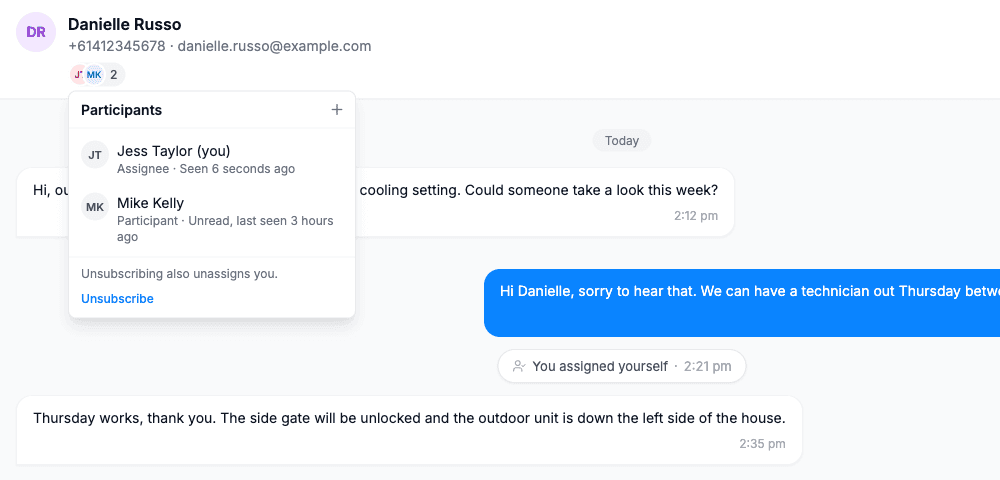
Each person is listed as Assignee or Participant, with one of these beside their name:
| What you see | What it means |
|---|---|
| Seen 5 minutes ago | They opened the conversation after its latest activity |
| Unread, last seen 2 hours ago | Something has happened since they last opened it |
| Not seen | They have not opened it |
| Unsubscribed | They stopped following it |
"Seen" here is about your teammates, not the customer. It tells you who on your team has opened the conversation. It says nothing about whether the customer has read your message. Cooledge does not track email opens and there are no customer read receipts.
Use + to add a teammate. Use Subscribe or Unsubscribe at the bottom to follow or stop following it yourself. If you are the assignee, a note above the button warns you: Unsubscribing also unassigns you.
In the app, tap the faces in the thread header, or … then Participants. The wording is the same.
Internal Comments and @Mentions
A comment is a note to your team that sits in the thread beside the customer's messages. Comments are never sent to the customer.
On the portal, the comment bar sits under the reply box. It reads Add internal comment, only your team can see it. Press Enter to post and Shift+Enter for a new line. The bar has buttons to attach files, mention a teammate and add an emoji.
In the app, the box reads Internal comment. You can attach from the camera, your photo library or your files and mention a teammate. There is no emoji button.
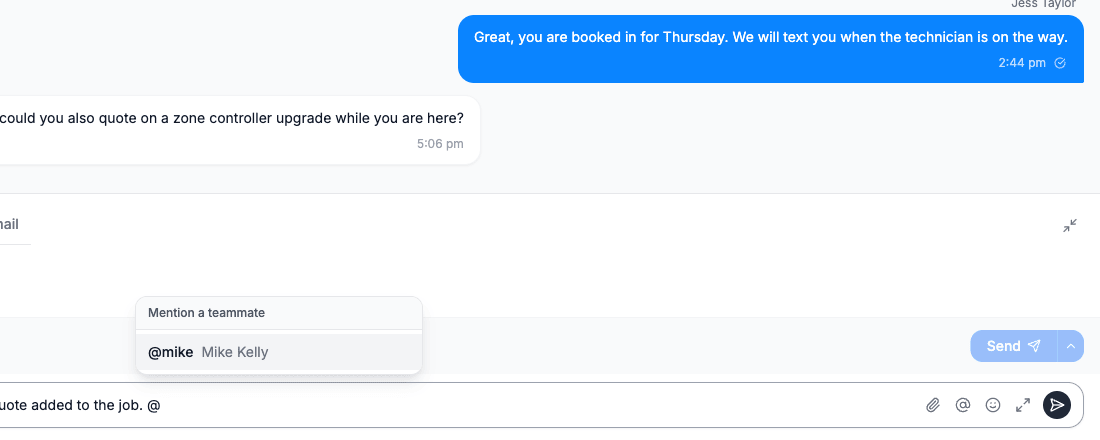
Mentioning a teammate
Type @ to open Mention a teammate and pick a name. You can mention up to 20 people and attach up to 20 files in one comment. A mentioned teammate becomes a participant, so an open or archived conversation shows up in their Mine.
Replying, editing and deleting
| Action | Who can do it | Notes |
|---|---|---|
| Reply | Anyone who can see the conversation | Quotes the original comment |
| Edit | The person who wrote it | The comment is marked Edited. Files cannot be changed in an edit |
| Delete | The person who wrote it | Asks Delete comment? with the warning It will be removed for everyone on your team. This cannot be undone. |
In the app, long-press a comment for Reply, Copy, Edit and Delete.
Who is told about a comment
| Person | What they get |
|---|---|
| Teammates you @mention | A push notification on their phone |
| Other participants | A push notification that there is a new comment |
| You, the author | Nothing |
Comment and mention notifications are mobile push only. There is no email and no pop-up on the portal. A teammate who only uses the portal is not alerted. They see the conversation turn unread. An open or archived one also shows in their Mine. If it is urgent, make sure they have the app with notifications on.
A comment marks the conversation unread for your teammates. If the conversation is open or archived, it also comes back into the Mine of everyone following it. Snoozed and trashed conversations stay out of Mine until they are reopened. A comment does not reopen an archived conversation for the whole team. Only a new message from the customer does that.
Owners and admins can also comment on a conversation from an unmatched sender.
The Small Markers in a Thread
Between the messages you will see small pills with a time. They record what the team did with the conversation, for example:
- Assigned to Mike by Jess
- You assigned yourself
- Unassigned from Mike by Jess
- Archived by Jess
- Snoozed by Mike until tomorrow 8:00 am
- Moved to Trash by Jess, Reopened by Mike and Restored by Mike
- Reopened by a new message
- Snooze ended
Two things to know. The history starts on the day Team Inbox arrived, so older conversations have no markers for earlier changes. The markers are also hidden while a thread filter is on, so set the filter back to All to see them.
A small amber bolt on a message means Automated message. Cooledge sent it for you, for example a quote follow up, an invoice reminder or a booking reminder.
Personal Settings
These settings are yours alone. Changing them does not change anything for your teammates.
- On the portal: Settings → My Profile, then the Messages tab
- In the app: More, then Messages under App Settings (the row that reads Your send button and archive settings)
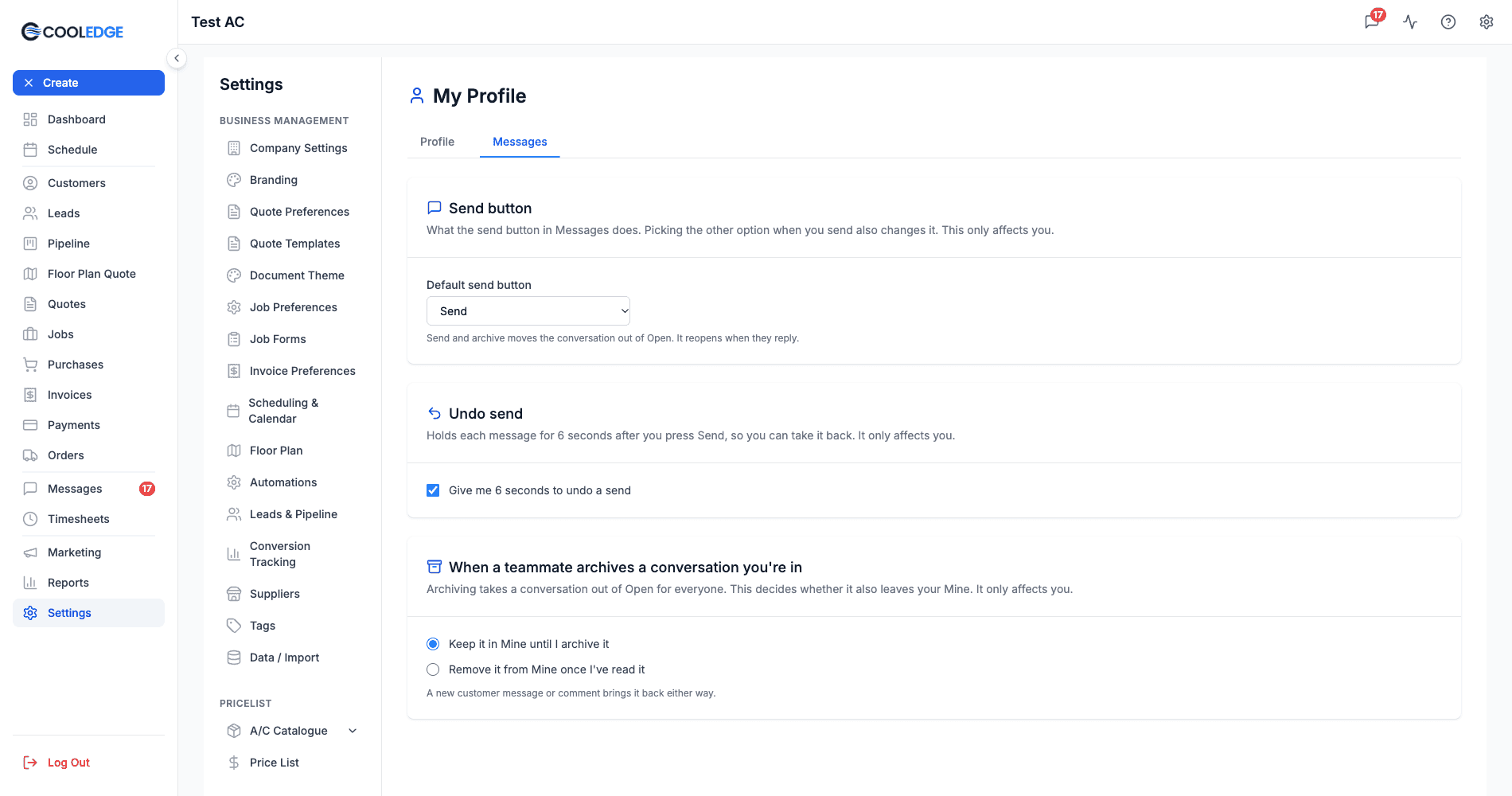
| Card | Setting | What it does |
|---|---|---|
| Send button | Default send button: Send and archive or Send | Sets what the send button does. See Send Later and Undo Send |
| Undo send | Give me 6 seconds to undo a send | Holds a message for 6 seconds after you press send, so you can take it back |
| When a teammate archives a conversation you're in | Keep it in Mine until I archive it or Remove it from Mine once I've read it | Decides whether a teammate's archive also clears your Mine. Growth and Scale only |
The teammate archive card starts on Keep it in Mine until I archive it. Whichever you pick, the card's own hint applies: A new customer message or comment brings it back either way. That is about archived conversations. Snoozed and trashed ones stay out of Mine until they are reopened.
Mobile notifications
In the app, go to More → Notification Preferences and find the Messages section.
| Toggle | Notifies you |
|---|---|
| New Messages | When a customer sends a message |
| Mentions | When a teammate @mentions you in a comment |
| Assigned to you | When a teammate assigns you a conversation |
| Comments | When a teammate comments on a conversation you follow |
Mentions, Assigned to you and Comments appear on Growth and Scale.
These toggles only apply while the app is open. They are saved on your phone and decide whether a notification shows while you are using Cooledge. When the app is closed, the notification still arrives even with a toggle off. To stop notifications altogether, turn them off for Cooledge in your phone's own settings.
New customer messages notify owners and admins. A team member is also notified when the conversation is assigned to them.
In the Mobile App
The app has the same views, the same actions and the same wording. The differences:
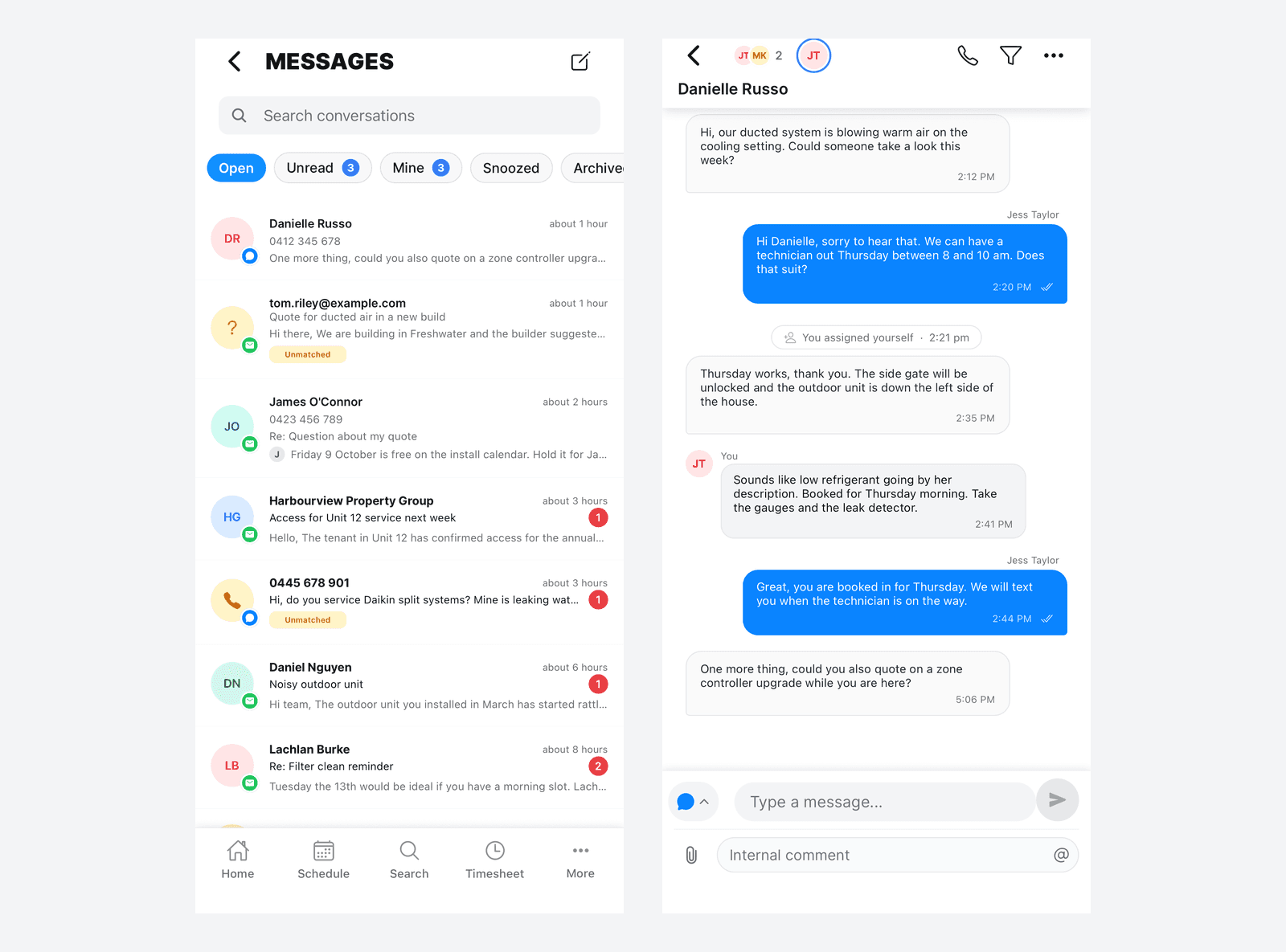
- Getting there. Messages opens from the message icon in the app header. It is not in the bottom tab bar
- Actions. Everything lives in one sheet. Tap … in the thread header to open Conversation, with Assign, Participants, Snooze, Archive, Mark as unread, View customer and Move to Trash
- Filters. Tap Search conversations to open the search page. The chips there filter by Email, SMS, Unassigned, Assigned to me, a teammate's name and Unmatched
- No sort. The app always lists the most recent first
- No Inboxes rail. The Inboxes panel on the left of the portal, with All inboxes and its mention count, is portal only
- Refreshing. The portal updates live. The app refreshes when a notification arrives, when you come back to it or when you pull down to refresh
Troubleshooting
I can't see Mine or Assign. Check two things. First your plan: both need Growth or Scale. Second your team: if you are the only person in the business they are hidden because there is nobody to assign to. They appear once you add a teammate.
A team member can't see a conversation from an unknown sender. That is by design. Messages from senders who are not matched to a customer are visible to owners and admins only. Once an owner or admin links the sender to a customer, team members can see the conversation. See Snooze, Archive and Trash.
A team member can't log in to Messages on the portal. Team members use the mobile app. The portal is for owners and admins.
A restricted team member can't find Messages. Restricted team members have no inbox, on the portal or in the app.
I didn't get a notification. Assignment, comment and mention notifications are push notifications on your phone only. Check that the app is installed and signed in and that notifications are allowed for Cooledge in your phone's settings. If the app was open at the time, also check the toggle under More → Notification Preferences. You also never get a notification for your own comment or for assigning yourself.
A conversation came back into my Mine. A new customer message reopens the conversation. A new comment brings an open or archived conversation back into your Mine, even after you archived it for yourself.
My teammate archived a conversation but it is still in my Mine. That is the default, so nothing you follow disappears without you seeing it. Use Archive for me or Archive read. You can also change the teammate archive setting in your personal settings.
I commented on an archived conversation and my teammates did not see it in Open. A comment does not reopen a conversation for the team. It shows in the Mine of the people following it. If the whole team needs to see it, use Move to Open. While the conversation is still in your Mine, that is under More actions.
Does "Seen" mean the customer read my message? No. In Participants, Seen is about your teammates. Cooledge does not offer customer read receipts.
Related: Unified Inbox · Snooze, Archive and Trash · Send Later and Undo Send · Two-Way Text Messaging
Need a hand? Email us at support@cooledge.com.au
Was this article helpful?
Let us know if you found this information useful.
Still need help? Contact support
In this article
Use your browser's search (Ctrl+F) to quickly find specific topics within this article.
Browse all help articles →Related Articles
Booking Reminders
Automated SMS and email reminders that fire before every scheduled visit. Filter by staff, category, or visit type, with quiet hours and custom templates.
Call Forwarding and Voicemail
Forward calls from your business number to a mobile or landline, set business hours and record your voicemail greeting
Call History
See every call to your business number, who called, what happened and any voicemail they left