Unified Inbox
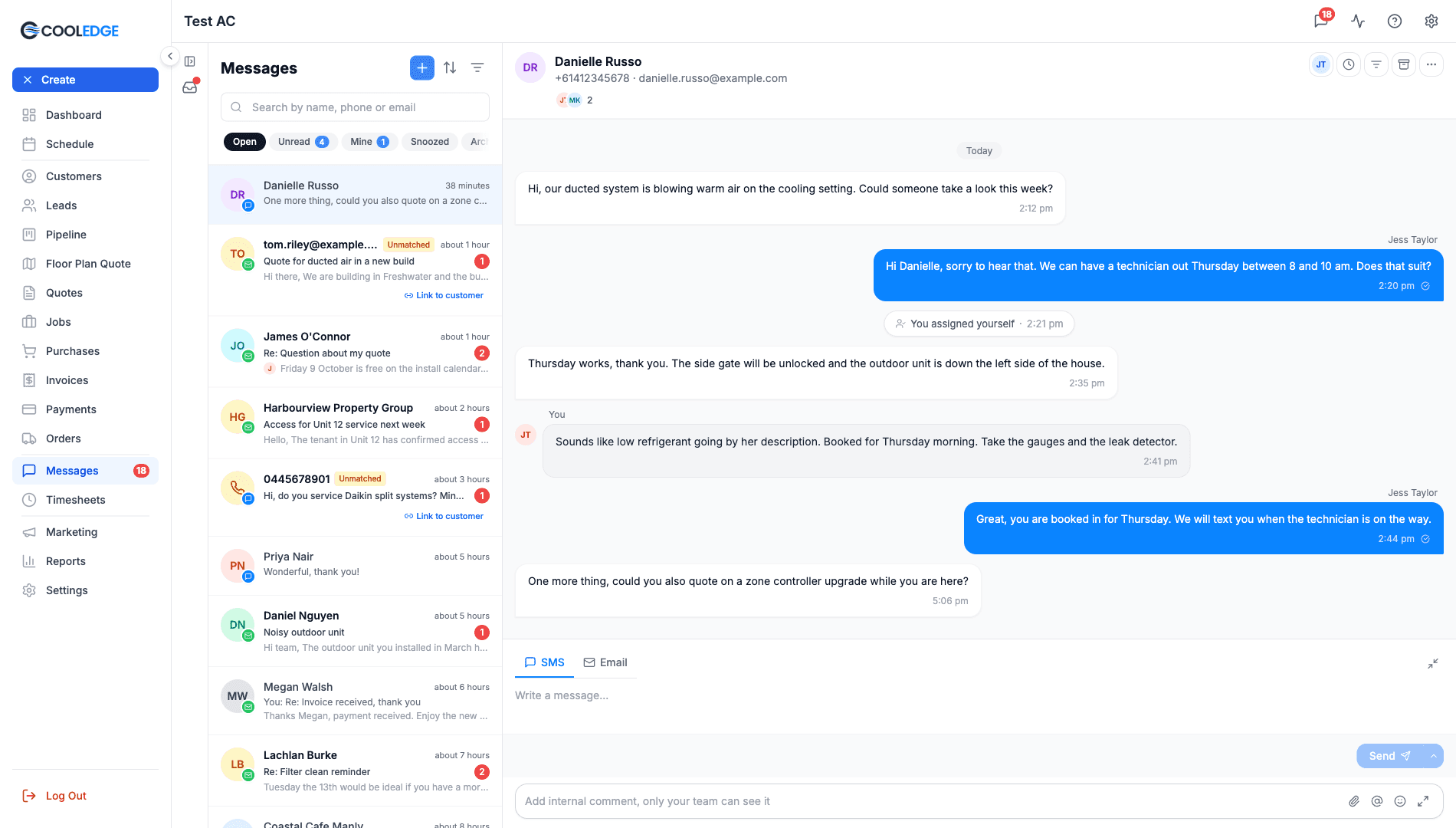
Every customer email and text in one place in Cooledge Messages, on the portal and in the mobile app
Unified Inbox
Every customer email and text, in one place.
- One conversation per customer, with emails, texts and automated messages together
- Views for Open, Unread, Archived and Trash keep the list short
- Reply by email or SMS, with templates, attachments and a 6 second undo
- Schedule a message to send later
- On Growth and Scale, assign conversations, leave internal comments and snooze
Messages holds one thread per customer, with their emails, their texts and the automated messages Cooledge sends for you. This page is the overview. The detail is in three other guides:
| Guide | Covers |
|---|---|
| Team Inbox | Assigning conversations, Mine, participants, internal comments and @mentions |
| Snooze, Archive and Trash | Clearing conversations out of Open, getting them back and linking unknown senders |
| Send Later and Undo Send | The send button options, scheduling a message and taking one back |
1. Opening Messages
On the portal, click Messages in the left sidebar. The portal is for owners and admins.
In the mobile app, tap the message icon in the app header. It is not in the bottom tab bar. Owners, admins and team members can use it. Restricted team members have no inbox.
The app has the same views and actions. Its filters are on the search page. It has the same sort button, to the right of the views.
2. The Conversation List
Each row shows the customer's initials and name, a preview of the latest message, when it arrived and an unread count.
Views
The pills across the top choose which conversations you see. On the portal the pills scroll sideways, so drag or scroll the row to reach Archived and Trash.
| View | What is in it | Plans |
|---|---|---|
| Open | Every active conversation | Every plan |
| Unread | Conversations that are unread for you. If you are assigned to a conversation or taking part in it, it stays unread until you open it. Otherwise it is cleared for the whole team as soon as anyone reads it | Every plan |
| Mine | Conversations you are assigned to or following | Growth and Scale |
| Snoozed | Conversations hidden until a set time | Growth and Scale |
| Archived | Conversations the team has finished with | Every plan |
| Trash | Conversations moved to Trash. Nothing is deleted | Every plan |
Filter, sort and search
On the portal:
- The filter icon narrows the list by Channel (Email, SMS or Calls) and, on Growth and Scale, by Assignee. Owners and admins also get Unmatched under Show
- The sort icon offers Newest, Oldest, Newest unreplied and Oldest unreplied. The two unreplied options put conversations still waiting on a reply from your team at the top. A red dot on the icon shows one of them is on
- The search box finds conversations by customer name, phone number or email address. It does not search inside messages
In the app, tap Search conversations to search and to filter with chips.
3. Reading a Conversation
Click a conversation to open it. The thread mixes everything in the order it happened:
- Messages you sent and messages from the customer, as email or SMS
- Calls, missed or answered, with any voicemail inside the call. See Team Inbox
- Automated messages, marked with a small amber bolt, such as a quote follow up or a booking reminder
- Internal comments from your team, on Growth and Scale. The customer never sees these
- Small markers recording who assigned, archived, snoozed or reopened the conversation and when
Use the filter in the thread header to show only Email, SMS, Calls, Comments or Automated. Set it back to All to see everything.
Email threads
Replies to the same email are grouped into a thread. Use Click to expand to open one and Collapse thread to close it. Earlier quoted emails are tucked behind a small button with three dots. Click it to show them.
Delivery status
Each message you send shows a status: Queued, Sent, Delivered, Seen, Bounced or Failed. Click it on the portal or tap it in the app to open Delivery details, which lists each step with its time and, when one was recorded, the reason for a failure. Messages sent before 26 September 2026 show a status without the times.
Seen does not mean the customer read your email. It means a link in the email was clicked. Cooledge does not track email opens and there are no read receipts.
4. Sending a Message
- Open the conversation, or click New message at the top of the list and pick a customer
- Choose SMS or Email
- Write your message. For an email, add a subject line
- Click the send button
If the customer has contact people saved, the To: line in the composer becomes a menu. Click it to pick a contact. For a text it lists the contacts with a phone number and for an email the contacts with an email address. Leave it alone and the message goes to the customer's default details.
The send button
The send button has a menu with Send, Send and archive, Send and snooze… and Send later…. Everyone starts on Send and archive, which reopens the conversation when the customer answers. When you press it, your message is held for 6 seconds with an Undo. See Send Later and Undo Send.
Writing a text
A text can be up to 425 characters and a counter such as 120/425 appears as you type. Pressing Enter adds a new line. It does not send. The credit cost is not shown before you send. Check Settings → Account & Billing for usage. See Two-Way Text Messaging.
Adding attachments (email only)
- On the portal, File attaches anything off your computer. The picture icon opens Job & Quote Images, which lists the photos already on the customer's jobs and quotes. It shows images only
- In the mobile app, the Add Attachment sheet offers Take Photo and Choose from Library. Where they apply it also offers Choose File, on app version 2.2.0 or later, and From Jobs & Quotes
The limits are the same on both: 20 MB in total and 20 files.
Templates and signatures
Click Templates in the composer to drop in a saved message, then edit it before you send. See Message Templates. Emails you write in Messages carry your email signature.
5. Keeping the List Clear
- Archive a conversation when it is dealt with. Archive is team wide, so it leaves Open for everyone. Move to Open brings it back
- Trash is for junk. Nothing is deleted and Restore brings it back
- Mark as Unread, under More actions, marks a conversation unread without moving it. If you are assigned to the conversation or taking part in it, marking it unread does it for you only. Otherwise it marks the conversation unread for the rest of the team too, unless your business has unread set to Per person
A new message or a missed call from the customer reopens an archived or trashed conversation. Snooze, Archive and Trash covers all of these.
6. Messages From Unknown Senders
An email or text from an address or number that is not on any customer sits in Open with an amber Unmatched badge. Only owners and admins see these. Team members do not.
Click Link to customer to match the sender to an existing customer or to create a new one. For spam, use Trash. There is no longer an Unassigned tab or a Dismiss button. See Snooze, Archive and Trash for the steps.
7. Email Setup
For customer replies to land in Messages, go to Settings → Email Settings, open the Unified Inbox tab and switch on Enable Unified Inbox. Replies to your emails then come back into Cooledge. The same tab shows your own inbound email address, which you can put on your website or business cards. See Email & SMS Settings.
8. Notifications
- By email. In Settings → Email Settings → Unified Inbox, switch on Notify me when customers reply to emails and Notify me when customers reply via SMS
- On your phone. In the app, go to More → Notification Preferences and switch on New Messages
Your own preferences, like the default send button and undo send, are under Settings → Inbox (in Your preferences) on the portal and More → App Settings → Messages in the app. See Team Inbox.
9. SMS Credits
Texts use 1 to 3 credits depending on length. Up to 160 characters is 1 credit. Check what you have used in Settings → Account & Billing. See Two-Way Text Messaging.
10. A Customer's Message History
Open a customer and click the Communication tab to see every message and call for that customer, with filters for Channel (including Calls), Direction and Source. The tab is on the customer page only and is for reading. To reply, click Open Conversation, which takes you to Messages.
Related: Team Inbox · Snooze, Archive and Trash · Send Later and Undo Send · Two-Way Text Messaging · Email & SMS Settings
Need a hand? Email us at support@cooledge.com.au
Was this article helpful?
Let us know if you found this information useful.
Still need help? Contact support
In this article
Use your browser's search (Ctrl+F) to quickly find specific topics within this article.
Browse all help articles →Related Articles
Booking Reminders
Automated SMS and email reminders that fire before every scheduled visit. Filter by staff, category, or visit type, with quiet hours and custom templates.
Call Forwarding and Voicemail
Forward calls from your business number to a mobile or landline, set business hours and record your voicemail greeting
Call History
See every call to your business number, who called, what happened and any voicemail they left