Booking Reminders
Automated SMS and email reminders that fire before every scheduled visit. Filter by staff, category, or visit type, with quiet hours and custom templates.
Booking Reminders
Stop chasing no-shows. Let Cooledge remind your customers automatically.
- Send SMS or email — or both — per rule
- Multiple intervals per booking (e.g. 1 hour and 1 day before)
- Filter by staff, category, or visit type so the right rule fires for the right job
- Quiet hours protection so you never SMS a customer at 3am
- Arrival windows so customers see a range like "between 9 and 11am" instead of an exact time
- Custom templates per rule for tone variations
- Pair with On The Way SMS → for the moment-of-arrival message
Booking Reminders are the automated nudges Cooledge sends your customers ahead of every scheduled visit. Set up a rule once, pick when it fires and how, and Cooledge handles the rest — quietly queueing reminders for every booking that matches, sending them at the right time, and skipping anything that would land in the past or in your quiet window.
This feature lives in the Cooledge Portal under Settings → Automations and applies to every booking that has a scheduled start time across your business.
What You Need
Before setting up Booking Reminders, make sure you have:
- An active Cooledge subscription
- SMS credits, email credits, or both — depending on the channels you enable per rule
- Bookings with a scheduled start time — reminders are anchored to the booking's start time
- A phone number on the customer record for SMS reminders, or an email address for email reminders. If the job has a linked contact person, the reminder greets them by first name and uses their phone or email when the job's saved customer details have none.
Setting Up Your First Rule
To create your first reminder rule:
- Go to Settings → Automations in the portal
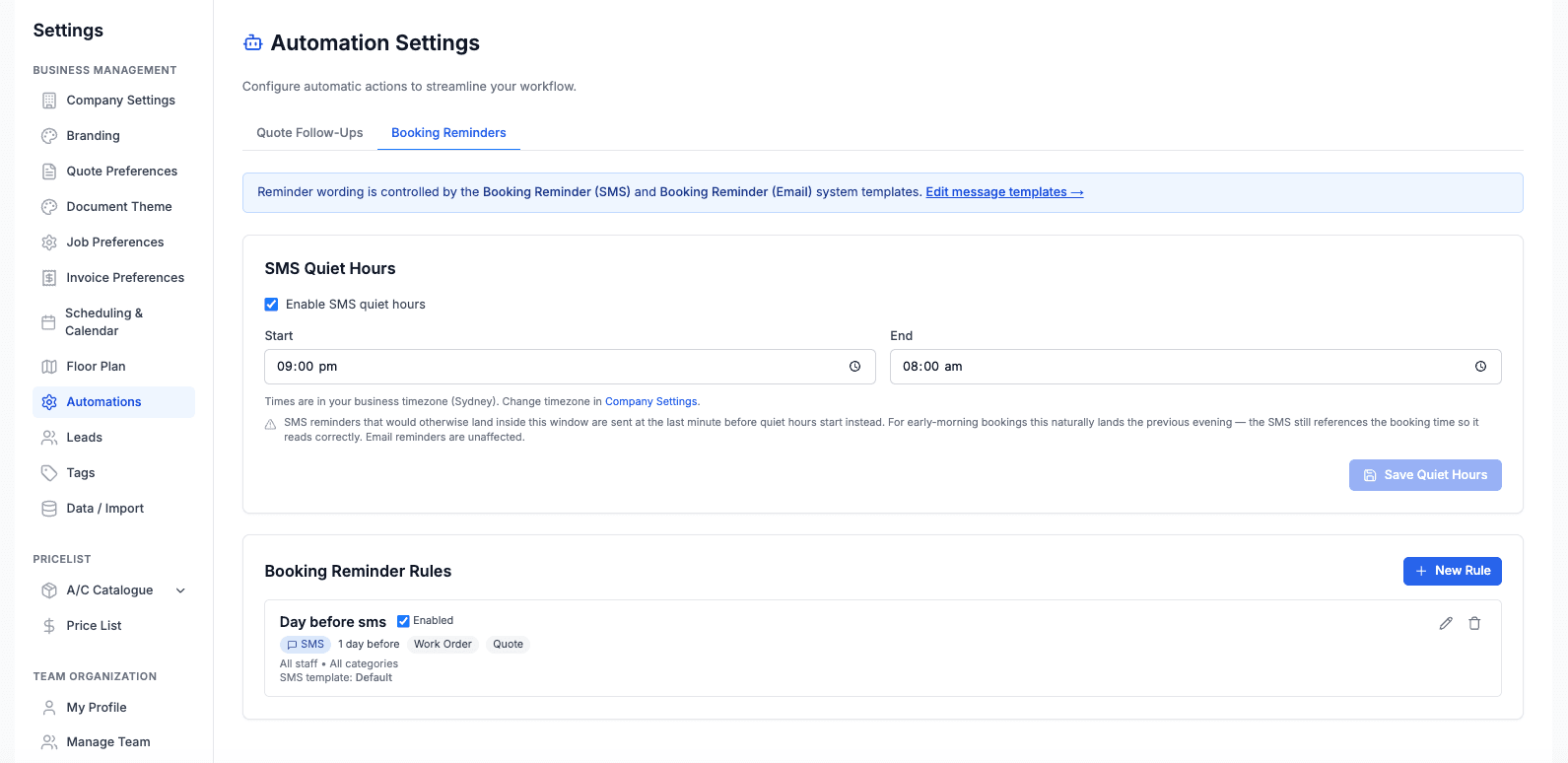
- Open the Booking Reminders tab
- Click New Rule
- Fill in the fields below, then save
Name — internal label for the rule (e.g. "1 hour before — service jobs"). Customers never see this.
Enabled — toggle the rule on or off without deleting it. Useful for seasonal rules or while you're testing.
Channels — tick SMS, Email, or both. If both are ticked the customer gets two separate sends at the same scheduled time.
Interval — how many minutes before the booking the reminder should fire. Common values: 60 (1 hour), 1440 (1 day), 2880 (2 days). Add multiple rules for layered reminders.
Staff filter — restrict the rule to bookings attended by specific team members.
Category filter — restrict by job category (e.g. only Service jobs, not Installs).
Visit type filter — Quote Visit, Work Order, or both. You must pick at least one.
Templates — pick which message template to use per channel, or leave on the system default.
Filters Explained
Filters let you scope a rule to exactly the right bookings. Leave a filter empty to match everything in that dimension.
Staff
Leave empty to apply to all staff. Pick one or more team members to only fire when that staff member is attending the booking. Useful when one tradie wants reminders but another doesn't, or for staff with different communication preferences.
Category
Leave empty for all. Pick one or more categories to scope the rule (e.g. only Service jobs, not Installs — installs may already have a longer pre-arrival flow you don't want to duplicate).
Visit Type
You must pick at least one visit type:
- Quote Visit — the initial visit to scope and price the work
- Work Order — the actual work being delivered
Most businesses run separate rules per visit type because the messaging is different — quote visits often want a "we'll see you soon to take a look" tone, while work orders want a "your install is tomorrow, here's what to expect" tone.
Channels: SMS vs Email
Choose the channel based on the moment and the message:
- SMS is short, instant, and almost always read. It costs SMS credits per segment. Best for time-sensitive reminders close to the appointment (e.g. 1 hour before).
- Email can be longer, supports HTML formatting, images, and links. Email credits are typically cheaper. Best for further-out reminders (e.g. 1-2 days before) where you might include directions, what to prepare, or a what-to-expect summary.
You can fire both channels for the same rule — Cooledge queues two separate sends, one per channel, both anchored to the same scheduled time.
Quiet Hours
Quiet hours protect your customers from getting an SMS at an unsociable hour. The default window is 9pm – 8am.
Here's how it works:
- If a reminder's scheduled send time falls inside the quiet window, Cooledge automatically shifts it earlier to the last moment before quiet hours start. For example, a 7am reminder for an 8am booking would shift to 8:59pm the night before.
- Email is never quiet-hours-shifted. Emails can be sent at any time — they don't ping the phone the same way.
- If the shift would land in the past, the reminder is skipped instead of being sent late. Cooledge would rather send nothing than send a reminder that's already useless.
You can adjust the quiet window in your Booking Reminders settings.
Arrival Windows
Instead of promising an exact time, you can show customers an arrival window in their reminders. It sets a realistic expectation and cuts down on "where are you?" calls. This is a business-wide setting that applies to every booking reminder.
- Go to Settings → Scheduling
- Set the Arrival window:
- None keeps sending the exact appointment time
- A width such as 2 hours shows a range like "between 9:00am and 11:00am"
- Choose whether the window is anchored at the start of the appointment or centred on it
Your calendar and the staff member's booking stay at the exact time. Only the customer-facing message shows the window, so the reminder never contradicts the appointment you actually scheduled. Online booking forms can also set their own arrival window per form, see Online Bookings →.
Custom Templates per Rule
By default every rule uses the system Booking Reminder (SMS) and Booking Reminder (Email) templates. You can override either channel on a per-rule basis to get tone variations across rules — e.g. a friendly tone for residential service rules and a more formal tone for commercial jobs.
To set it up:
- Open Settings → Templates and create the template variations you want
- Go back to the rule in Settings → Automations → Booking Reminders
- In the rule's templates section, pick your custom template per channel
- Save
System templates can also be edited directly in Settings → Templates — that change applies to every rule still using the default.
Allow Resend on Edit
This setting is ON by default and controls what happens when a booking is rescheduled.
- ON (default) — when a booking is rescheduled, the queued reminder is cancelled and a new one is queued for the new time. Already-sent reminders are re-queued too — so the customer gets a fresh reminder for the new appointment time. This is what most businesses want: the customer should always know about the latest version of the booking.
- OFF — already-sent reminders are preserved unchanged when a booking is rescheduled. Use this if you have a workflow where the original reminder is enough and you don't want the customer to receive a duplicate after a small time tweak.
Troubleshooting
If reminders aren't firing as you expected, run through this list in order:
- Is the rule enabled? A disabled rule queues nothing. Toggle it on.
- Do the booking's filters match? A rule scoped to "Service jobs" won't fire for an Install. Check the rule's staff, category, and visit-type filters against the booking.
- Does the customer have the right contact info? SMS rules need a mobile number on file, email rules need an email address. If both are missing for the channel you've enabled, nothing goes out. When the job has a linked contact person, their phone or email can stand in if the job's saved customer details have none.
- Are there credits on the account? Out of SMS credits = nothing sent. Check Settings → Billing.
- Is the booking in the past? Cooledge skips reminders for bookings that have already started, so you won't see a fire for a backdated booking.
- Is your quiet window swallowing it? A reminder scheduled inside quiet hours shifts earlier. If the shift would land in the past, it's skipped entirely instead of sent late.
If you've checked all of the above and reminders still aren't behaving, email support@cooledge.com.au with the booking ID and the rule name and we'll dig in.
Where to Find It
In the Cooledge Portal, go to Settings → Automations and open the Booking Reminders tab. From there you can create new rules, edit existing ones, and toggle them on or off.
Related Articles:
- On The Way SMS → — One-tap arrival message from the mobile app
- Two-Way Text Messaging → — How outgoing and incoming SMS work
- Message Templates → — Build and edit reusable templates with placeholders
- Email & SMS Settings → — Configure messaging channels and unified inbox
- Creating Bookings → — How bookings are created and scheduled
- Using the Calendar → — Manage your scheduled visits
Need help with Booking Reminders? Email us at support@cooledge.com.au
Was this article helpful?
Let us know if you found this information useful.
Still need help? Contact support
In this article
Use your browser's search (Ctrl+F) to quickly find specific topics within this article.
Browse all help articles →Related Articles
Call Forwarding and Voicemail
Forward calls from your business number to a mobile or landline, set business hours and record your voicemail greeting
Call History
See every call to your business number, who called, what happened and any voicemail they left
Email Signatures
Set up the signature on the emails you and your team send, plus a separate one for automated emails like booking reminders