Call History
See every call to your business number, who called, what happened and any voicemail they left
Call History
Every call to your business number, in one report.
- See who called, which number they rang and what happened to the call
- Answered, Missed and Voicemail at a glance, with talk time on every answered call
- Expand a voicemail to play it and read the AI summary and transcript
- Totals per number, so you can tell which advertising is actually ringing the phone
- See which calls turned into leads
Call History lives at Reports → Call History. Reports opens a page listing every report, with Call History the first one you can open. The rest are marked Coming soon until they are built.
What You Need
- A dedicated business number that takes calls. See Call Forwarding and Voicemail.
- Call answering turned on in Settings → Phone Numbers.
Until you have both of those, the Call History card on the Reports page is greyed out and does not open.
1. Reading the Report
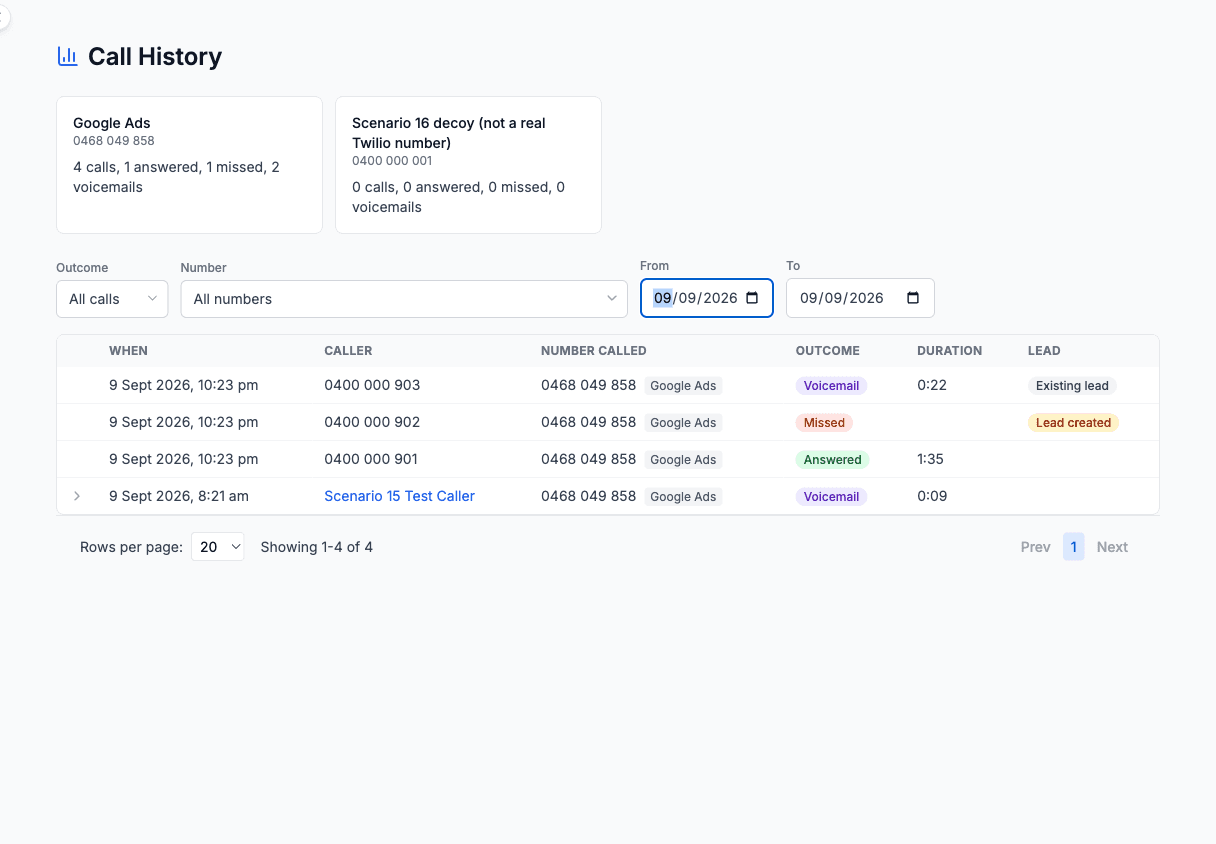
Totals by number
Across the top you get one card per number for the period you are looking at. Each card shows the number's label if you have set one, the number itself and the counts: total calls, answered, missed and voicemails.
If a call cannot be matched to one of your numbers, it is grouped under No number.
This is the quickest way to compare sources. Label one number Google Ads and another Van signage and the cards tell you which one is paying for itself. Labels are set per number in Settings → Phone Numbers.
The table
| Column | What it shows |
|---|---|
| When | The date and time of the call, in your business timezone. |
| Caller | The customer's name if the number is on file, as a link to their record. Otherwise the number, formatted the way you would dial it. A caller who withheld their number shows as Private number. |
| Number called | Which of your numbers they rang, with its label beside it. |
| Outcome | Answered, Missed, Voicemail or In progress. |
| Duration | How long the call ran. |
| Lead | A chip when the call is linked to a lead. |
The four outcomes
- Answered. The call was forwarded and somebody picked up.
- Missed. Nobody picked up and no message was left. That includes a call that went straight to voicemail, on a voicemail-only number or outside business hours, where the caller hung up before leaving a message.
- Voicemail. The caller left a message. Expand the row to hear it.
- In progress. The call is still live. That includes a caller still listening to the voicemail greeting or recording a message. It settles to one of the other three when it ends.
What Duration means
Duration means one of two things depending on the outcome:
- On an answered call it is the talk time: how long you were actually connected to the caller. Ringing time and the answer confirmation prompt are not included and they are never billed to you either.
- On a voicemail it is the length of the recording.
That is also why a missed call has no duration to show.
The Lead chip
- Lead created (amber) means this call is what created the lead. Click through to it.
- Existing lead (grey) means a repeat caller was linked to a lead you already had, so you are not looking at a duplicate.
Leads only come from missed calls when Create leads from missed calls is switched on for that number.
When you link an unknown caller to a customer in Messages, or turn their lead into a customer, their calls here show the customer's name from then on.
Set a Lead channel on the number under Settings → Phone Numbers and those leads are saved with that channel, so they show up beside your other channels in your lead reports. See Call Forwarding and Voicemail.
2. Listening to a Voicemail
Rows with a voicemail have an arrow on the left. Click anywhere on the row to expand it.
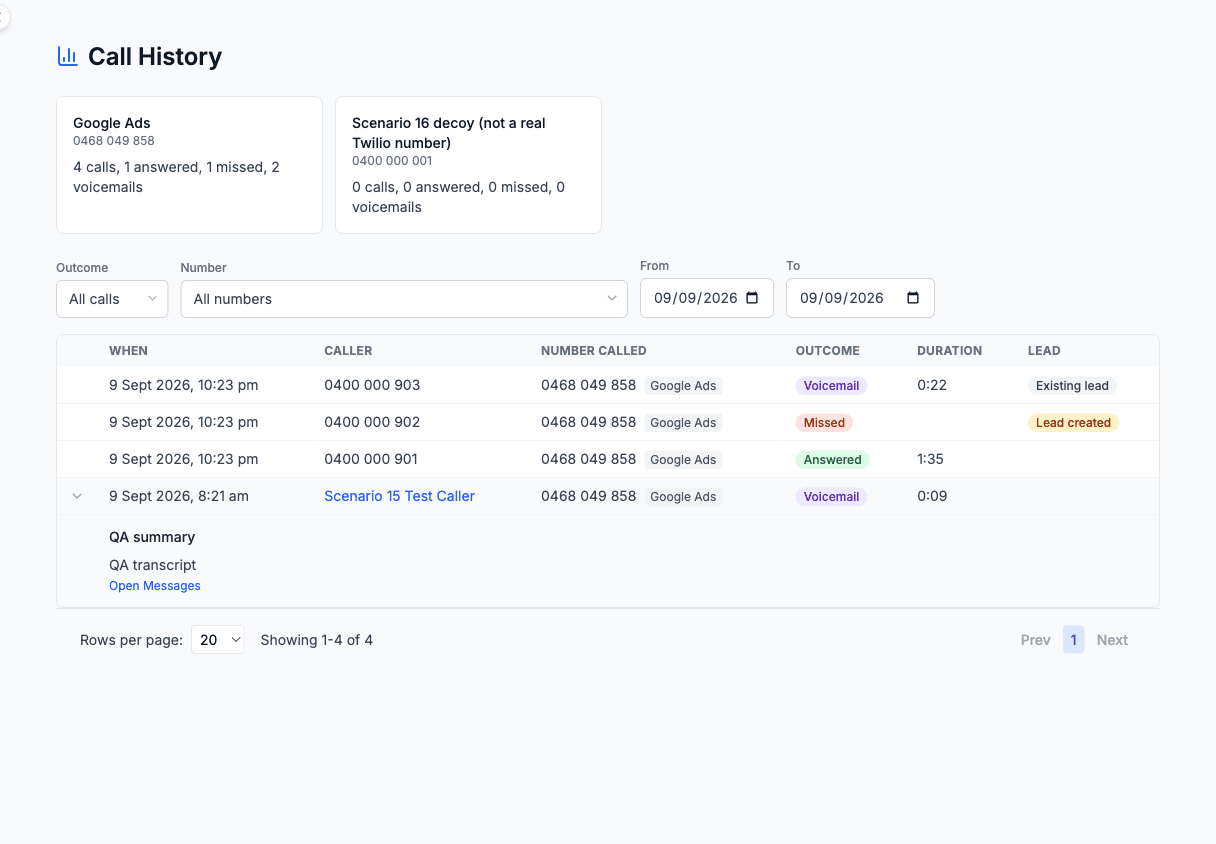
Inside you get:
- The recording, with a player so you can listen without leaving the report
- The AI summary, one line telling you what the caller wants
- The full transcript
- Open Messages, which takes you to your inbox to reply
Two things you might see instead of a transcript:
- Transcription pending. The transcript has not come back yet. Refresh in a moment.
- Transcription unavailable. The recording could not be transcribed, usually because it is very short or very noisy. The audio itself is always there.
If a number has Transcribe voicemails switched off, there is no summary or transcript at all, just the recording.
3. Filters
Four filters sit above the table.
- Outcome. All calls, Answered, Missed or Voicemail.
- Number. One of your numbers or all of them. Numbers you have labelled show the label and the number together.
- From and To. The date range.
By default you are looking at the last 30 days, worked out in your business timezone rather than your browser's, so an early morning does not hide the calls that came in overnight.
Change the dates to look further back. A range can cover up to one year at a time. Ask for more and the report says Choose a date range of one year or less.
Use the rows-per-page control under the table to show 10, 20, 50 or 100 calls at a time.
4. Troubleshooting
A call is missing
Check the date range first, then the Outcome and Number filters. A call also has to be to one of your CoolEdge numbers to be listed. Calls to your ordinary business mobile are not, because they never reach CoolEdge.
A caller shows as a number instead of a name
The number is not on any customer record. Add it to the customer and future calls from that number show the name. Rows already in the report keep showing the number. To put the name on those too, link the caller to the customer in Messages.
An old call is stuck on In progress
Very occasionally a call ends in a way that does not report back cleanly. The row settles on its own; if one is still showing In progress the next day, contact support.
The totals look bigger than the table
The cards count every call that matches your filters across the whole period. The table below them shows one page at a time. Use the rows-per-page control or the pager to see the rest.
Next Steps: Set up forwarding in Call Forwarding and Voicemail or check what calls cost in Voice Minutes and Billing
Need help? Email us at support@cooledge.com.au
Was this article helpful?
Let us know if you found this information useful.
Still need help? Contact support
In this article
Use your browser's search (Ctrl+F) to quickly find specific topics within this article.
Browse all help articles →Related Articles
Booking Reminders
Automated SMS and email reminders that fire before every scheduled visit. Filter by staff, category, or visit type, with quiet hours and custom templates.
Call Forwarding and Voicemail
Forward calls from your business number to a mobile or landline, set business hours and record your voicemail greeting
Email Signatures
Set up the signature on the emails you and your team send, plus a separate one for automated emails like booking reminders