Tasks in the Mobile App
See what is due on Home, tick tasks off, add tasks to your records and get a push when a reminder is due.
Tasks in the Mobile App
Your to-dos in your pocket, with a push when they are due.
- My tasks on Home shows what is overdue or due today
- Tick a task off and Undo if you were too quick
- Add tasks and photos from a job, quote, lead or customer
- Get a push for reminders, new tasks and tasks a teammate finished
Tasks are the small jobs that sit around the real work: ring a customer back, order a part or chase a permit. The app shows the ones that are yours, reminds you when they are due and lets you tick them off from wherever you are.
This guide covers the app. For the Tasks page, the header panel and repeat options in the portal, see Tasks.
Tasks are part of the Starter, Growth and Scale plans.
My Tasks on Home
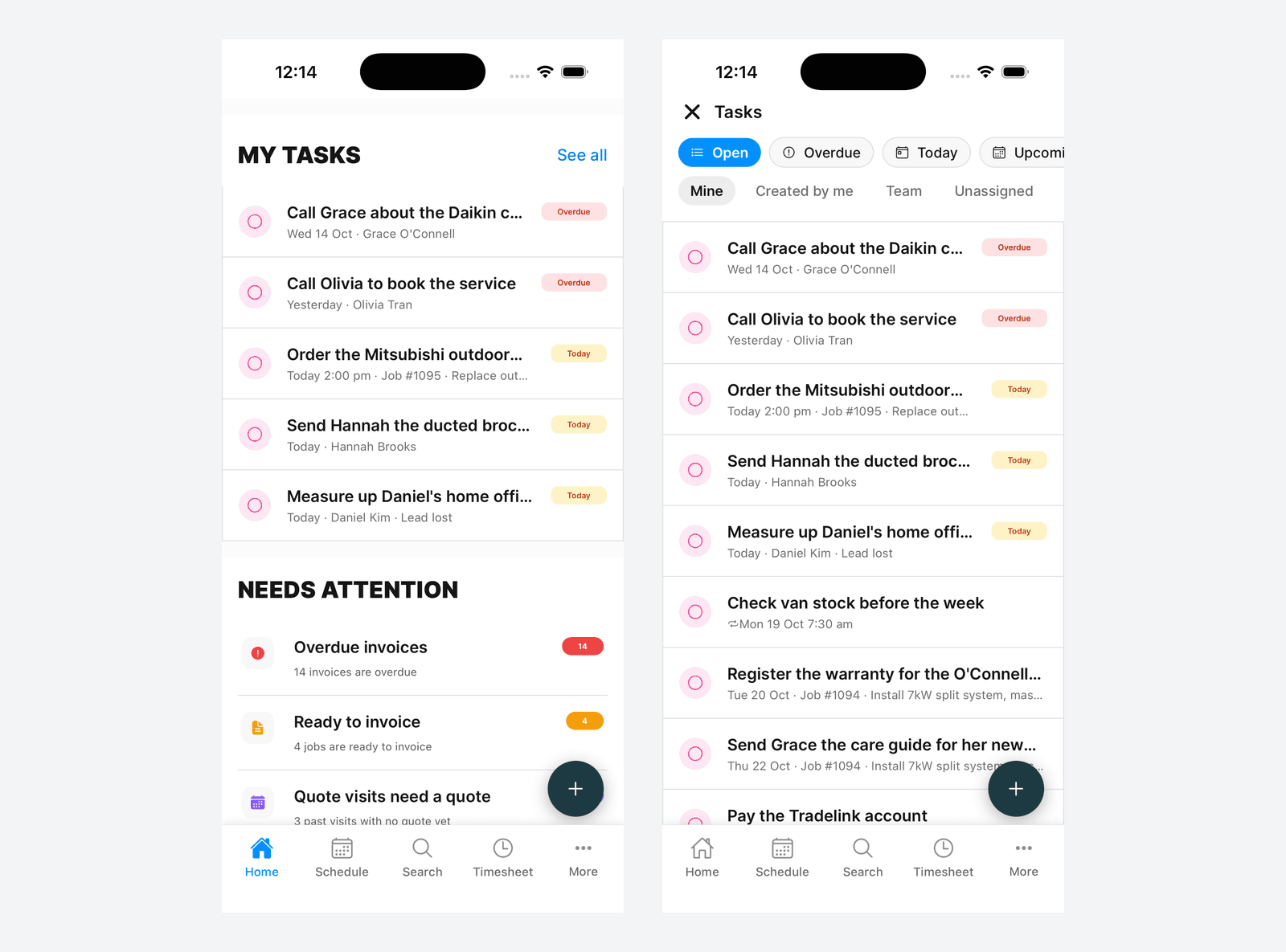
Home has a My tasks section. It lists your open tasks that are overdue or due today, up to five of them, with overdue ones first. Each row shows the due date and what the task is linked to, with a red Overdue or amber Today badge.
- Tap the circle to tick a task off. A Task done message appears at the bottom with Undo for about six seconds, in case you tapped the wrong one
- Tap the row to open the task
- Tap See all to open the full Tasks screen
When nothing is overdue or due today, the section reads Nothing due today.
Below it is Needs attention. This is the old To Do list under a new name: overdue invoices, jobs ready to invoice and the other items that need a look.
The Tasks Screen
Open it from See all on Home, or tap More, then Tasks in the Business section.
The pills along the top filter the list:
- Open: every open task
- Overdue, Today and Upcoming: open tasks by due date
- No date: open tasks with no due date
- Done: finished tasks
- All: everything, including cancelled tasks
Under the pills, choose whose tasks you see:
- Mine: tasks assigned to you
- Created by me: tasks you made, whoever they are for
- Team: every task in the business (owners and admins)
- Unassigned: tasks nobody has picked up yet (owners and admins)
Tap + at the bottom right to add a task. Tick the circle on any row to finish it, with the same Undo as on Home.
Opening and Editing a Task
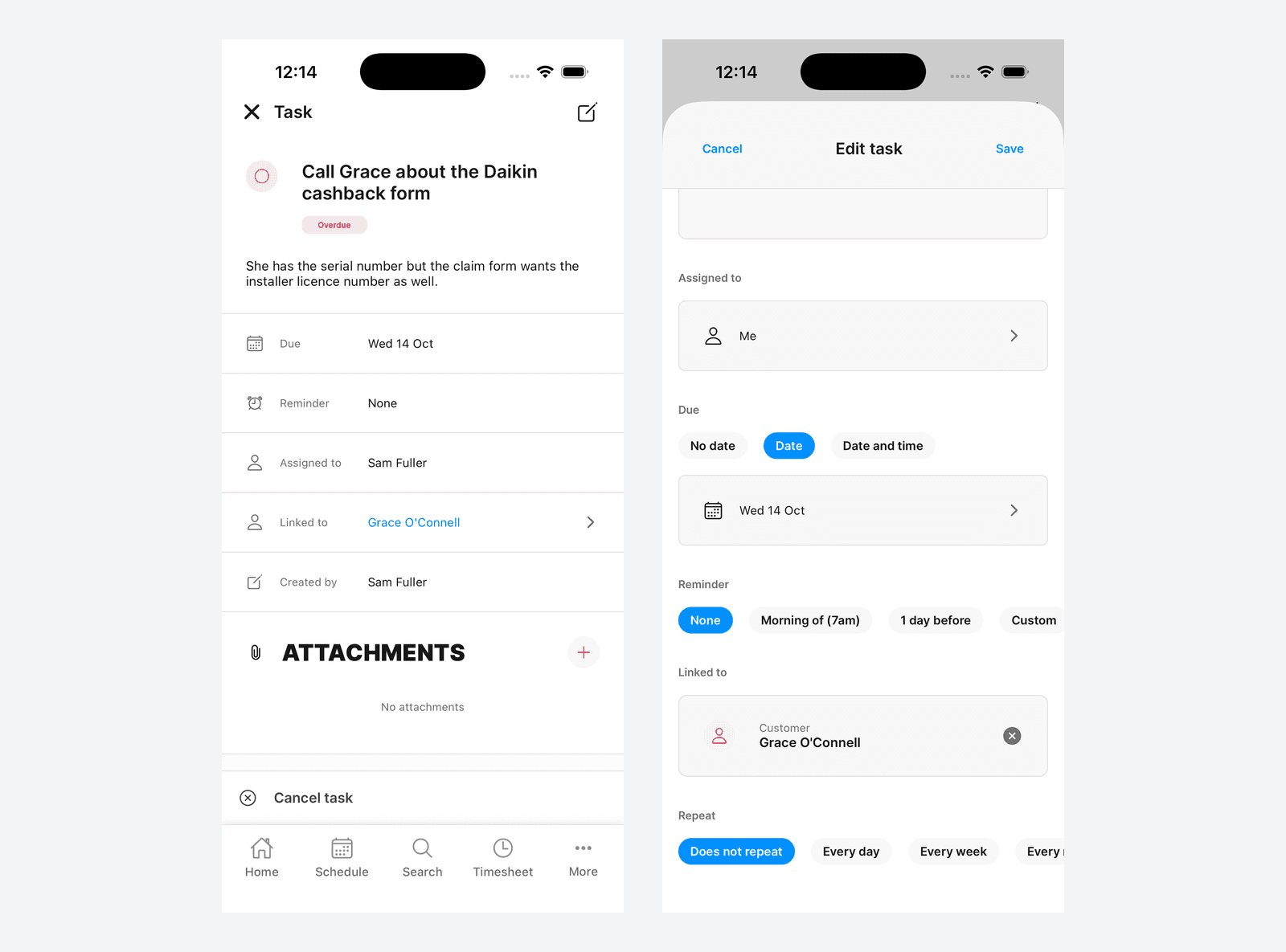
Tap a task to open the Task screen. It shows the title, a status badge, the description and these rows:
- Due
- Reminder
- Assigned to
- Linked to: tap it to open the job, quote, lead or customer
- Repeats: only on a repeating task
- Created by
Tick the circle next to the title to mark it done. To reopen a done task, untick it.
Editing
Tap the pencil at the top right to open Edit task. Make your changes and tap Save, or Cancel to leave it as it was. The same screen, titled New task, is used when you add one.
- Title: what needs doing
- Description: any detail that helps
- Assigned to: Me, Unassigned or a teammate
- Due: No date, Date or Date and time
- Reminder: None, Morning of (7am), 1 hour before, 1 day before or Custom. Morning of (7am) and 1 day before need a due date, and 1 hour before needs a due time. If a quick reminder's time has already gone by when you save, the app tells you Reminder time has already passed and the reminder is not set. A Custom time in the past cannot be saved until you pick a later one
- Link to: tap Job, Quote, Lead or Customer and pick the record. Once chosen it shows under Linked to, with an x to remove it
- Repeat: see Cancelling, Skipping and Repeats
There is no way to put a task on the calendar from the app. See Tasks on Your Schedule.
Attachments
The Attachments section sits below the details. Tap the pink + and choose Take photo or Choose from library. Tap a file to open it. To delete one, press and hold it, then confirm.
Attachments are added to a saved task, so create the task first, then open it to add photos.
Deleting
Delete task is at the bottom of the Task screen, in red. It asks you to confirm and cannot be undone. If someone deletes a task you have open, the screen reads This task is no longer available.
What Each Role Can Do
| Owner and admin | Member | Restricted member | |
|---|---|---|---|
| Sees | Every task | Tasks assigned to them, created by them or linked to a job they are booked on | Tasks assigned to them |
| Ticks off and reopens | Any task | Any task they can see | Tasks assigned to them |
| Adds tasks | Yes, for anyone | Yes, for themselves, a teammate or unassigned | No |
| Edits and adds attachments | Any task | Tasks assigned to them or created by them | No |
| Deletes | Any task | Tasks they created | No |
| Changes a repeat | Yes | No, they see it but cannot change it | No |
A task never opens up the record it is linked to. If a task is linked to something you cannot see, the link reads Private job, Private quote, Private lead or Private customer and does not open.
Cancelling, Skipping and Repeats
Cancelling a task
When a task is no longer needed, tap Cancel task at the bottom of the Task screen. A cancelled task drops out of your open list. Find it again under the All pill, open it and tap Reopen task to bring it back.
Repeating tasks
Owners and admins can set a repeat in Edit task with the Repeat pills: Does not repeat, Every day, Every week, Every month, Every year or After it's done. Then choose Never ends or Ends on a date. A repeating task needs a due date, and Custom reminders are not available on repeating tasks.
By default only one copy of a repeating task is open at a time. The next one is created when you finish or skip this one. Turn on Create the next one even if the last is still open to have them created on schedule instead (not for After it's done). Every month lets you pick a date or a weekday, such as On the third Tuesday. See Tasks for every repeat option.
When you save a change to a repeating task, the app asks Change the repeating task? Choose This one to change only this copy, or This and future to change the ones after it too.
Skipping or stopping a repeat
On a repeating task, Cancel task is replaced by Skip or stop repeating. Tap it and choose:
- Skip this one: this copy is cancelled and the next one is created
- Stop repeating: no more copies are created
- Keep it: nothing changes
Stop repeating shows for owners and admins, and for a member on a repeat they created or that is assigned to them. Otherwise you can only skip this one.
Tasks on Jobs, Quotes, Leads and Customers
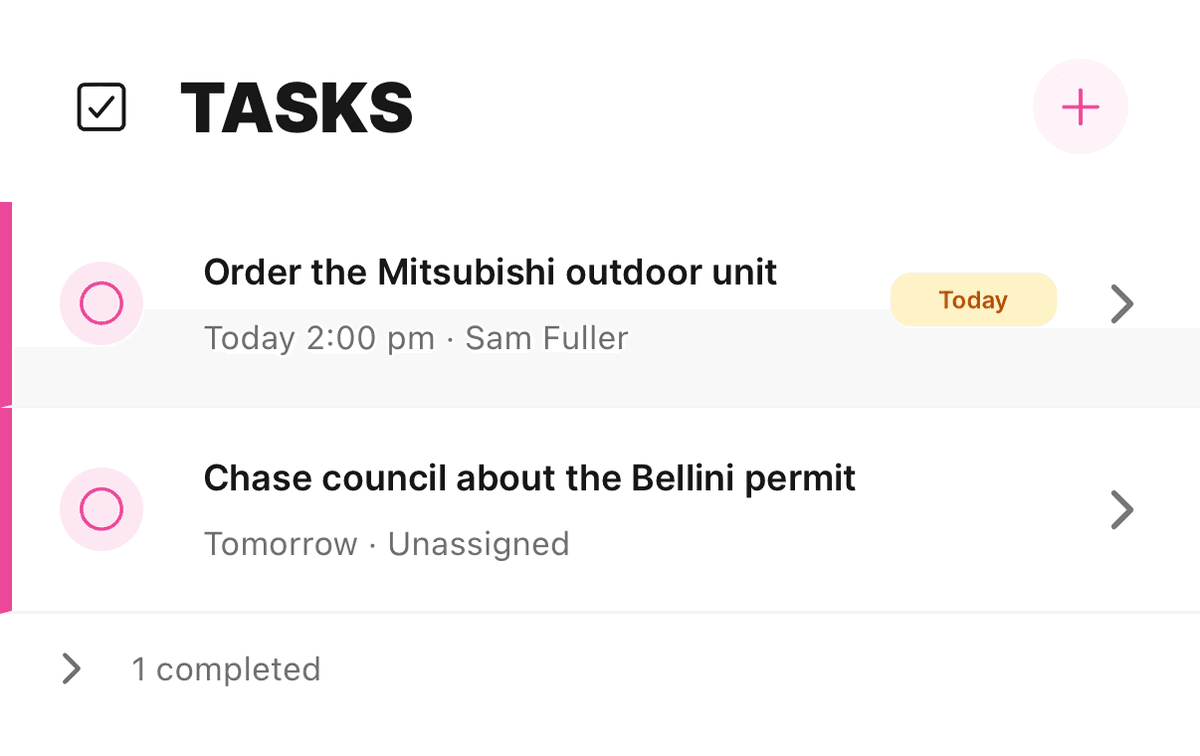
Jobs, quotes, leads and customers each have a Tasks section, with a pink stripe down the left of each row:
- Job: on the Job tab, straight after Bookings
- Quote: after Quote Overview
- Lead: before Notes, on leads that belong to your business
- Customer: at the top of the Work tab
Tap the pink + to add a task. It is linked to that record for you. Finished tasks are tucked under a completed line at the bottom, such as 1 completed. Tap it to show them.
A record also shows the tasks from records connected to it, in groups. A job shows This job, then From the quote and From the lead. A customer shows This customer and On this customer's jobs, quotes and leads. The group headings only appear when there is more than the record's own tasks.
If the linked record is closed, the task shows that next to the link, for example Lead lost or Job completed. Closing a record in the app does not close its tasks. Tick them off or cancel them yourself.
Tasks on Your Schedule
Owners and admins put a task on the calendar from the portal calendar, by dragging it onto a time. See Tasks on the calendar. You cannot schedule a task from the app.
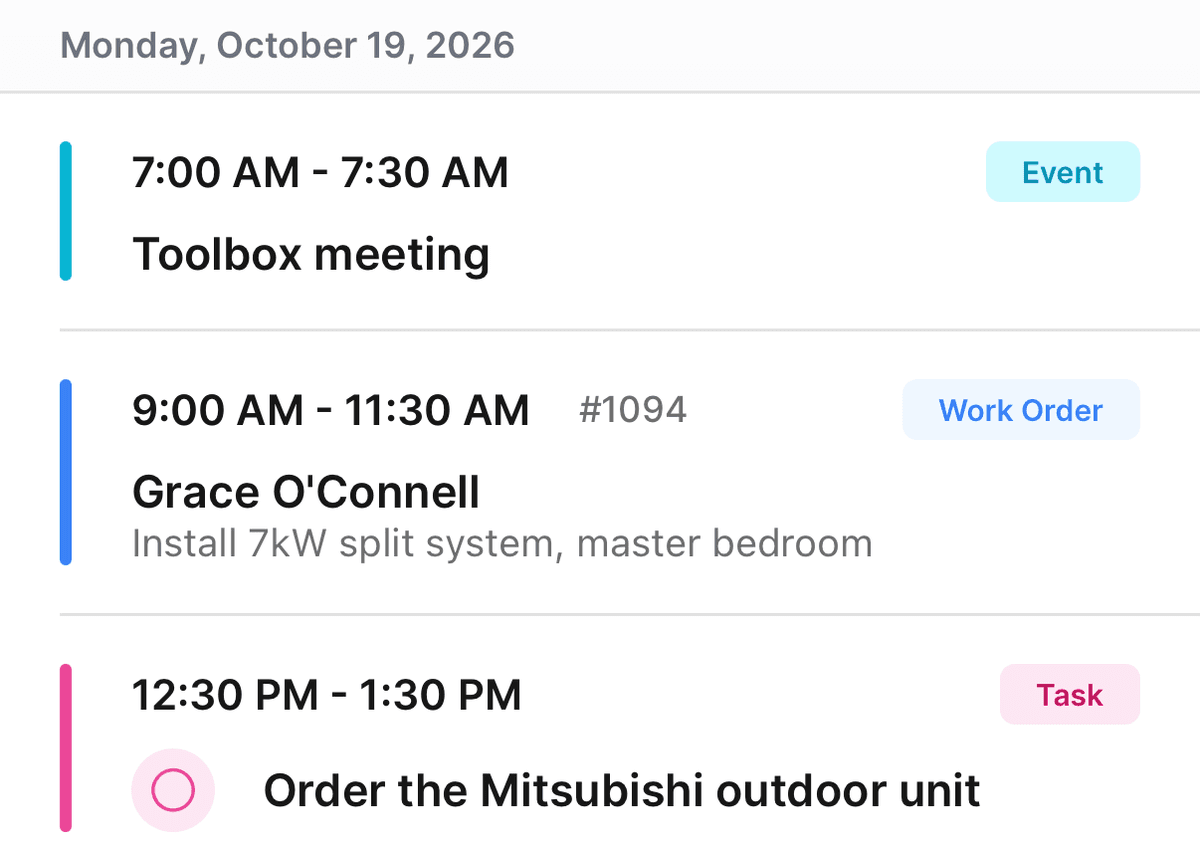
Once a task is scheduled, it shows on the app's Schedule in pink with a Task pill:
- In List view, tick the circle to finish the task, or tap the row to open it
- In Day view, double tap the block to open the task
If a task is scheduled for you but you cannot see it, the block still shows the Task pill, reads Scheduled task and has no tick.
Events, the bookings that are not for a job, show in cyan with an Event pill. When you add a booking in the app, choose Job booking or Event.
Push Notifications and Emails
The app sends a push for three things. Tap the push to open the task.
| Push | When |
|---|---|
| Task reminder | A reminder on your task is due |
| New task for you | Someone else assigns you a task. Assigning yourself does not send one |
| Task done | Someone else finishes a task you created |
Reminders and new tasks also come by email. The subject reads like "Reminder: Order the Mitsubishi outdoor unit" or "Sam Fuller assigned you a task: Order the Mitsubishi outdoor unit". For members and restricted members, the email button Open in the Cooledge app opens a page that hands you over to the task in the app. Owners and admins get Open the task, which opens it on the portal's Tasks page.
Emails only go to staff who have signed in at least once with a confirmed email address.
Turning them on or off
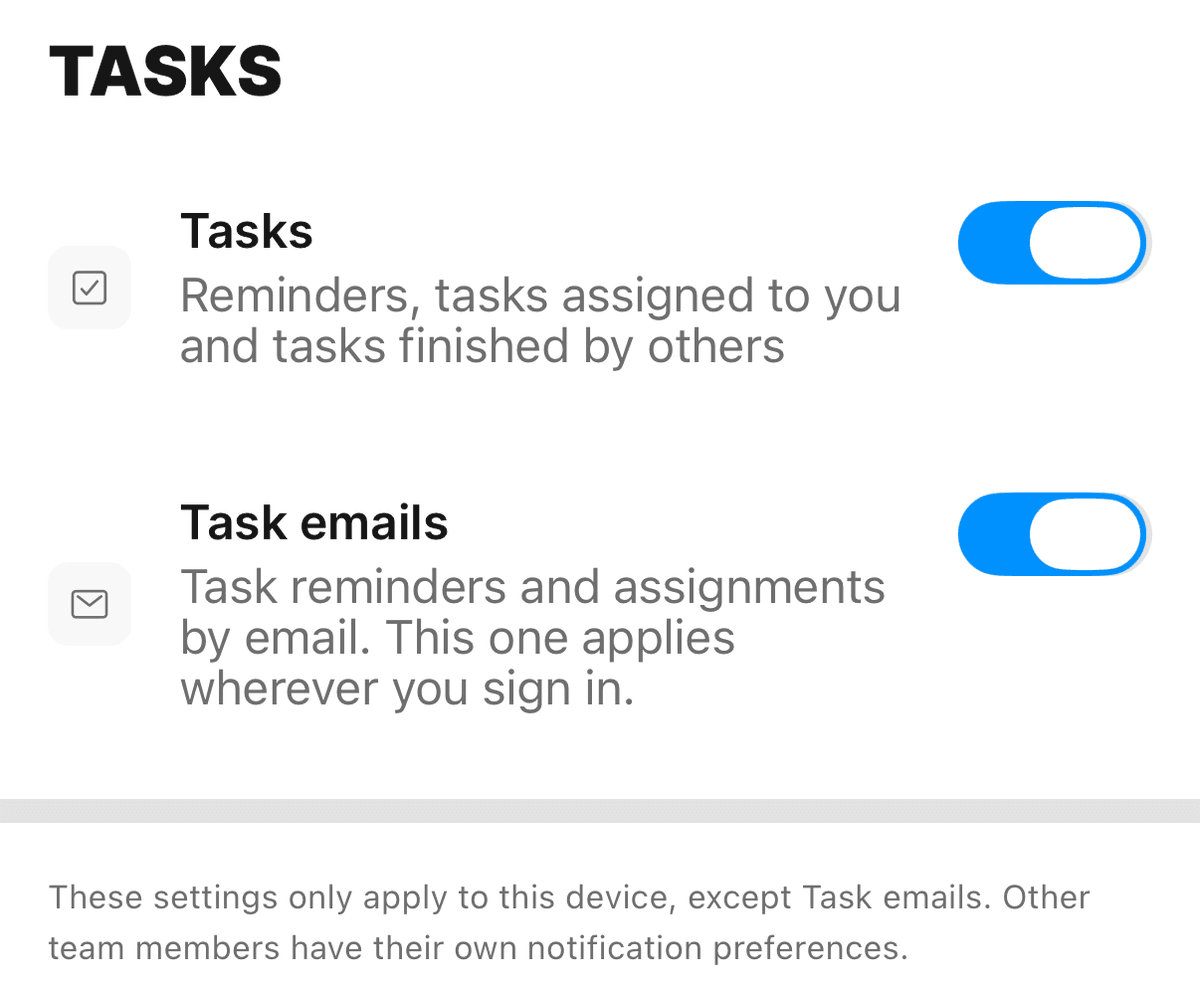
Tap More, then Notification Preferences. Scroll down to the Tasks section.
- Tasks works on this phone only. Turn it off to stop task banners popping up while the app is open on this phone
- Task emails is saved to your account, so it applies wherever you sign in
To silence every push from Cooledge, turn off notifications for Cooledge in your phone's settings.
Not Seeing Tasks?
- Close the app fully and open it again
- If Tasks is still missing, update Cooledge from the App Store or Google Play
Tasks are part of the Starter, Growth and Scale plans. If your business is on another plan, the app does not show Tasks.
Next Steps
- Tasks: the Tasks page, repeats and the calendar in the portal
- Mobile App Schedule Views: Day and List views on your phone
- Mobile App Timesheets: tracking your hours on a job
Was this article helpful?
Let us know if you found this information useful.
Still need help? Contact support
In this article
Use your browser's search (Ctrl+F) to quickly find specific topics within this article.
Browse all help articles →Related Articles
Finishing Visits
Close out a visit from the mobile app: stop the timer and invoice, quote or hold the job in one step
Mobile App Schedule Views
View your bookings on mobile in Day, List or Map format, and edit a booking from the timeline
Mobile App Timesheets
Track work hours on mobile with job timers and manual entries, one week and one person at a time