Finishing Visits
Close out a visit from the mobile app: stop the timer and invoice, quote or hold the job in one step
Finishing Visits
What is the Finish Visit Modal?
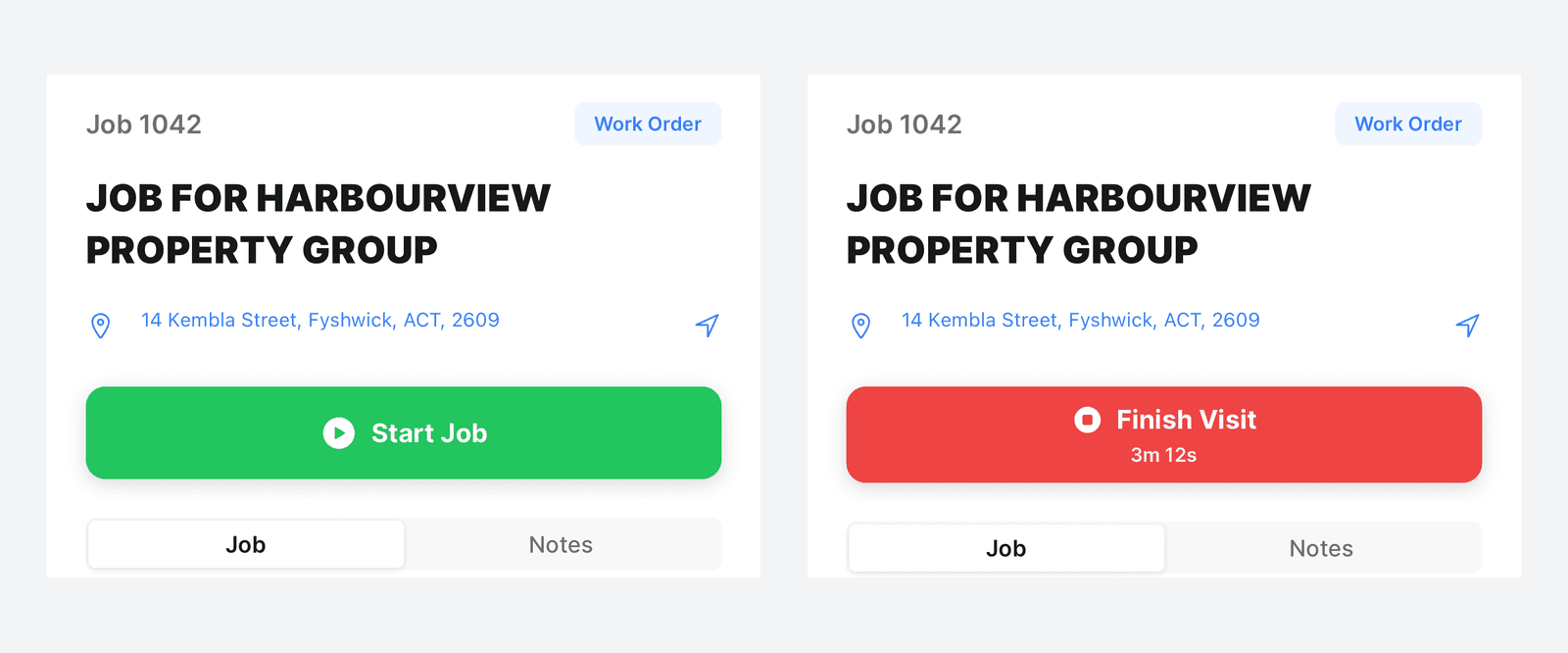
While a timer is running on a job, the button at the top of the job screen is a red Finish Visit with the elapsed time underneath. Tapping it opens a sheet of options for what to do with the job now that you are done on site.
This is how field staff wrap up. It stops the timer, records the time and takes the next action in one step.
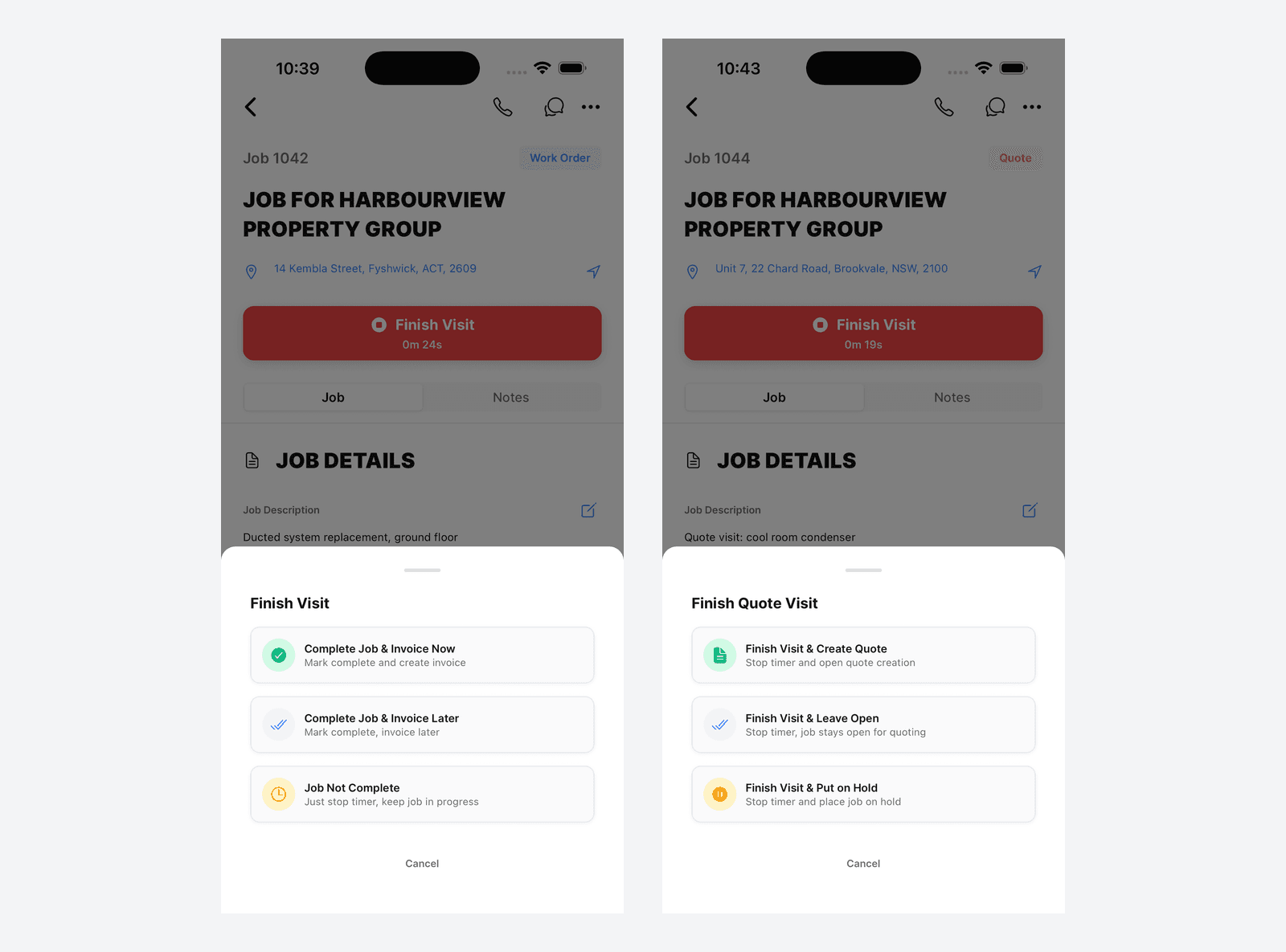
The options depend on the job type, and so does the heading on the sheet. A Work Order gets Finish Visit, a Quote Visit gets Finish Quote Visit.
Finish Visit for Work Orders
On a Work Order job (blue badge, work is approved) you get three options.
Complete Job & Invoice Now
What it does: Stops the timer, marks the job complete, makes sure a draft invoice exists and opens it straight away so you can price and send it.
Any accepted quote on the job is used to pre-fill the invoice lines.
When to use it: The work is done and you want to bill now, on the driveway. Good for repairs and service calls.
Complete Job & Invoice Later
What it does: The same draft invoice is created and the job is marked complete, but you stay where you are. The app confirms first, then tells you the draft is waiting.
When to use it: The work is done but the pricing needs a look back at the office.
Both options produce the same draft invoice. The only difference is whether the app opens it for you now.
Job Not Complete
What it does: Stops the timer and leaves the job exactly as it was, still an open Work Order.
When to use it: You did today's portion and you are coming back. Multi-day installs, a return visit, running out of light.
On a Phased Job
If the job is broken into phases and you are working on one, the wording follows the phase: Complete Phase & Invoice Now, Complete Phase & Invoice Later and Phase Not Complete. The behaviour is the same, applied to that phase.
Finish Visit for Quote Visits
On a Quote Visit job (amber badge, still being quoted) the sheet is headed Finish Quote Visit and offers three different options.
Finish Visit & Create Quote
What it does: Stops the timer and opens the quote type picker. Choose a type (Split System, Ducted, Kits & Items and so on) and the quote editor opens with the customer, site and job already filled in.
When to use it: You have assessed the site and you are ready to build the quote. This is the usual next step after a quote visit.
The quote is linked to the job automatically, and shows on the job with an Unsent badge until you send it.
Finish Visit & Leave Open
What it does: Stops the timer. Nothing else changes, and the job stays a Quote Visit.
When to use it: You visited but you are not ready to quote. You need to price something, check with a supplier or wait on the customer.
Finish Visit & Put on Hold
What it does: Stops the timer and opens the Put on Hold sheet, where you pick a reason and how long the hold runs.
When to use it: The visit is done but the job has to pause, for building approval, engineering specs or a customer who asked you to wait. See Putting Jobs on Hold.
Choosing the Right Option
| Situation | Job Type | Best Option |
|---|---|---|
| Work done, ready to bill | Work Order | Complete Job & Invoice Now |
| Work done, price it later | Work Order | Complete Job & Invoice Later |
| More work to do, coming back | Work Order | Job Not Complete |
| Site assessed, ready to quote | Quote Visit | Finish Visit & Create Quote |
| Site assessed, need more info | Quote Visit | Finish Visit & Leave Open |
| Site assessed, need to wait | Quote Visit | Finish Visit & Put on Hold |
What Happens to the Timer
Whichever option you choose, the timer stops and the entry is saved against the job. Cancel at the bottom of the sheet closes it and leaves the timer running.
If you stopped a timer too early, or too late, edit the saved entry on the Timesheet tab. See Mobile App Timesheets.
Common Questions
Do I have to use the Finish Visit sheet? No. Stop Timer on the Timesheet tab ends the timer without touching the job. The sheet is just faster when the job needs an action too.
What if I don't see the quote options? They only appear on jobs in Quote Visit status. A Work Order gets the completion options instead.
Can I change my mind afterwards? The timer stop is immediate. A job marked complete can be reopened, and a draft invoice can be deleted, but you have to go and do it rather than undoing the action from here.
Where does the draft invoice go? Into the Billing section of the job, and into your invoice list as a Draft. Nothing reaches the customer until you send it.
Related Articles
- Quote Visits - The quote visit workflow start to finish
- Putting Jobs on Hold - Hold reasons, expiry and automatic release
- Mobile App Timesheets - Timers and manual time entries
- Creating Invoices - Billing for completed work
Was this article helpful?
Let us know if you found this information useful.
Still need help? Contact support
In this article
Use your browser's search (Ctrl+F) to quickly find specific topics within this article.
Browse all help articles →