Mobile App Schedule Views
View your bookings on mobile in Day, List or Map format, and edit a booking from the timeline
Mobile App Schedule Views
The mobile Schedule shows one person at a time.
- Three view modes: Day, List and Map
- The staff button picks whose bookings you see, and there is no "everyone" option
- Map is not built yet, it shows a "coming soon" message
- Tapping a booking in Day view opens Edit Booking, not a read-only detail card
What is the Schedule Tab?
The Schedule tab in the Cooledge mobile app shows the bookings for one staff member at a time. When you open it, that staff member is you, so it answers "what is on my schedule?" without any setup.
Where to find it: Tap Schedule in the bottom navigation bar.
Three Ways to View Your Schedule
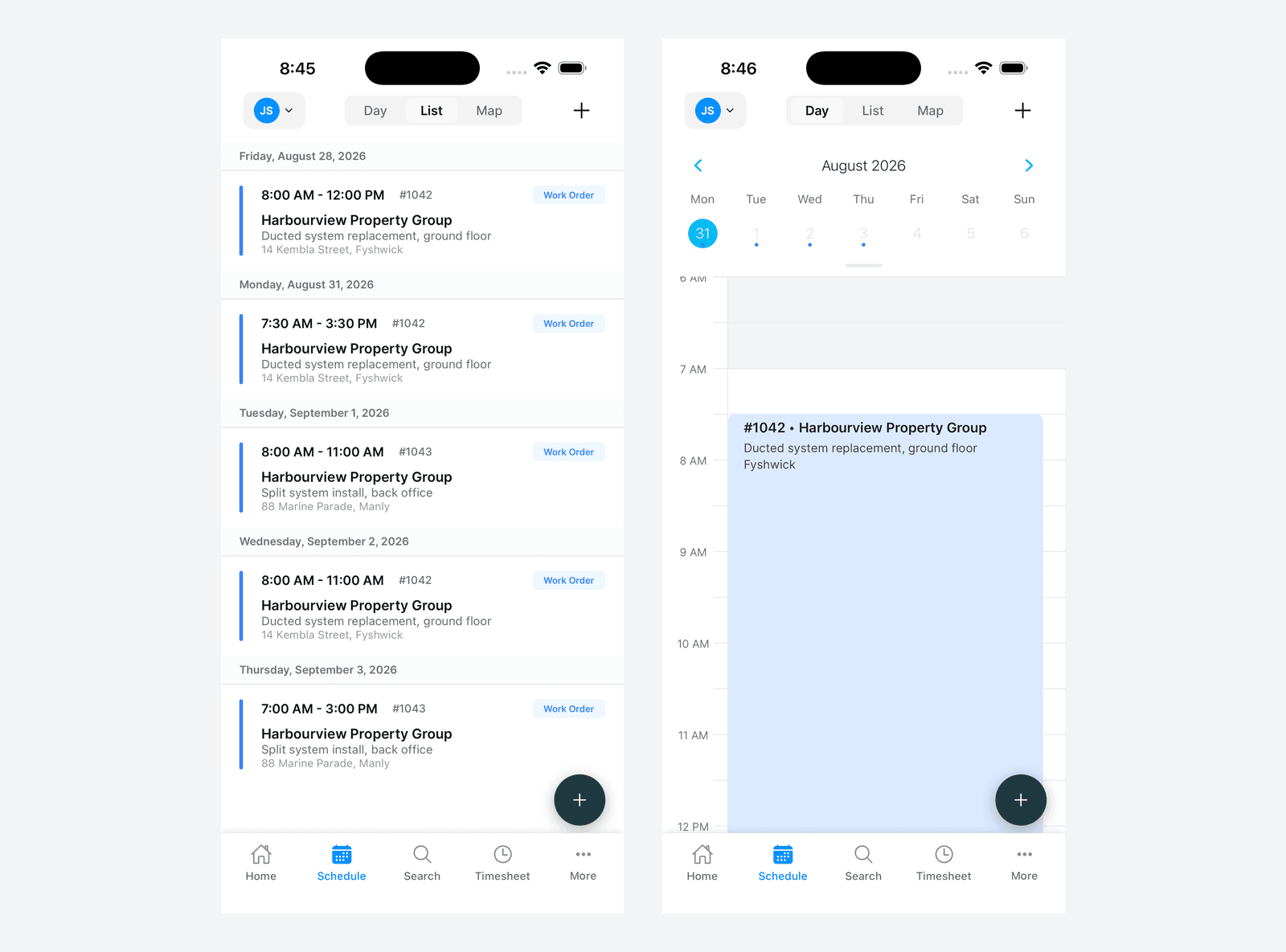
Across the top of the screen is a segmented control with three labels.
List
A scrollable list of bookings grouped under full date headings, such as "Friday, August 28, 2026". It starts at today and runs forward, so past bookings never appear. This is the view the app opens on and the one most people leave it on.
Day
A visual timeline for a single day, with a week strip above it you can pull down to a full month. Bookings sit as blocks at their real times, so it is the view for spotting gaps and seeing how long something runs.
Map
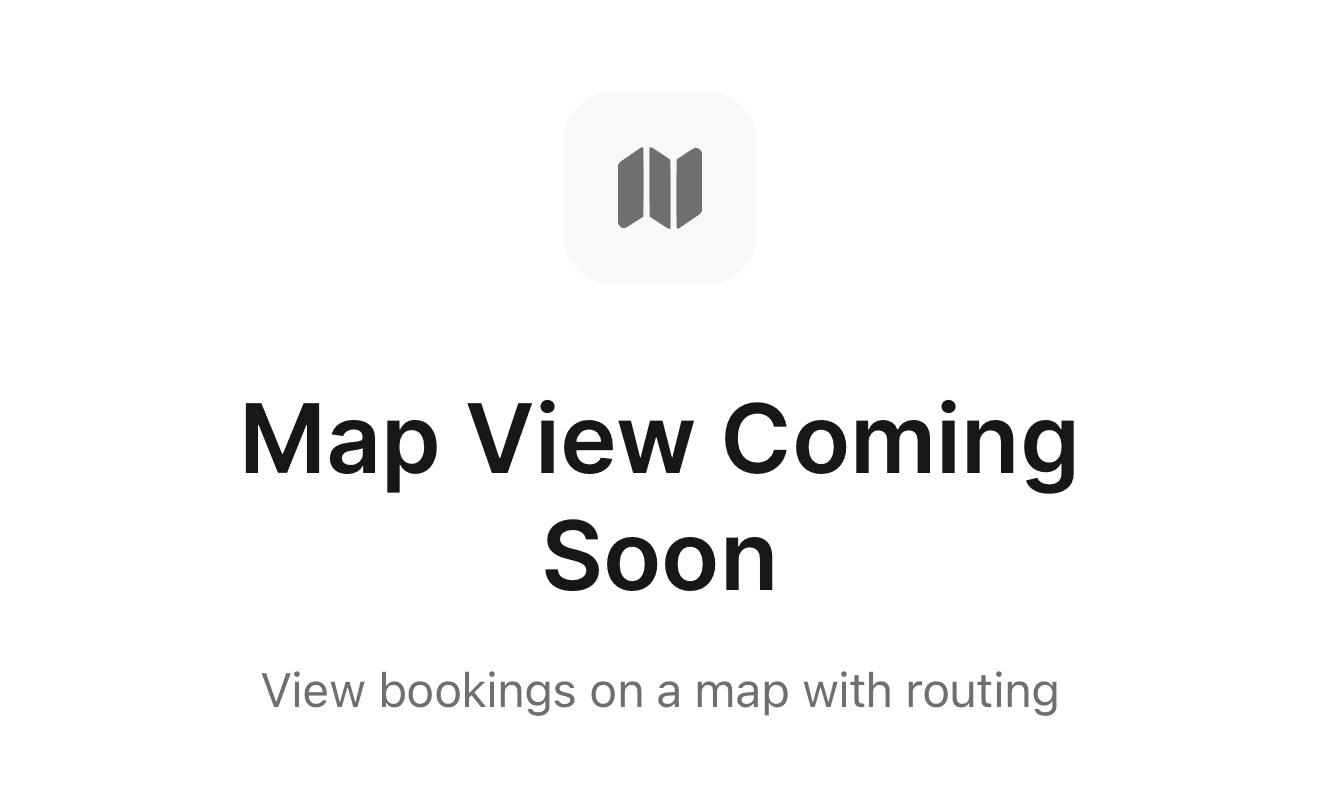
Not built yet. Selecting it shows a Map View Coming Soon message rather than a map of your bookings.
Switching Between Views
- Tap Day, List or Map in the control at the top of the screen
- The view switches straight away
The app always opens on List. Your choice is not remembered, so if you prefer Day view you will need to select it each time you open the app.
Using List View
What You See
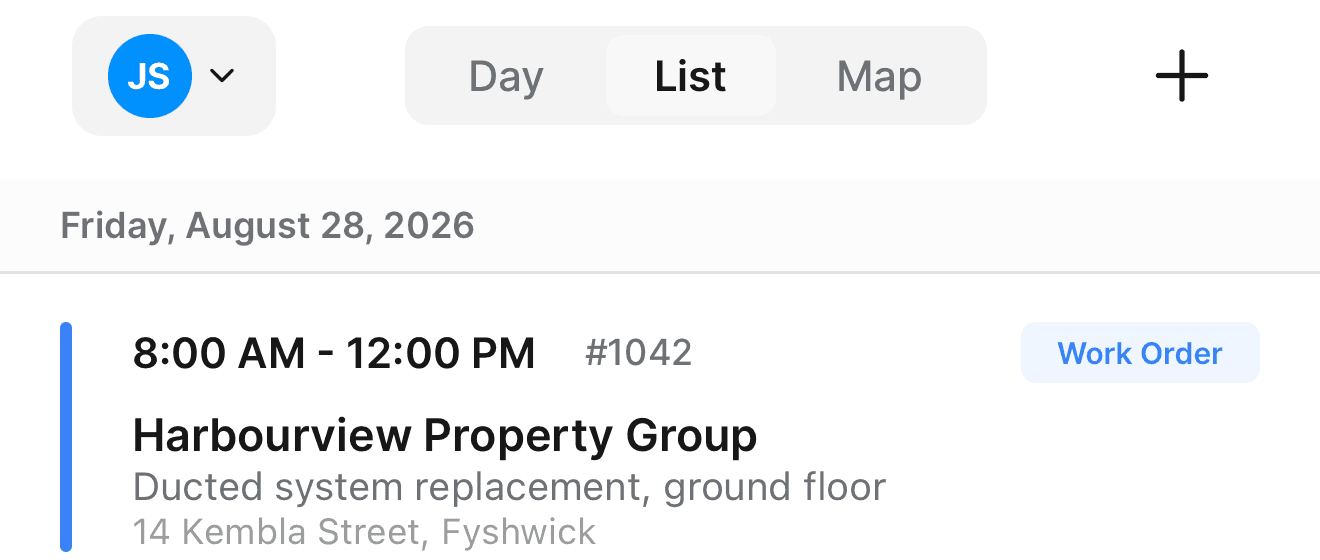
Bookings are grouped under a heading for each date. Every row shows:
- A coloured bar down the left, matching the job status
- The time range, for example 8:00 AM - 12:00 PM
- The job number, for example #1042
- A status pill: Quote, Work Order, Completed, Cancelled or On Hold
- The customer name
- The job description
- The site address
Staff names are not shown on the rows, because everything in the list already belongs to the one person selected at the top.
Navigating List View
Scroll down: see later bookings Pull down: refresh and load the latest changes Tap a booking: opens the job, not the booking
There are no swipe actions on the rows.
No Bookings?
If the list is empty:
- Check the staff button at the top left. You may be looking at someone with nothing booked
- Remember the list only runs from today forward. A booking last week will not appear here, use Day view and step back to the date
Using Day View
What You See
- A week strip at the top. Drag the small handle below it down to open a full month
- A timeline covering your business hours plus an hour either side, with the time outside business hours shaded grey. Business hours of 7 AM to 5 PM give a timeline running 6 AM to 6 PM. If no business hours are set the app falls back to 7 AM to 6 PM
- Booking blocks at their scheduled times, showing the job number, customer, description and suburb
- A red line across the timeline marking the current time
When you open Day view it scrolls to the current time.
Tapping in Day View
This is worth learning, because the three gestures do three different things.
| Gesture | What happens |
|---|---|
| Single tap on a booking | Opens the Edit Booking sheet |
| Double tap on a booking | Opens the job |
| Press and hold on empty timeline space | Starts a new booking at that time |
Choosing Whose Schedule You See
The button at the top left shows the initials of the staff member you are looking at, so "JS" for John Smith. Tap it and the Select Staff Member sheet lists everyone on the team.
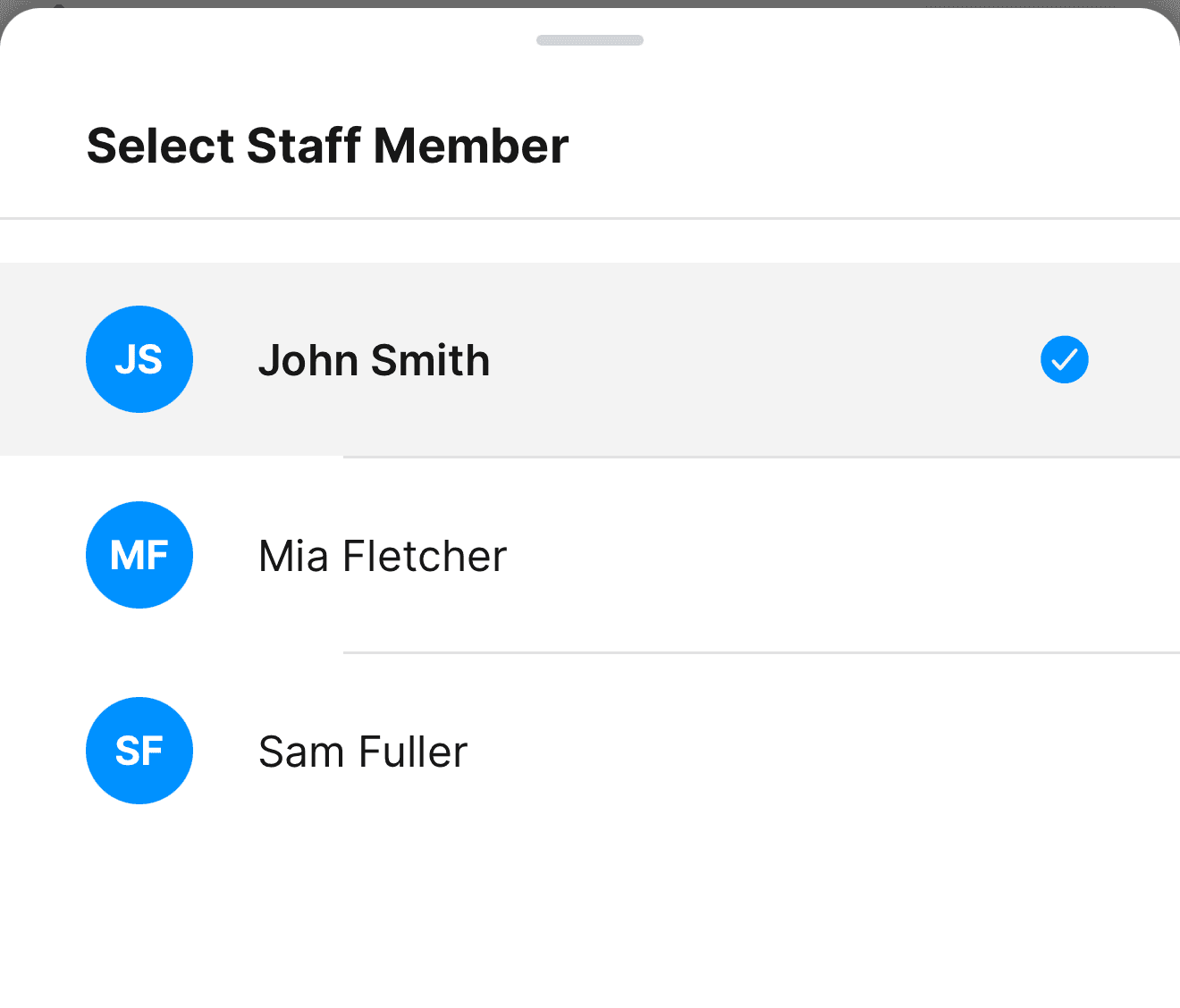
There is no "All Staff" option. The mobile Schedule always shows exactly one person, and it starts on you. To see the whole team on one screen, use the portal calendar. See Using the Calendar.
To look at someone else, tap the button and pick their name. To come back to your own bookings, tap it again and pick yourself.
Opening and Editing a Booking
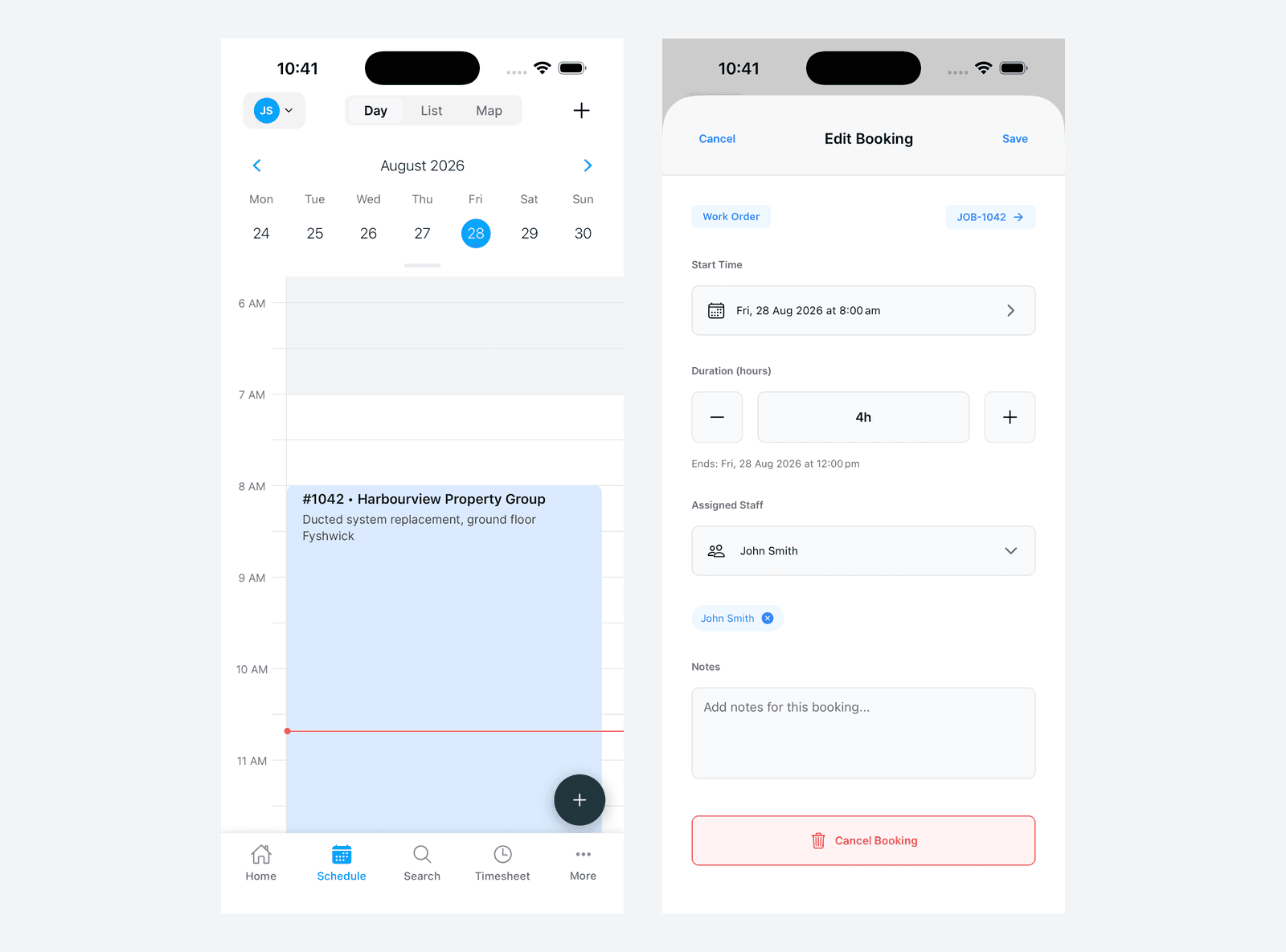
There is no read-only booking card on mobile. A single tap on a booking block in Day view opens the Edit Booking sheet, which is both how you look at a booking and how you change it.
The sheet gives you:
- The job status badge and a JOB-1042 link that opens the job
- Start Time, which opens a date and time picker
- Duration (hours), a stepper that moves in half hours, with the finish time worked out underneath
- Assigned Staff, with a chip for each person on the booking
- Notes
- Cancel Booking at the bottom, in red
Save is in the top right, Cancel in the top left.
A few things the sheet does not do:
- It cannot change the booking status. Scheduled, In Progress and Done can only be set in the portal
- Cancel Booking deletes the booking. The confirmation is headed "Delete Booking" and there is no undo
- There is no call button, no navigate button and no customer phone number on the sheet. Those live on the job, which the JOB link takes you to
Booking Colours
The bar on a List row and the block in Day view are coloured by job status:
- Amber: Quote Visit
- Blue: Work Order
- Green: Completed
- Red: Cancelled
- Purple: On Hold
- Cyan: Task, an internal booking with no job attached
See Understanding Booking Colours for the full guide.
Refreshing Data
The Schedule loads bookings when you open the tab, when you change the selected staff member and when you switch view. It does not refresh on a timer, and it does not reload on its own when you come back to the app from somewhere else.
To be sure you are looking at the latest:
- In List view: pull down from the top
- In Day view: switch to List and back, which reloads the bookings
Creating a Booking from Mobile
Tap the + at the top right of the Schedule screen. That opens the Create Booking sheet, where you pick the job, the time and the staff.
The round + button floating at the bottom right is the app-wide Quick Actions button. It creates leads, customers, jobs, quotes, invoices and expenses, but not bookings.
See Creating Bookings for the full booking workflow.
Common Questions
Can I see the whole team's schedule on mobile? No. The mobile Schedule is always filtered to one staff member. Use the portal calendar for a team view.
Can I drag bookings to new times? No. Drag and drop is portal only. On mobile, tap the booking in Day view and change the Start Time or Duration in the Edit Booking sheet.
Why can't I find a booking from last month? List view only runs from today forward. Switch to Day view and step back to the date with the week strip.
Does the app remember whether I prefer Day or List? No. It opens on List every time.
Do I need internet to see my schedule? Yes. The app loads bookings from the server each time. Without a connection you will see whatever was last loaded, which may be out of date.
Next Steps
- Creating Bookings - Schedule new work
- Moving and Editing Bookings - What you can change, and where
- Understanding Booking Colours - What each colour means
- Using the Calendar - The portal calendar, including team views
Was this article helpful?
Let us know if you found this information useful.
Still need help? Contact support
In this article
Use your browser's search (Ctrl+F) to quickly find specific topics within this article.
Browse all help articles →