Automated Reviews & Reputation Management
Learn how to set up automated review collection, reply to Google reviews with AI and build a 5-star reputation for your trade business
Automated Reviews & Reputation Management
The Cooledge Reviews feature helps you collect more Google reviews automatically, reply to them with AI, capture private feedback from customers and showcase your best reviews on your website and quote pages, all without manual effort.
1. Getting Started with Reviews
Prerequisites
Before setting up automated reviews, you'll need:
- Active Cooledge Subscription: Any plan includes the reviews feature
- Google Business Profile: A verified Google Business listing for your business
- Customer Contact Details: Email and/or mobile numbers for your customers
Connecting Google Business Profile
To start collecting Google reviews, you'll need to connect your Google Business Profile:
- Go to Marketing → Reviews in the portal sidebar
- Stay on the Overview tab
- Click Connect Google Business Profile
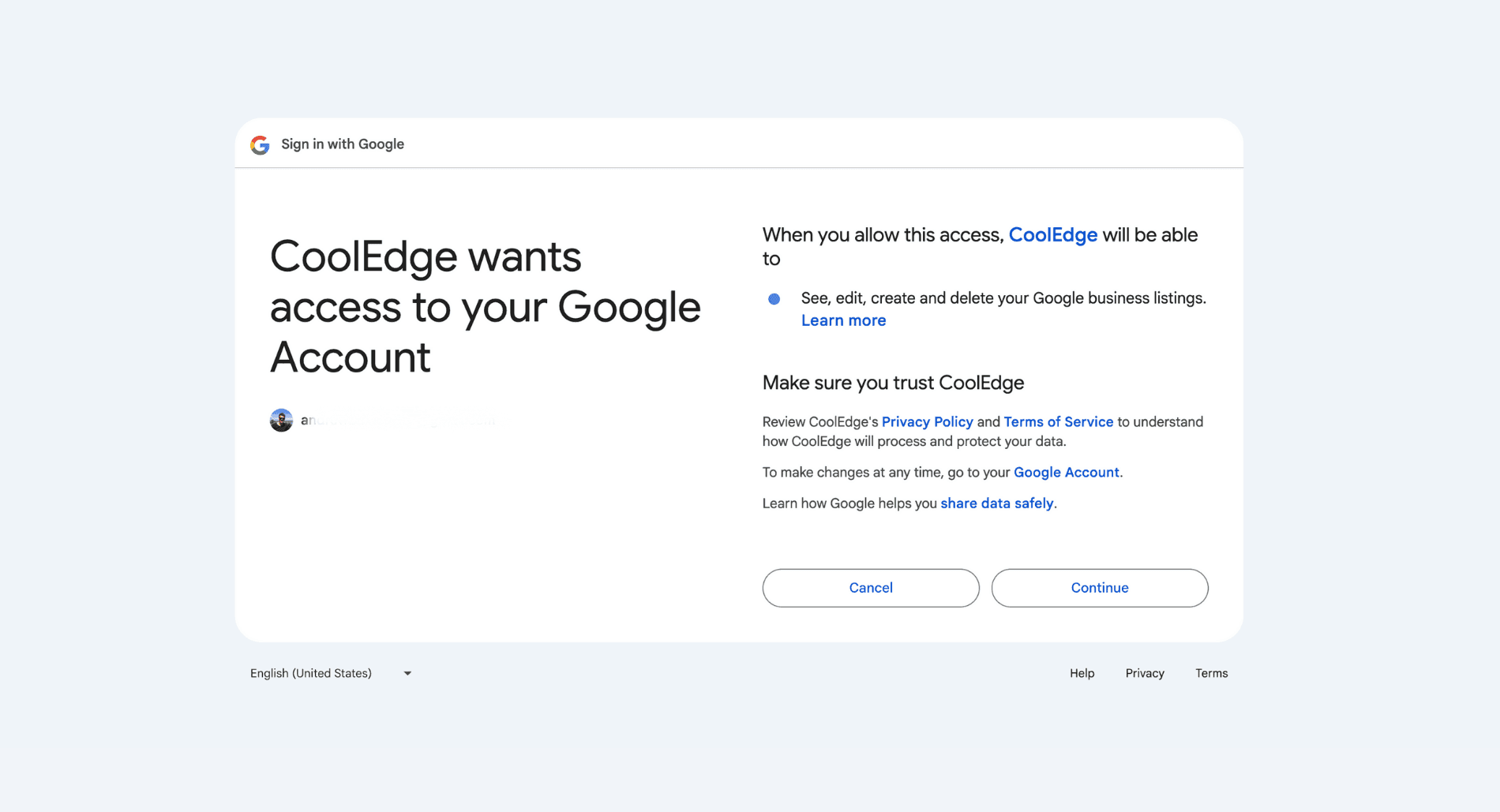
- Sign in with the Google account that manages your business listing and authorise Cooledge
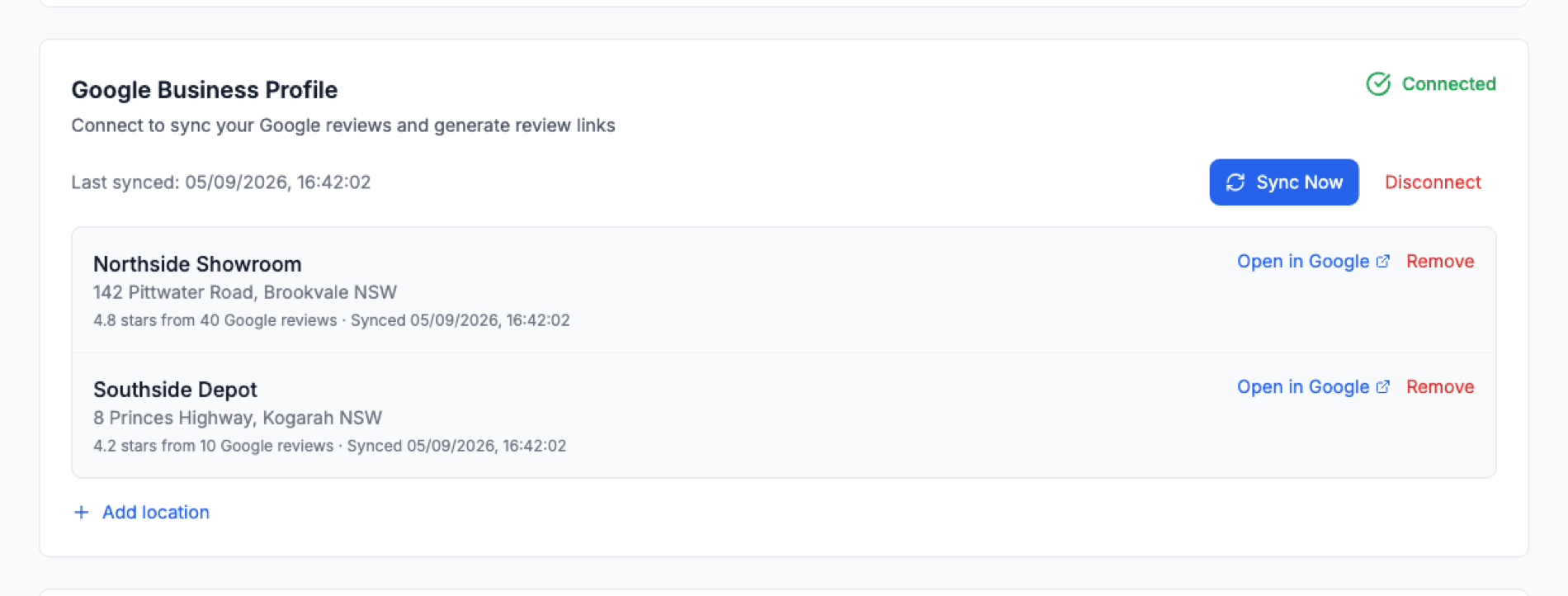
- If you manage more than one location, tick the ones to connect. You can add or remove locations later from Marketing → Reviews.
Once connected, Cooledge will automatically sync your existing Google reviews throughout the day.
For detailed connection instructions, troubleshooting and sync information, see: Google Business Profile Integration →
Connected locations are listed on the Overview tab, with Add location and Remove beside them.
2. Setting Up Review Automation
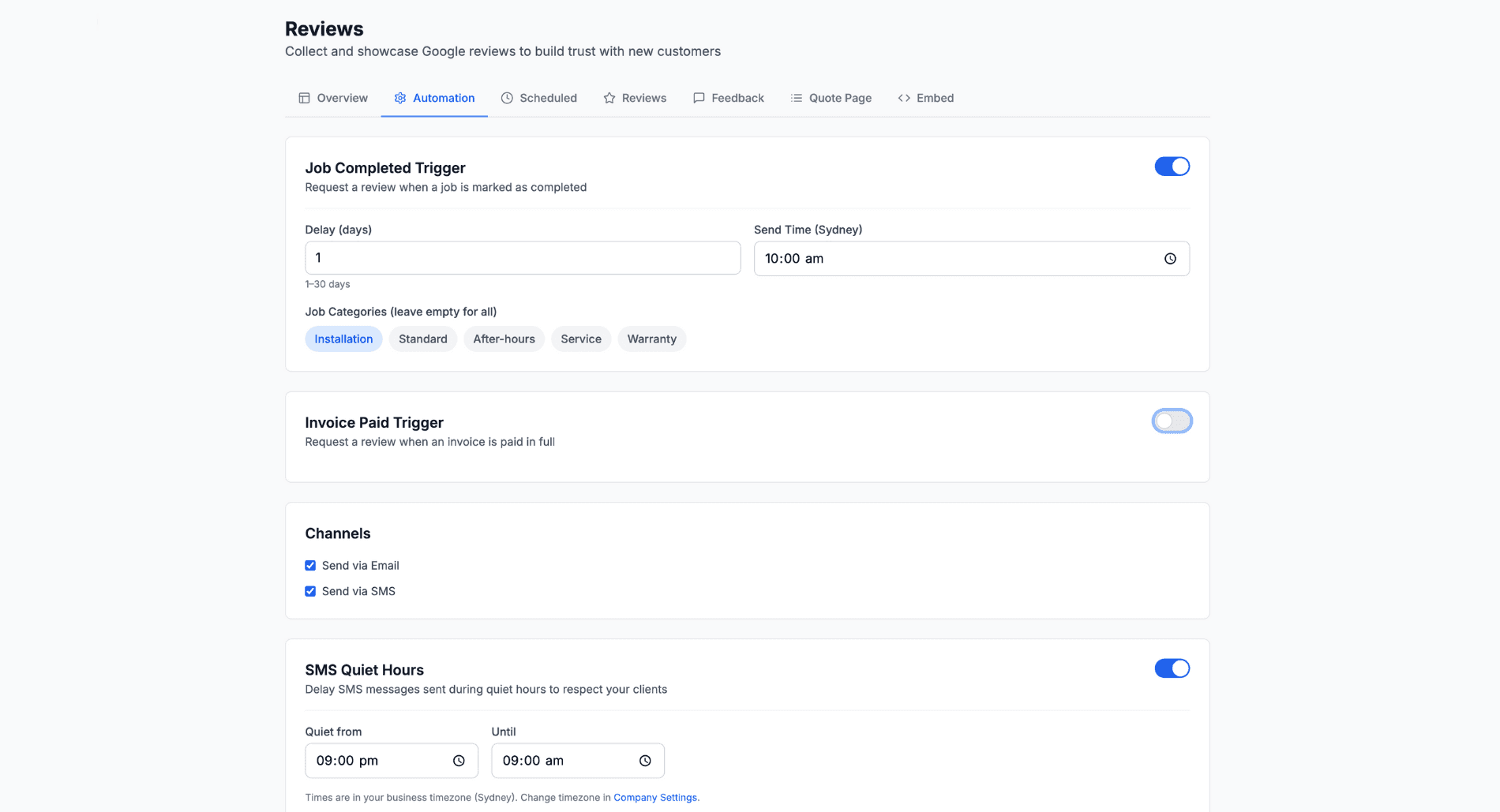
The automation settings control when and how review requests are sent to your customers.
Accessing Automation Settings
- Go to Marketing → Reviews
- Click the Automation tab
- Configure your preferences
Automation Triggers
You can trigger review requests automatically when:
Job Completed:
- Review request sent when a job status changes to "Completed"
- Great for service calls and repairs
- Customer receives the request after your preferred delay
Invoice Paid:
- Review request sent when an invoice is paid in full
- Ensures customer only gets asked after full payment
- Ideal for larger installation projects
You can enable one or both triggers depending on your workflow.
Timing Settings
Delay Days (0-30):
- How many days to wait after the trigger before sending
- Default: 1 day (gives customer time to experience your work)
- Set to 0 for immediate sending
Send Time:
- The time of day to send requests (in your business timezone)
- Default: 9:00 AM
- Requests scheduled overnight will be held until this time
SMS Quiet Hours:
- SMS messages won't be sent during these hours
- Default: 9:00 PM to 9:00 AM
- Prevents late-night disturbances
Channel Settings
Email:
- Professional email with your business branding
- Includes direct link to the review landing page
- Tracked for opens and clicks
SMS:
- Short, punchy message with a short link (cldg.com.au/r/...)
- Higher engagement rates than email
- Uses your registered SMS number or Cooledge sender ID
You can enable both channels. Email and SMS go out together, with the same link.
What the messages say: the request opens with Hi {first name}, thank you for choosing {business}! and asks for 30 seconds of feedback with a Share Your Feedback button (email) or link (SMS). The reminder says Just a quick reminder, we'd love to hear about your recent experience. Both are editable in Settings → Templates under Review Request and Review Reminder. Keep the review link placeholder in each template.
Follow-up Reminders
Send a reminder if the customer has not engaged: by SMS when they have a mobile number, otherwise by email.
- Default delay: 48 hours after the initial request
- Skipped when the customer clicks through to Google, leaves private feedback or rates the visit 3 stars or below
- The reminder uses the Review Reminder templates, so it says whatever you want it to say
Locations
If your Google account manages more than one listing, you can connect several of them and Cooledge will spread your review requests across them.
Connecting more than one location
The Google Business Profile card on the Overview tab lists every connected location. Use Add location to bring another listing from the same Google account in and Remove to take one out. Remove only appears once you have two or more locations, so the last one can only be taken out by disconnecting.
Splitting the requests
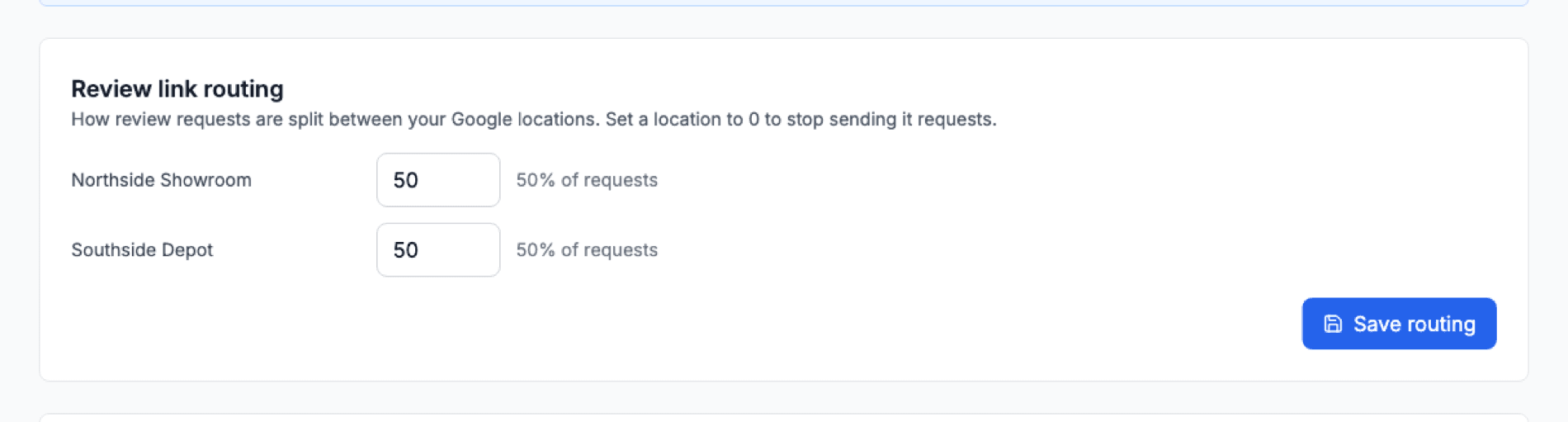
The Review link routing card on the Automation tab controls the split. Give each location a weight, then hit Save routing:
- The weights are relative, so 50 and 50 is an even split and 75 and 25 sends three requests to the first location for every one to the second
- Set a location to 0 to stop sending it requests without removing it
- You cannot set every location to 0, because there would be nowhere to send people
- A location you add later starts on a weight of 1, so give it a weight of its own if you have already changed the others. Adding a location also restarts the counter Cooledge uses to keep the split even, so the new share takes effect straight away
Seeing which location a review came from
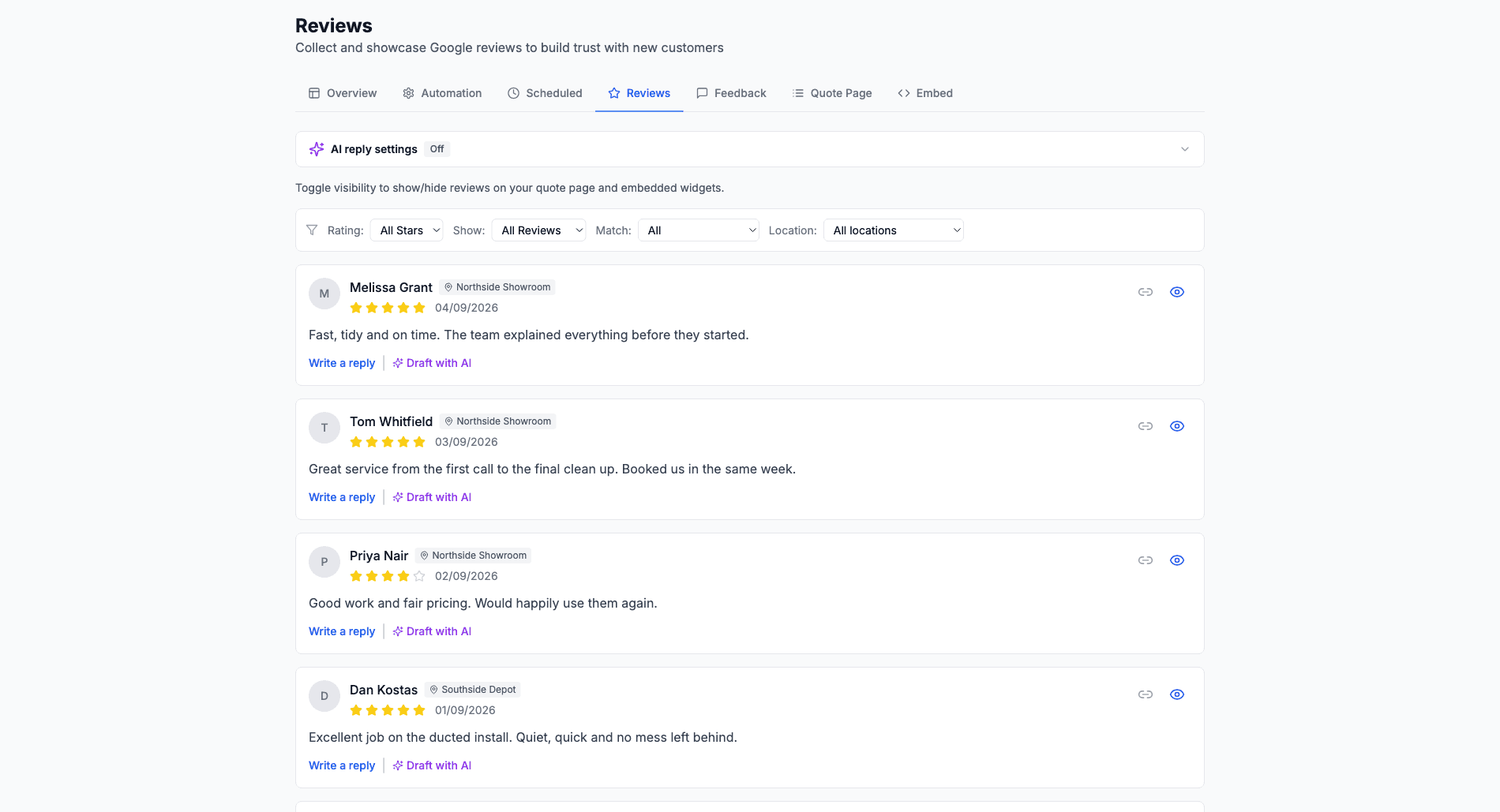
The Reviews tab gains a Location filter and every review, feedback item and scheduled request carries a small location pill, so you can tell your Brookvale reviews from your Kogarah ones at a glance.
Which location a customer's link points at is decided when the request is created, so changing the weights later never moves a link that has already gone out.
Cooldown Period
Prevent over-requesting from the same customer:
- Default: 90 days between requests to the same customer
- Minimum: 14 days
- Ensures customers aren't annoyed by frequent requests
3. Job Category Filtering
You can filter which jobs trigger review requests by category:
- In Automation settings, find Job Categories
- Select specific categories (e.g., "Split System Install", "Service Call")
- Leave empty to trigger for all job categories
This is useful if you:
- Only want reviews for installation jobs, not service calls
- Want different automation rules for different work types
- Need to exclude certain job types from automation
4. How Customers Experience It
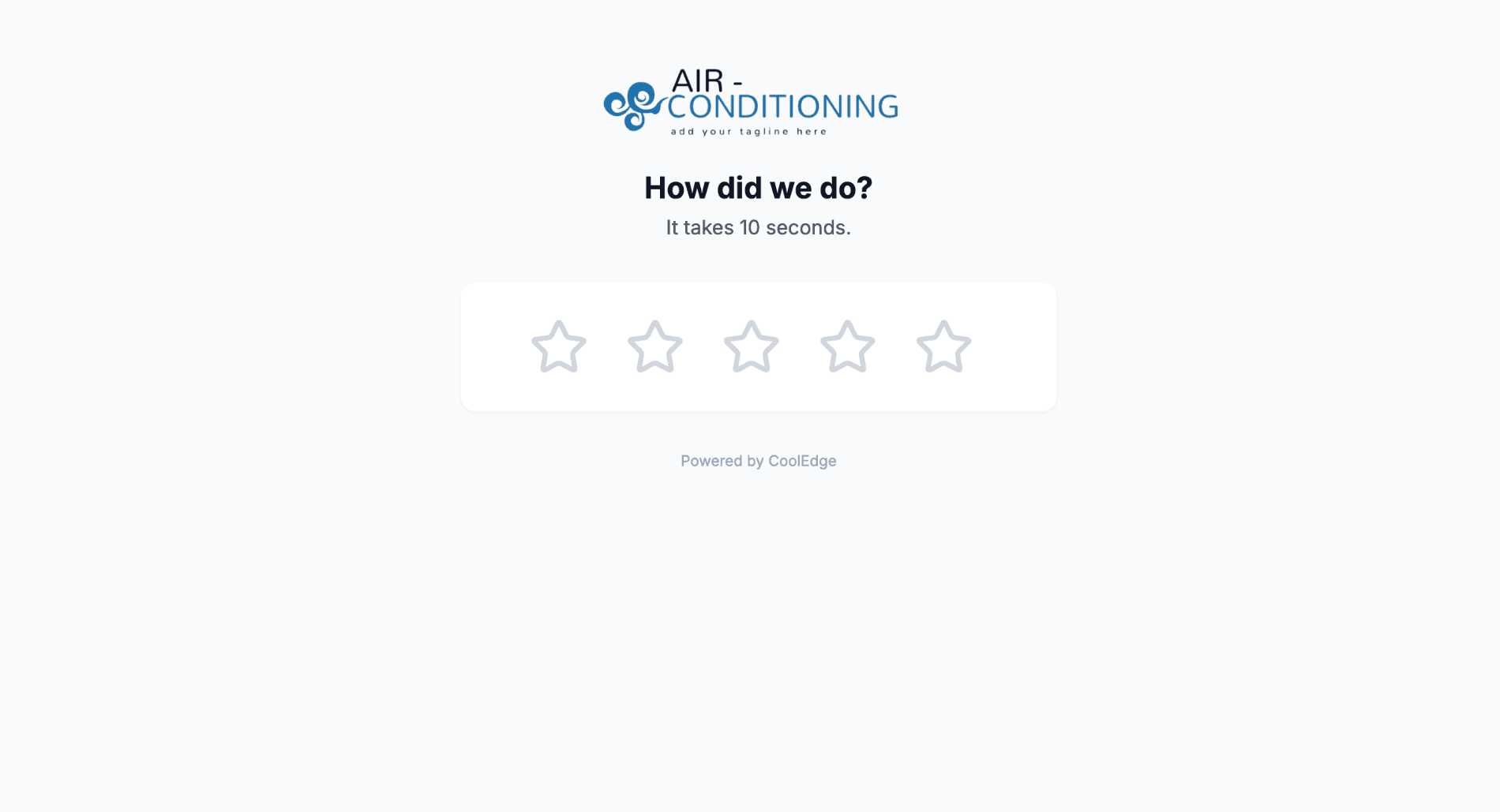
The Review Landing Page
When customers click the review link, they see a branded landing page:
Step 1: Rate Your Experience
- "How did we do?" prompt
- 1-5 star rating selection
- Quick tap to select their rating
Step 2: Next Action
The page always shows both options, but emphasis varies by rating:
For 4-5 Star Ratings:
- Prominent "Leave a public Google review" button
- Links directly to your Google Business review page
- Secondary option to send private feedback
For 1-3 Star Ratings:
- Prominent "Send private feedback" form
- Encourages sharing concerns before going public
- Still shows Google review option
Private Feedback Form
Customers can provide detailed private feedback:
- Message: Required, minimum 10 characters
- Tags: Optional quick-select (Scheduling, Pricing, Workmanship, Communication, Other)
- Contact: Optional email/phone if they want a response
5. Managing Private Feedback
Private feedback helps you catch issues before they become negative public reviews.
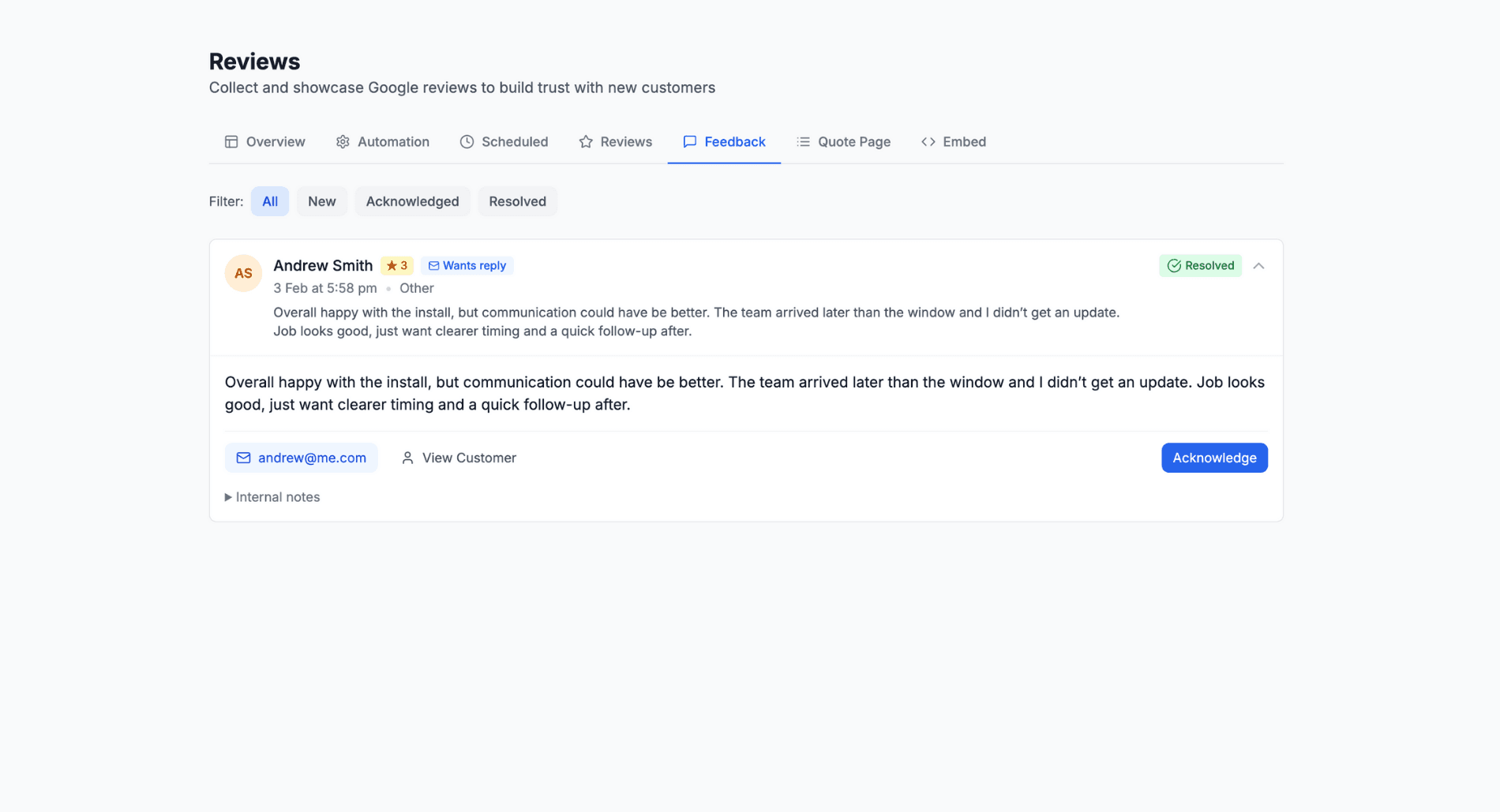
Accessing Feedback
- Go to Marketing → Reviews
- Click the Feedback tab
- View all submitted feedback
Feedback Status Workflow
- New: Just received, needs attention
- Acknowledged: You've reviewed it, working on resolution
- Resolved: Issue addressed, no further action needed
Handling Feedback
For each feedback item:
- Review the rating and message
- Check if they left contact details (indicates they want a response)
- Add internal notes for your team
- Contact the customer via phone or email links
- Update status as you work through the issue
Feedback Notifications
Get email notifications when feedback requires attention:
- Notification sent for ratings ≤3 stars
- Notification sent if customer provided contact details
- Toggle Feedback Notifications on the Overview tab of Marketing → Reviews
6. Viewing Your Google Reviews
Reviews Dashboard
The Reviews tab shows all your synced Google reviews:
- Total reviews and average rating from Google
- Individual reviews with customer name, rating and comment
- Review date and whether you've replied
- Matched customer (if auto-detected or manually matched)
Review Matching
Cooledge automatically matches Google reviews to customers using timing and name similarity. There are three levels:
Auto-Matched (High Confidence):
- Matched automatically, no action needed
- Based on timing (customer clicked Google link shortly before the review appeared) and name similarity
- Shows as "Matched to [Name] (auto)" on the review
Suggested Matches (Medium Confidence):
- When the system isn't confident enough to auto-match, it suggests a likely customer
- An amber "Suggested: [Name]" banner appears on the review
- Click Confirm to accept, or Dismiss (✕) if it's wrong
- Use the Match: With Suggestions filter to quickly find reviews needing attention
Manual Matching:
- For unmatched reviews with no suggestion, click the link icon on the review
- Search for the customer by name, email or phone
- Click to confirm the match
Matched reviews help you track which customers left reviews and update their record.
Why is matching needed? Google reviews are anonymous to businesses. Google doesn't share the reviewer's email or account details. The only way to connect a review to your customer is through timing and name clues. Cooledge does the heavy lifting automatically, but some reviews need a quick human confirmation.
Hiding Reviews
You can hide reviews from your widget displays:
- Find the review in the list
- Click the visibility toggle
- Review won't appear in embedded widgets
Note: This only affects Cooledge widgets, not your actual Google listing.
7. AI Review Replies
Cooledge can draft replies to your Google reviews for you, so every reviewer gets a thoughtful response without you typing a word. You choose how hands-off to be, from one-click drafting to full Auto-pilot.
Reply Modes
- Go to Marketing → Reviews and click the Reviews tab
- Expand AI reply settings at the top of the page
- Pick a mode:
- Off: No drafts are generated
- Suggested: Every new review syncs in with a ready-to-post draft waiting for you. Posting is always your call
- Auto-pilot: Cooledge replies to your positive reviews automatically (Growth and Scale plans)
Drafting a Reply
On any review without a reply you'll see two options: Write a reply and Draft with AI.
- Click Draft with AI and a suggested reply appears in an editable text box, marked with an "AI suggested reply" chip
- Edit the text as much as you like, then click Post now to publish it to Google
- Not quite right? Click Regenerate for a fresh take, or Dismiss to discard it
Making It Sound Like You
The AI writes in your business's voice using your settings:
- Tone: Friendly or Professional
- Length: Concise (a couple of sentences) or Detailed
- Sign-off: An optional signature like "Dave, Owner" added to each reply
- Instructions for the AI: Standing guidance in your own words, for example "mention we're family owned" or "never use exclamation marks"
Drafts also draw on your recent replies so they don't repeat the same phrases. They follow strict rules too: never mention AI, never bring up job details or pricing, never invent facts or offer discounts. AI drafting is free and doesn't use AI credits.
Auto-pilot Safety Rails
Auto-pilot is built to be safe to leave running:
- 1 to 3 star reviews are never posted automatically. You always get a draft to review first, written to open with empathy and invite the customer to sort it out offline
- Choose your threshold: Auto-reply to 4 and 5 star reviews, or 5 star only
- Natural timing: Replies go out with a human-like delay (Natural: 3 to 24 hours, or Quick: 1 to 3 hours) and only between 8am and 8pm in your local time
- No overwriting: If you've already replied to a review on Google, Cooledge leaves your reply alone
Editing a Posted Reply
You can change a reply that's already live on Google:
- Find the review in the Reviews tab
- Click Edit reply
- Update the text and click Update reply
The updated reply replaces the previous one on your Google listing.
8. Embeddable Review Widgets
Showcase your reviews on your website and quote pages with customisable widgets.
Overview
Cooledge offers two types of review widgets:
- Website Embed Widget – Display reviews on any webpage with a simple embed code
- Quote Page Widget – Show reviews directly on your public quote pages
Both widgets support carousel or list layouts, light/dark themes, custom colours and rating filters.
Quick Setup
- Go to Marketing → Reviews
- Click the Embed tab (for your website) or the Quote Page tab (for quotes)
- Customise your widget appearance
- Copy the embed code and paste into your website
For complete widget setup, customisation options and troubleshooting, see: Review Widgets & Embedding →
9. Manual Review Requests
Sometimes you need to send review requests manually.
Sending Manual Requests
- Go to Customers and find the customer
- Open their customer detail page
- Open the More actions menu and click Send Review Request
- Confirm
Manual requests:
- Go out on the channels you have switched on under Automation, using the customer's email and mobile
- Are scheduled a few minutes ahead, so you can cancel from the Scheduled tab if you change your mind
- Use the same landing page as automated requests
- Respect cooldown periods
- Appear on the Scheduled tab with the rest of your requests
Skipping Automation for Specific Jobs
If you don't want automation for a particular job:
- Open the job detail page
- Open the Actions menu
- Switch on Skip Review for This Job
Useful for warranty work, callbacks or sensitive situations.
Customer Opt-Out
Customers can be excluded from all review requests:
- Go to Customers and open the customer
- Stay on the Details tab
- Switch Review requests enabled off
10. Tracking & Analytics
Review Request History
Track all sent requests:
- Go to Marketing → Reviews
- Click the Scheduled tab
- See every request with its status:
- Queued: Scheduled, not yet sent
- Sending: Being handed to the email or SMS provider right now
- Sent: Delivered, awaiting customer action
- Cancelled: Stopped, usually because the customer already engaged
- Skipped: Not needed, for example the job was marked to skip review, the customer already engaged, they left a low rating or no Google location is connected
- Failed: Could not be sent, for example the customer had no contact details for that channel or the provider rejected the message
Queued requests can be cancelled from this tab, and each row shows which location the request was routed to.
Landing Page Events
For each request, track the customer journey:
- Link clicked: Customer opened the landing page
- Rating selected: Customer chose a star rating
- Google review clicked: Customer went to Google
- Feedback submitted: Customer sent private feedback
Google Stats
Monitor your Google Business performance:
- Total reviews: Count from Google
- Average rating: Your star rating
- Reviews this month: Track growth over time
11. Best Practices for Tradies
Timing Your Requests
- Same day or next day for service calls (work is fresh in mind)
- 1-3 days for installations (customer has time to enjoy it)
- After invoice paid for larger projects (ensures no payment disputes)
Maximising Response Rates
- Use SMS: Higher open rates than email
- Send during business hours: 9am-6pm gets best responses
- Enable follow-ups: Gentle reminder increases completion
- Keep messages short: Customers are busy too
Handling Negative Feedback
- Respond quickly: Contact customer within 24 hours
- Listen first: Understand their concern fully
- Resolve genuinely: Fix the problem if possible
- Follow up: Ensure they're satisfied with resolution
- Ask again: Happy customers may update their rating
Showcasing Reviews
- Homepage: Widget near top of your website
- Quote pages: Build trust before customer accepts
- Service pages: Relevant reviews for each service type
- Google Business: Respond to reviews (shows you care). AI Review Replies can do this for you, see section 7
12. Troubleshooting
Reviews Not Syncing
If your Google reviews aren't appearing:
- Check GBP connection status in Reviews tab
- Click "Sync Now" to manually refresh
- Ensure your Google account has access to the business
- Reconnect if the token has expired
Requests Not Sending
If automated requests aren't going out:
- Check automation is enabled for the trigger
- Verify customer has email/phone on file
- Check cooldown period hasn't blocked them
- Ensure job category matches filter (if set)
- Verify the job/invoice status triggered correctly
Widget Not Displaying
If the embed widget isn't showing:
- Check embed code is complete
- Verify JavaScript is loading (check browser console)
- Ensure you have reviews to display
- Check minimum rating filter isn't hiding all reviews
Customer Not Receiving Request
If a specific customer didn't get their request:
- Check request history for status
- Verify contact details are correct
- Check customer isn't opted out
- Check job isn't set to skip reviews
- Review quiet hours settings for SMS
Related Articles:
- Review Widgets & Embedding → – Detailed widget setup and customisation
- Google Business Profile Integration → – Connection, sync and troubleshooting
- Client Communication → – Unified inbox and messaging
- Job Management → – Managing jobs from quote to completion
Need help with reviews? Email us at support@cooledge.com.au
Was this article helpful?
Let us know if you found this information useful.
Still need help? Contact support
In this article
Use your browser's search (Ctrl+F) to quickly find specific topics within this article.
Browse all help articles →