Supplier Pricebooks
Upload a supplier's price list as a CSV so your purchase orders come through with their SKUs, part names and your real buy prices.
Supplier Pricebooks
Your supplier's own price list, on every purchase order.
- Upload a supplier's price list as a CSV. Purchase orders then use their SKUs, part names and prices
- Upload list prices and let your discount do the maths. Or upload the prices you actually pay
- Set a supplier discount plus category discounts on the Terms tab
- Link each item on your quotes to the supplier's part once. Every future purchase order uses it
- Upload a fresh list any time. Products that drop off are switched off, never deleted
- Uploaded the wrong file? Undo the latest import within 24 hours
A pricebook is your supplier's price list, loaded into Cooledge. Once it's in, the purchase orders you create from a quote come through with the supplier's own SKU, part name and price on each line. No more copying part numbers off a PDF price list or ringing the rep for a price.
Each supplier has its own pricebook. Upload one for each wholesaler you buy from.
What a Pricebook Does
When you click Create purchase orders on a quote, Cooledge splits the parts list by supplier and builds a draft PO for each one. Every item that's linked to one of that supplier's parts comes through with:
- The supplier's SKU (their part number)
- The supplier's name for the part
- Your price, after any discount you've set
You make each link once, then every future PO with that supplier uses it. See Linking Quote Items to Supplier Parts below.
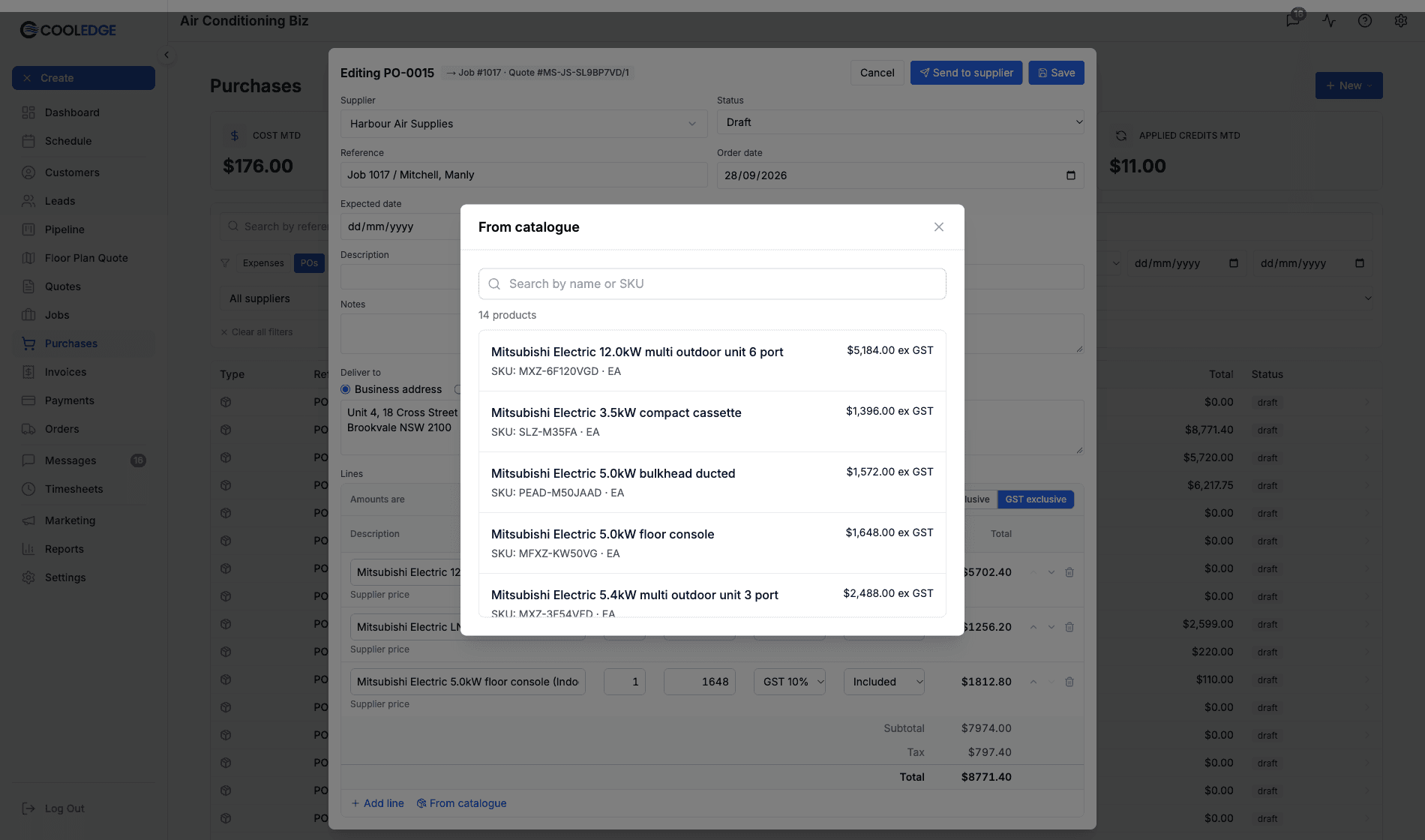
A pricebook also powers the From catalogue button in the purchase order, bill, expense and credit note editors. Search the supplier's products and add one as a line in a click.
Pricebooks are for what you buy. They don't change your quote prices. Quotes are still priced from your own catalogue.
What You Need
- A Growth or Scale plan (see Plans below)
- The supplier saved in Settings > Suppliers. See Managing Suppliers
- The supplier's price list as a CSV file
- Portal access as an owner or admin (pricebooks live in the Cooledge Portal on desktop)
Where to Find It
- Open Settings and click Suppliers
- Click the supplier's row
- The supplier's page opens with four tabs: Details, Pricebook, Terms and Links
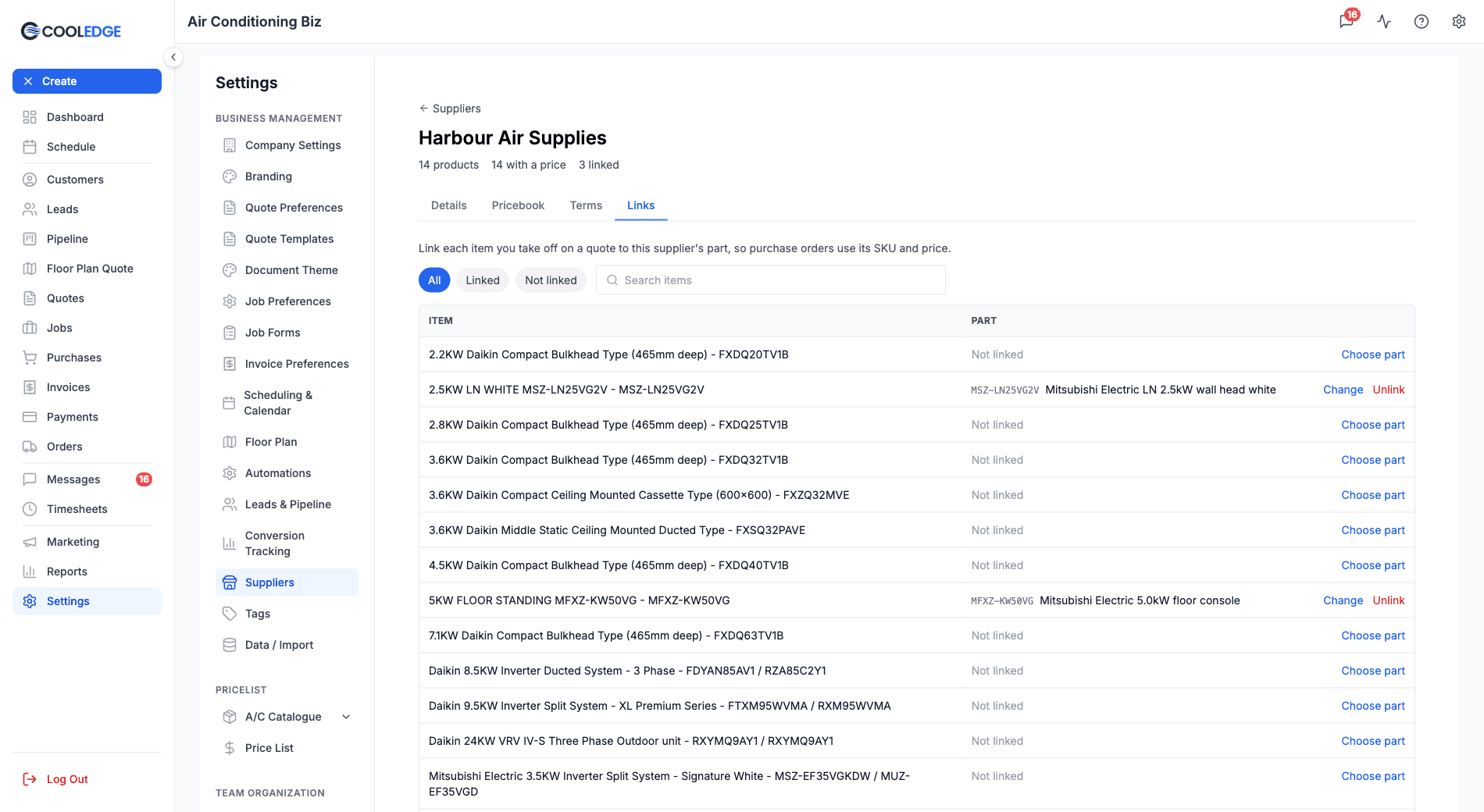
The header shows how many products the supplier has, how many have a price and how many are linked (for example "14 products", "14 with a price", "3 linked").
Preparing Your File
Your file needs a header row, then one product per row.
| Column | Required? | What it's for |
|---|---|---|
| SKU | Yes | The supplier's part number. This is how Cooledge recognises the product next time you upload |
| Name | Yes | The product name that goes on your PO lines |
| Price | Yes | The price for one unit (or one pack, see Pack Quantities) |
| Unit | No | Such as EA or PK. Blank reads as EA |
| Category | No | Used to match your category discounts on the Terms tab |
| Brand | No | The manufacturer |
| Model | No | Helps Cooledge suggest the right part for an AC unit |
| Pack quantity | No | How many units come in a pack. Blank means 1 |
A few things that make life easy:
- Columns can be in any order. You match them to these fields on the next step, so your headers don't need to use these exact names
- Extra columns are ignored. Barcodes, stock levels, whatever else the supplier includes can stay in the file
- Prices can include $ signs and commas. "$1,245.00" reads fine
- From Excel, use Save As and choose CSV UTF-8. Cooledge takes CSV files only. An Excel .xlsx file is refused
- Limits: up to 10 MB and 50,000 rows per file
Not sure where to start? Click Download a sample CSV on the upload step. It uses every column, including a pack of cable ties sold in 100s.
Uploading a Pricebook
- Open the supplier's page and click the Pricebook tab
- Under Upload pricebook, choose your CSV file
- Under Prices in this file are, pick one of the two options (explained below). There's no default, so you have to choose
- Under Amounts are, pick GST exclusive or GST inclusive to match your file. GST exclusive is selected to start with
- Leave Remove products that aren't in this file ticked for a full price list. Untick it for a file that only lists price changes
- Click Continue
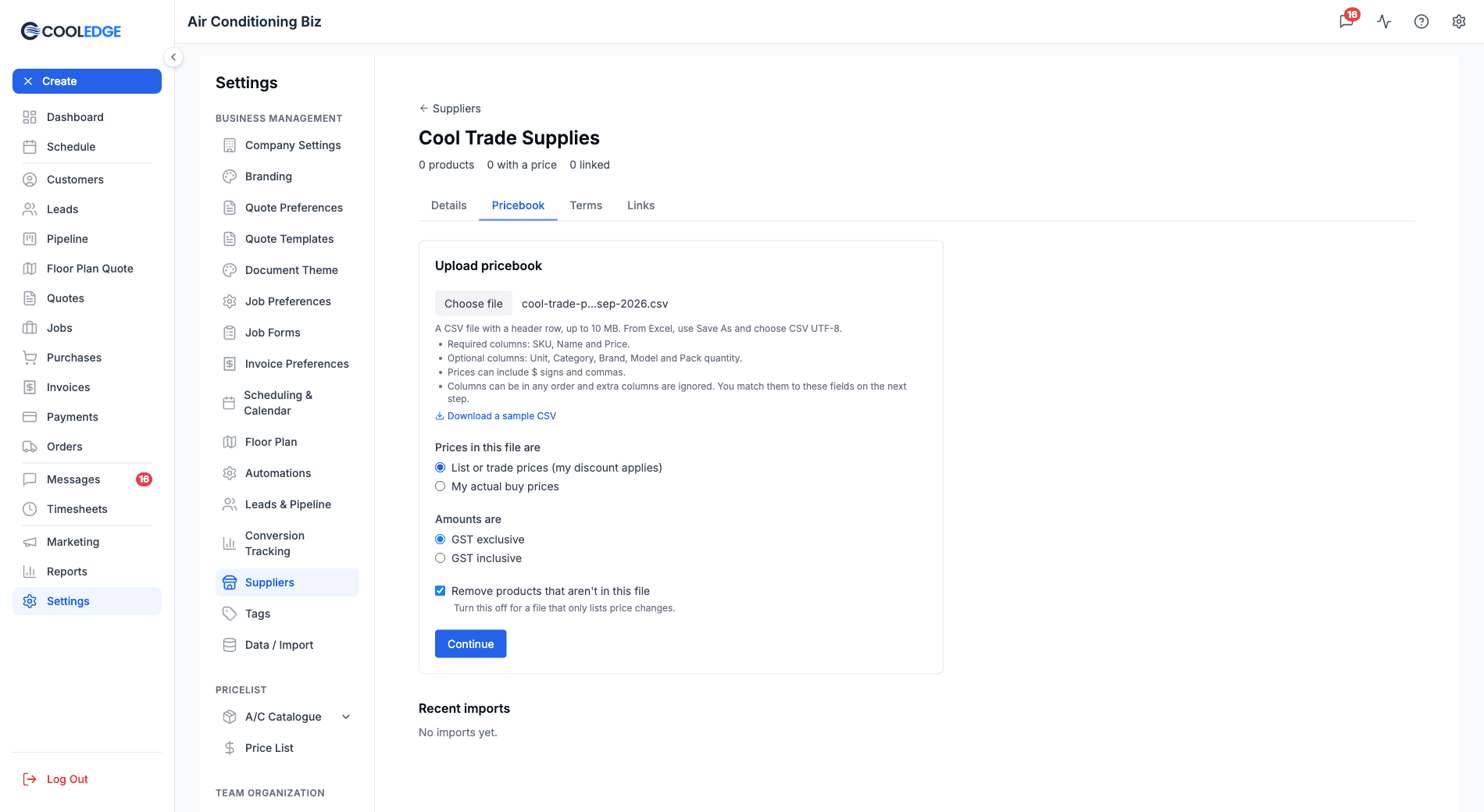
List prices or actual buy prices?
This choice decides whether your discounts apply.
- List or trade prices (my discount applies): the supplier's standard price list, the same one other customers get. Cooledge takes your discount from the Terms tab off these prices. Pick this when your supplier gives you a percentage off their list
- My actual buy prices: the prices you really pay on your account, already negotiated. Cooledge uses them exactly as they are and no discount is applied. Pick this when your supplier sends you a price list made for your account
Remove products that aren't in this file
This box is ticked by default. With it ticked, any of this supplier's products that aren't in the new file are switched off. That keeps discontinued lines out of your purchase orders.
Untick it when the file only lists price changes. Products not in the file are then left exactly as they are.
Matching Columns
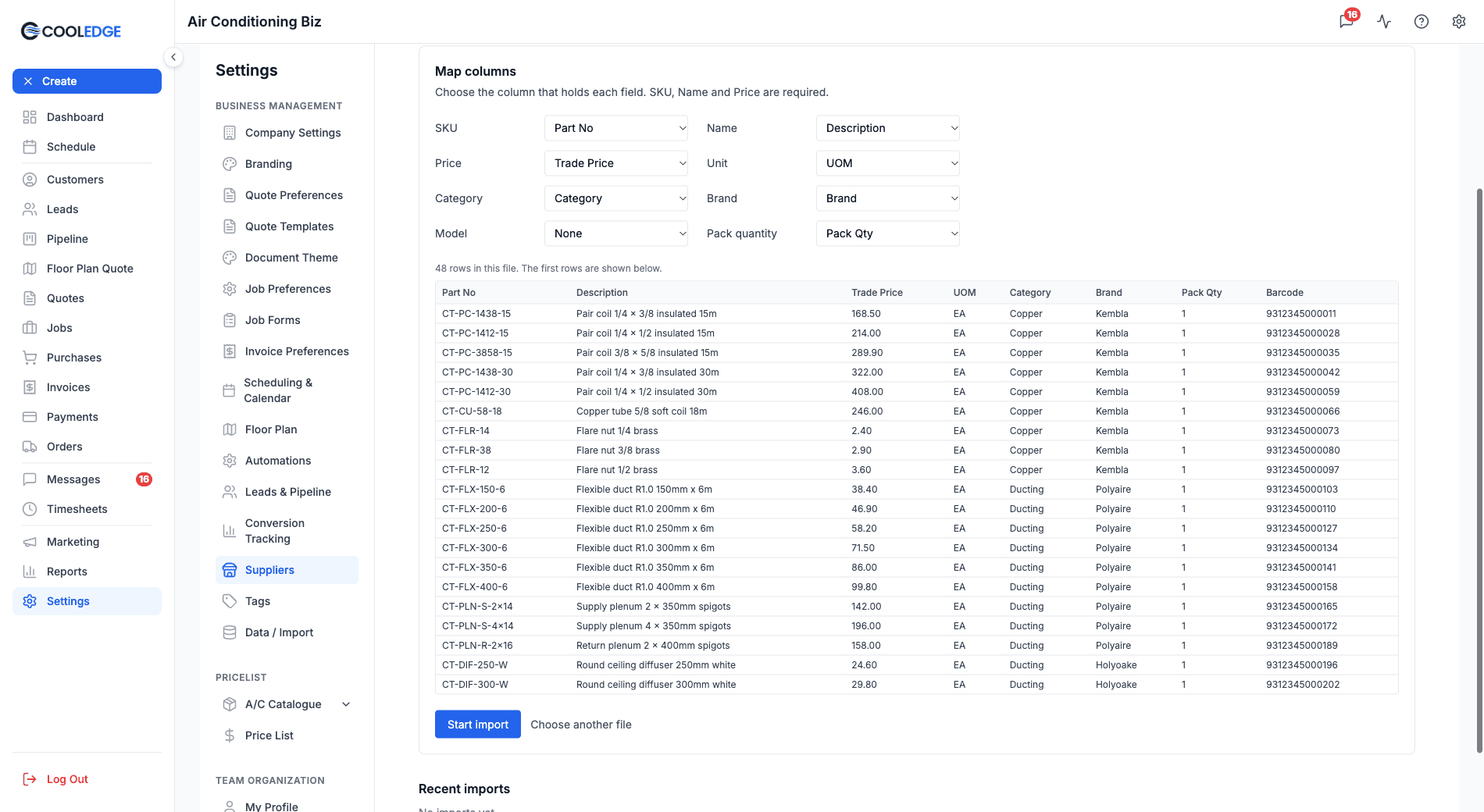
The Map columns step shows each field (SKU, Name, Price, Unit, Category, Brand, Model and Pack quantity) with a dropdown of your file's column headers. SKU, Name and Price are required. The rest can stay on None.
Cooledge matches common header names for you. Headers like Part No, Item Code, Description, Trade Price, Unit Price, UOM and Pack Qty are picked up automatically. The next time you upload for the same supplier, it reuses the columns you chose last time.
Below the dropdowns you'll see how many rows are in the file and a preview of the first 20 rows. Check the preview looks right, then click Start import. Picked the wrong file? Click Choose another file.
The Import and Its Results
While the import runs you'll see a progress bar with a count of rows done. You can leave this page. The import carries on and shows its result when you come back.
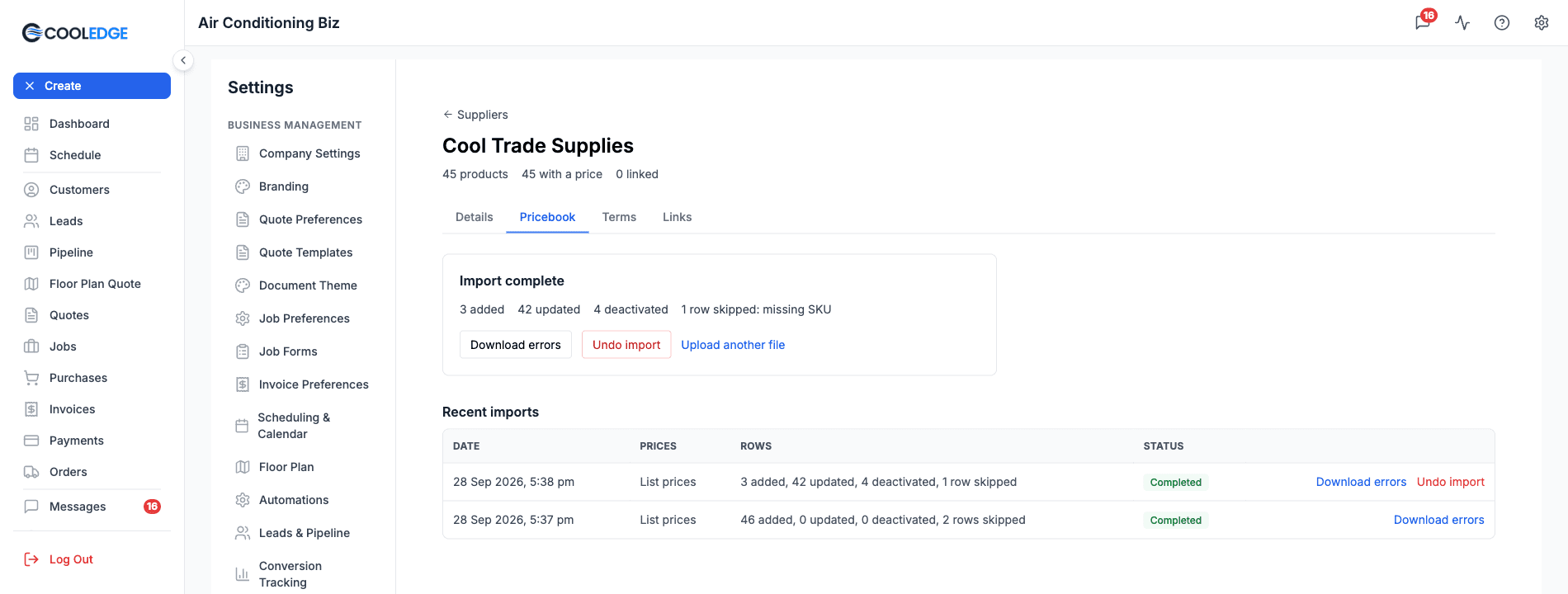
When it finishes, Import complete shows what happened:
- Added: new products from this file
- Updated: products already in the pricebook, refreshed from this file
- Deactivated: products switched off because they weren't in the file
- Rows skipped: rows that couldn't be imported, with the reason. The reasons are missing SKU, missing name, invalid price, invalid pack quantity and duplicate SKU
If you unticked Remove products that aren't in this file, there's no deactivated count. It says "Products not in this file were left as they are." instead.
Fixing skipped rows
Click Download errors to get a CSV of the rows that were skipped. It has three columns: Row, SKU and Reason. Row numbers count the way your spreadsheet does, with the header as row 1. The file lists up to the first 1,000 errors. Fix those rows in your file and upload it again.
Recent imports
Under the upload area, Recent imports lists the supplier's last 20 imports: the date, whether it was list prices or actual buy prices, the row counts and the status (Importing, Finishing up, Completed, Failed or Undone).
If an import fails part way, the products it had already added or updated are kept. Upload the file again to finish.
Updating a Pricebook Later
Suppliers change prices. When you get a new list, upload it the same way. Cooledge matches products by SKU.
- Products in the file are updated with the new name, price and details
- New SKUs are added
- Products missing from the file are switched off, not deleted (unless you untick Remove products that aren't in this file). A switched-off product stops showing in From catalogue and purchase orders stop using it. If a later file lists it again, it's switched back on and any links to it work again
A few safety nets stop a bad file from wrecking your pricebook:
- More than half the rows had errors? Nothing is switched off. Prices are still updated. You'll see "Prices were updated but nothing was deactivated because" followed by how many rows had errors. A file that bad usually means the wrong columns were matched
- A row with a SKU but a bad price is skipped (the same goes for a missing name or a bad pack quantity). The existing product keeps its old price and stays switched on
- Columns you don't map keep what's stored. A price-only file of SKU, Name and Price never wipes the categories or pack quantities from your last full upload
- Duplicate SKUs: the first row with that SKU is used. Later rows with the same SKU are skipped as duplicate SKU
Undoing an Import
Uploaded the wrong file? You can undo the supplier's most recent completed import within 24 hours of uploading it.
- Click Undo import on the result panel or on the latest row in Recent imports
- Confirm
Here's what undo does:
- Products the import added are removed, unless a purchase order or a link already uses them. Those are kept
- Products the import deactivated are switched back on
- Prices the import changed stay as they are. Undo doesn't roll prices back
Afterwards you'll see how many products were removed and how many were kept because they're in use. To put the prices right, upload the correct file.
Undo isn't offered on older imports, after 24 hours or while another import for the same supplier is still running.
Setting Your Discounts
If you upload list prices, tell Cooledge what discount you get on the Terms tab.
- Discount % is taken off this supplier's list prices
- Category discounts replace that discount for products in a category. Click Add category, type the category name and the percentage
Click Save when you're done. You'll see "Terms saved."
The category name must match what's in your pricebook's Category column. Capitals don't matter, so "Copper" and "copper" are the same category.
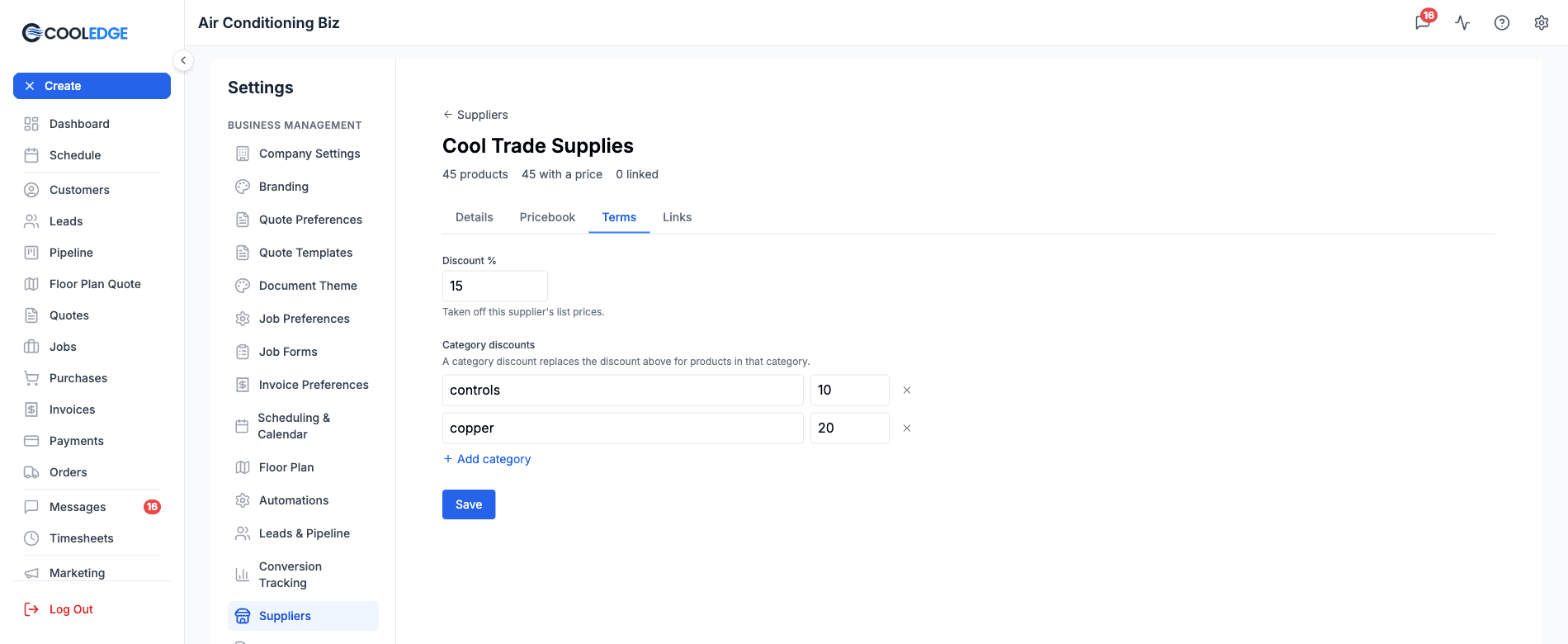
With the settings above, a copper product listed at $100 comes through at $80 (the 20% copper discount replaces the 15%). A product in a category with no category discount comes through at $85.
Which price wins
For each product, Cooledge uses the first of these that applies:
- Your actual buy price, from a My actual buy prices upload
- The list price less your category discount
- The list price less your supplier discount
- The list price
Discounts never apply to actual buy prices. If the latest import for a supplier was actual buy prices, the Terms tab reminds you: "Your uploaded prices are your actual buy prices; discounts do not apply to them."
Linking Quote Items to Supplier Parts
A pricebook tells Cooledge what the supplier sells. A link tells it which of those parts is the item on your quote. Cooledge never guesses by matching SKUs across suppliers, so you link each item once per supplier. After that, every purchase order for that supplier uses the link.
You can link from two places. Both save the same link.
While creating purchase orders
- On the quote, in the Materials card, click Create purchase orders
- Pick a supplier for a family, such as Unit
- Click the chevron to expand the family and see its items
- Click Choose part under an item
- Search by name or SKU. For an AC unit, the picker opens on Suggested parts whose model or SKU matches the unit's model. Click Show all to see everything
- Click the right part
The link saves straight away, even if you close the modal without creating anything. A linked item shows the supplier's SKU and part name with a Change button. Suggested parts are only ever linked when you click one.
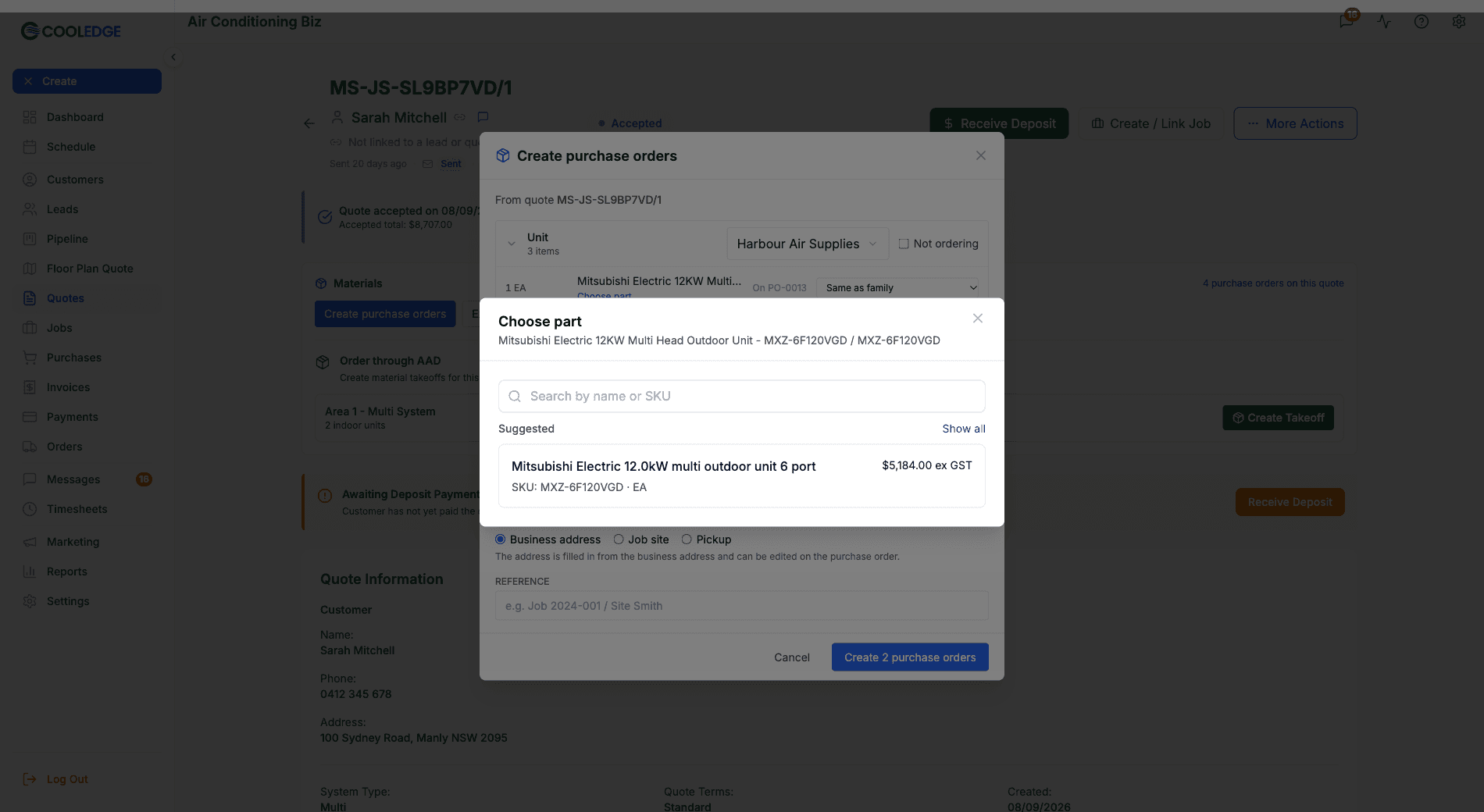
If some items for a supplier aren't linked yet, an amber line tells you, for example "Harbour Air Supplies: 2 of 5 items not linked". Unlinked items still go on the PO. They just don't get the supplier's SKU or price.
The part cell can also say:
- No pricebook: the supplier has no products yet. Upload a pricebook first
- Not linked: your plan doesn't include linking. See Plans
On the Links tab
The Links tab on the supplier's page lists every item you've taken off your quotes, with the part it's linked to for this supplier.
- Filter with All, Linked or Not linked. You can also type in Search items
- Click Choose part to link an item, Change to pick a different part or Unlink to remove the link
- A linked part that's since been switched off shows "No longer in the pricebook". Purchase orders ignore that link until the part comes back or you choose another
Items show up here after you've opened Create purchase orders, created purchase orders or exported a parts list from a quote.
How a PO Line Gets Its Part and Price
When you create purchase orders from a quote, Cooledge works out each line like this.
The part:
- Your own link for that supplier
- Otherwise, Cooledge's built-in part map (this is how AAD ordering works)
- Otherwise, no part. The line keeps the item name from your quote
The price:
- The supplier's price for the linked part, using Which price wins above
- If the supplier has no price and the line is an AC unit, your own unit cost from your catalogue (the Unit cost (inc GST, before markup) field)
- Otherwise the line comes through at $0, ready for you to fill in
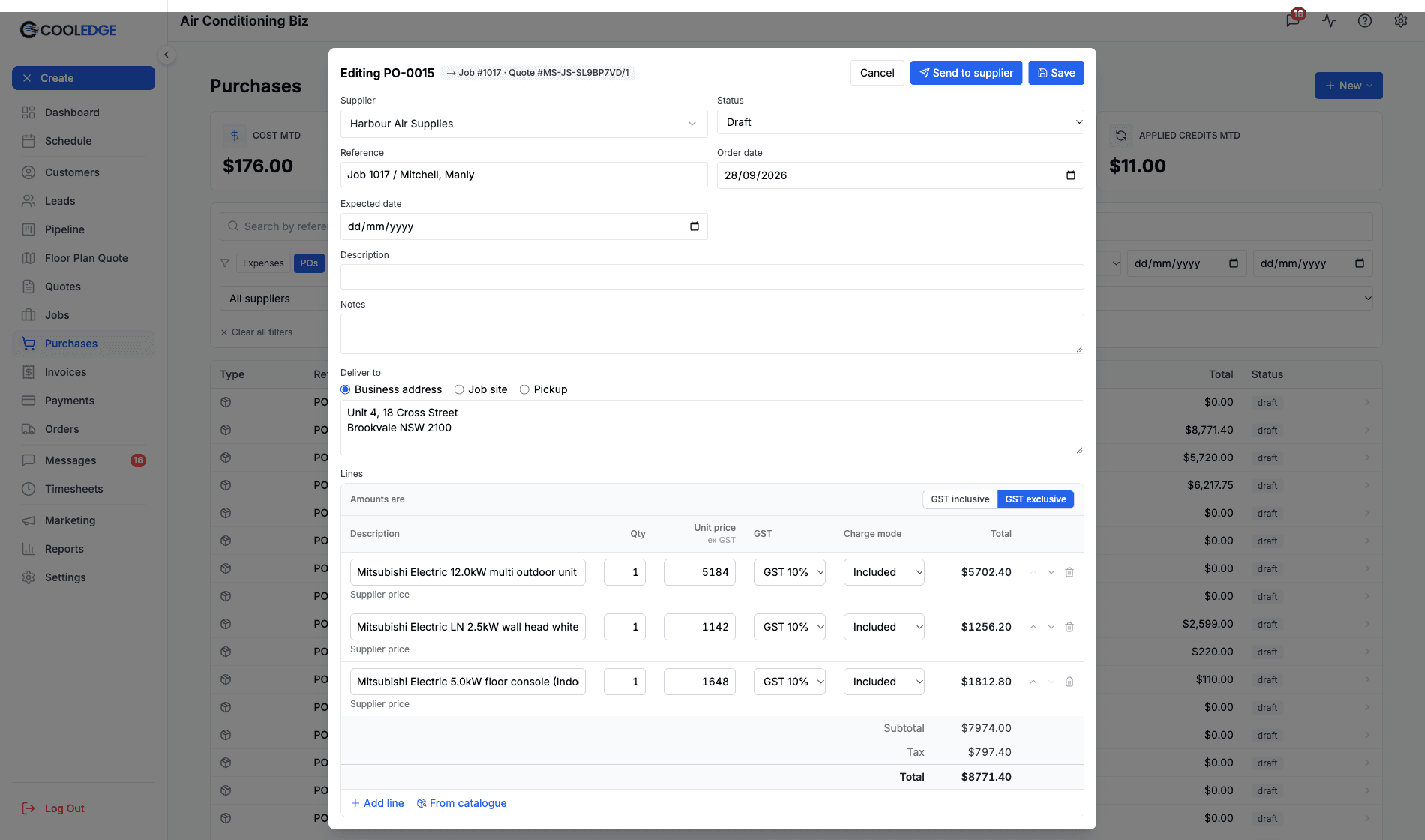
A caption under each line in the PO editor tells you where the price came from:
- Supplier price: from the supplier's pricebook
- Your catalogue cost, supplier price unconfirmed: from your catalogue unit cost. Check it with the supplier
- No price yet: nothing to go on. Type the price in
Type a price yourself and the caption goes away.
A PO's prices are set when its lines are added. Uploading a new pricebook or changing a discount doesn't change purchase orders you already have.
Pack Quantities
Some products only come in packs, like cable ties in 100s. Put the pack price in the Price column and the number per pack in the Pack quantity column.
- On purchase orders created from a quote, the product is priced per unit and the line says "(sold in packs of 100)", so the quantity from your quote still makes sense
- Lines added with From catalogue keep the pack price and the pack unit
Keeping Prices Fresh
Cooledge shows how old each supplier's prices are, based on the most recent price update.
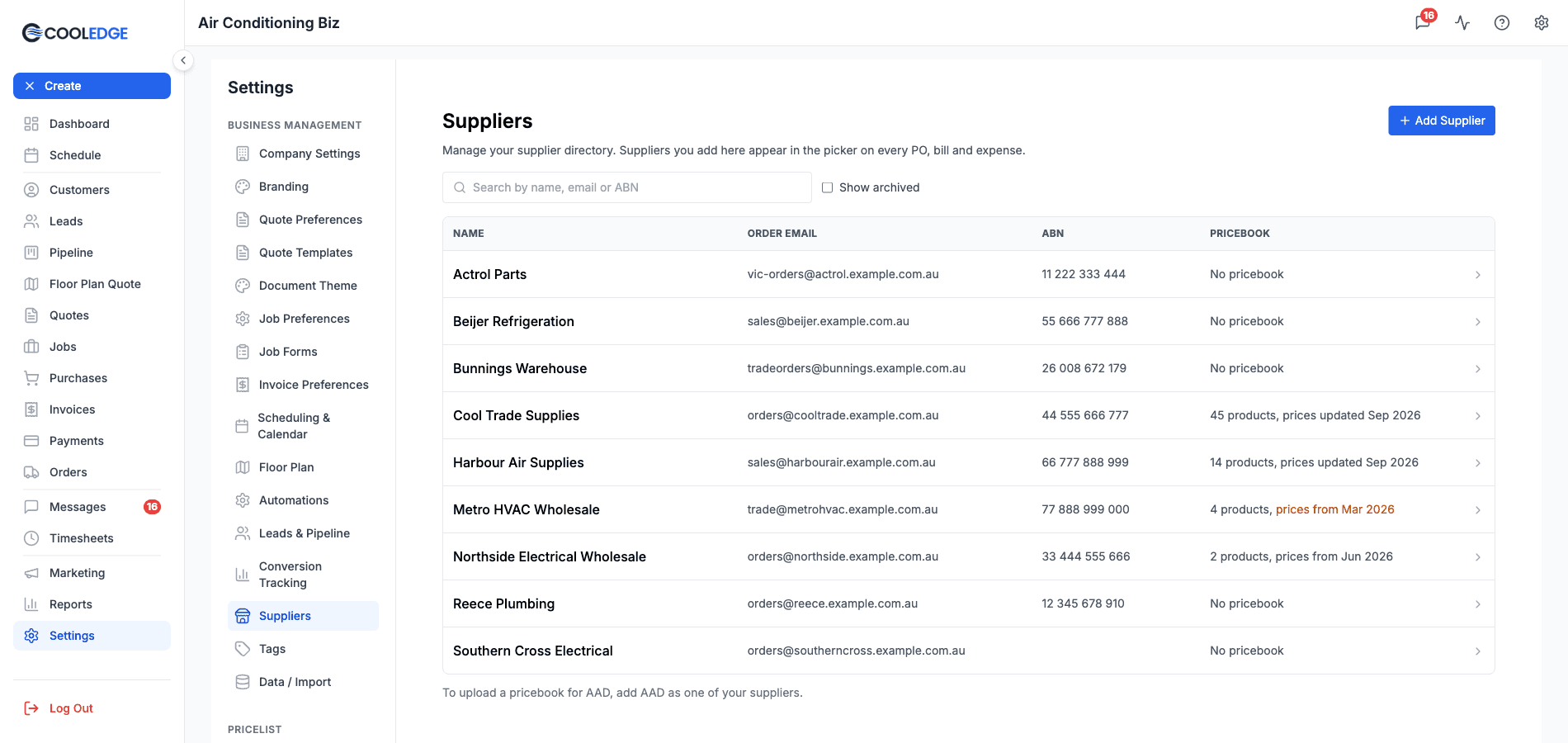
- On the Suppliers list, the Pricebook column shows "No pricebook" or the product count with "prices updated Sep 2026" while they're under 90 days old. From 90 days it reads "prices from" and the month instead. It turns amber from 180 days
- On the supplier's page and next to "Supplier price" on PO lines, a chip such as "Prices from Mar 2026" appears once prices are 90 days old. It turns amber from 180 days
When you see amber, ask your rep for a fresh list.
Adding Lines From a Pricebook
The From catalogue button sits next to Add line in the purchase order, bill, expense and credit note editors whenever the document's supplier has a pricebook.
- Click From catalogue
- Search by name or SKU. Results load 50 at a time as you scroll
- Each result shows the product name, SKU, unit and your price ex GST (after any discount)
- Click a product to add it as a line with its name, SKU, unit and price
A Pricebook for AAD
AAD is built into Cooledge, so it doesn't appear on your Suppliers list. To upload a pricebook for AAD, add AAD as one of your own suppliers with Add Supplier, then upload on its Pricebook tab.
Plans
Pricebook upload, links and discount terms are part of the Growth and Scale plans. They also work while you're trialling one of those plans (until the trial ends) and while a failed payment is being retried. If your subscription isn't active, the Pricebook tab says "Pricebook upload needs an active subscription."
On Starter, the Pricebook and Links tabs show an Upload pricebook card with an Upgrade Plan button. The Terms and Links tabs are read-only. Starter can still:
- Create purchase orders from the Materials card, split by supplier
- Use prices and links that are already there
- Use From catalogue
Team members with a read-only role can't change pricebooks, discounts or links.
See Pricing to compare plans.
Common Questions
Can I upload an Excel file? Not directly. Open it in Excel, choose Save As and pick CSV UTF-8. Then upload the CSV.
My supplier only sent me the price changes. What do I do? Untick Remove products that aren't in this file before you click Continue. Products not in the file are left alone. Any columns you don't map (category or pack quantity, say) keep their stored values too.
I uploaded the wrong file. Can I fix it? If it's the supplier's latest import and it's less than 24 hours old, click Undo import. That removes the products it added and switches back on anything it switched off. Undo doesn't roll back prices, so upload the correct file afterwards. After 24 hours, just upload the correct file. Its prices replace the wrong ones and, with Remove products that aren't in this file ticked, anything the wrong file added is switched off.
Why does a line on my PO say "No price yet"? Cooledge couldn't find a price for it. Usually either the item isn't linked to one of the supplier's parts yet or the supplier has no pricebook. Link the item with Choose part (or on the Links tab) and future POs will pick up the price. For this PO, type the price in.
Why aren't my discounts applying? Check three things. Discounts never apply to actual buy prices, so look at the Prices column in Recent imports. A category discount only applies when its name matches the product's Category column. And prices are set when a line is added, so a discount you've just saved doesn't change lines already on a PO.
Does a pricebook change my quote prices? No. Pricebooks only price what you buy: purchase orders, bills, expenses and credit notes. Your quotes are still priced from your own catalogue.
Why can't I see Choose part? The supplier needs a pricebook first. Without one, the item says "No pricebook". If it says "Not linked", your plan doesn't include linking. Items in the Other family don't have a part to link.
I archived a supplier. Can I still upload their pricebook? Not while it's archived. Unarchive it on the Details tab first. See Managing Suppliers.
Related Articles
- Purchase Orders: Create, send and receive POs
- Managing Suppliers: Add suppliers, set order emails and open each supplier's page
- Supplier Bills & Credit Notes: Match bills to POs and reconcile credits
Need help with pricebooks? Email us at support@cooledge.com.au
Was this article helpful?
Let us know if you found this information useful.
Still need help? Contact support
In this article
Use your browser's search (Ctrl+F) to quickly find specific topics within this article.
Browse all help articles →Related Articles
Job Profitability
See revenue, costs and margin live on every job. As you add expenses and supplier bills, the numbers update automatically.
Managing Suppliers
Save your supplier directory once. Cooledge uses the order email to send purchase orders. Each supplier's page holds its details, pricebook and discounts.
Purchase Orders
Send purchase orders to your suppliers from any job. Cooledge emails a clean PDF, you reconcile the bill when it arrives.