Purchase Orders
Send purchase orders to your suppliers from any job. Cooledge emails a clean PDF, you reconcile the bill when it arrives.
Purchase Orders
Order parts the proper way. No more texts to the rep at 6am.
- Build a PO on any job in under a minute
- One click emails the supplier a clean PDF
- Statuses track what's been ordered, partially received or cancelled
- Spin up a draft PO from an accepted A/C quote with all the parts already on it
- When the bill arrives, one button turns the PO into a supplier bill
A purchase order is what you send your supplier so they know exactly what to put on the truck. Cooledge keeps every PO attached to the job it's for so you (or your bookkeeper) can see what was ordered, what it cost and whether it actually arrived.
This is for tradies who want a paper trail without the paperwork. Send POs from the portal on desktop. Find them later on each job or in the Purchases hub.
What You Need
Before you send your first PO, make sure you have:
- An active Cooledge subscription
- At least one supplier saved with an order email. See Managing Suppliers →
- Portal access (POs are created on the desktop portal)
Heads up: POs are in Australian dollars only for now. Multi-currency is on the roadmap.
Ways to Create a PO
Four ways to start a PO. Pick whichever fits the moment.
1. From a job (the most common)
- Open the job
- Scroll to the Purchases tab
- In the Purchase Orders section, click + New PO
- The PO editor opens straight on the job, pre-tagged to that job number
This is the one you'll use most. The PO is automatically linked to the job so it shows up under the job's costs.
2. From the Purchases hub
- In the sidebar, click Purchases
- Click + New PO in the top right
- Pick a job to attach it to (or leave it unattached for general stock)
Use the hub when you're ordering for the yard or for stock that isn't tied to a single job.
3. From an A/C quote with a parts list
If the customer has accepted an A/C quote that includes a take-off (the parts list from Auto Duct Layout or your ducted system catalogue), Cooledge can pre-fill a PO with every part on it.
- Open the accepted quote
- Click Create Purchase Order (or Convert to PO from the quote menu)
- Pick the supplier
- Tick Pre-populate lines from quote parts list so Cooledge fills the lines for you
- If the quote has multiple areas, pick "All areas (combined)" or a single area
- Click Create PO
The PO opens with the parts already on it. Quantities and SKUs are filled in from the take-off. You set the unit prices (or leave them and update when the bill comes back). Review, then hit save.
Want to split a big quote between two suppliers (e.g. ductwork from one, the outdoor unit from another)? Run the create-from-quote flow twice and pick a different area each time. Or create the second PO from scratch and copy across the bits you want.
Tip: If you accept an A/C quote with an Auto Duct Layout take-off, Cooledge can spin up a draft PO with all the parts already on it. Review the parts, pick a supplier, send. No retyping line items off a printout.
4. From scratch in the editor
Same flow as option 1 but you add the lines manually. Useful for the odd one-off order.
Building the PO
The PO editor is where you do the work. Here's what's on it:
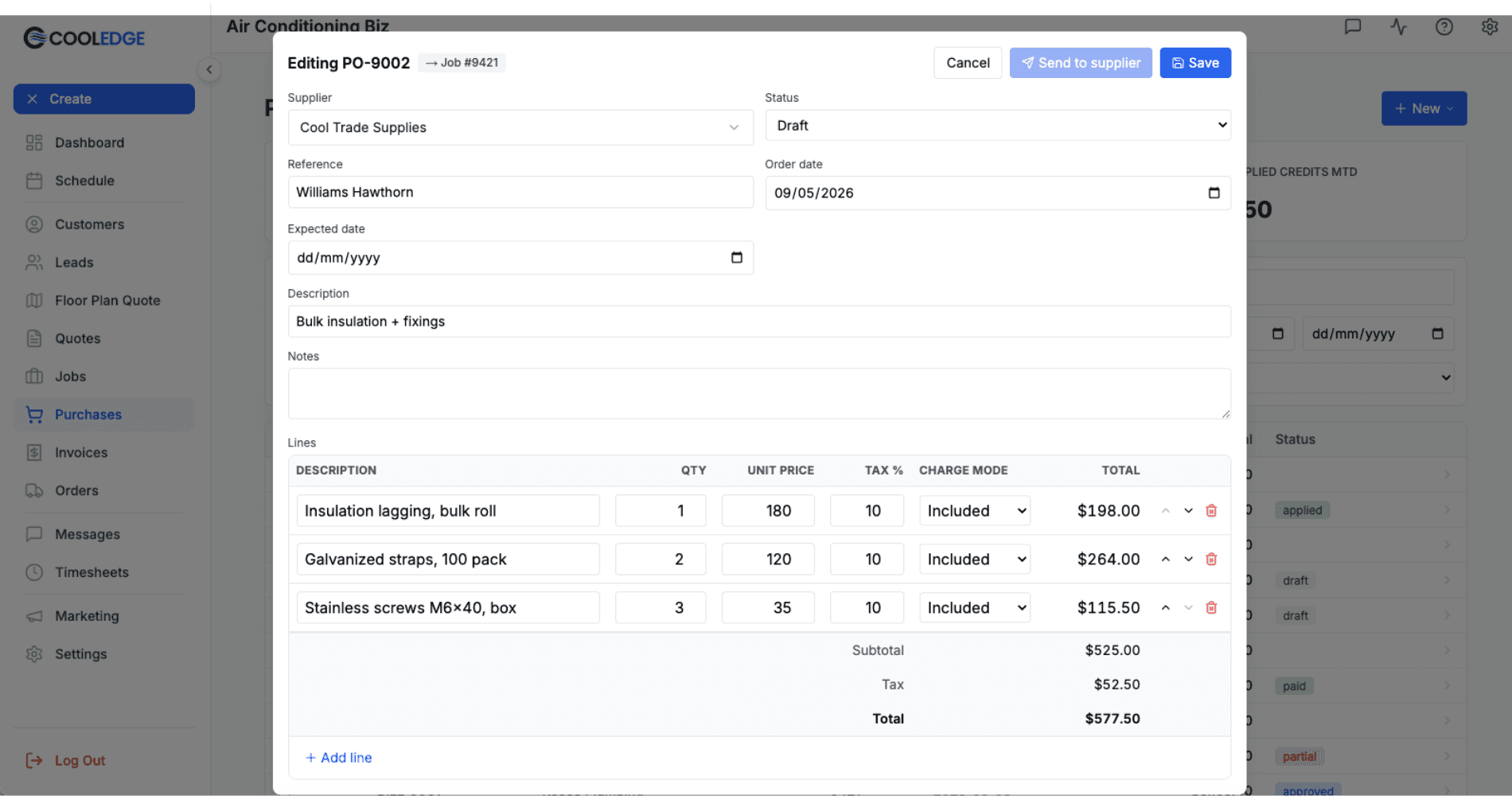
Supplier
Pick the supplier from the dropdown. Start typing to filter the list. The supplier's order email is what Cooledge will send the PO to, so make sure that's set up in Settings → Suppliers.
Reference (optional)
A short note for your records. Something like "Smith St rough-in" or "Job 2024-0142". Goes on the PDF the supplier sees.
Order date and expected date
Order date defaults to today. Expected date is when you want the gear on site. Both show up on the PDF so the supplier knows the timeline.
Description (optional)
A line of context for the PO as a whole, not the line items. Just the order in general.
Line items
This is the meat of it. For each item:
- Description of what you want
- SKU if you have it (handy for the supplier's picker)
- Qty
- Unit price (what you expect to pay per unit)
- Tax rate (GST defaults to 10%)
The line total and the PO total recalculate as you type. No need to hit a recalc button.
Add as many lines as you need. Drag to reorder. Click the bin icon to remove a line. The totals at the bottom of the editor update in real time: subtotal, GST and grand total. That's the total your supplier sees on the PDF.
If you're not sure what the unit price will be yet (some suppliers won't tell you until the bill), leave it at 0. You can update the PO before sending, or just send it as-is and update the totals when the bill comes back through the Convert to Bill flow.
Notes for the supplier
A free-text box at the bottom. Anything you'd normally scribble on the bottom of a paper PO: delivery instructions, gate code, site contact. It all goes on the PDF.
Saving and Sending
Hit Save to keep the PO as a draft. It stays in your Purchases list. The supplier doesn't see it yet.
When you're ready, click Send to supplier. A confirmation modal pops up showing:
- Who it's going to (supplier name + order email)
- The subject line ("Purchase Order PO-0042 from Your Business")
- A summary panel with the PO number, total and number of lines
- A note that the PDF is being prepared, then "PDF ready to attach"
- An optional preview of the email body
Click Send. Cooledge emails the supplier with the PDF attached. The status flips from Draft to Sent. The send time gets stamped on the record.
Want a copy in your inbox?
You can have Cooledge CC your business email on every PO automatically. Turn it on in Settings under your business profile (look for "CC me on supplier emails" or similar). After that, every PO you send drops a copy in your own inbox too.
The Supplier Email Gotcha
If you save a PO against a supplier who doesn't have an order email saved yet, you'll see a yellow banner at the top of the editor:
This supplier has no order email yet. Add one to send POs to them automatically.
Click Open supplier settings in the banner to fix it in Settings → Suppliers. Once the email is saved, come back to the PO and the Send to supplier button will be live.
See Managing Suppliers → for how to add or update a supplier's order email.
What the Supplier Sees
The supplier gets a plain email with a one-page PDF attached. The PDF has:
- Your business name, ABN, address, phone and email at the top
- Your logo if you've uploaded one in Settings
- The PO number, reference, order date and expected date
- Your supplier's billing block
- A line-by-line table: description, SKU, qty, unit price and line total
- Subtotal, GST and grand total
- Any notes you typed
Nothing flashy. Just clear. No surprises when the bill comes back. The PDF inherits your business document theme (the same one used on your quotes and invoices), so colours and fonts match the rest of what the customer or supplier already gets from you.
When the Bill Arrives
The supplier delivers the goods, then drops you a tax invoice (a bill). Time to reconcile.
- From the Purchases hub (or the job's Purchases tab) click + New Bill
- The new bill form opens with a list of Convert from PO options at the top: every PO for that job (or supplier) sitting in draft, sent or partial status
- Click the PO that matches the invoice
- Cooledge creates a draft bill with the same supplier, lines and totals carried across. The PO status flips to Received at the same time
- Open the new bill. Check the totals match the supplier's invoice
- If anything's different (different GST, a part substituted, a delivery fee added) edit the lines on the bill so it matches the actual invoice
- Enter the supplier's invoice number and bill date
- Save
The bill keeps a permanent link back to the PO. POs that have already been converted (status Received) won't appear in the Convert from PO list again, so you can see at a glance which POs are still outstanding.
If you click Convert from PO twice on the same PO (double-click, browser back, etc.) Cooledge returns the existing bill instead of creating a duplicate. Safe to retry.
This is the bit that saves you on a Friday afternoon. No retyping line items off the supplier's PDF. No "did we order that or not". The PO is the source of truth for what was ordered. The bill is the source of truth for what was charged. Cooledge keeps them paired up.
What if the bill total doesn't match the PO? Edit the lines on the bill side, not the PO. The PO is your record of what you ordered. The bill is the record of what you were charged. They're allowed to differ. That's the whole point of having both.
For more on bills see Supplier Bills and Credit Notes →.
PO Numbering
Cooledge gives every PO a number for you. They're sequential per business, starting at 0001. So your first one is PO-0001, next is PO-0002 and so on. You don't get to override the number. That way the supplier always sees a clean sequence with no gaps or duplicates.
PO Statuses
A PO moves through these states:
- Draft while you're building it, supplier hasn't been emailed yet
- Sent once you've emailed the supplier, Cooledge stamps the send time
- Partial when some (but not all) of the order has been received
- Received when everything's on site
- Cancelled if you pulled the order
You can move a PO between statuses manually in the editor as the order plays out. The status badge on the Purchases hub colour-codes everything so you can see at a glance what's still outstanding.
Note: once a PO is sent, the Send to supplier button locks out. The button tooltip will tell you why if it's greyed (e.g. "Already sent", "Set a supplier first", "Supplier has no order email").
Where POs Live
You can find your POs in two places:
- Purchases hub (sidebar → Purchases): every PO across your business with filters by status, supplier, date and job
- Job → Purchases tab: just the POs (plus bills, credit notes and expenses) attached to that one job
Both views show the same data. The hub is better for "where's my Reece order from last Tuesday". The job view is better for "what have we spent on Smith St so far".
The Purchases tab on a job also rolls up the totals into the Net Cost card at the top. That feeds the job profitability widget so you can see margin in real time as costs come in. More on that in Job Profitability →.
Tips for Clean POs
A few habits make life easier for everyone:
- Write clear descriptions. "150mm flex. R1.0. 6m" beats "duct". The supplier picker reads them too
- Include the model or part number in the SKU column when you know it. Saves the supplier from guessing
- Group similar items. All the flex on one line block, outdoor unit and pipework together. Makes the PDF easier to scan
- Set the expected date. Even if it's a guess, the supplier knows whether it's a rush or a stock order
- Use the notes box for anything site-specific: delivery instructions, after-hours contact, forklift on site or no
- Check the supplier's order email before sending the first PO. ABC Plumbing might want POs going to orders@, not the rep's personal email. Verify once, save yourself the dodgy phone call later
- Send the PO before you start the job. Sounds obvious, but suppliers love a bit of lead time. And it locks in the price on paper
Auto Duct Layout POs (AAD)
If you've used Auto Duct Layout to design a ducted system, the take-off can be sent to a supplier through the Supplier Ordering flow. Cooledge keeps a read-only record of that order on the job so you can see it in your Purchases list alongside everything else. You can't edit it from the regular PO editor though. Editing happens in the Supplier Ordering screen.
You'll spot AAD POs by the purple "AAD" badge on the PO number. Click "View AAD takeoff" to open the supplier ordering screen.
See Supplier Ordering → and Auto Duct Layout → for the full ducted workflow.
Common Questions
Can I edit a PO after I've sent it? You can change the status (e.g. mark it partial or received), add notes or re-export the PDF. The line items lock down once it's sent though. If the order genuinely needs to change, cancel the PO and send a new one. The supplier sees a clean correction rather than a moving target.
What if I sent the PO to the wrong supplier? Cancel it. Cooledge won't unsend the email but cancelling locks the PO so it doesn't get reconciled to a real bill later. Then start a fresh PO against the right supplier. Maybe drop the wrong supplier a quick call so they don't load up the truck.
Do I have to use POs if I just buy from Bunnings as I go? No. For walk-in trade counter buys you can just log a quick expense on the job with a receipt photo. POs are for orders you're placing in advance, or for any supplier where you want a paper trail of what was ordered before the bill arrives. See Tracking Expenses →.
Can the supplier reply by email? Yes. The PO email comes from your business address (or your Cooledge reply address if you've got the unified inbox turned on). Any reply lands in your normal inbox. If you have unified inbox switched on, replies thread into the job's messages so the whole crew can see them.
What if the supplier picks the order short? Set the PO status to Partial and convert it to a bill for what actually arrived. When the rest turns up, edit the bill or raise a second one. Mark the PO Received when everything's accounted for.
What if the bill total doesn't match the PO total? Adjust the bill to match what the supplier actually invoiced you. The PO is your record of what you ordered. The bill is the record of what you were charged. They can legitimately differ (substitutions, freight, price changes). Cooledge tracks both separately for that reason.
Can I duplicate a PO? Not directly. The easiest copy is to open the old PO, read the lines off, then start a new PO with the same supplier and retype. (Yes that's clunky. Quick duplicate is on the roadmap.)
Why is the Send button greyed out? Hover over it. The tooltip will tell you. The common reasons: "Save first" (you've got unsaved changes), "Set a supplier first" (no supplier picked), "Supplier has no order email" (fix in Settings → Suppliers), "Already sent" (the PO is past draft) or "Read only role" (you don't have permission to send POs; talk to the business owner).
Can my team members create POs? Yes for standard team members. Read-only roles can view POs but can't create or send them. Set role permissions in Settings → Team.
Related Articles:
- Managing Suppliers →: Add suppliers, set order emails, manage contacts
- Supplier Bills and Credit Notes →: Convert POs into bills, reconcile against payments
- Tracking Expenses →: For walk-in buys, fuel, small consumables
- Job Profitability →: See how POs feed your job costing
- Auto Duct Layout →: The ducted designer that feeds POs with a one-click take-off
Need help with Purchase Orders? Email us at support@cooledge.com.au
Was this article helpful?
Let us know if you found this information useful.
Still need help? Contact support
In this article
Use your browser's search (Ctrl+F) to quickly find specific topics within this article.
Browse all help articles →Related Articles
Job Profitability
See revenue, costs and margin live on every job. As you add expenses and supplier bills, the numbers update automatically.
Managing Suppliers
Save your supplier directory once. Cooledge uses the order email to send purchase orders. Every PO and bill stays linked back.
Supplier Bills and Credit Notes
Record supplier bills when they arrive, log credit notes for returns and refunds. Everything ties back to the job.