Job Profitability
See revenue, costs and margin live on every job. As you add expenses and supplier bills, the numbers update automatically.
Job Profitability
Know if a job made money before you've packed up the van.
- Live revenue, costs and margin on every job
- Adds up invoices, expenses, supplier bills and credit notes for you
- Updates the moment you save a new expense or bill
- Shows margin in both dollars and a percentage
- Owners and admins only by default, so your numbers stay private
The Job Profitability widget sits on every job in Cooledge. It pulls together what you've quoted, what you've invoiced, what the job has cost you and what's left over as profit. You don't have to wait until the end of the month or open a spreadsheet. As soon as you snap a receipt or attach a supplier bill to the job, the widget updates.
This article covers what the widget shows, how the numbers are worked out and who can see them.
What You Need
Before you'll see anything useful in the widget:
- An active Cooledge subscription (any plan)
- At least one job in your account
- Owner or admin role to see costs and margin. Technicians and members don't see costs by default
- Some expenses, supplier bills or credit notes attached to the job for the cost side to show real numbers
- An accepted quote or sent invoice on the job for the revenue side to show real numbers
All figures are in AUD. Other currencies aren't currently supported.
Where to Find It
- Open the Cooledge Portal (desktop)
- Go to Jobs in the sidebar
- Open any job from the list
- Click the Purchases tab on the job page
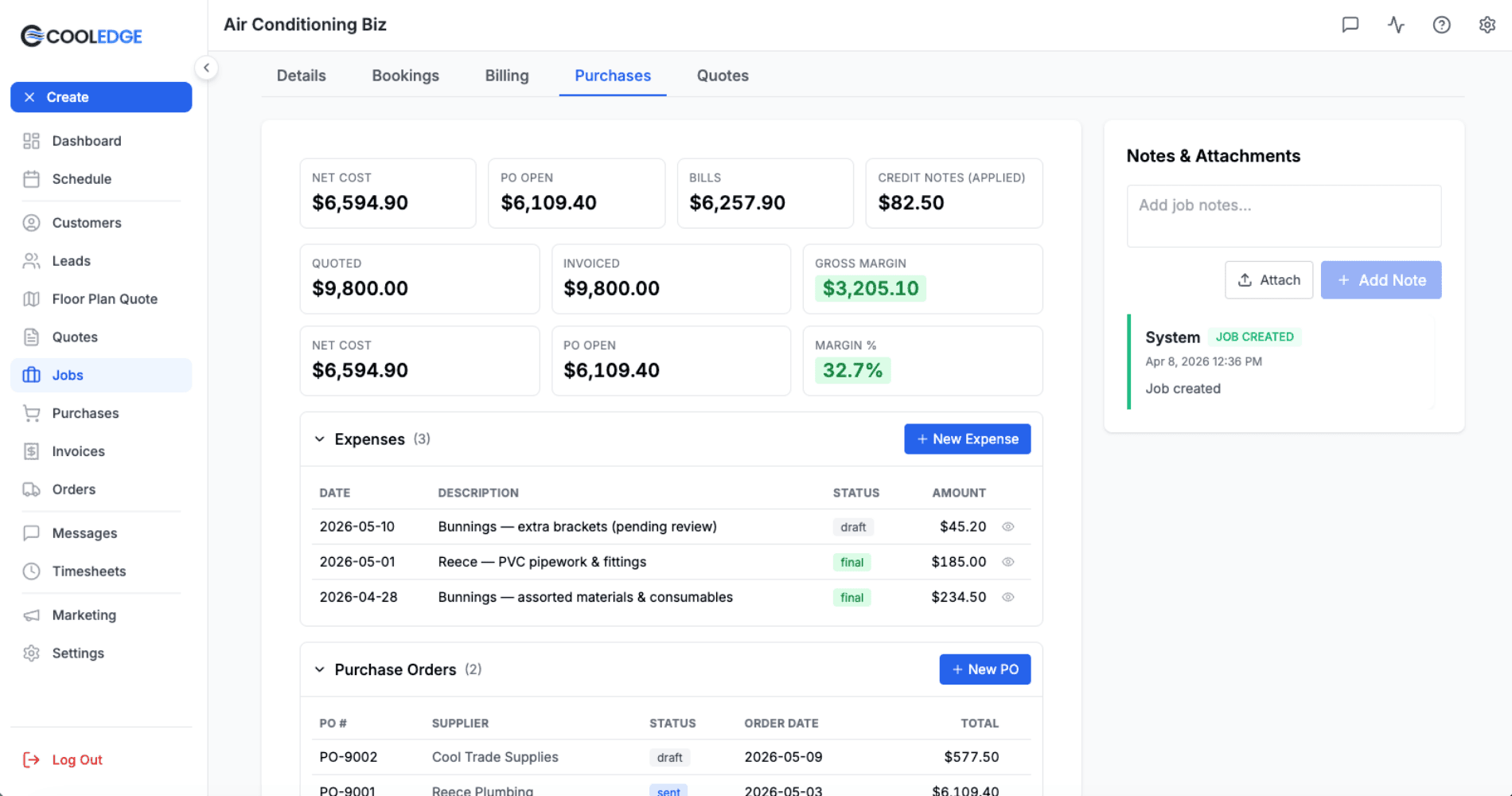
The widget sits at the top of the Purchases tab, right above your Expenses, Purchase Orders, Supplier Bills and Credit Notes sections.
What the Widget Shows
The widget is a grid of six tiles. Here's what each one means.
Quoted
The accepted total from the quote this job was created from. If the job wasn't created from a quote, or the quote hasn't been accepted yet, this stays at $0.
Invoiced
The sum of every invoice on this job that isn't a draft or void. This is the revenue figure used to work out your margin.
Gross Margin
Invoiced minus Net Cost. Shown as a dollar amount. The tile is colour-coded:
- Green when margin is 20% or more
- Amber when margin is between 10% and 20%
- Red when margin is under 10%
- Grey when there are no invoices yet
Net Cost
What the job has cost your business so far. This is expenses plus supplier bills, minus any applied credit notes. See the breakdown below.
PO Open
Purchase orders you've sent to suppliers but haven't received a bill for yet. These are committed costs (money you've promised to spend) but they haven't hit Net Cost yet because no bill has arrived.
Margin %
Gross Margin as a percentage of Invoiced. Same colour coding as Gross Margin. Shows a dash if you haven't invoiced anything yet.
What Counts as Revenue
Revenue on the widget comes from two places.
Quoted is the accepted total of the quote this job came from. If you converted a quote to a job, that quote's accepted figure shows up here. If the customer hasn't accepted the quote yet, or the job wasn't built from a quote, this stays at $0.
Invoiced is the sum of every invoice attached to this job. Draft invoices don't count. Voided invoices don't count. Everything else does (sent invoices, paid invoices, overdue invoices, the lot).
Invoiced is the figure used for the Gross Margin and Margin % calculations.
What Counts as Costs
Net Cost is the sum of three things on this job:
- Expenses with status "final". This includes receipts you've snapped with the camera and let Cooledge read with OCR, plus any expenses you've entered by hand. Draft expenses don't count yet.
- Supplier bills with any status except "void" or "draft". So sent, received and paid bills all count.
- Minus credit notes with status "applied". A credit note is money a supplier has refunded you (for a returned part or an overcharge). Draft and voided credit notes don't count.
So the formula is:
Net Cost = Expenses + Supplier Bills − Applied Credit Notes
If your supplier bills you $800 then issues a $50 credit note for a faulty fan, the widget shows $750 of cost on that job.
How Margin Is Worked Out
Gross Margin = Invoiced − Net Cost
That's the dollar figure.
Margin % = (Gross Margin / Invoiced) × 100
That's the percentage.
If you've invoiced $5,000 and the job has cost you $3,200, your Gross Margin is $1,800 and your Margin % is 36%. The tile shows green.
If you've invoiced nothing yet but you've already spent on parts, Margin % shows a dash. There's no revenue to divide into, so the percentage isn't meaningful yet.
When Does It Update
The widget refreshes every time you open the Purchases tab. It also refreshes when you save a change on that tab. Save a new expense or attach a supplier bill to the job and the numbers move straight away. No refresh button to hunt for.
If you're on another tab when a teammate adds an expense, just click back into Purchases to see the updated figures.
Who Can See It
Owners and admins see the widget by default. Technicians and other team members don't see costs or profit on jobs. This matches every other place in Cooledge where job costs appear: the Purchases sections on mobile and the portal Purchases tab itself.
If your tradesperson should be able to add expenses but not see margin, leave them as a technician or member. They'll still be able to snap receipts (their expenses flow through to your admin view) but they won't see what the job's costing or earning.
If you need to change someone's role, an owner can do it from Settings then Team.
What If the Widget Shows $0 Costs
That means there's nothing attached to this job yet on the cost side. Check:
- Have you attached any expenses to the job? Snap a receipt or add one by hand. See Tracking Expenses.
- Have any supplier bills been linked to this job? See Purchase Orders and Supplier Bills and Credit Notes.
- If you've created drafts but haven't saved them as final, drafts don't count toward Net Cost.
What If the Widget Shows Costs but No Revenue
This is normal during the job. You've spent on parts before the customer has paid.
If it's still showing $0 revenue after the job is done, check:
- Have you sent an invoice for the work? Drafts don't count toward Invoiced.
- Did the job come from a quote? If yes, has the customer accepted the quote? The Quoted tile only fills in once the quote is accepted.
- If the job wasn't built from a quote at all, Quoted will always stay at $0. That's fine. Margin is worked out from Invoiced, not Quoted.
Common Questions
Why don't my technicians see profit on jobs? Cost information is private by default. Only owners and admins see the widget so you can keep margins in-house. Your team can still snap receipts and add expenses without seeing what the job is making.
Does it count my labour cost? Not at the moment. The widget only adds up expenses, supplier bills and credit notes attached to the job. Your own time isn't in there. If you want labour costed in, add it as an expense on the job with the hours and your hourly rate.
Can I track overhead or admin costs against a job? Anything you attach to the job as an expense counts toward Net Cost. So if you want to allocate a portion of a phone bill or insurance, add it as an expense on that job. Otherwise overhead isn't pulled in automatically.
Does GST get included in the costs? The widget uses the total figure from each expense, supplier bill and credit note. If you've entered those totals inclusive of GST, the widget is GST-inclusive. If you've entered them ex-GST, the widget is ex-GST. Be consistent so your margin is meaningful.
Why is my Gross Margin red even though the job's going well? The widget colour-codes margin against industry benchmarks. Red is anything under 10%. If you genuinely run on a lower margin (or the job isn't finished invoicing yet), the colour is just a flag, not a judgement.
What's the difference between PO Open and Net Cost? PO Open is money you've promised to spend (purchase orders out to suppliers). Net Cost is money you've actually been billed for. When a supplier sends you a bill against a purchase order, that figure moves from PO Open to Net Cost.
Can I export profit by job? Not from this widget directly. The widget on the job page is the live snapshot view.
Related Articles:
- Tracking Expenses: Add expenses to a job by snapping receipts or entering them by hand
- Purchase Orders: Send orders to suppliers and link them to jobs
- Supplier Bills and Credit Notes: Record bills against POs and apply credits when suppliers refund you
- Managing Suppliers: Set up the suppliers you buy parts from
- Understanding Jobs: How jobs work in Cooledge
Need help with Job Profitability? Email us at support@cooledge.com.au
Was this article helpful?
Let us know if you found this information useful.
Still need help? Contact support
In this article
Use your browser's search (Ctrl+F) to quickly find specific topics within this article.
Browse all help articles →Related Articles
Managing Suppliers
Save your supplier directory once. Cooledge uses the order email to send purchase orders. Every PO and bill stays linked back.
Purchase Orders
Send purchase orders to your suppliers from any job. Cooledge emails a clean PDF, you reconcile the bill when it arrives.
Supplier Bills and Credit Notes
Record supplier bills when they arrive, log credit notes for returns and refunds. Everything ties back to the job.