Sending Quotes, Invoices and Other Documents
One send screen for quotes, invoices, purchase orders and job forms: pick the recipient, send by email or SMS, attach what you need and check delivery afterwards
Sending Quotes, Invoices and Other Documents
One send screen for everything you send a customer or supplier.
- Pick a saved contact or type an address, add Cc and Bcc, then copy yourself in
- Email and SMS are separate switches, so send one, the other or both
- Start from a template, then edit the subject and body for that one send
- Attach the PDF, completed forms, photos and files, up to 20 MB
- Check what happened afterwards on the delivery strip on the document
Quotes, invoices, purchase orders and job forms all send through the same screen. It is a two pane composer on the portal and a full screen send sheet on mobile. You get the same recipient controls and templates wherever you start from, so there is nothing new to learn per document type. Attachments are close to the same on both: photos, files off the device (on app version 2.2.0 or later) and anything already on the job through From Jobs & Quotes, which includes completed form PDFs. The Attach completed forms toggle is portal only.
What You Can Send
On the portal: quotes, invoices, purchase orders and job forms.
On the mobile app: quotes, invoices and job forms.
Purchase orders can only be sent from the portal. There is no supplier send on mobile.
Where the Send Screen Opens From
Quotes
- Portal: Send to Customer or Save & Send to Customer in the quote editors and on the new quote screen
- Portal: Generate PDF & Send to Customer on the final step of the floor plan wizard
- Mobile: Send to Customer on the quote export screen
The quote detail page does not open the composer. It shows the delivery strip for a quote you have already sent.
Invoices
- Portal: Send Invoice on a draft or Resend Invoice on one already sent, both under More Actions
- Portal: Save & Send on the Invoices tab of a job
- Portal: after you create a partial invoice, the composer opens on its own
- Mobile: Send Invoice or Resend Invoice in the invoice actions, and Send Invoice to Customer after you take a payment
Purchase orders
- Portal: Send to supplier in the purchase order inline editor
Job forms
- Portal: Send on each row of the Forms tab on a job
- Mobile: the same row says Email
What the Send Screen Looks Like
On the portal
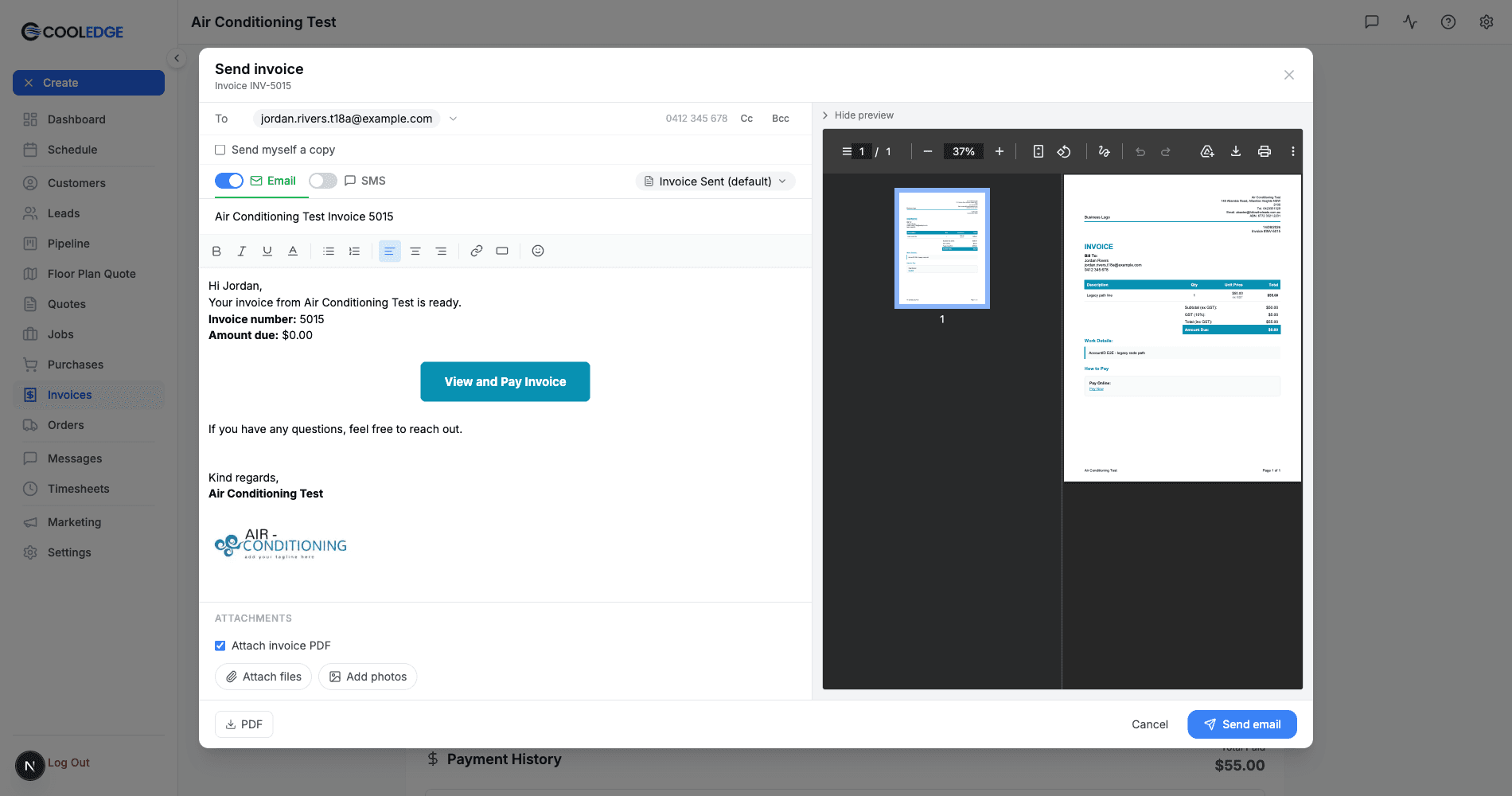
The header reads Send quote, Send invoice, Send purchase order or Send form, with the document underneath it, for example Invoice INV-5015.
The left pane runs top to bottom: the To row with the Cc and Bcc toggles, then Send myself a copy, then the Email and SMS channel tabs with a switch each and the template pill on the right, then the editor for whichever channel you are on, then Attachments.
The right pane is a preview of the PDF, which you can collapse with Hide preview.
The footer has a PDF download, Cancel and the send button.
On mobile
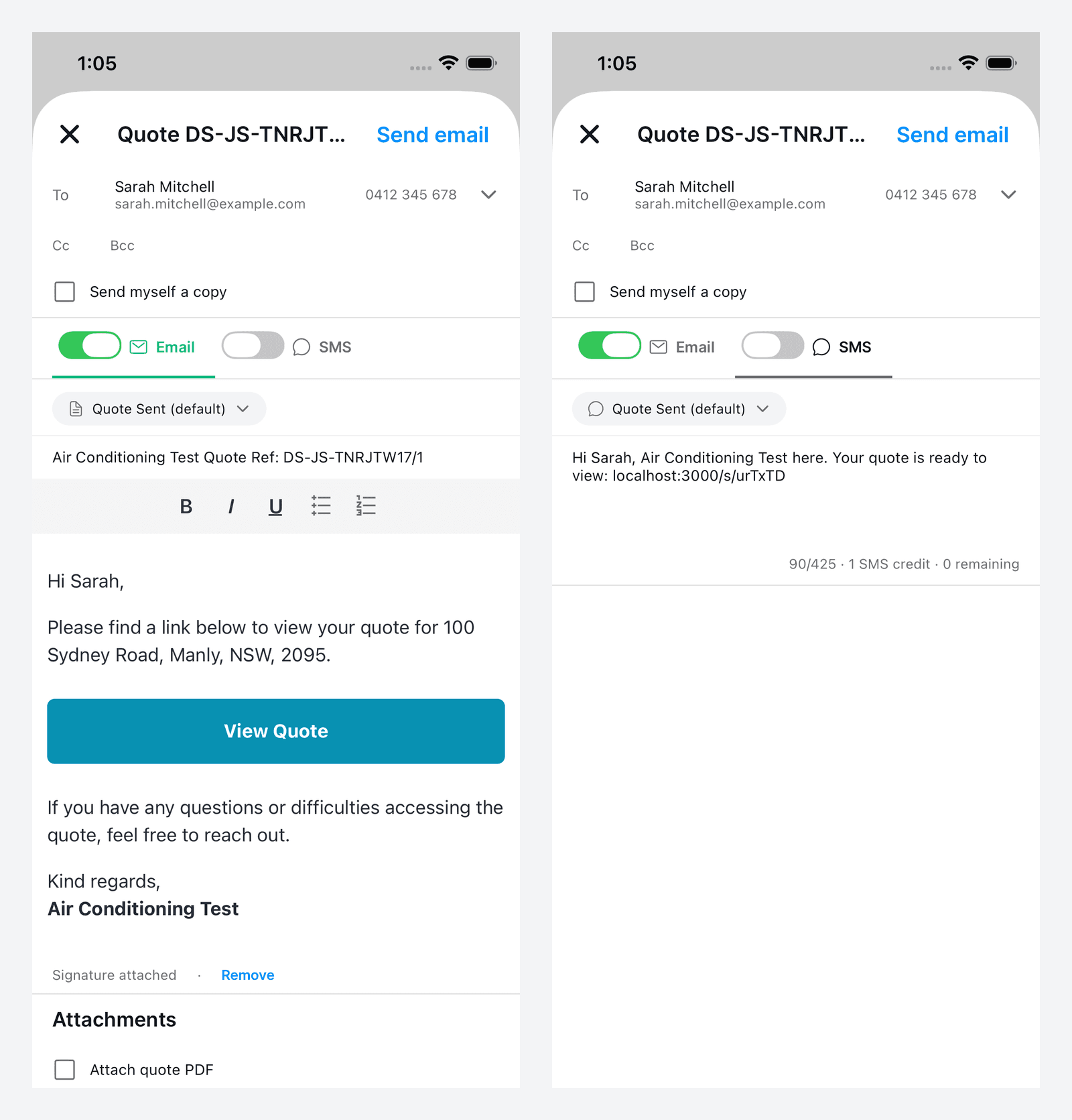
Mobile opens a full screen sheet: a header with the close X, the document and the send button, then the recipient block, then the channel tabs, then whichever channel you are on.
There is no PDF preview pane on mobile and no delivery status strip. Attachments work much as on the portal: take a photo, pick from your library, choose a file or grab one off a job or quote, which is also where a completed form's PDF lives.
Choosing Who Gets It
The To field holds one address. Everyone else goes in Cc.
- Tap or click the To field and a dropdown lists the customer and their saved contacts. You can also just type an address that is not saved anywhere
- Cc and Bcc are both available on the portal and on mobile
- Any CC addresses you have set under Settings → Email Settings → Outbound Notifications pre-fill automatically. On the portal they show as chips marked auto, and you can remove one for that send without changing the setting
- Send myself a copy adds your own address to Bcc
Setting the contact on the document
If you pick a different contact to the one already on the document, you get a checkbox to make it stick. On the portal it reads Save as the contact for this quote, with the wording changing to match the document you are sending. On mobile it reads Set as this document's contact. It is not offered on job forms.
The bounced address warning
If an address has bounced before, an amber note reads This address bounced previously. You can still send to it. Treat it as a prompt to check the spelling with the customer or to use a different address.
Email and SMS
Email and SMS are independent switches with a tab each. Turn on one, the other or both, then write a different message for each.
- SMS is only available on quotes and invoices. Purchase orders and job forms go by email
- The send button tells you what is about to happen: Send email, Send SMS, Send email + SMS or Send
- SMS is capped at 425 characters, and you get a live segment and credit count as you type
If a channel is not available, the screen says why in plain words:
- No email address on file for this customer.
- SMS is not available for this document type.
- SMS is not available on trial plans.
- No SMS credits remaining. Top up in Settings.
- No mobile number on file for this customer.
- This customer has opted out of SMS.
- No mobile number for this recipient.
Templates
Each channel has its own template picker, so email templates and SMS templates are separate lists.
- The starting point is the system template, for example Quote Sent (default) or Invoice Sent (default)
- Any custom templates you have built under Settings → Templates show up in the picker
- The subject and body are always editable for that one send
Editing here changes that email or text only. It never changes the stored template, so you can rewrite a whole message for one customer without touching what everyone else gets.
There is no Save as template button in the send screen, on either platform. That is deliberate. By the time a draft is in front of you it holds one customer's name, address and live link, so saving it as a template would bake those into every future send. Build and edit templates in Settings → Templates instead. See Message Templates.
Your email signature is added at the bottom of the message, and you can edit or remove it for a single send. See Email Signatures for the detail.
Attachments
The Attachments section sits under the message.
Mobile attaches files too. Choose File opens your phone's file picker for PDFs and documents. From Jobs & Quotes lists everything already on the job, completed form PDFs included. The Attach completed forms toggle is portal only.
The document PDF. A toggle reads Attach quote PDF, Attach invoice PDF, Attach purchase order PDF or Attach form PDF. It is on by default for everything except quotes.
Quotes go out as a link rather than a PDF, so the customer always opens the current version. If you revise a quote, the link they already have shows the revision. An attached PDF would freeze the old numbers in their inbox.
Completed job forms. On the portal, use Attach completed forms to send the forms filled in on the job, with a Signed forms only filter if you only want the signed ones. There is a Preview on each form so you can check before it goes.
Photos and files.
- Portal: Attach files for anything on your computer, and Add photos for job and quote photos
- Mobile: Add attachment, then Take Photo, Choose from Library, Choose File or From Jobs & Quotes
The limits are 20 MB in total and 20 files. The meter shows where you are at, reading Files: 3.1 MB / 20.0 MB. The document PDF and any attached forms count towards it, so a big photo set on top of a long form PDF can run you out.
The PDF Preview
On the portal, the right pane shows the actual PDF the customer will receive, so you can read it before you send instead of sending yourself a test first. Collapse it with Hide preview if you want more room for the message. The PDF button in the footer downloads the same file.
Checking It Arrived
Once a document has been sent, a delivery strip appears on the portal, on quote detail, invoice detail, the purchase order editor and sent form rows. It is portal only, mobile does not show it.
The strip shows when it went, for example Sent 2 hours ago, then a chip per channel and a link to the conversation.
| What you see | What it means |
|---|---|
| Sent | Handed to the mail provider and on its way |
| Delivered | Accepted by the recipient's mail server |
| Clicked | Someone clicked a link in the email |
| Bounced | Rejected. The address is wrong, full or blocking you |
| Failed | It did not go. Check the address and send again |
| Viewed | On quotes, the customer opened the online quote |
| Link opened ×2 | The short link in the SMS was opened, and how many times |
| View in Messages | Opens the full conversation in Messages |
Clicked means a link was clicked, not that the email was opened. Cooledge deliberately does not track opens, so there are no read receipts here. A quote sitting on Delivered may well have been read.
Troubleshooting
The send button is greyed out or a channel is off. Read the note under the channel. No email address on file for this customer. and No mobile number on file for this customer. both mean the details are missing on the customer record, so add them and reopen the send screen. This customer has opted out of SMS. means they have replied STOP and you must use email.
SMS will not turn on. Check the reason shown. SMS is not available for this document type. means you are on a purchase order or a job form, which are email only. SMS is not available on trial plans. and No SMS credits remaining. Top up in Settings. are both plan and credit issues, sorted under Email & SMS Settings.
Your message is too long for one text. SMS is capped at 425 characters. Watch the segment and credit count as you type, since a longer message costs more credits.
The composer warns there is no quote link. The notice This email has no quote link. Customers open the quote from that link. means you have deleted the link while editing. Click Add it back rather than sending, otherwise the customer has no way to open the quote.
The purchase order email is empty. The notice Attach the purchase order PDF. Without it this email has nothing in it. means the PDF toggle is off. Use Attach it so the supplier gets the order.
An invoice has changed since it was sent. The notice This invoice has changed since it was sent. The customer will get the version they already have. Save the invoice to update it. means your edits are not saved yet. Save the invoice, then send.
The email failed but the SMS went. The send screen stays open with everything intact and switches SMS off, so fixing the address and sending again does not text the customer twice.
Nothing sent and the document is still a draft. That is on purpose. If there is no deliverable address the send fails before anything changes, so a quote can never be marked as sent when no email actually went out.
Attachments will not add. You are likely at the 20 MB or 20 file limit. Check the meter, remember that the document PDF and any attached forms count towards it, then drop the largest photos.
Related: Email Signatures · Message Templates · Email & SMS Settings
Need a hand? Email us at support@cooledge.com.au
Was this article helpful?
Let us know if you found this information useful.
Still need help? Contact support
In this article
Use your browser's search (Ctrl+F) to quickly find specific topics within this article.
Browse all help articles →Related Articles
Booking Reminders
Automated SMS and email reminders that fire before every scheduled visit. Filter by staff, category, or visit type, with quiet hours and custom templates.
Call Forwarding and Voicemail
Forward calls from your business number to a mobile or landline, set business hours and record your voicemail greeting
Call History
See every call to your business number, who called, what happened and any voicemail they left