Money Reports
Four reports for owners and admins: Receivables ageing, Cash collected, Work to invoice and Rebates. See who owes you, what came in and what you haven't invoiced, then export to CSV or PDF.
Money Reports
See who owes you, what came in and what you still haven't invoiced.
- Receivables: who owes you and how overdue it is
- Cash collected: payments received, by day, week or month
- Work to invoice: finished work that hasn't been invoiced yet
- Rebates: what providers should pay you against what's been invoiced, paid and received
- The owner can download each one as a CSV or a PDF with your logo
- Owners and admins only
These reports sit under Money on the Reports page, next to the Job Profitability Report.
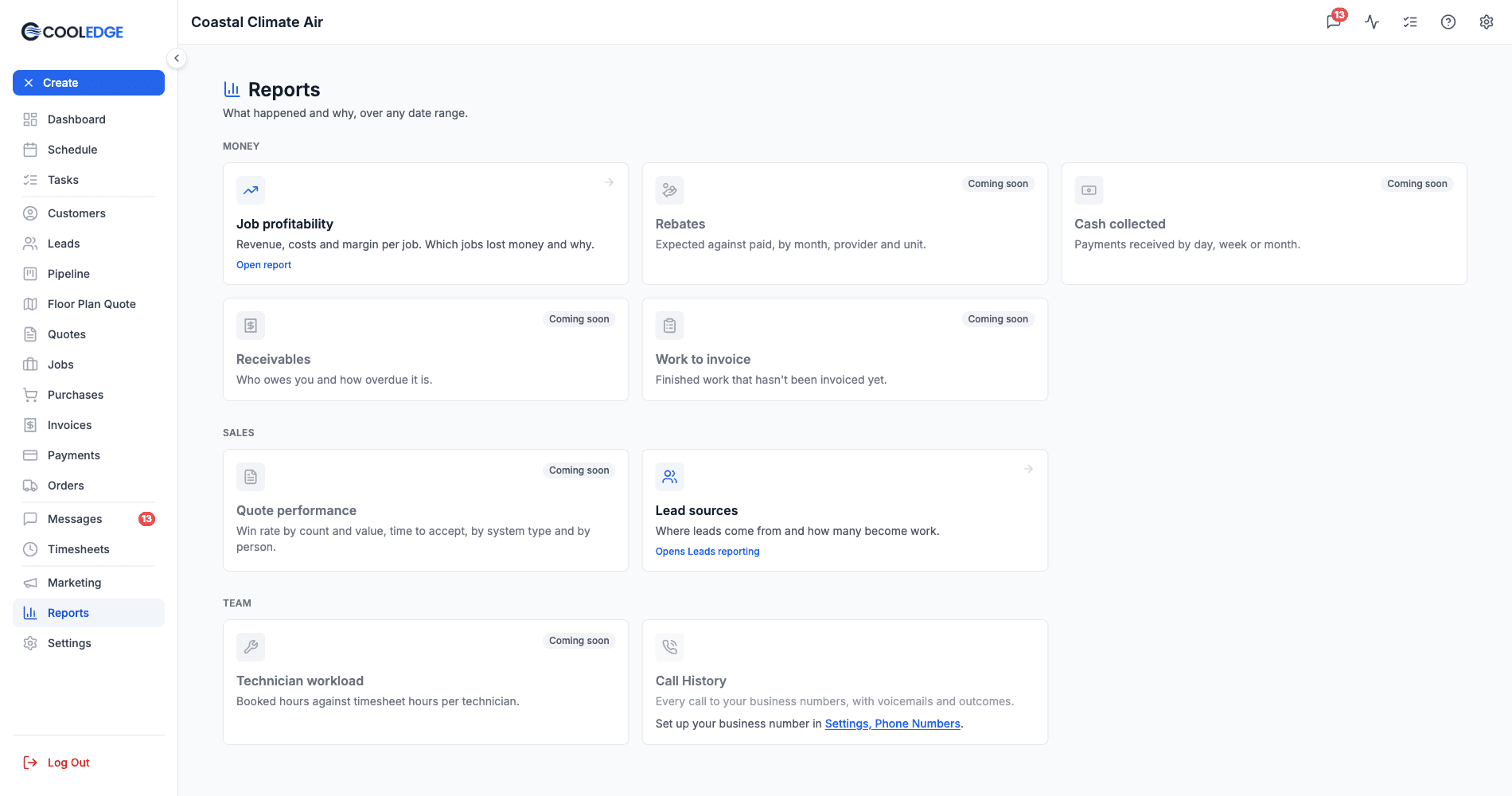
What Each Report Is For
| Report | The question it answers | Figures | Dates |
|---|---|---|---|
| Receivables | Who owes me and how late is it? | Inc GST | As of today |
| Cash collected | What came in? | Inc GST | Any range |
| Work to invoice | What did we finish but not bill? | Inc GST | As of today |
| Rebates | What's still to come from my providers? | Ex GST | Any range |
Reports are on every plan: Starter, Growth and Scale.
Using the Reports
All four reports work the same way:
- Date range: Cash collected and Rebates have the same range button as the Job Profitability Report: presets or a custom range of up to 400 days. Receivables and Work to invoice have no range. They show As of today
- Group by: rolls the rows up. Click a group to see the rows inside it. The one exception is Customer on Cash collected, which is a summary only
- Filters: narrow the rows. A filter changes the headline figures too. Active filters show as chips and Clear all removes them
- Columns: show or hide columns. Your choice is remembered on that browser
- Sorting: click a column heading with arrows to sort by it
- Export: the account owner sees an Export button at the top right, with Download CSV and Download PDF. Exports follow the screen: the same dates, filters, sort and grouping
Receivables
Reports > Receivables lists every invoice with money still owing, as of today.
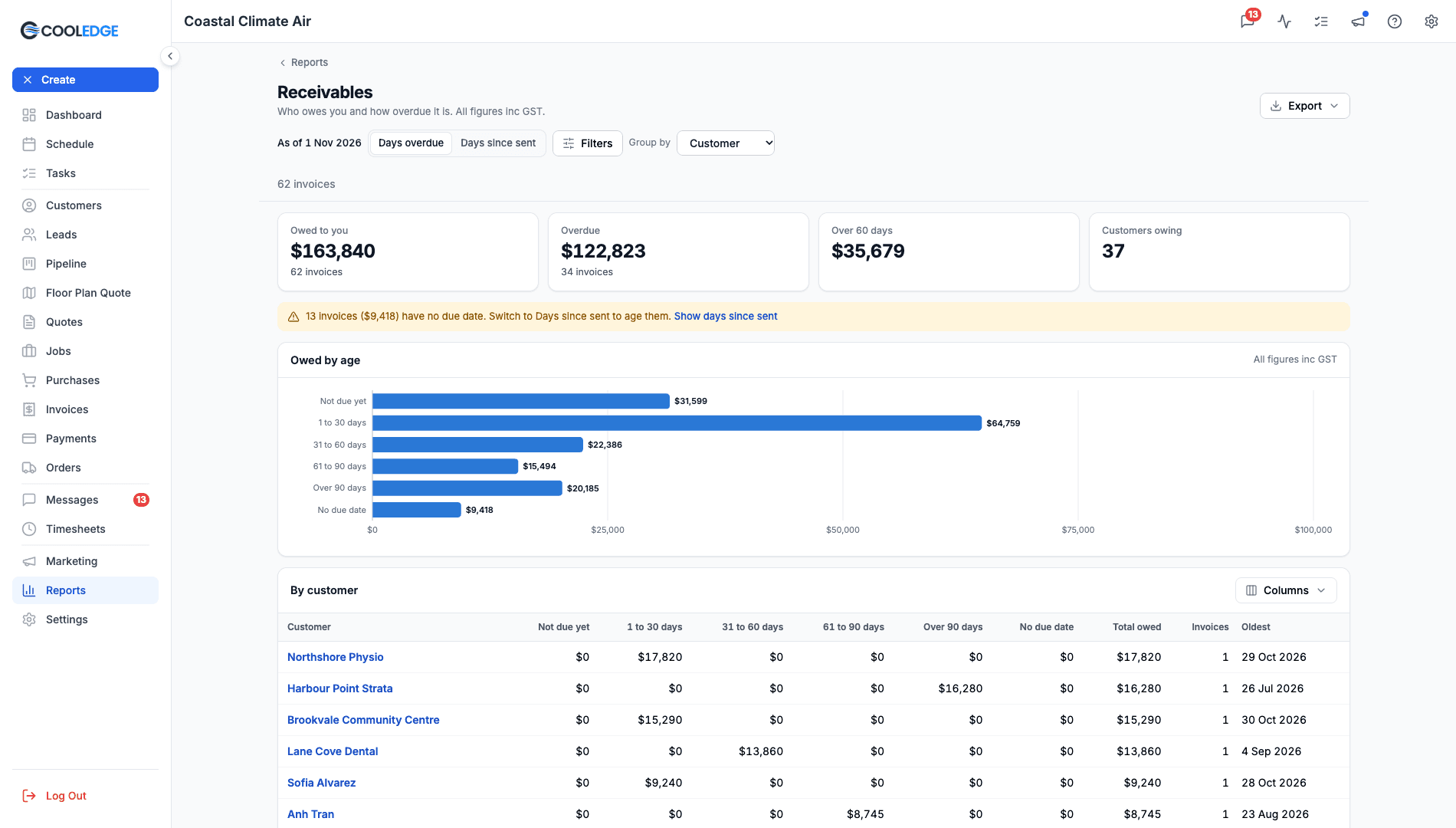
Headline Figures
| Figure | What it shows |
|---|---|
| Owed to you | The total still owing and how many invoices |
| Overdue | Invoices past their due date, however you age the report |
| Over 60 days | Money in the two oldest age groups, on the age basis you've picked |
| Customers owing | How many customers owe you money |
Days Overdue or Days Since Sent
The switch at the top changes how invoices are aged:
- Days overdue (the default) ages each invoice by its due date: Not due yet, 1 to 30 days, 31 to 60 days, 61 to 90 days, Over 90 days and No due date
- Days since sent ages each invoice by the day it was sent: 0 to 30 days, 31 to 60 days, 61 to 90 days, Over 90 days and No sent date
Invoices sent before due dates were set automatically may have no due date. A note tells you how many and Show days since sent switches the report for you. To give one of them a date, open the invoice and set it.
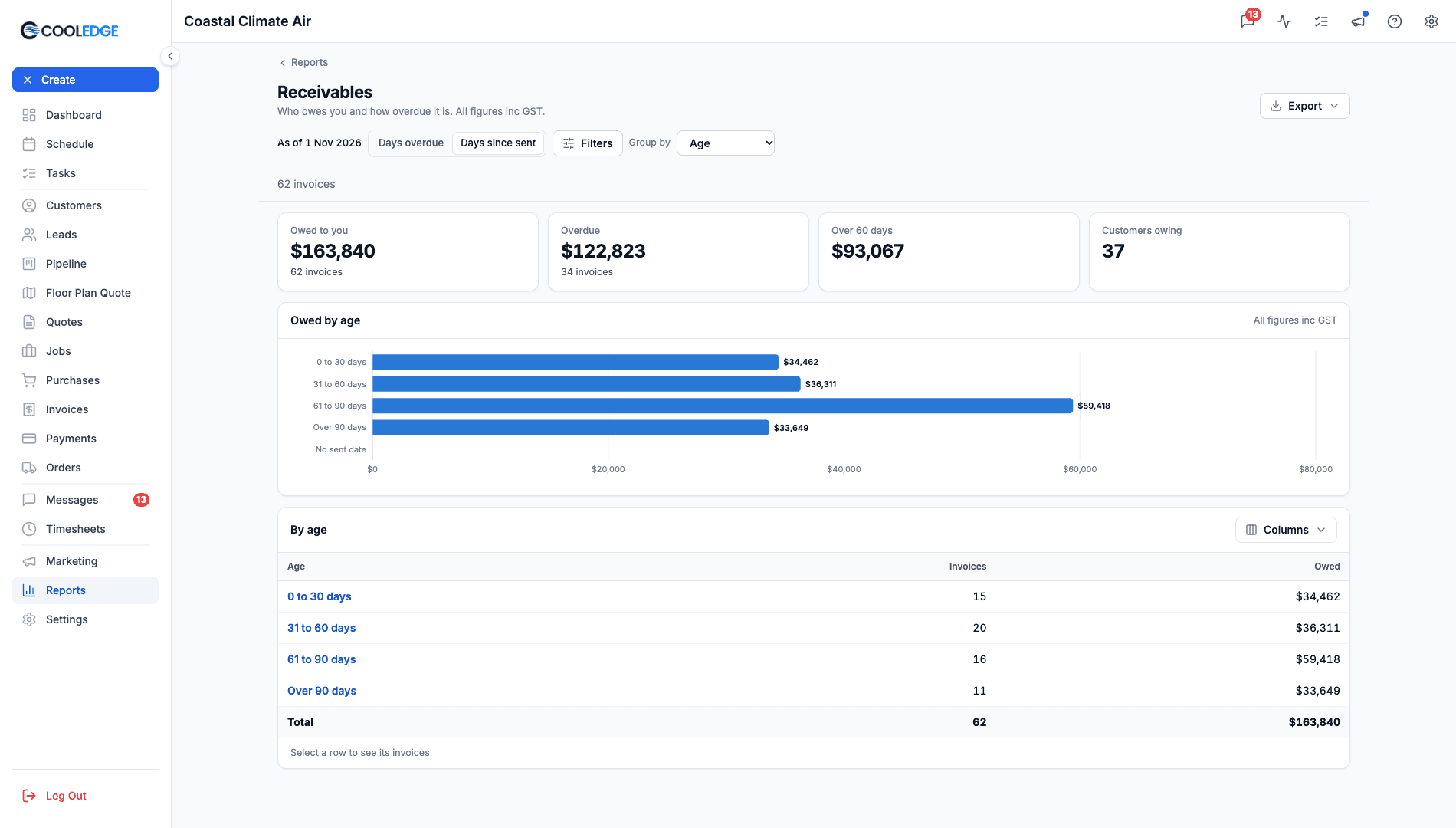
Group By
- Customer (the default): one row per customer, with a column for each age group, Total owed, Invoices and Oldest. Oldest is a date: their oldest due date, or their oldest sent date on Days since sent. Click a customer to see their invoices
- Invoice: one row per invoice, with Sent, Due, the days, Age, Total, Paid and Owed. Click a row to open the invoice
- Age: one row per age group
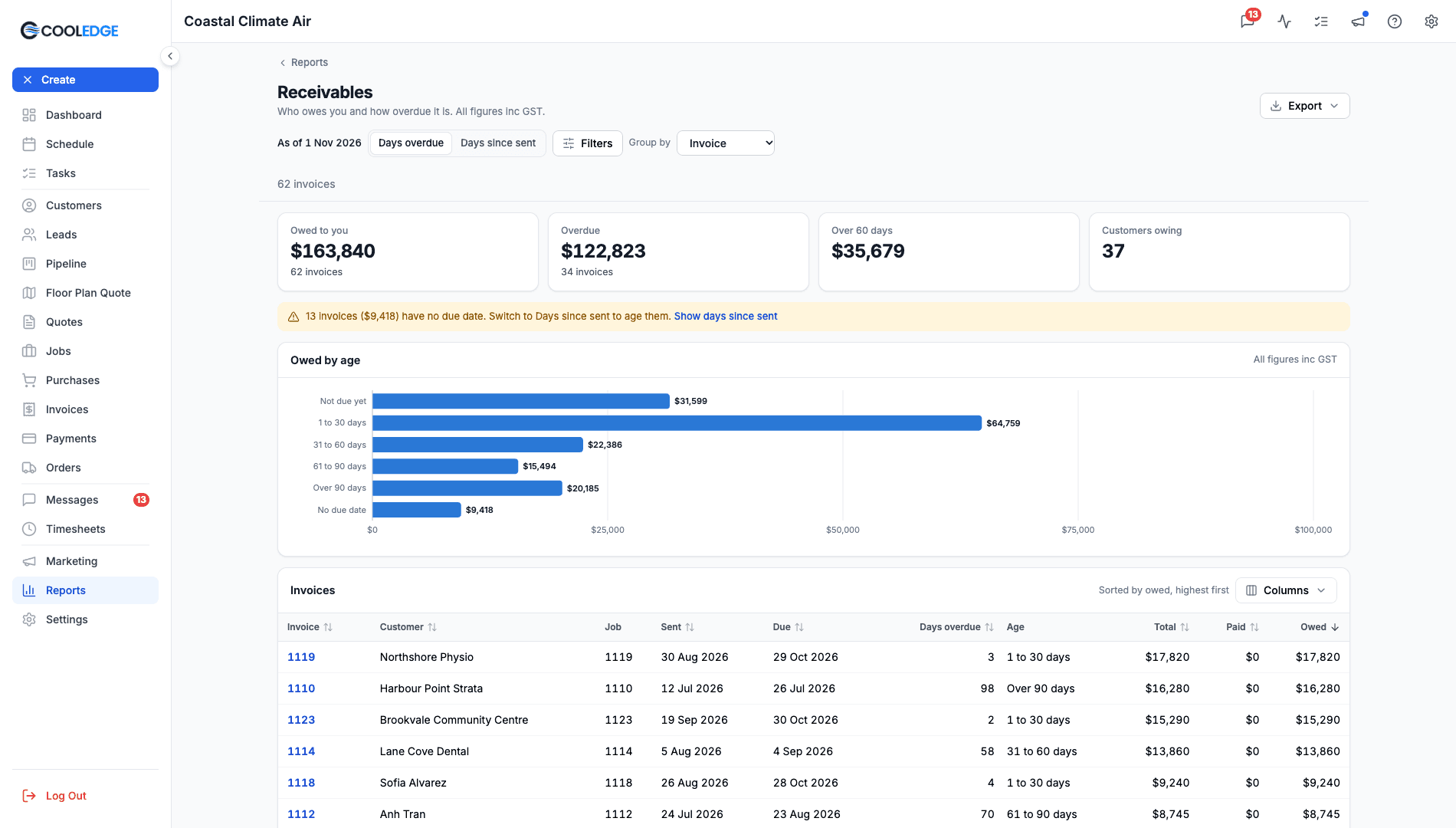
Paid includes any deposit deducted from the invoice, so Total less Paid is always Owed.
You can filter by Age and Customer.
Cash Collected
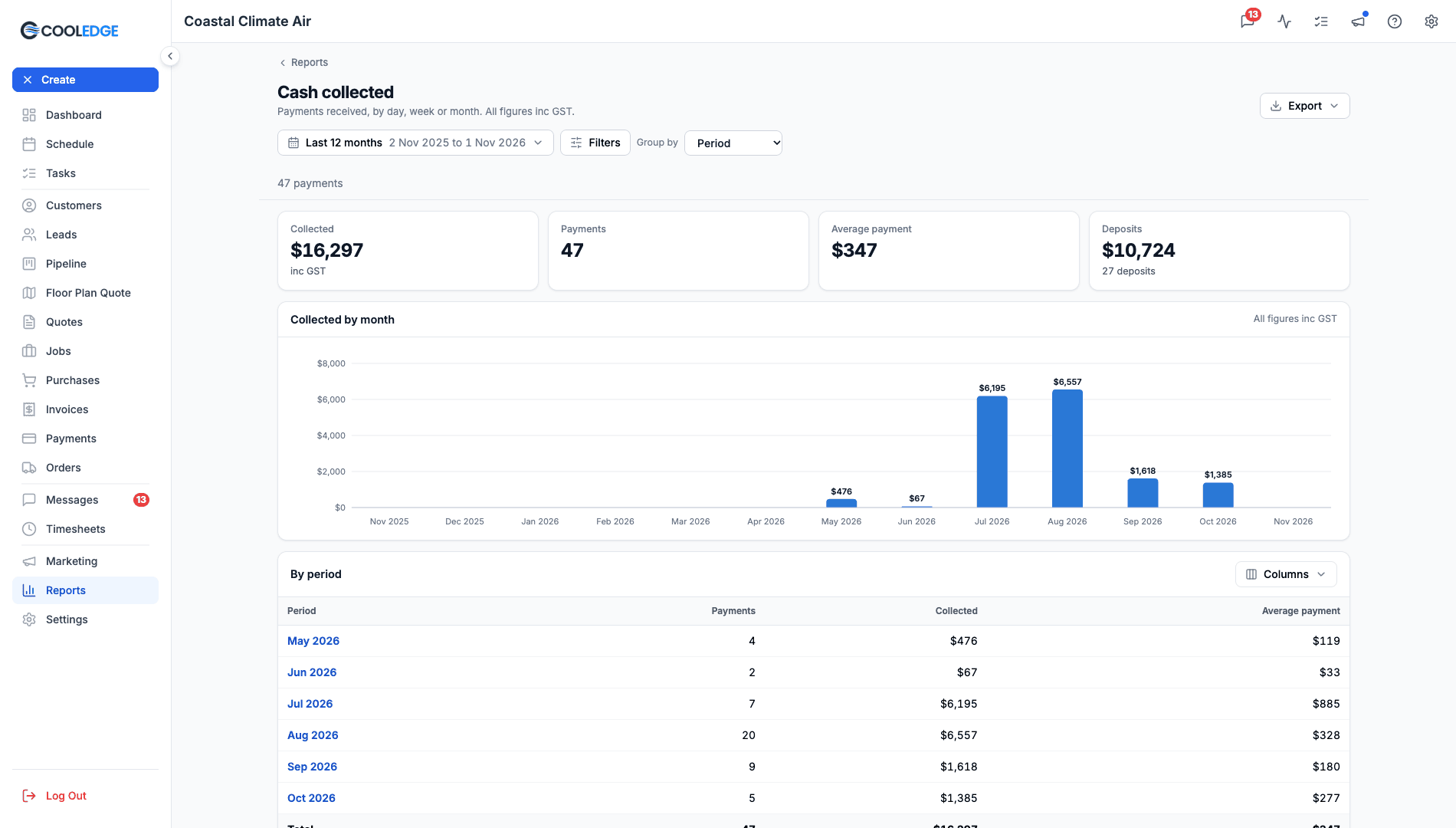
Reports > Cash collected lists the payments you received in a date range. It opens on This month.
Headline Figures
| Figure | What it shows |
|---|---|
| Collected | The total received, inc GST |
| Payments | How many payments |
| Average payment | Collected divided by payments |
| Deposits | The money received as deposits on quotes and how many |
Collected covers customer payments and quote deposits. A reversed payment doesn't count. Money from rebate providers isn't included: it shows in the Rebates report.
The chart follows the range: by day up to 31 days, by week up to 92 days (weeks start on Monday) and by month after that.
Group By
- Payment (the default): one row per payment. Click a row to open its invoice, or its quote for a deposit
- Period: one row per day, week or month, matching the chart
- Method: Stripe, EFT, Cash, Card, Other or Accounting software
- Customer
- Type: Deposit or Invoice payment
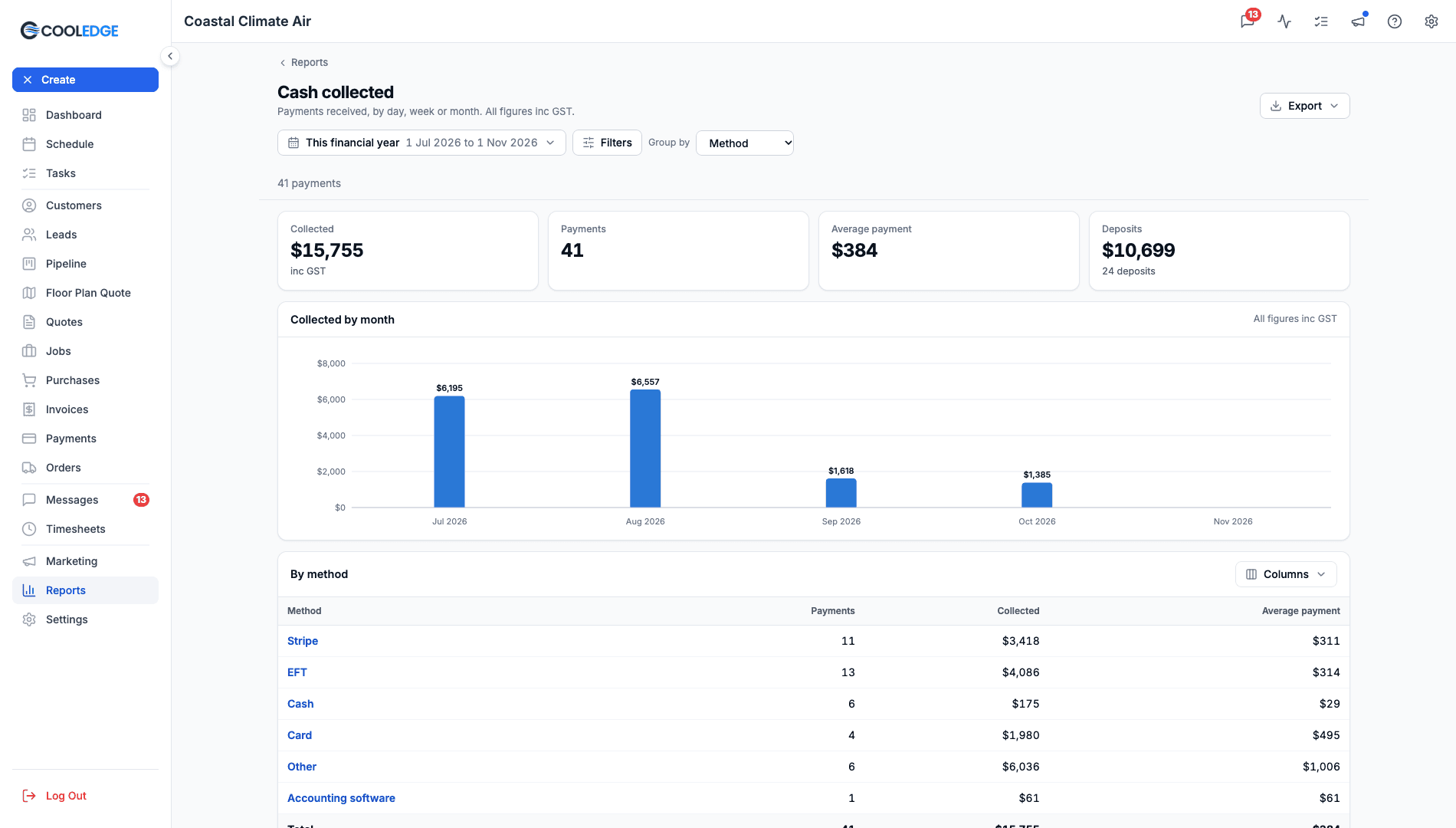
You can filter by Method (one or more) and Type.
Businesses using ServiceM8 mode can use this report too. It leaves out the Invoice and Job columns.
Work to Invoice
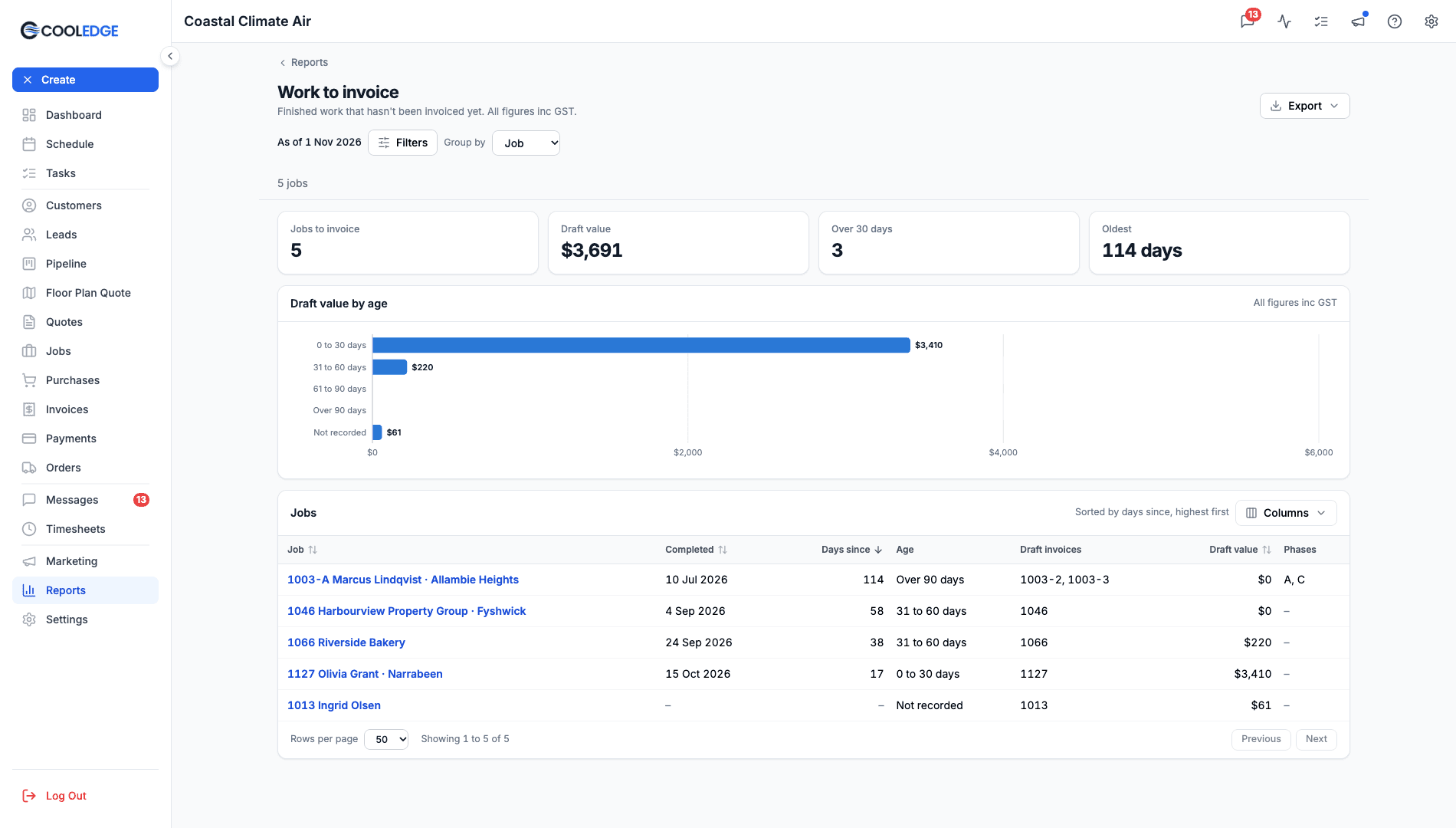
Reports > Work to invoice lists completed jobs whose draft invoice hasn't been sent, as of today. The oldest are at the top.
| Figure | What it shows |
|---|---|
| Jobs to invoice | How many jobs are waiting |
| Draft value | The value of their draft invoices, inc GST |
| Over 30 days | How many have waited more than 30 days |
| Oldest | The longest wait, in days |
With no filter on, Jobs to invoice and Draft value match Ready to invoice on your Dashboard.
Each row shows Completed, Days since, Age, Draft invoices, Draft value and Phases. A job with phases appears once. A job with no completion date sits under Not recorded.
A job whose draft invoice is $0 is still listed, so the job count stays right. That means an age group in the chart can show $0 while the table shows a job in it.
Group by Job or Age and filter by Age. Click a row to open the job. Back to Work to invoice report brings you back to the same view.
Rebates
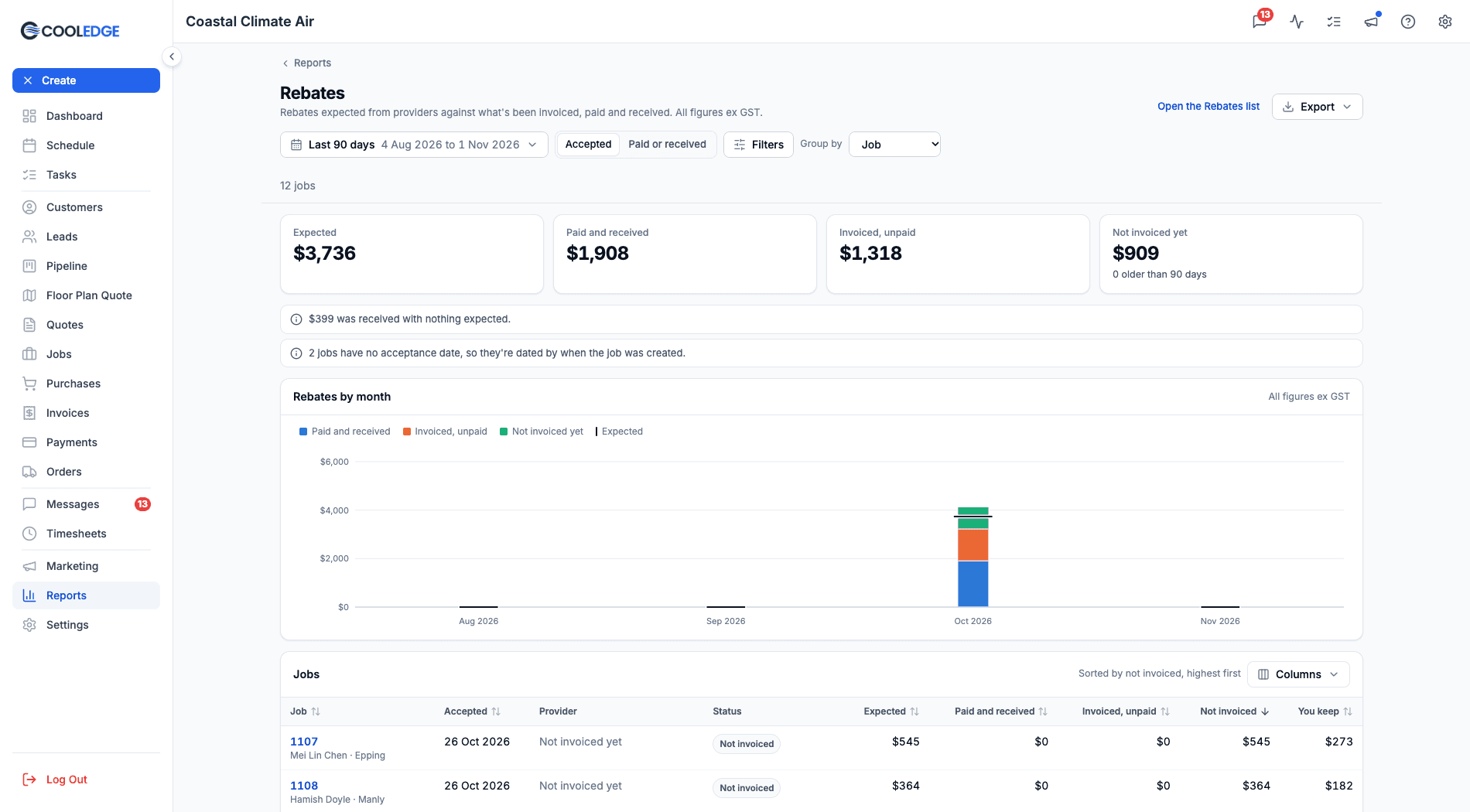
Reports > Rebates shows what you expected from your rebate providers against what's been invoiced, paid and received. Every figure is ex GST. It opens on This financial year.
The report only appears when rebates are turned on. The Rebates list under Invoices is where you do the work: raise invoices and record money. This report is where you see the totals. Open the Rebates list at the top right takes you there.
Headline Figures
| Figure | What it shows |
|---|---|
| Expected | What your quotes said providers would pay |
| Paid and received | Payments on rebate invoices, plus rebates recorded as received |
| Invoiced, unpaid | What's left to pay on your rebate invoices. Draft rebate invoices count here too, as they do on the Rebates list |
| Not invoiced yet | Expected but not invoiced, with how many are older than 90 days |
The rows can also show:
- Shortfall: the job is settled but the provider paid less than expected
- Not expected: money billed or received above what was expected
Accepted or Paid or Received
- Accepted (the default) puts a job in the range by when its quote was accepted. A job with no acceptance date uses the date the job was created and a note tells you how many
- Paid or received puts a job in the range by its latest payment or receipt. Jobs with no money yet aren't listed. The figures are for the whole job, not just what came in during the range
Group By
- Job (the default): sorted by Not invoiced, highest first. Part paid marks a job with a line on a part-paid invoice. Click a row to open the job. Back to Rebates report brings you back
- Month: by the month of the date you've picked
- Provider: adds Average days to pay. A job with money from more than one provider shows Several providers. A job with nothing billed yet shows Not invoiced yet
- Unit: the main unit of each accepted option. A job with money but no unit on its quote shows Unit not recorded
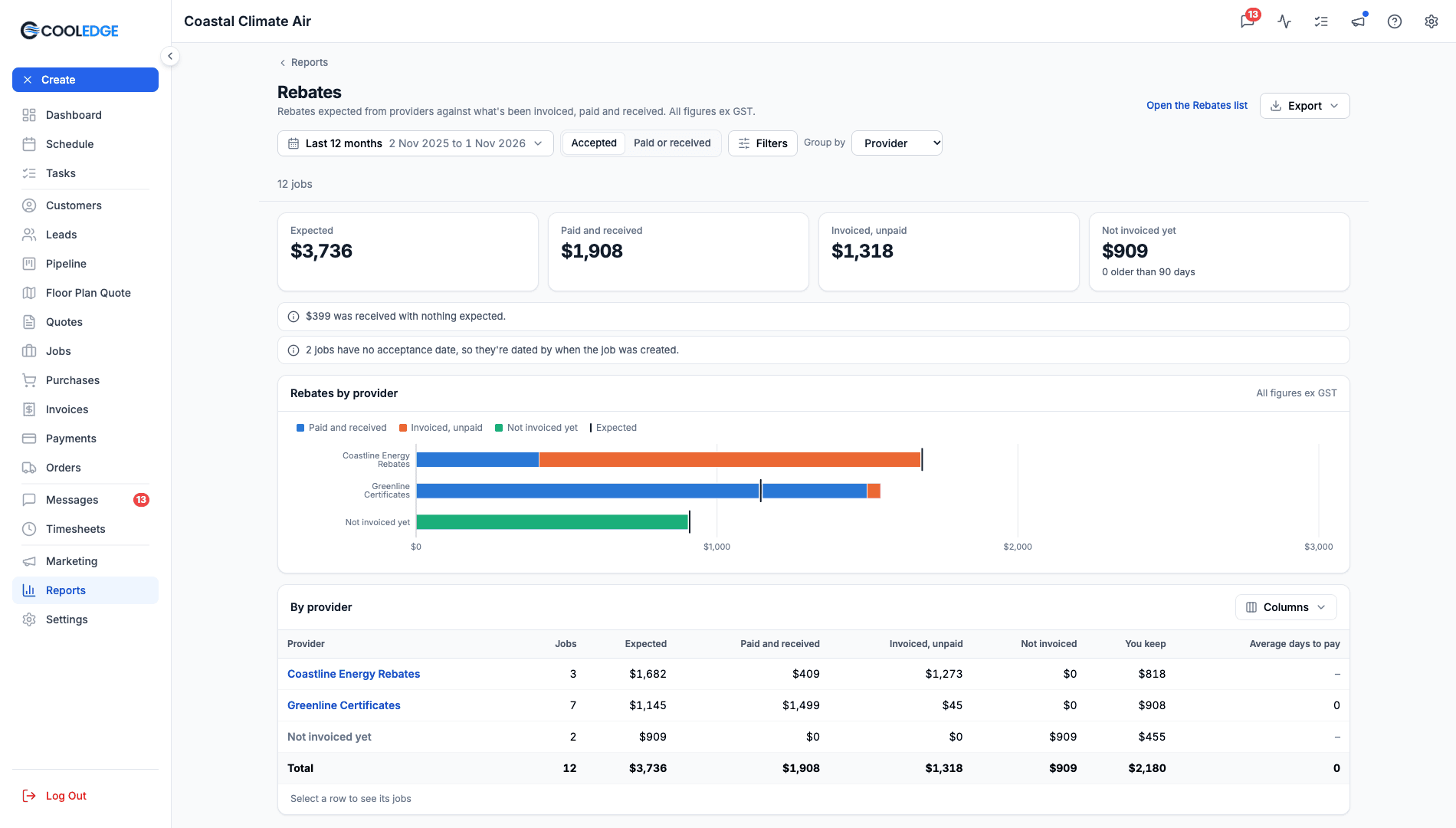
You can filter by Provider, Status and Unit.
More columns are available: Customer rebate, Shortfall, Not expected, Reference, Invoices and Settled.
Export to CSV or PDF
- Download CSV downloads every row, in the table's sort order, with the columns you're showing. Tick CSV: include all columns to get every column. Money columns are labelled inc GST or ex GST. The Rebates CSV adds inc GST columns for its main amounts and the Rebates and Work to invoice CSVs add Customer and Suburb
- Download PDF makes an A4 landscape PDF with your logo and business name, the dates and filters, the headline figures, the chart and the table. It holds up to 1,000 rows. For more, download the CSV
Who Can See It
- Owners see every report and can export
- Admins see every report but can't export
- Members and restricted members don't see reports
In ServiceM8 mode only Cash collected is available, because jobs and invoices live in ServiceM8.
Common Questions
Why does the Dashboard show different overdue figures? There are two reasons. The Receivables report only lists invoices with money owing, while the Dashboard and the Invoices page count by status, so an invoice with nothing owing can add to their count. Receivables also includes a job's base invoice that the invoice list doesn't show, so an overdue one can make its amount and count higher.
Why does Receivables say some invoices are hidden from the invoice list? Receivables includes every invoice with money owing, including a job's base invoice that the Invoices page doesn't list. A note shows how many and how much.
Why does an invoice have no due date? It was sent before invoices got their due date automatically. See where due dates come from.
Why is the Rebates card missing? Rebates are turned off for your business. Turn them on under Settings > Company Settings. See Turn On Rebates.
Can my admin export a report? Not yet. Only the account owner can export.
What does "Too many jobs for one report" mean? The report has more rows than it can load at once. On Rebates or Cash collected, choose a shorter range.
Related
- Job Profitability Report: Revenue, costs and margin for every job
- Sending Invoices and Getting Paid: Sending, payments, due dates and Overdue
- Managing Payments: The Payments page and reversing a payment
- Energy Rebates: The Rebates list, rebate invoices and recording what providers pay
Was this article helpful?
Let us know if you found this information useful.
Still need help? Contact support
In this article
Use your browser's search (Ctrl+F) to quickly find specific topics within this article.
Browse all help articles →Related Articles
Creating Invoices
Learn how to create job-linked and standalone invoices, with automatic deposit deductions
Editing Invoice Line Items
Add, edit and remove line items on invoices including quantities, prices and tax calculations
Energy Rebates
Track the energy rebates you claim from a provider company. Put the rebate on the quote, see what you keep, invoice the provider and record what they pay.