Energy Rebates
Track the energy rebates you claim from a provider company. Put the rebate on the quote, see what you keep, invoice the provider and record what they pay.
Energy Rebates
Claim rebates from your provider without losing track of a single job.
- Show the customer their rebate on the quote and see privately what the provider pays you
- Mark the provider as a rebate provider so they never get your marketing
- One Rebates list shows every job's rebate, from expected to paid
- Build a rebate invoice for many jobs in a few clicks, one line per job
- Record rebates the provider paid without an invoice
- Rebate income counts in each job's profitability
If you install air conditioning under a state energy-saving scheme, a rebate provider often pays you for the certificates a job creates. You might pass some of that to the customer as a lower price and keep the rest. Rebates in Cooledge tracks all of it: what the customer sees on the quote, what the provider owes you, which jobs you've claimed and what's been paid.
What You Need
- Owner or admin role. Members can enter a customer rebate on a quote in the mobile app, but never see the rebate from the provider, what you keep or rebate invoices
- Rebates turned on in Company Settings
- The provider set up as a customer and marked as a Rebate provider
- Split, multi, VRV, ducted, install only, itemised or trade quotes. Rebates aren't used on ventilation, subfloor ventilation or repair quotes
Rebates is on every plan: Starter, Growth and Scale.
Turn On Rebates
- Go to Settings then Company Settings
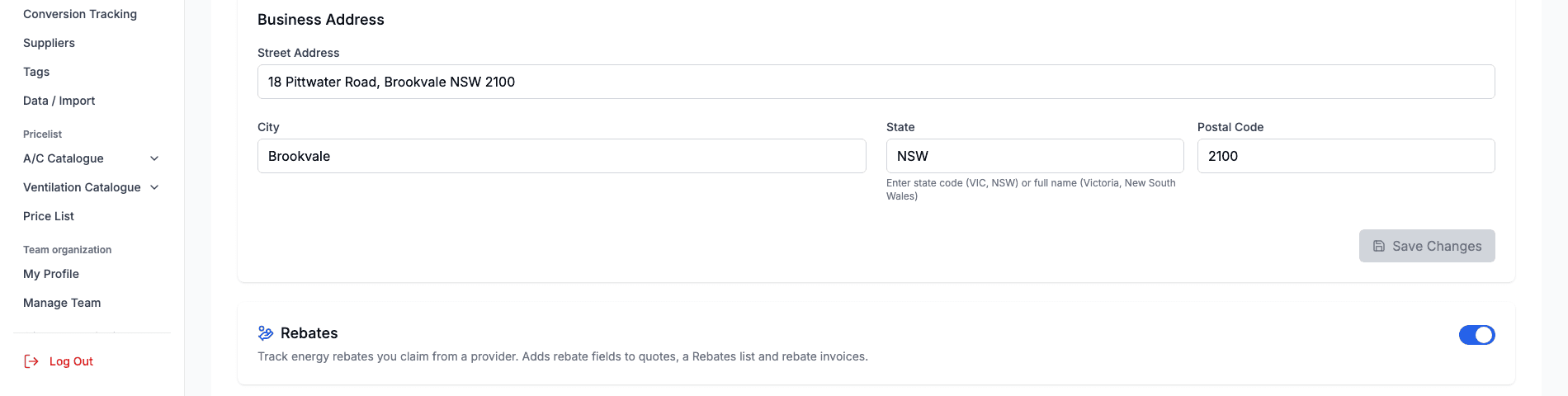
- Scroll below the business details to the Rebates card
- Switch it on. You'll see Rebates turned on
The card reads "Track energy rebates you claim from a provider. Adds rebate fields to quotes, a Rebates list and rebate invoices." It saves straight away, with no Save button.
If you used the old Rebate discount type on quotes, Rebates is already on for you.
Rebates on Your Quotes
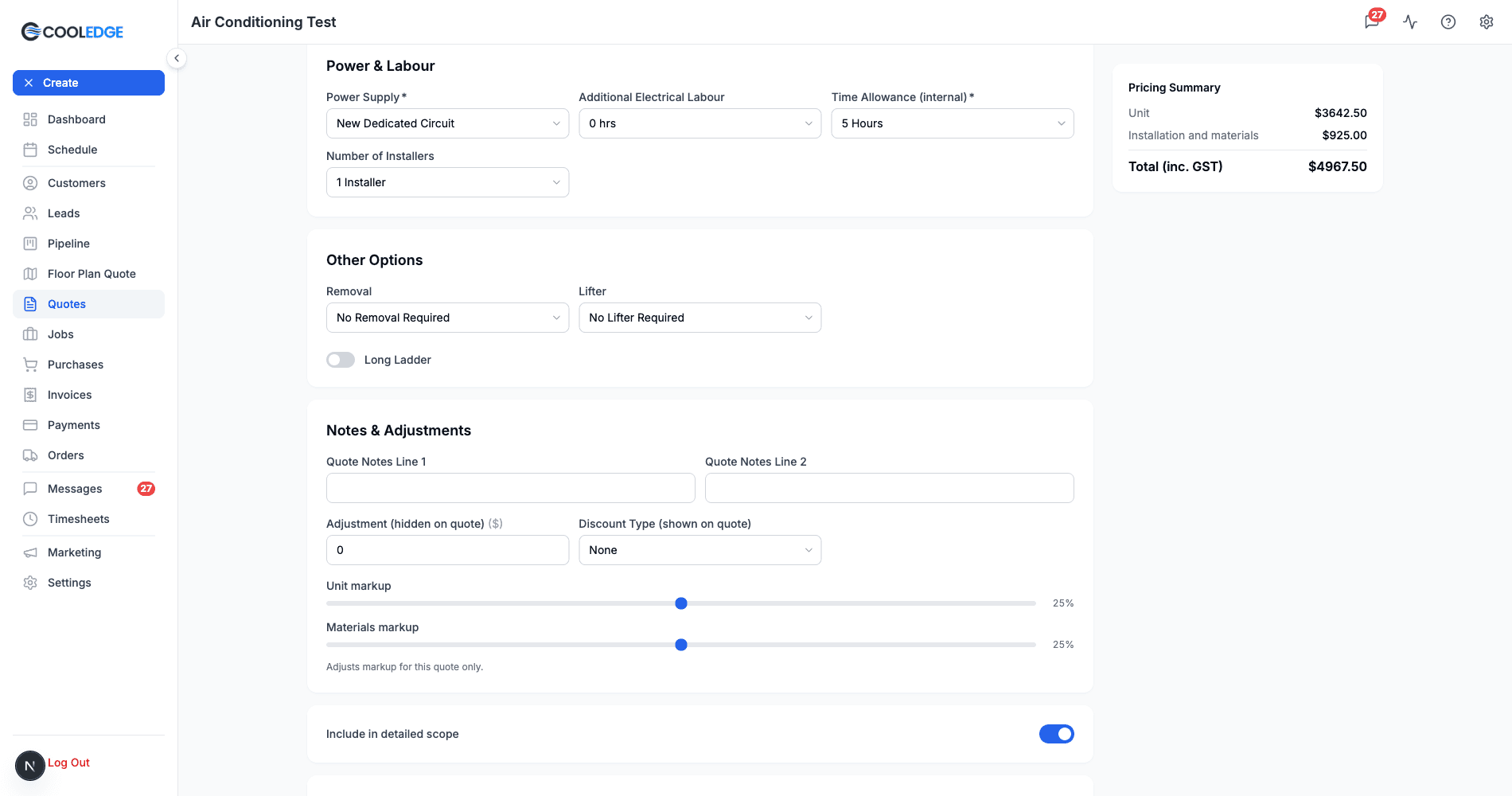
Open a quote, click Edit Quote and find the Notes & Adjustments card. You'll see:
| Field | Who sees it | What it does |
|---|---|---|
| Discount ($) | Anyone who quotes | Takes money off the price. The customer sees "Includes discount of $X" |
| Customer rebate ($) | Anyone who quotes | The part of the rebate you pass to the customer. It comes off the price and the customer sees "Includes rebate of $Y" |
| Rebate from provider (inc GST) | Owners and admins | What the provider will pay you for this job. Leave it blank and Cooledge assumes it's the same as the customer rebate |
| You keep | Owners and admins | The rebate from the provider less the customer rebate |
For example, a $300.00 customer rebate with a $500.00 rebate from the provider shows You keep $200.00.
Itemised and trade quotes get Customer rebate ($) and Rebate from provider (inc GST) under the totals. They have no Discount field, because discounts on those quotes stay as their own lines.
In the mobile app, the same fields are under Notes & Adjustments on the Installation step, or the Summary step on itemised quotes. Members see Discount ($) and Customer rebate ($) only. The provider figure and You keep are for owners and admins.
The customer never sees the rebate from the provider or what you keep.
What the Customer Sees
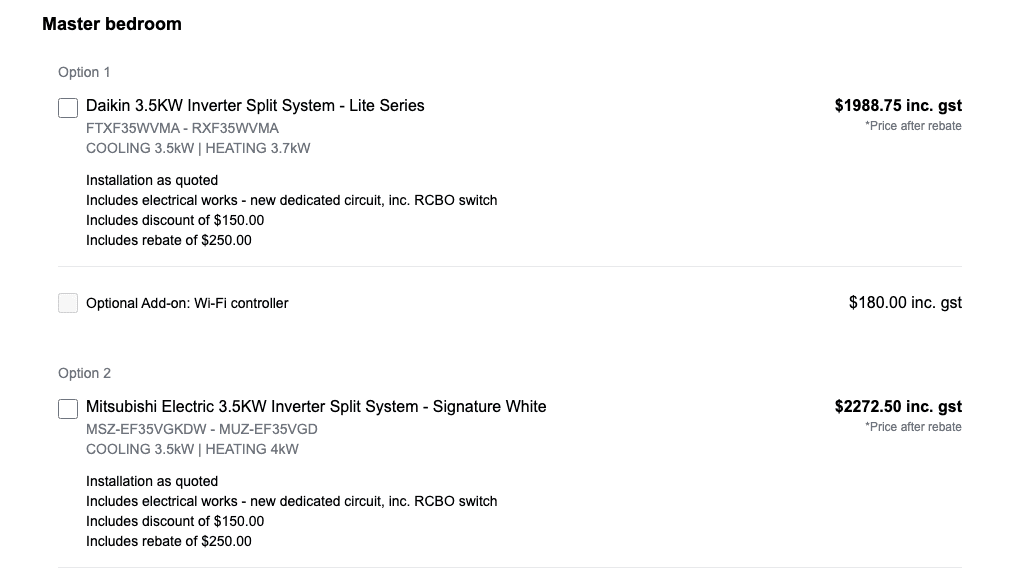
On the online quote, the PDF and the preview, the customer sees "Includes discount of $X" and "Includes rebate of $Y" under the option. When the option has a rebate, its price is marked *Price after rebate.
Invoices From the Quote
When you invoice an accepted itemised or trade quote, the rebate becomes one negative line called Rebate. On split, multi, VRV, ducted and install only quotes, each unit goes on the invoice at its price after discount and rebate, with no separate line.
Mark the Provider as a Rebate Provider
Add the provider (for example Coastline Energy Rebates) as a customer, then:
- Go to Customers and open the provider
- On the Details tab, find Marketing & Reviews
- Turn on Rebate provider. You'll see Marked as a rebate provider
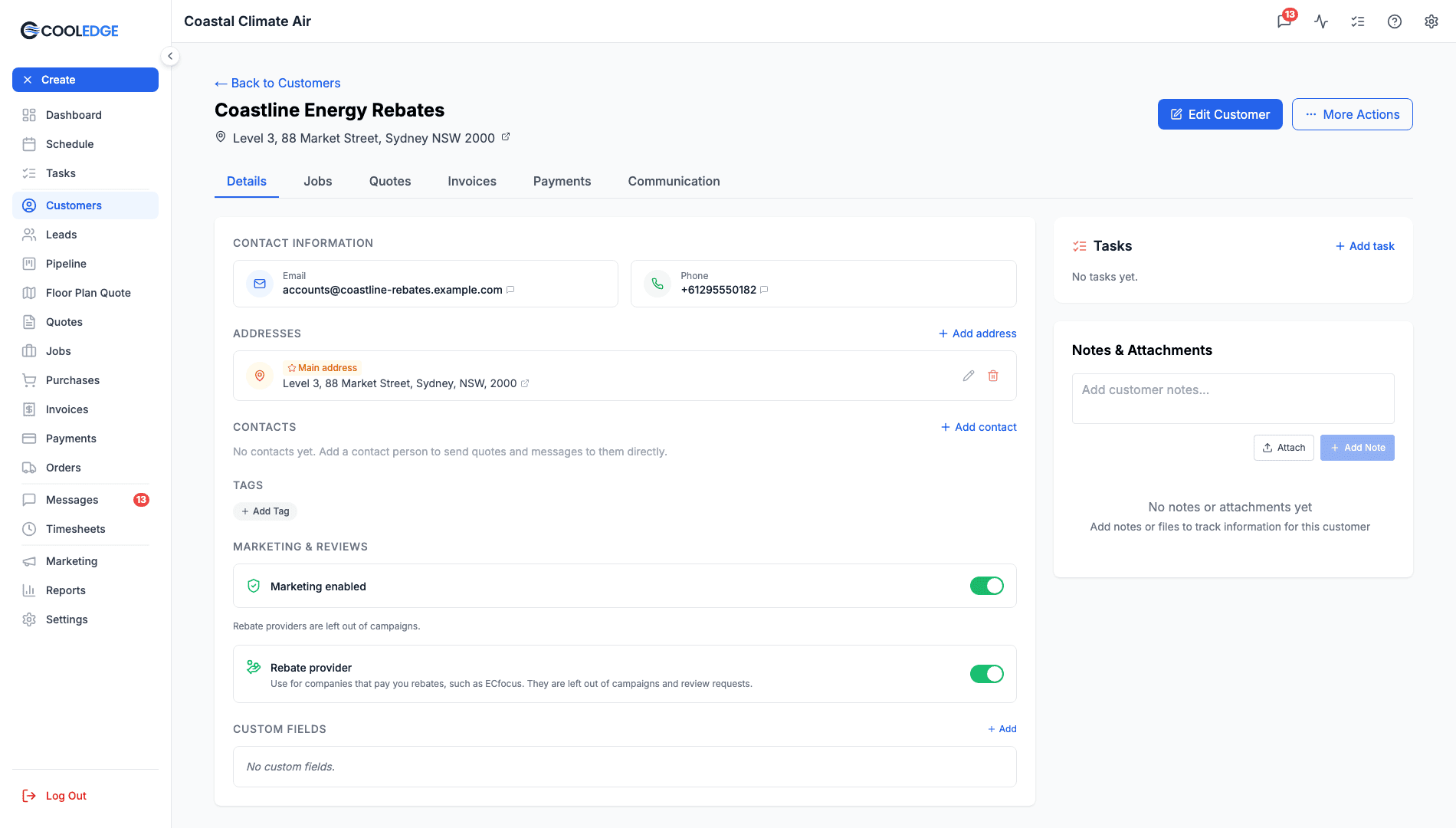
A rebate provider is treated differently from your homeowner customers:
- Never in campaigns. The marketing card reads Rebate providers are left out of campaigns.
- Never sent review requests, automatic or manual
- Left out of your customer list and counts. Use the Rebate providers filter on the Customers page to see them
- Left out of customer search on new jobs and quotes and hidden in the mobile app
- Listed first when you pick a customer on a rebate invoice
- Conversations with them in the inbox are visible to owners and admins only
Once a provider has rebate invoices, you can't switch the flag off. You'll see This customer has rebate invoices, so it stays a rebate provider.
Rebate Reference on the Job
Most providers give each job a project number. Store it on the job so it prints on the rebate invoice.
- Portal: open the job, go to the Details tab, type in Rebate reference and click Save
- Mobile app: open the job and fill in Rebate reference on the Job tab, then tap Save
On a job with phases, the reference lives on the parent job only. You can also add or edit it on the Rebates list.
The Rebates List
Go to Invoices and click the Rebates tab. Every job with an expected rebate, a reference, a rebate invoice line or a recorded rebate has a row.
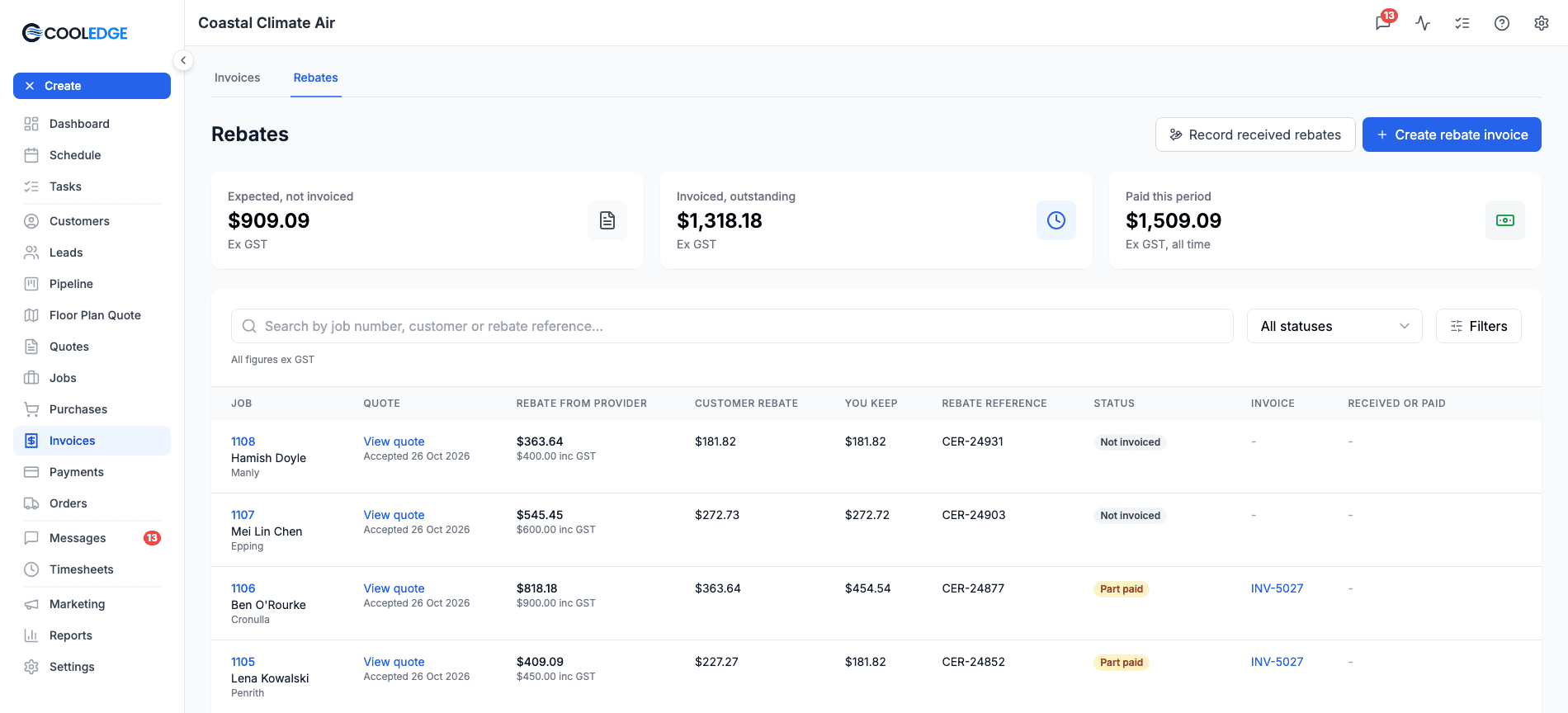
Three totals sit across the top, all ex GST:
- Expected, not invoiced: rebates you haven't claimed yet
- Invoiced, outstanding: unpaid balances on rebate invoices
- Paid this period: rebate invoice payments plus rebates you recorded as received. With no dates set it covers all time
The table shows the Job (with the customer and suburb), the Quote, Rebate from provider, Customer rebate, You keep, Rebate reference, Status, Invoice and Received or paid.
| Status | Meaning |
|---|---|
| Not invoiced | The job has a rebate to claim and it isn't on a rebate invoice or recorded as received |
| Invoiced | The job is on a rebate invoice that's not paid yet. The invoice's state shows under its number |
| Part paid | The rebate invoice is part paid |
| Paid | The rebate invoice is paid |
| Received (recorded) | You recorded the rebate as received without an invoice |
Two amber warnings can show under a status:
- Not invoiced 90 days after completion. The job finished three months ago and you haven't claimed it
- This job has a rebate invoice line and a recorded rebate. The rebate is counted twice. Remove one of them
Search by job number, customer or rebate reference to narrow the list. You can also pick a status or open Filters to choose a Provider and a date range (by Accepted or Received or paid). Click a reference, or Add, to edit it in place.
Create a Rebate Invoice
- On the Rebates list, click Create rebate invoice
- Under Customer, pick the provider. Rebate providers are listed first
- Click Add rebate lines
- Tick the jobs to claim. Only Not invoiced jobs are listed. Use Select all to take every one
- Click Add N lines
- Check the amounts. Change any the provider approved differently
- Click Save Draft
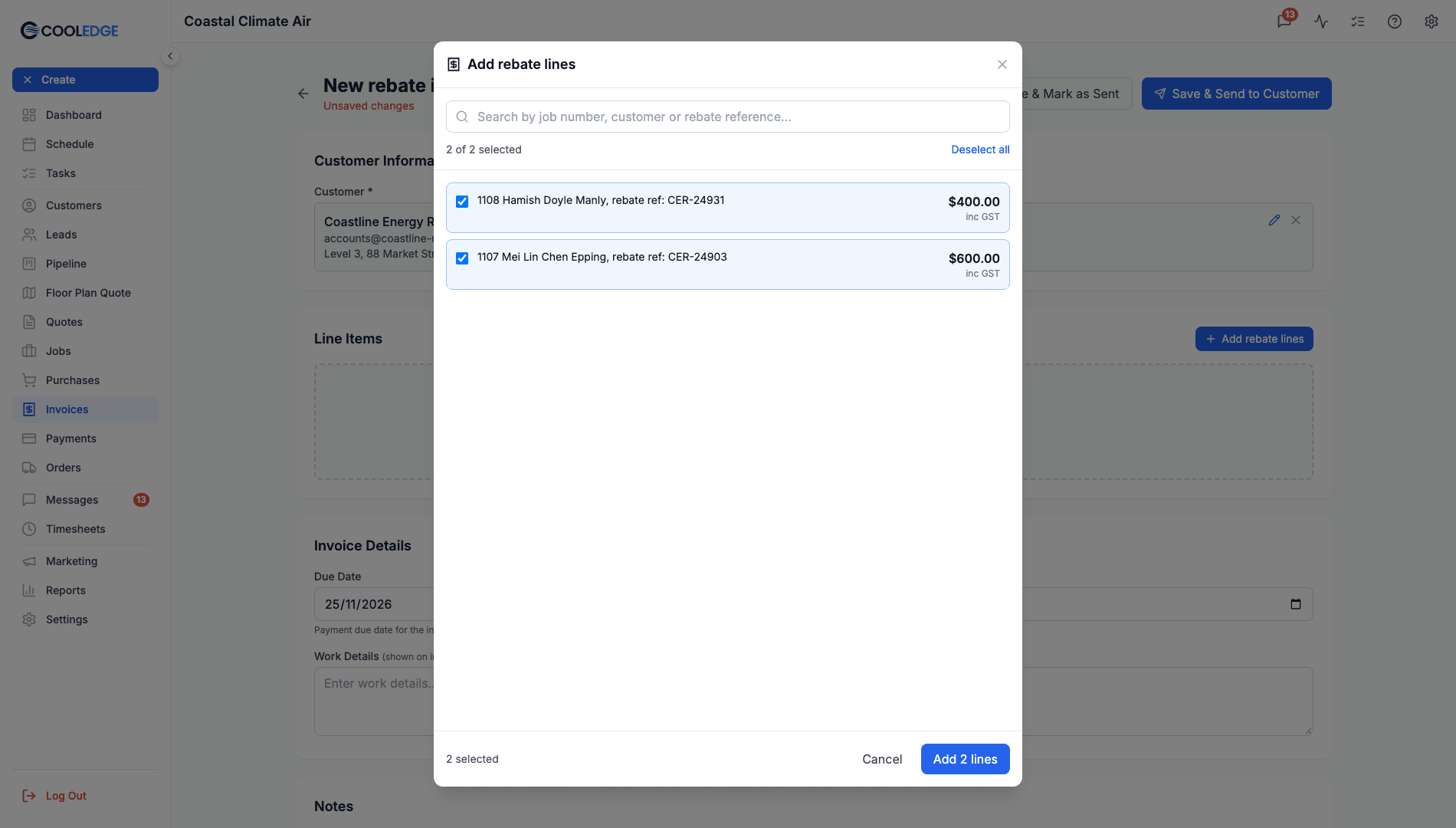
Each job becomes one line, for example:
1042 Priya Raman Castle Hill, rebate ref: CER-24817
The quantity is 1 and the price is the expected rebate inc GST, with 10% GST. A job with no expected rebate shows No expected rebate in the window and comes in at $0.00, ready for you to fill in.
Send It to the Provider
Click Send to Customer. A rebate invoice goes by email only, with the invoice PDF attached. The email simply tells the provider their invoice from your business is attached. There's no pay online link and no SMS option. Keep the PDF ticked or the email won't send.
When the provider pays, use Record Payment on the invoice as usual.
When the Provider Pays Less
Providers usually approve each claim before you invoice, so differences are rare. If one comes up, edit the invoice: click Edit and change the line amount.
- A Draft or Sent invoice can be changed freely
- A Part-Paid invoice can come down as far as the amount already paid, but no lower. If the new total matches what's been paid, the invoice becomes Paid
Record Rebates Already Received
Some providers pay without an invoice. Record those payments so the job shows the rebate as paid.
- On the Rebates list, click Record received rebates
- Search for each job the provider paid and click Add
- Check each row: Amount (inc GST) (filled with the expected rebate), Date received (today), Provider (the last one you used) and an optional Reference
- Click Save all
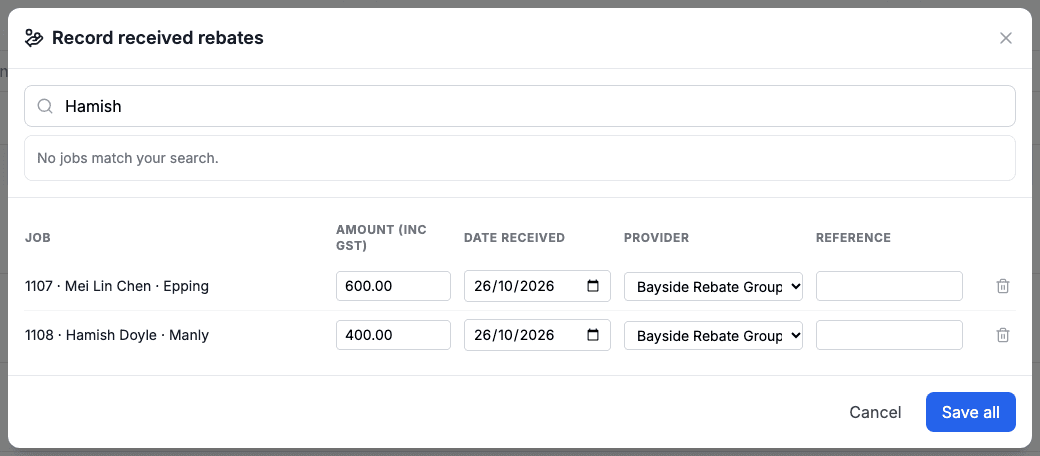
Jobs already received or on a rebate invoice are listed with the reason, so you can't count one twice. To undo one, click the bin icon (Delete received rebate) on its row in the Rebates list, then Delete.
Rebates in Job Profitability
On the job's Profitability card, Rebate from provider is an income row and counts in the margin.
- Estimate: the rebate from the provider on the accepted quote, with "Passed to customer $X · You keep $Y ex GST" underneath
- Actual: the job's line on a sent rebate invoice, plus any rebate recorded as received
On the Rebates list, a received rebate counts in Paid this period by its date received.
Xero and QuickBooks
A rebate invoice syncs like any other invoice, to the provider's contact. The line descriptions carry the job and the rebate reference, so you can match payments.
Who Sees What
Owners and admins only. Members never see rebate invoices, the rebate from the provider, what you keep, the Rebates list or conversations with providers, on the portal or the mobile app. The only rebate field they see is Customer rebate ($) when quoting in the mobile app. The mobile app doesn't show rebate invoices at all. Create and edit them in the portal.
On the Invoices list, rebate invoices carry a purple Rebate badge. Use the Kind filter to show only Customer or Rebate invoices. The Outstanding and Collected cards never include rebate money.
Turning Rebates Off
Switching the Rebates card off:
- Hides the Rebates tab, the job's Rebate reference and the Rebate provider switch on customers who aren't providers yet
- Stops new rebate invoices and new received rebates
- Hides the Customer rebate ($) field on new quotes. Quotes that already have a rebate keep it
- Keeps your existing rebate invoices. You can still edit, send and record payments on them
Common Questions
Can I use rebates on ventilation quotes? No. Rebates are for air conditioning, itemised and trade quotes only.
Does the customer see what the provider pays me? No. The customer sees only their rebate and the price after it.
Can I send a rebate invoice by SMS? No. Rebate invoices go by email with the PDF attached.
What if the provider pays several jobs in one payment? Put those jobs on one rebate invoice and record the payment against it. Or, with no invoice, add them all in Record received rebates and click Save all.
Why can't I find the provider when I create a job? Rebate providers are left out of customer search on jobs and quotes. They show when you pick a customer on a rebate invoice.
Related Articles:
- Job Profitability: Compare your estimate with what actually happened
- Creating Invoices: Job and standalone invoices
- Quoting Basics: Build and send quotes
- Xero Integration: Sync invoices to Xero
- QuickBooks Integration: Sync invoices to QuickBooks
Need help with Energy Rebates? Email us at support@cooledge.com.au
Was this article helpful?
Let us know if you found this information useful.
Still need help? Contact support
In this article
Use your browser's search (Ctrl+F) to quickly find specific topics within this article.
Browse all help articles →Related Articles
Creating Invoices
Learn how to create job-linked and standalone invoices, with automatic deposit deductions
Editing Invoice Line Items
Add, edit and remove line items on invoices including quantities, prices and tax calculations
Managing Payments
Find every payment in one place, reverse a payment that was recorded wrongly and link a payment to one already entered in your accounting software