Plumbing & Electrical Quoting
Build flat rate plumbing and electrical quotes from a pre-seeded task catalogue, with units, add-ons and parts, in the portal or the mobile app
Plumbing & Electrical Quoting
Flat rate plumbing and electrical quotes from a ready-made task catalogue.
- Pick tasks from a searchable catalogue. 84 plumbing tasks and 70 electrical tasks come pre-seeded
- Tasks that need a unit (a hot water system, say) let you choose one on the spot; suggested add-ons are one tick away
- Prices come straight from your trade catalogue and show inc GST
- The full flow works on desktop and in the Cooledge mobile app
- Downstream it's a normal quote: PDF, public quote link, accept, deposit, job, invoice and ServiceM8 sync
Plumbing and Electrical quotes are task-based. Instead of designing a system, you search a catalogue of flat rate tasks ("Replace gas continuous flow hot water system", "Install ceiling fan"), tick any add-ons, add loose parts and send. Pricing comes from your trade catalogue, which arrives pre-seeded, so you can quote from day one.
What You Need
- An active Cooledge subscription (any plan)
- The Plumbing or Electrical industry enabled under Settings → Company Settings. The Plumbing Quote type only appears when your industries include Plumbing; likewise Electrical. An AC-only business sees neither
- A quick pass over your trade catalogue. The seeded prices are starter prices, not yours
Setting Up Your Catalogue
The catalogue is global and pre-seeded: 84 plumbing tasks, 70 electrical tasks, 15 hot water units and 20 starter parts. There's nothing to import and no setup step. It's available the moment the industry is on.
That said, the seeded pricing is deliberately generic. Before your first real quote, go to Settings → Plumbing Catalogue (or Electrical Catalogue) and set your labour rate, your markups and real pricing on the tasks you actually offer. The Trade Catalogue guide walks through all of it.
Creating a Quote
1. Start a Plumbing or Electrical Quote
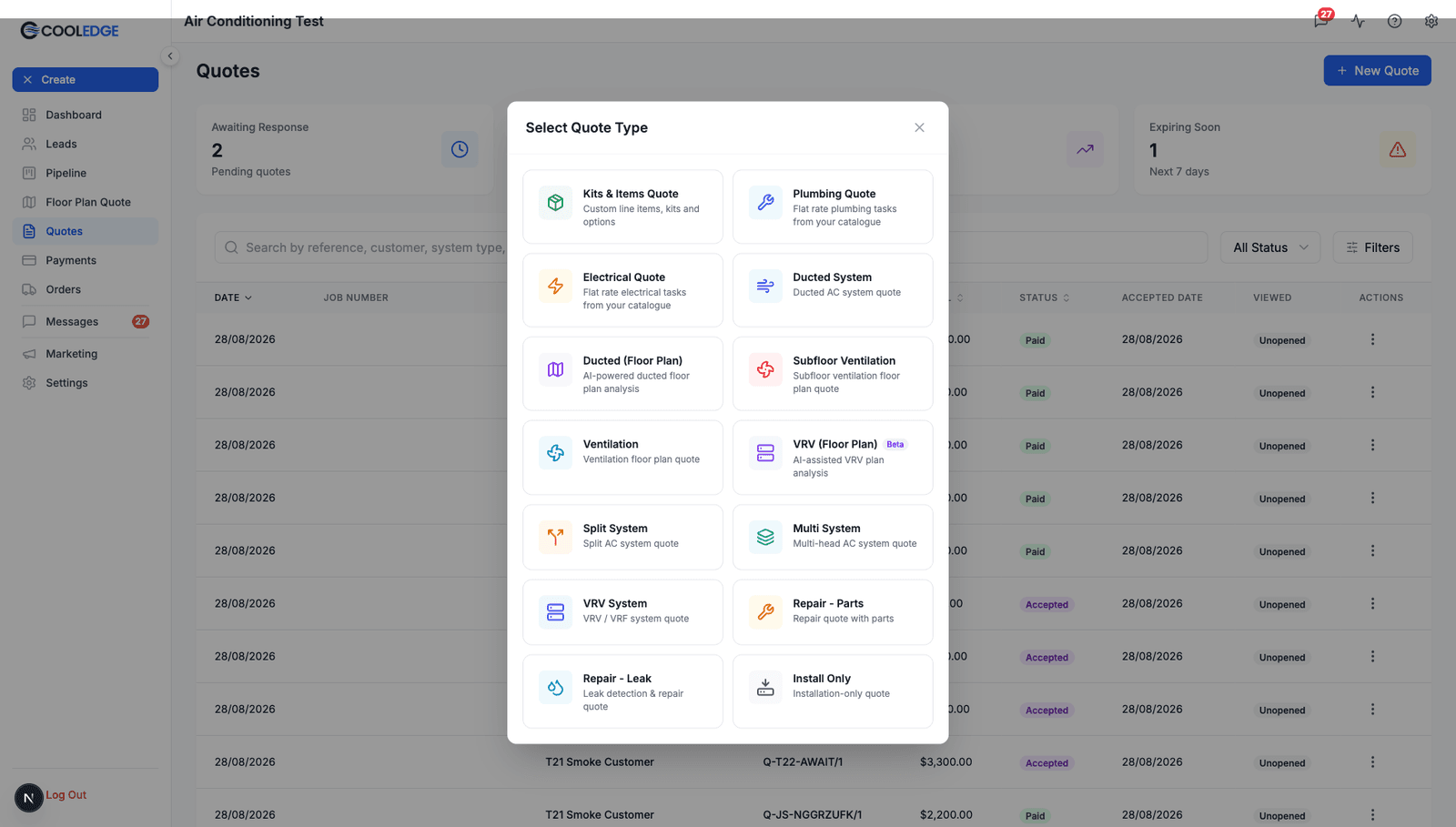
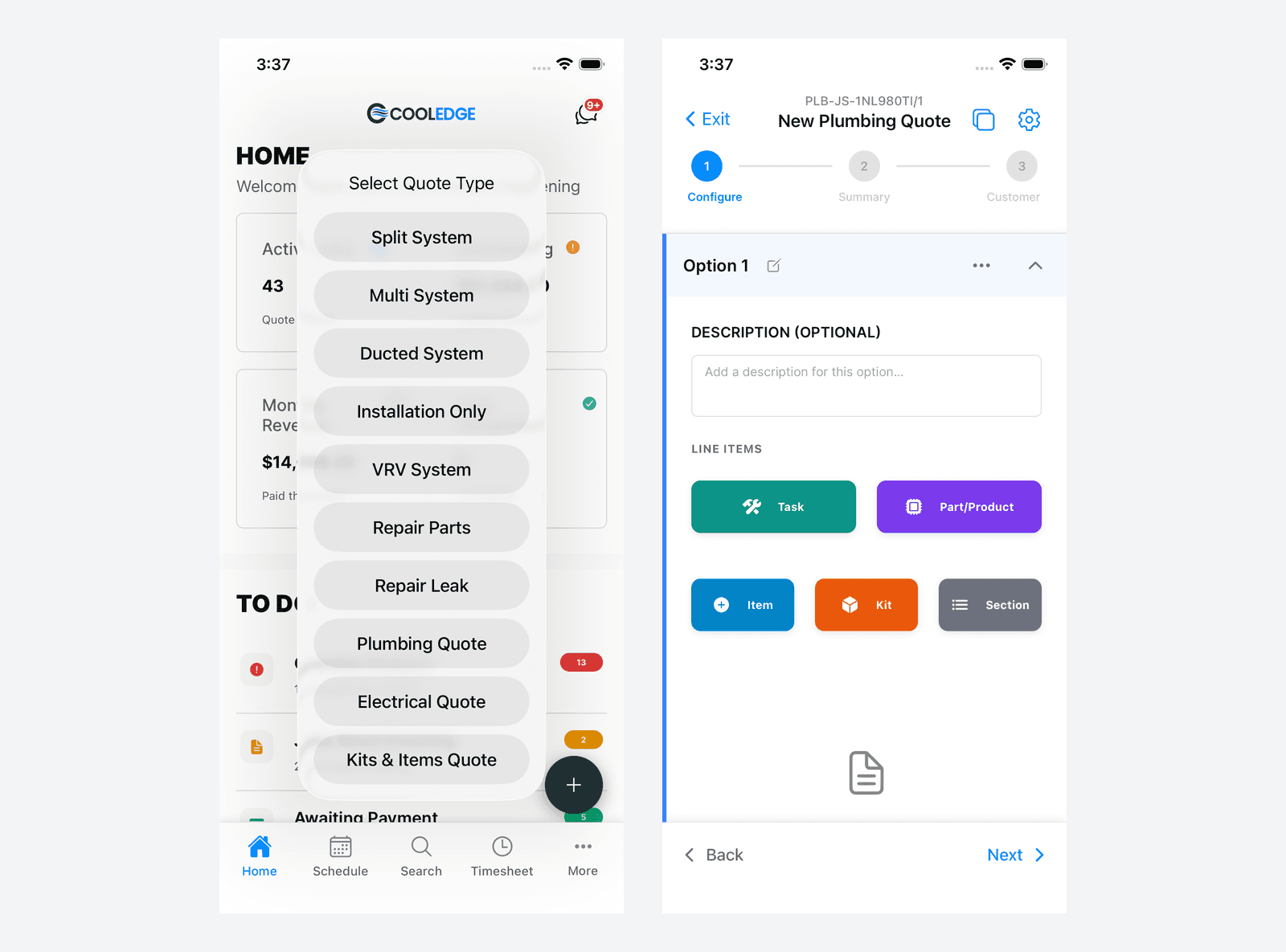
Go to Quotes → New Quote. The Select Quote Type modal shows Plumbing Quote ("Flat rate plumbing tasks from your catalogue") and Electrical Quote ("Flat rate electrical tasks from your catalogue") alongside the A/C quote types.
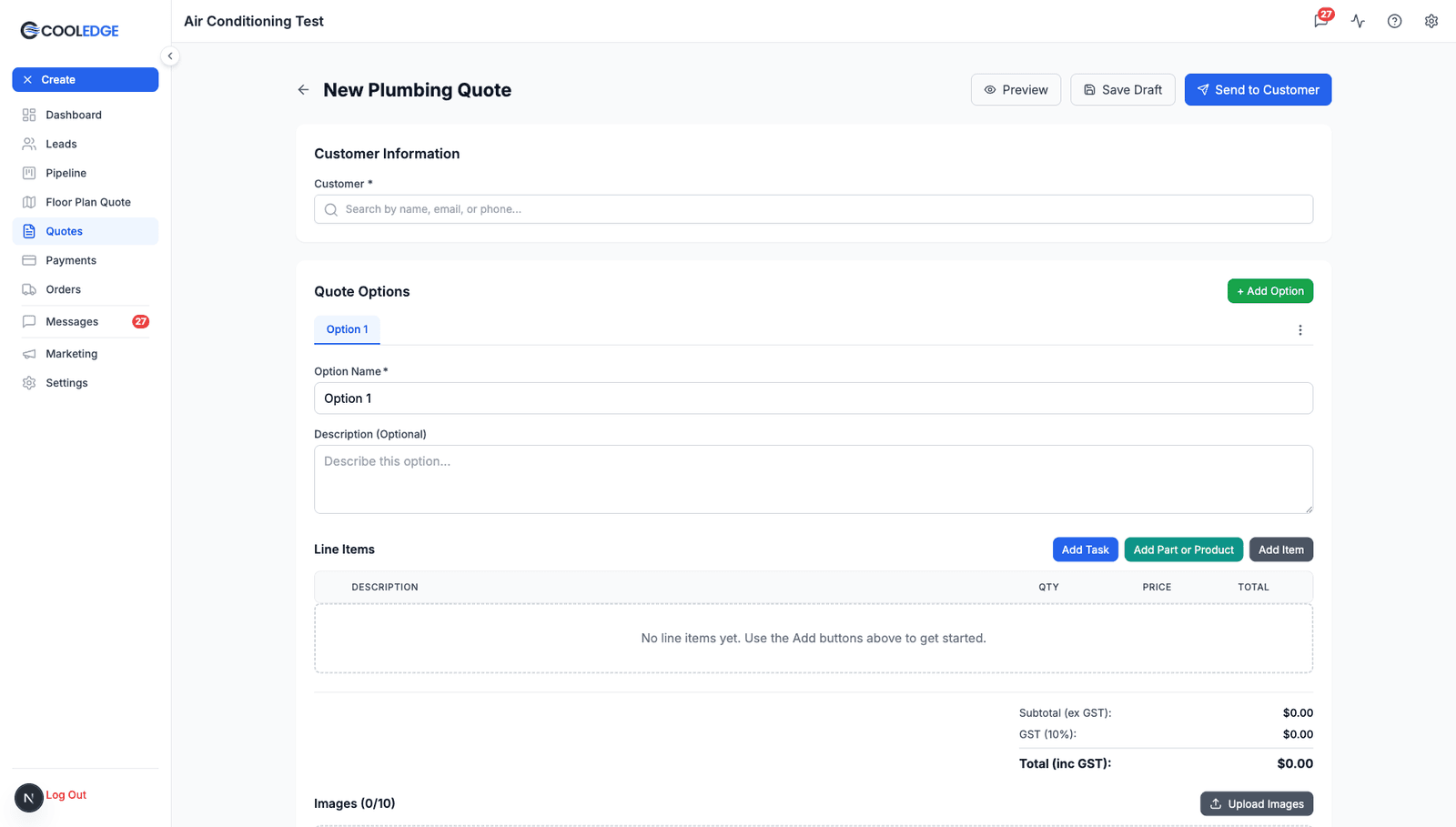
A new trade quote opens in the quote editor with an empty option ready to fill. Line items come from three buttons: Add Task, Add Part or Product and Add Item (a free-form line).
2. Add Tasks
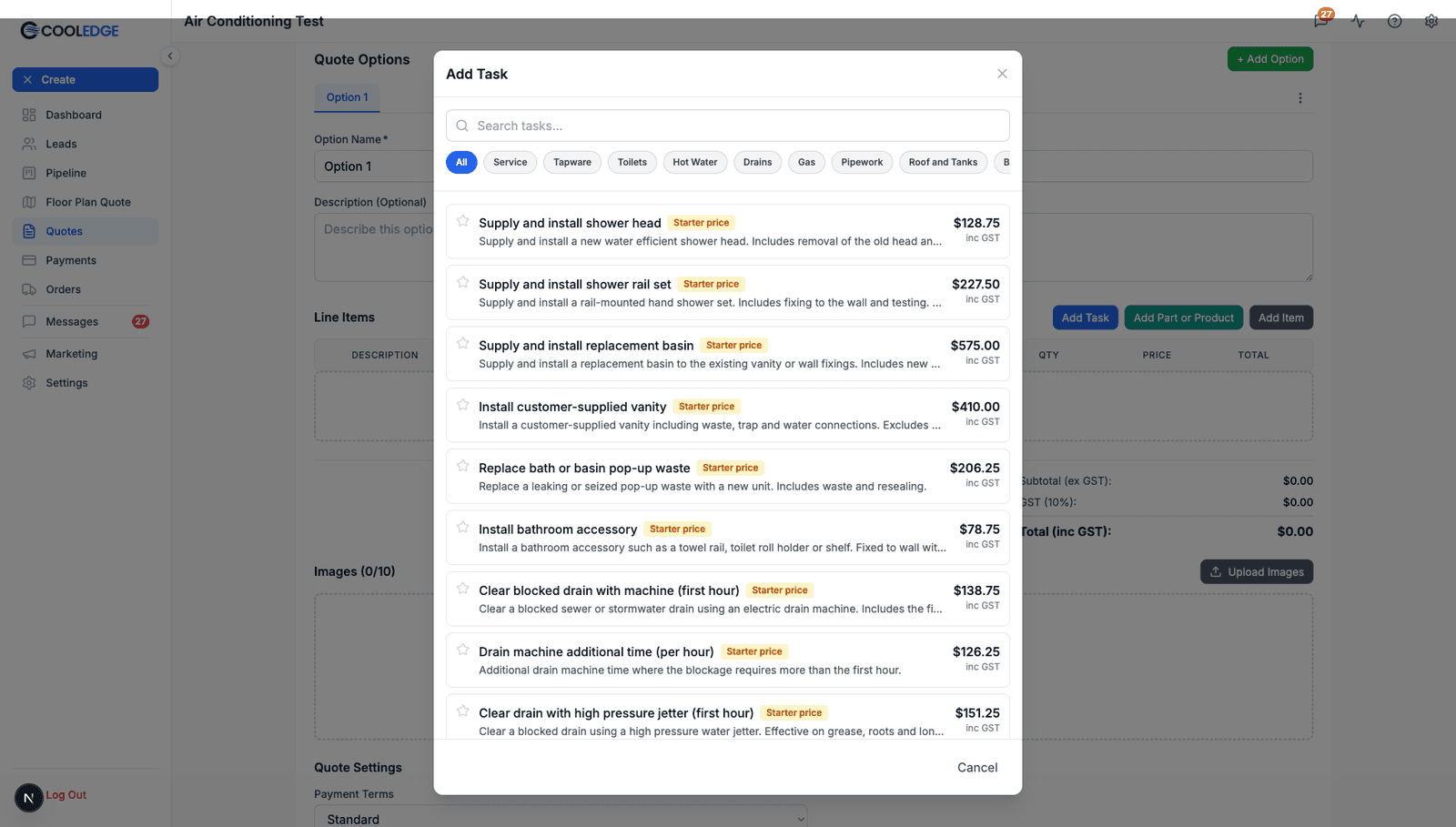
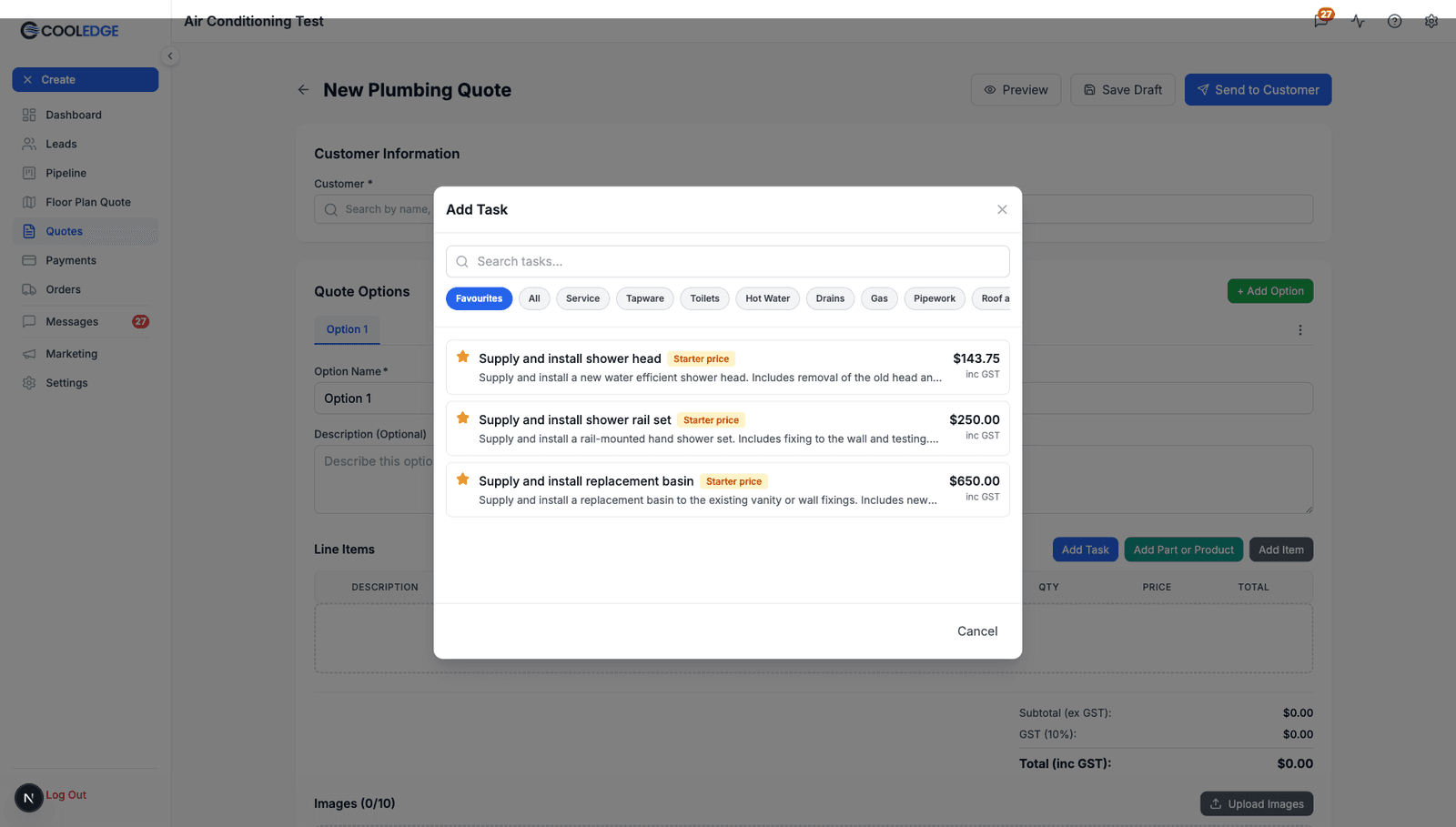
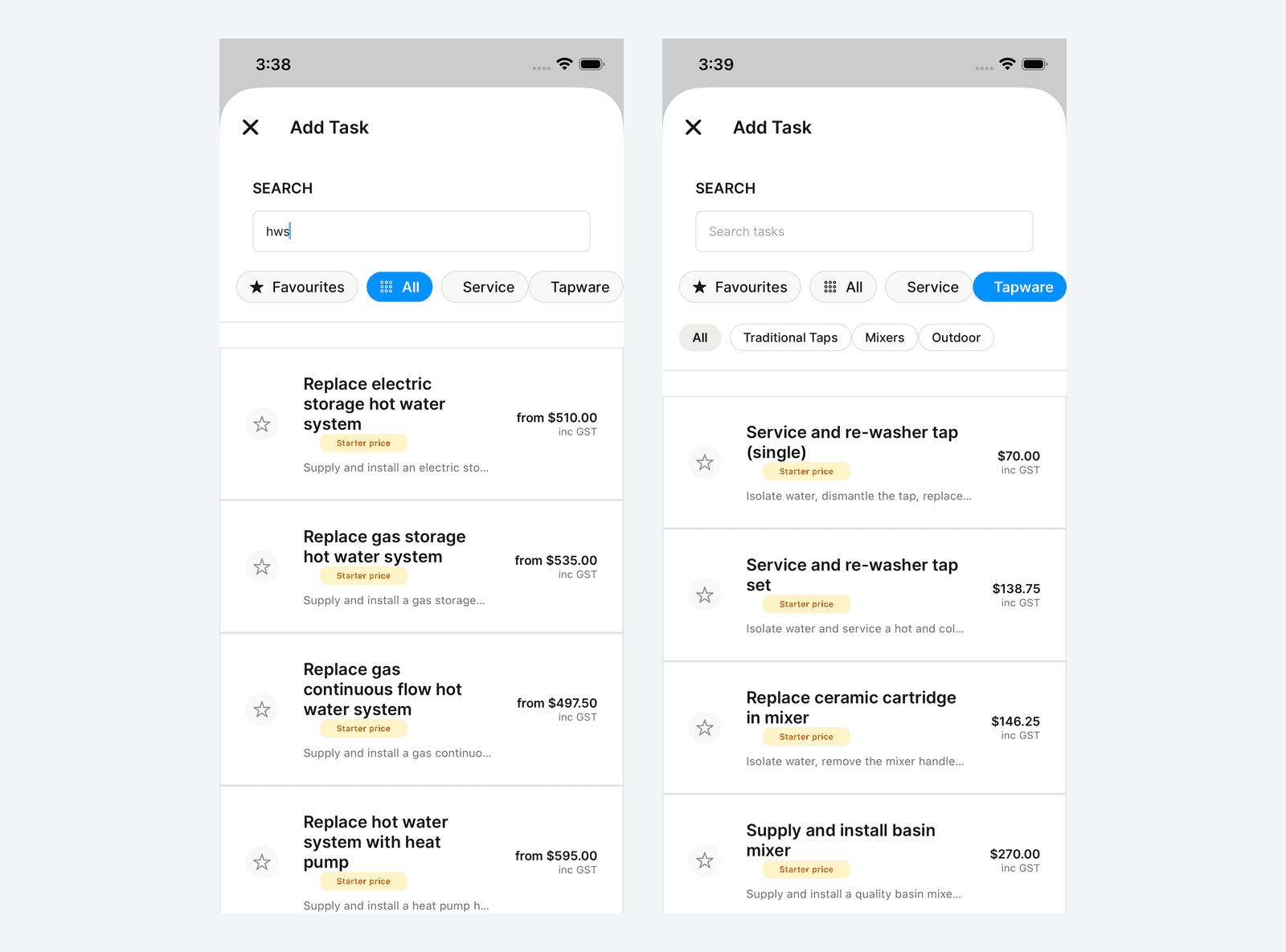
Click Add Task to open the task picker: a search box at the top, category pills underneath and every task listed with its price inc GST. Rows still on Cooledge's placeholder pricing wear a Starter price badge.
Search matches as you type, so "hot water" narrows the list straight to the hot water tasks.
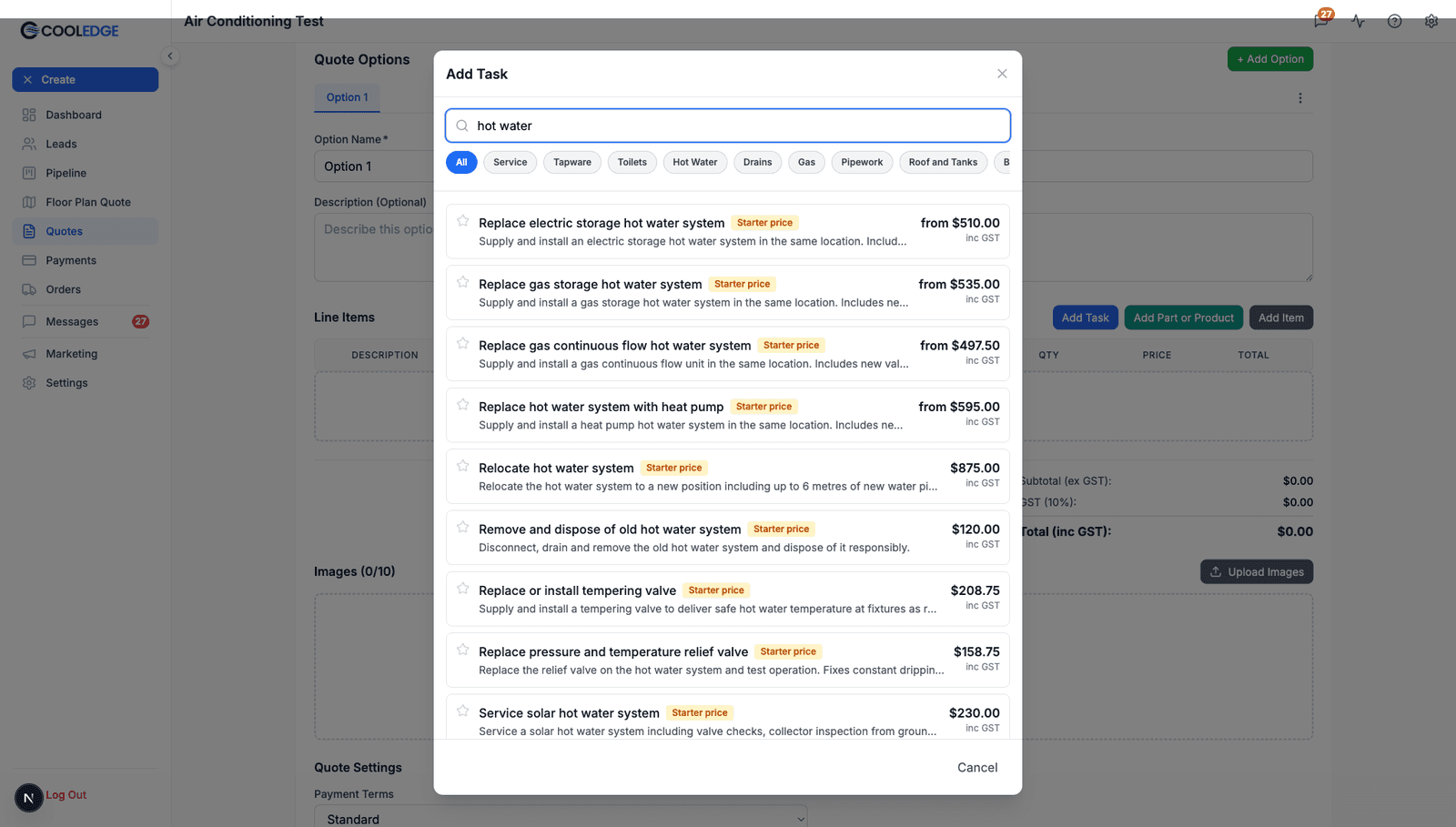
A task whose price depends on a unit reads "from $X" until you choose the unit on its detail sheet. That's the from-price of the cheapest unit, not the final price.
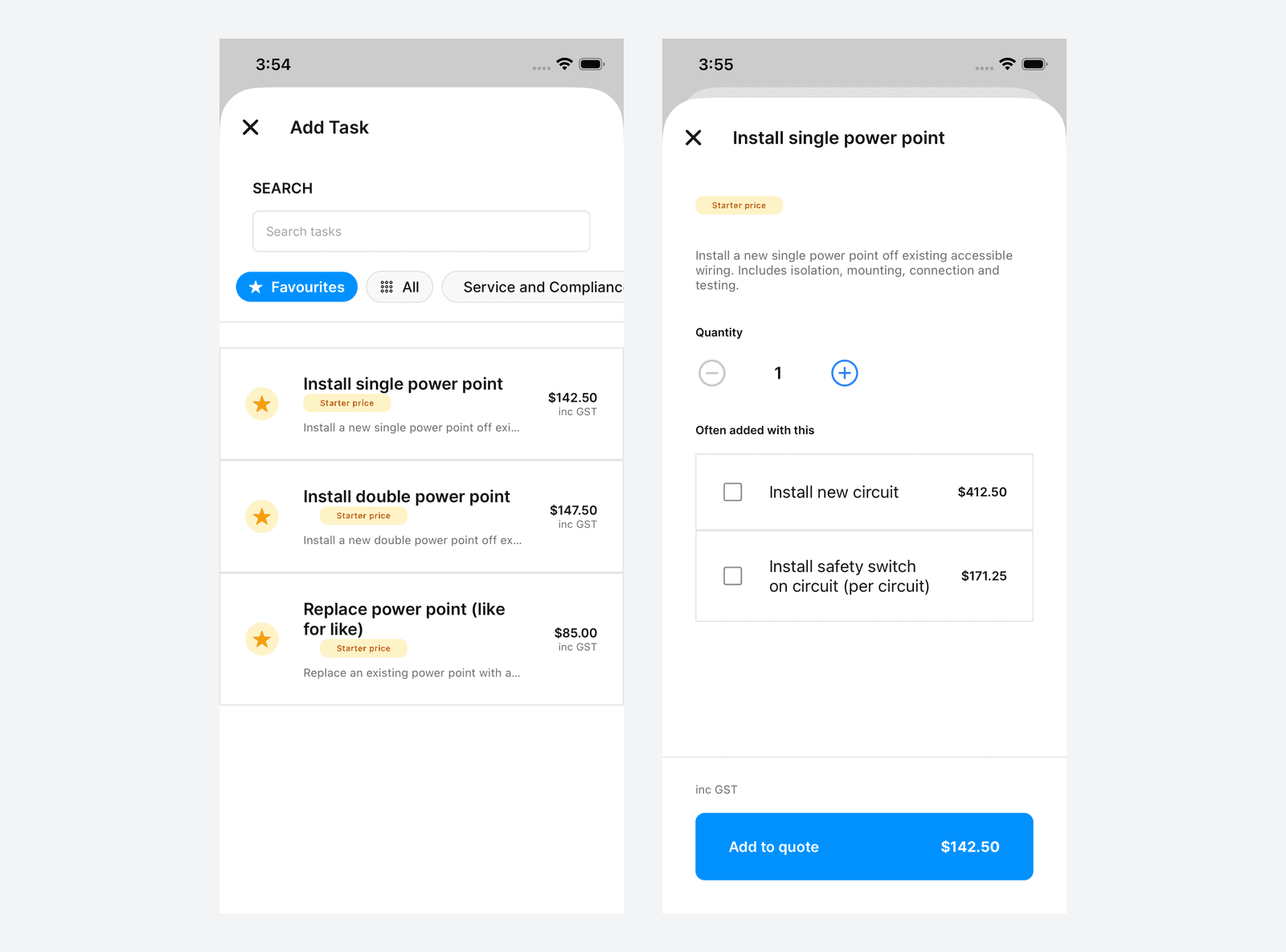
Star the tasks you quote every week and the Favourites pill filters the picker to just those. Favourites are shared with the mobile app.
3. Units and Add-ons
Clicking a task opens its detail sheet with the customer-facing description and, where relevant, two extra sections:
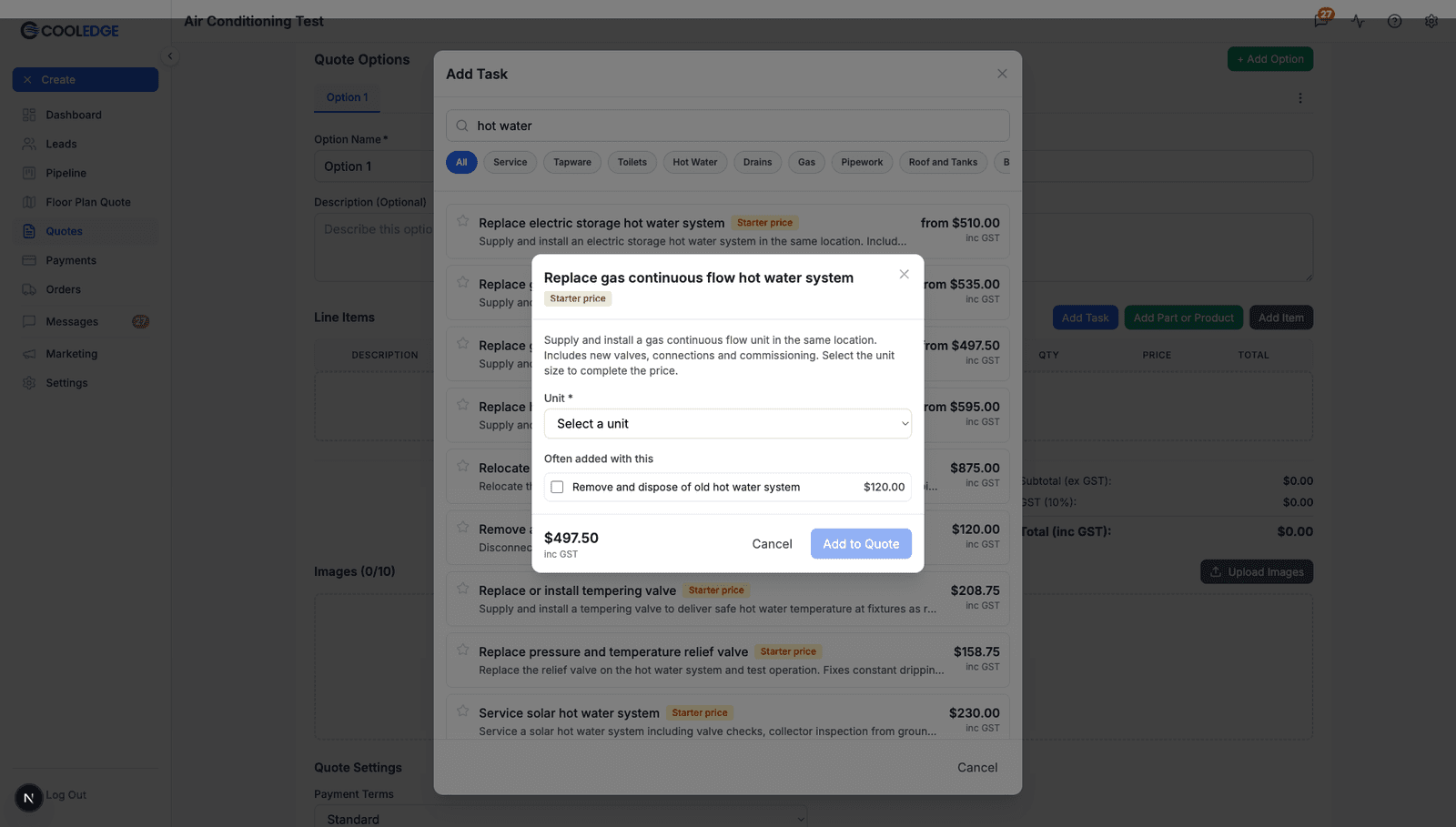
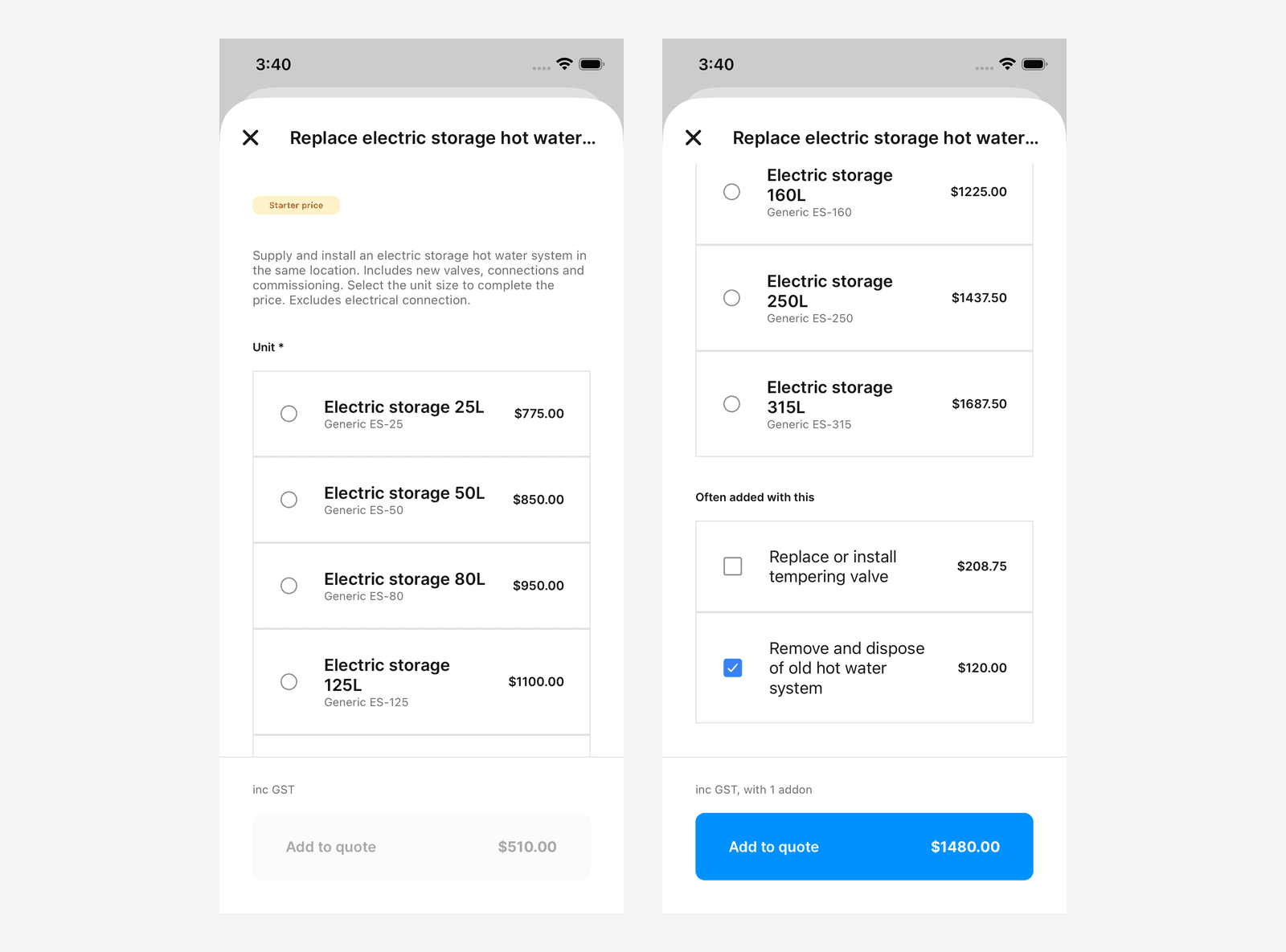
- Unit: some tasks have a unit slot, a hot water system for example. Pick the size or model from the dropdown ("Gas continuous flow 26L/min ($1500.00)") and the price firms up from its "from $X" starting point
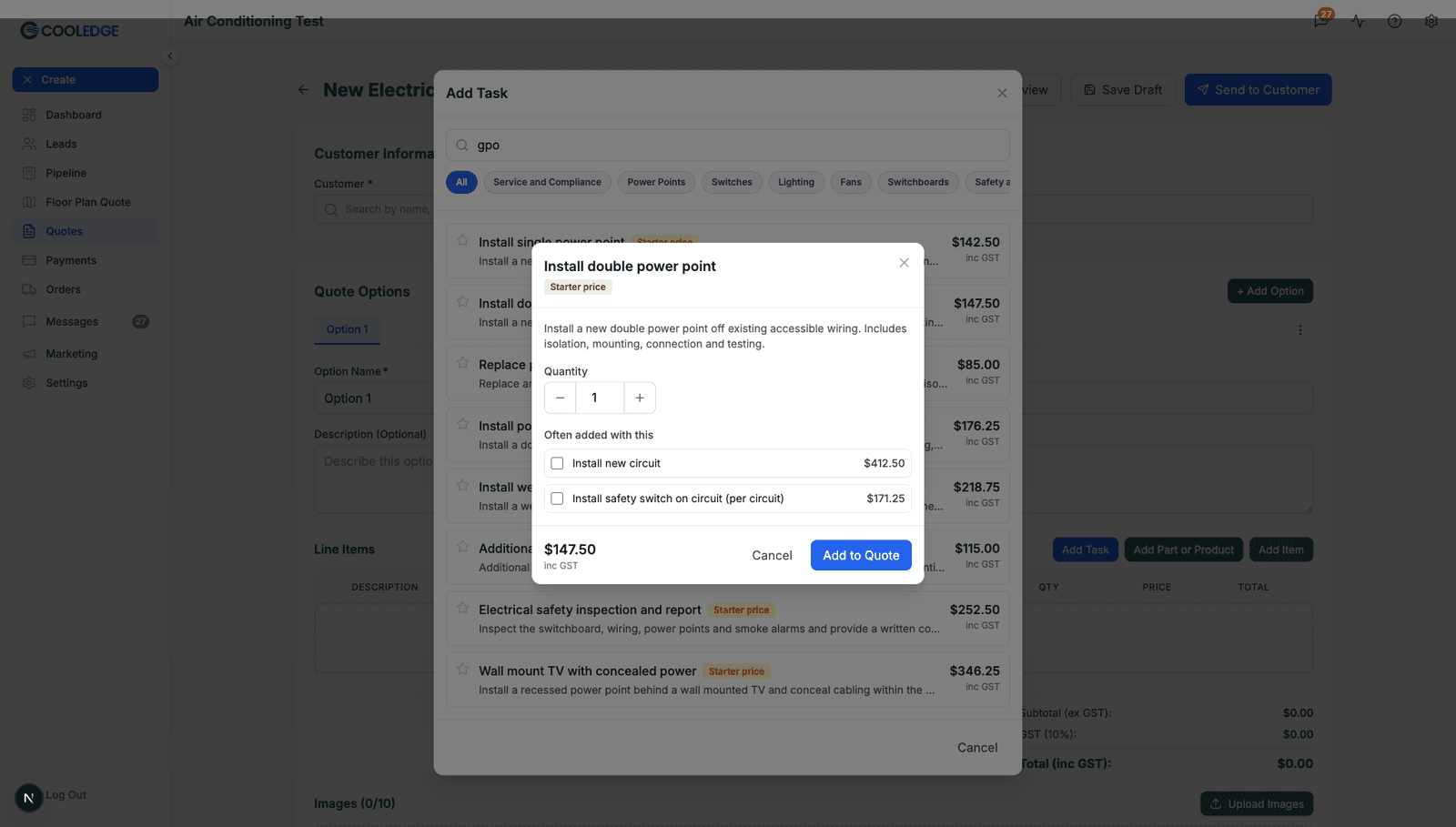
- Often added with this: suggested add-ons with their own prices. Tick the ones that apply. Each ticked add-on becomes its own line on the quote
- The running total at the bottom shows the combined price inc GST with the add-on count. Add to Quote drops the task and its add-ons in as separate lines
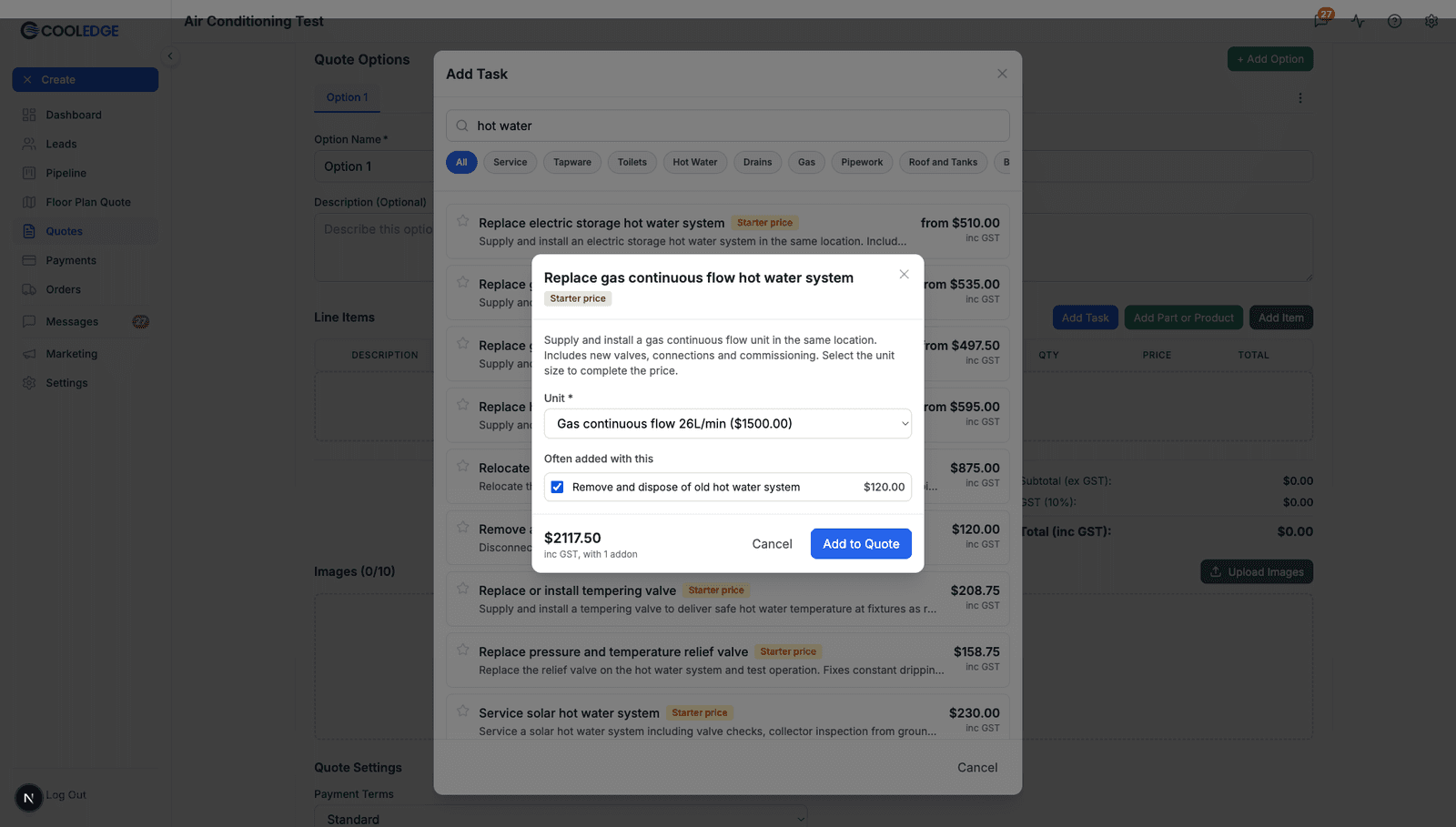
Electrical tasks work exactly the same way.
4. Add Parts and Products
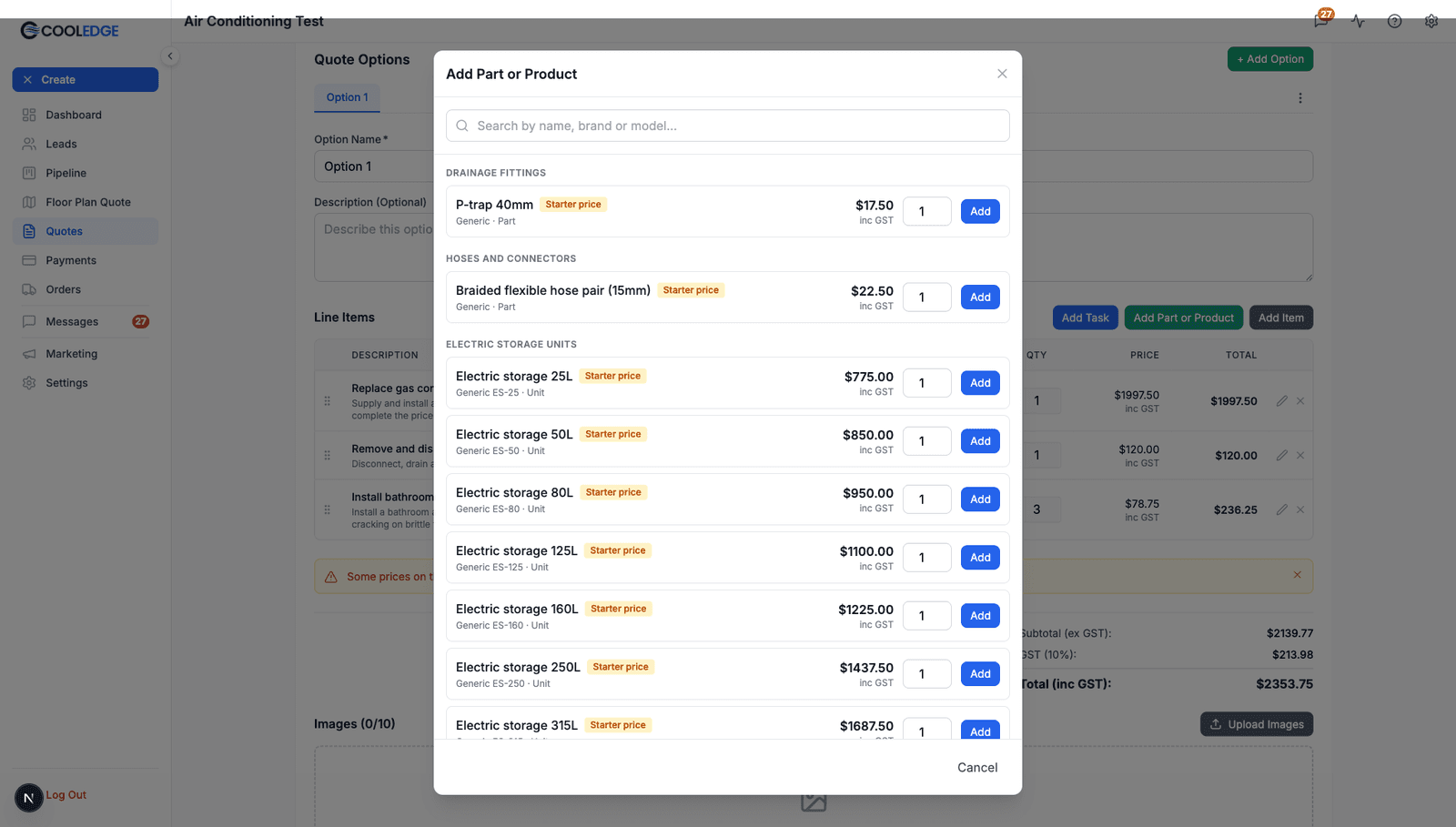
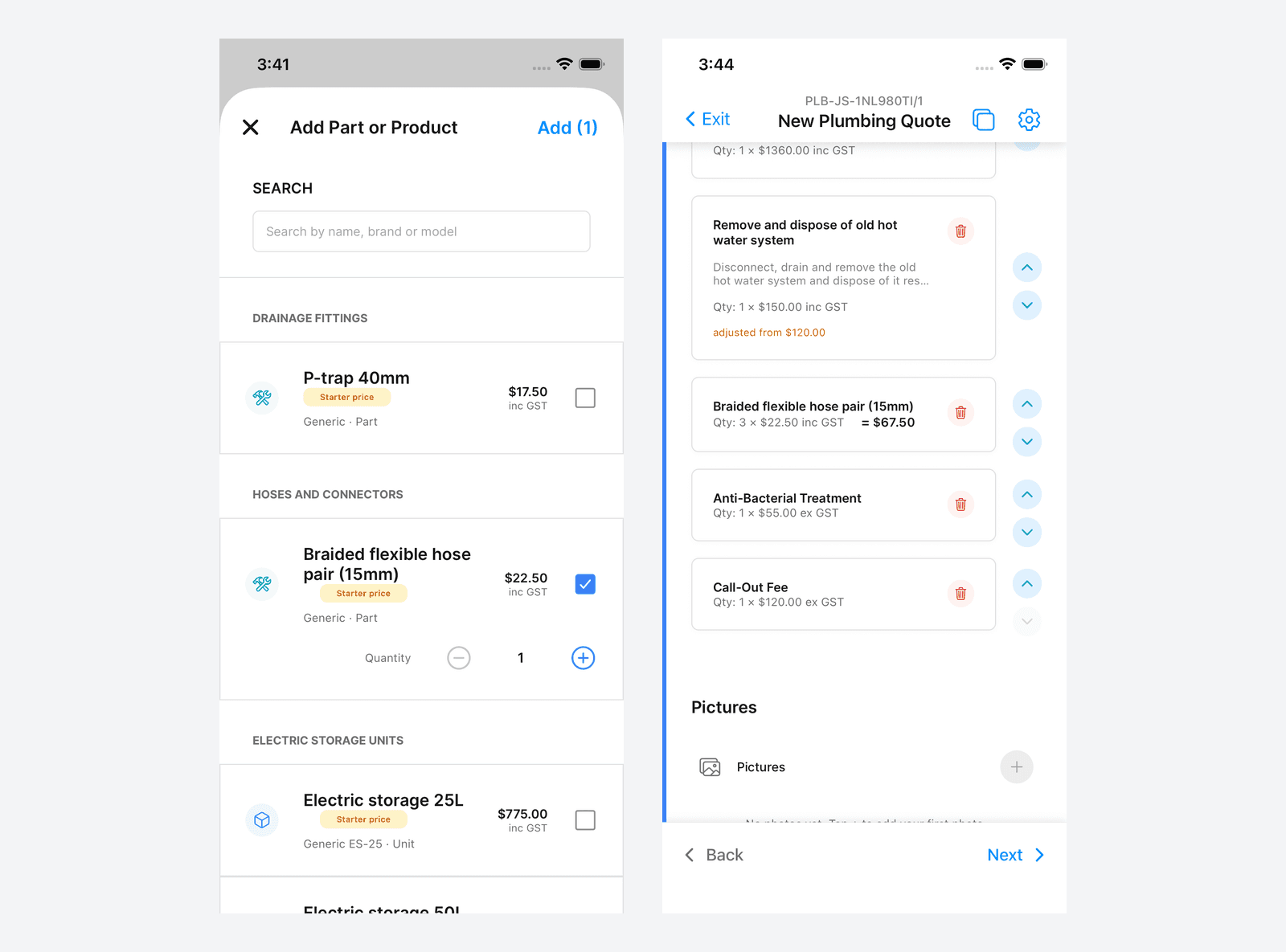
For loose materials that aren't part of a task, click Add Part or Product. The picker is grouped by category (Drainage Fittings, Hoses and Connectors, Electric Storage Units and so on), each row with a quantity box and an Add button.
5. Review the Lines
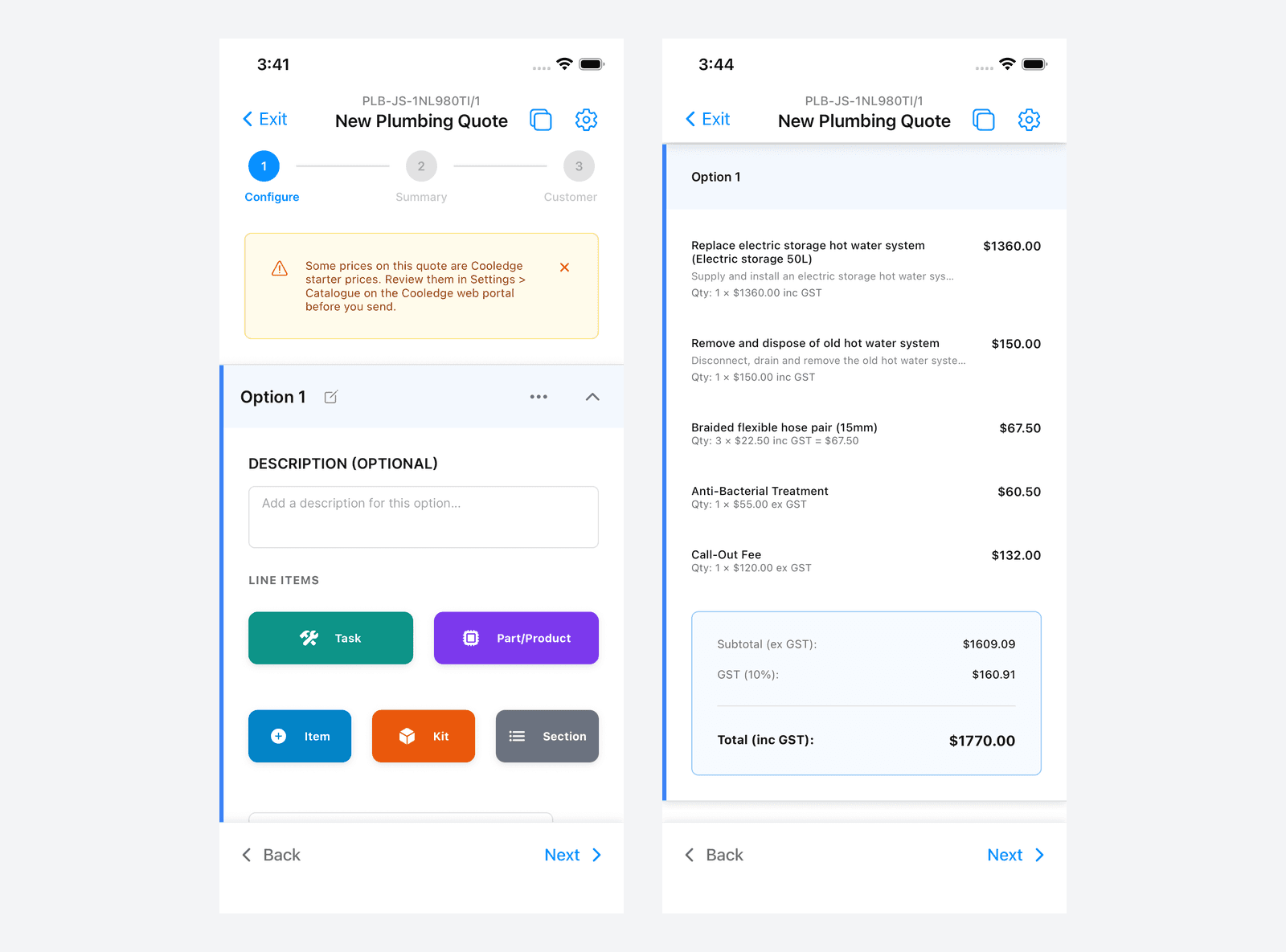
Back in the editor, every line shows its quantity, its price and whether that price is inc GST or ex GST. The totals underneath break out Subtotal (ex GST), GST (10%) and Total (inc GST).
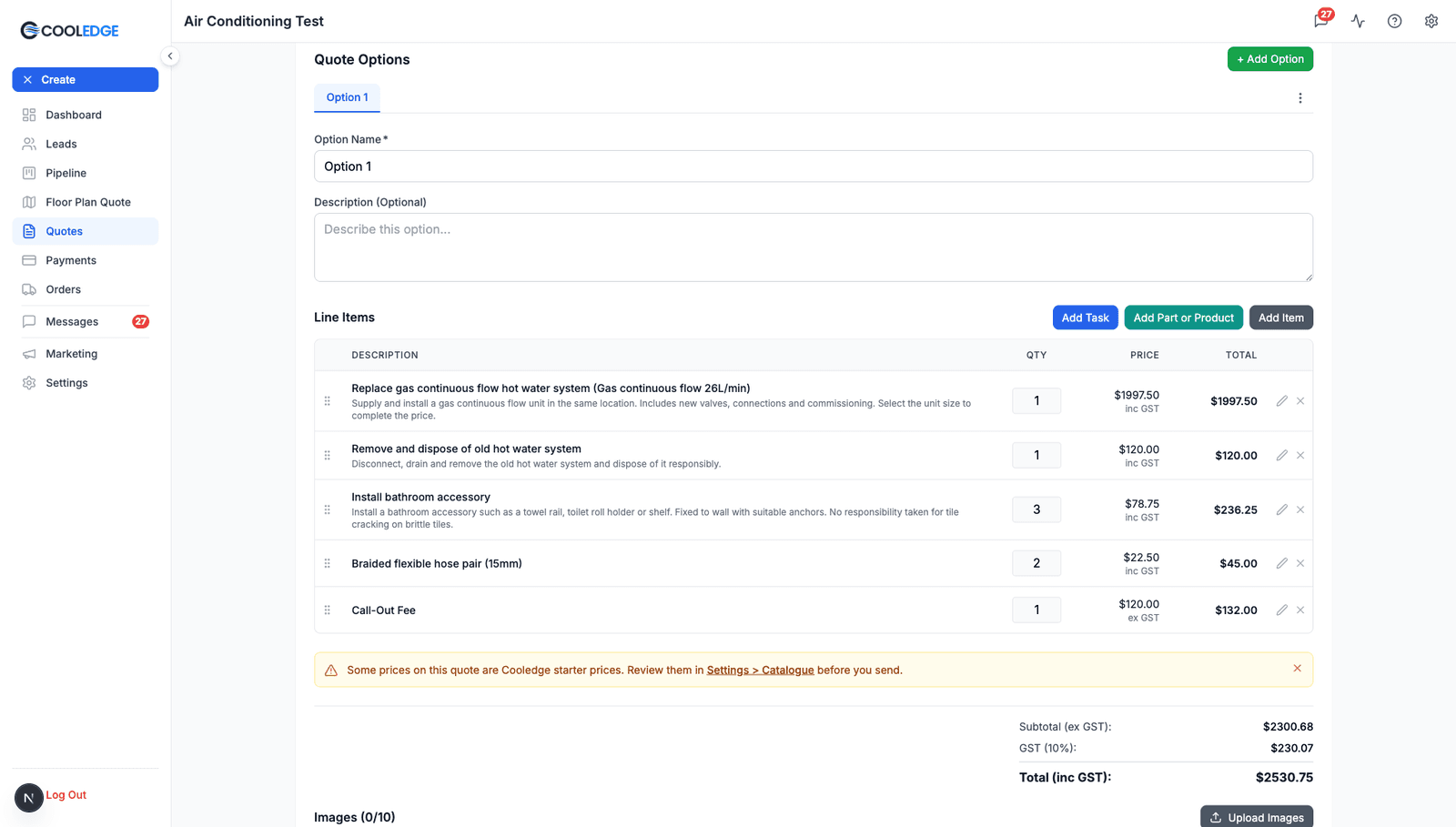
Two things to watch on review:
- If any line still carries Cooledge starter pricing, an amber notice reminds you: "Some prices on this quote are Cooledge starter prices. Review them in Settings > Catalogue before you send."
- You can hand-edit any line's price for this quote. An adjusted line keeps an "adjusted from $X" caption so you can always see the catalogue price it started from
6. Editing Later
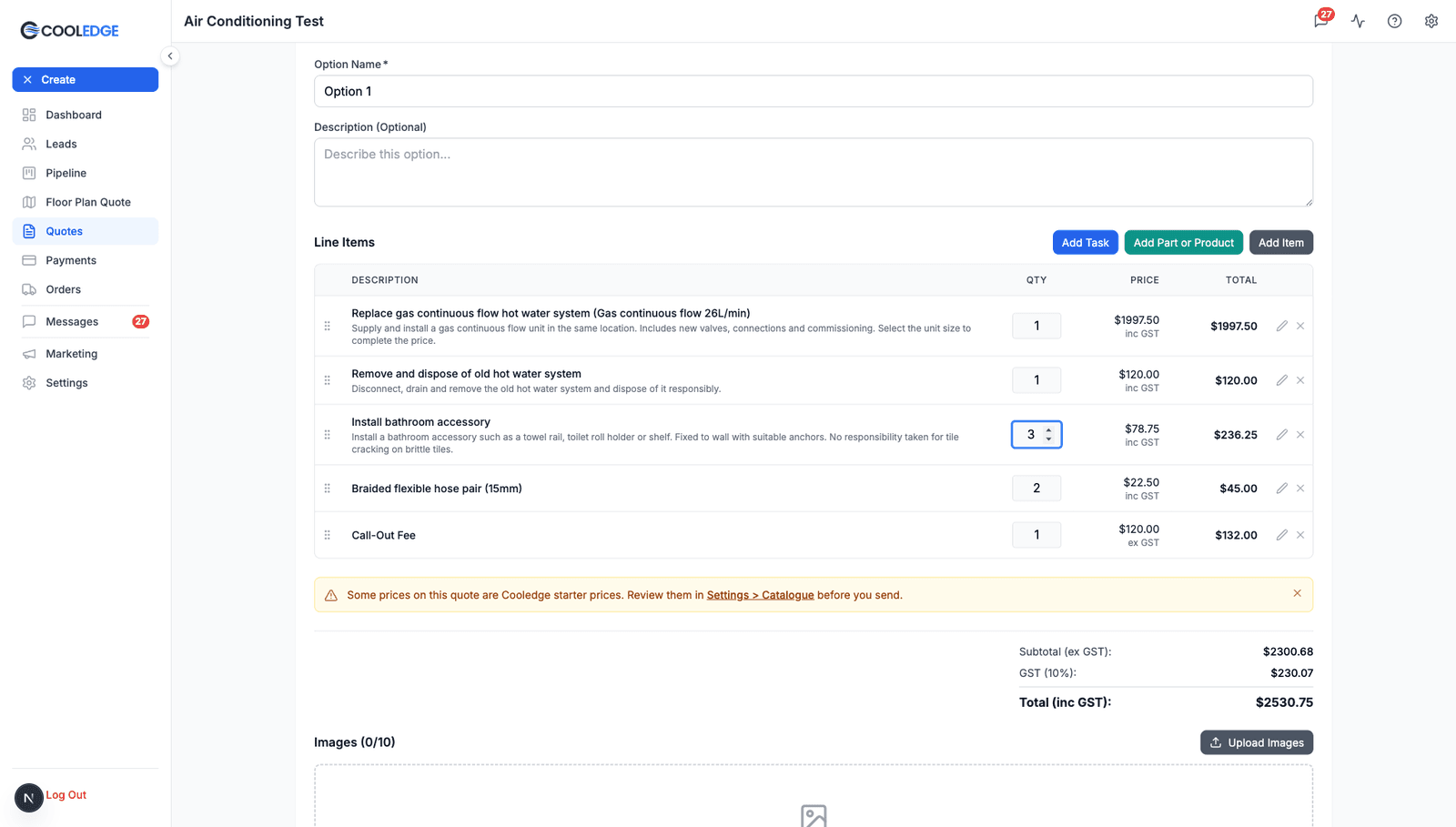
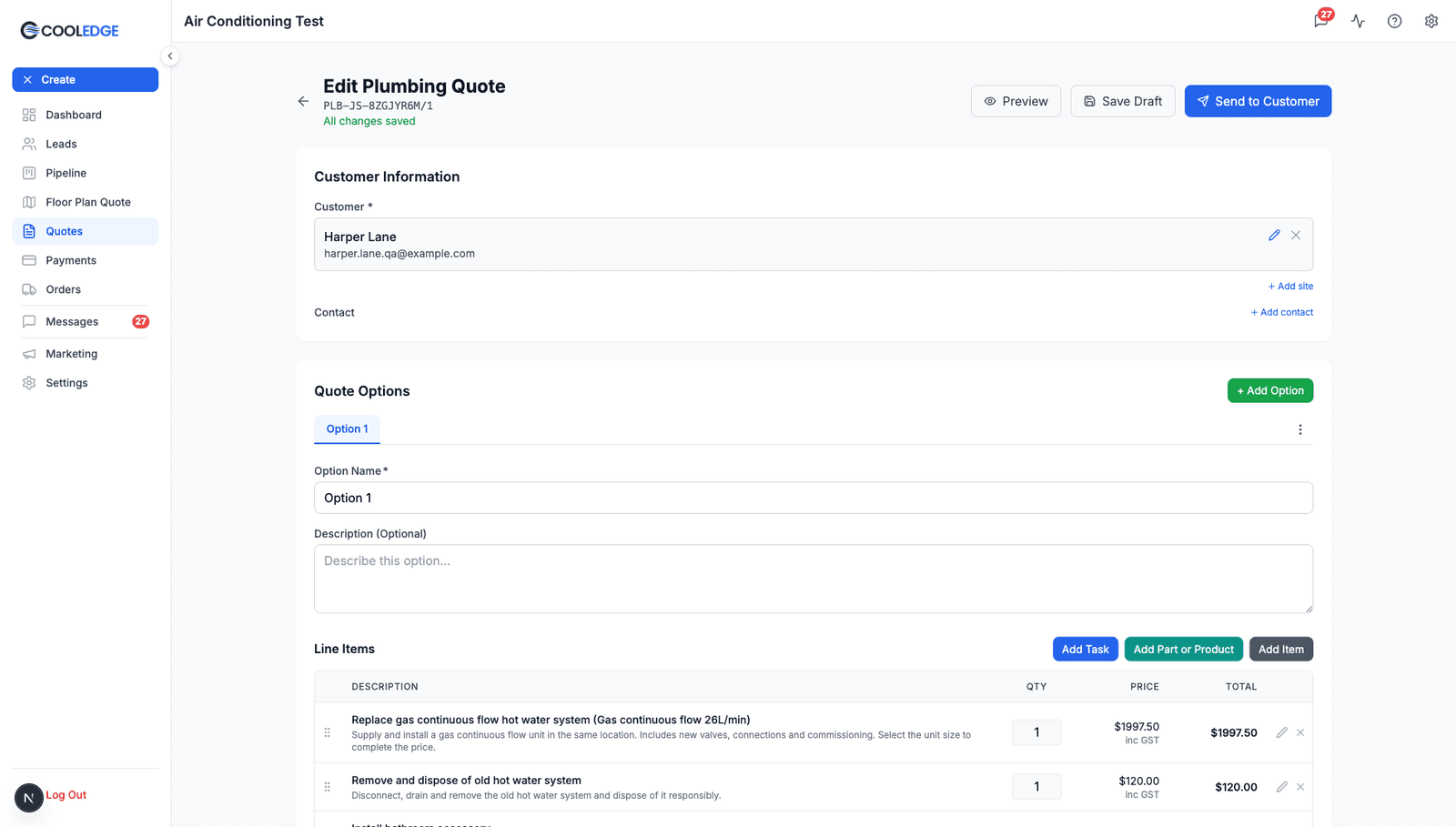
A trade quote reopens in the same editor at any time. Add or remove tasks, change quantities or adjust prices, then save.
The Quote Detail Page
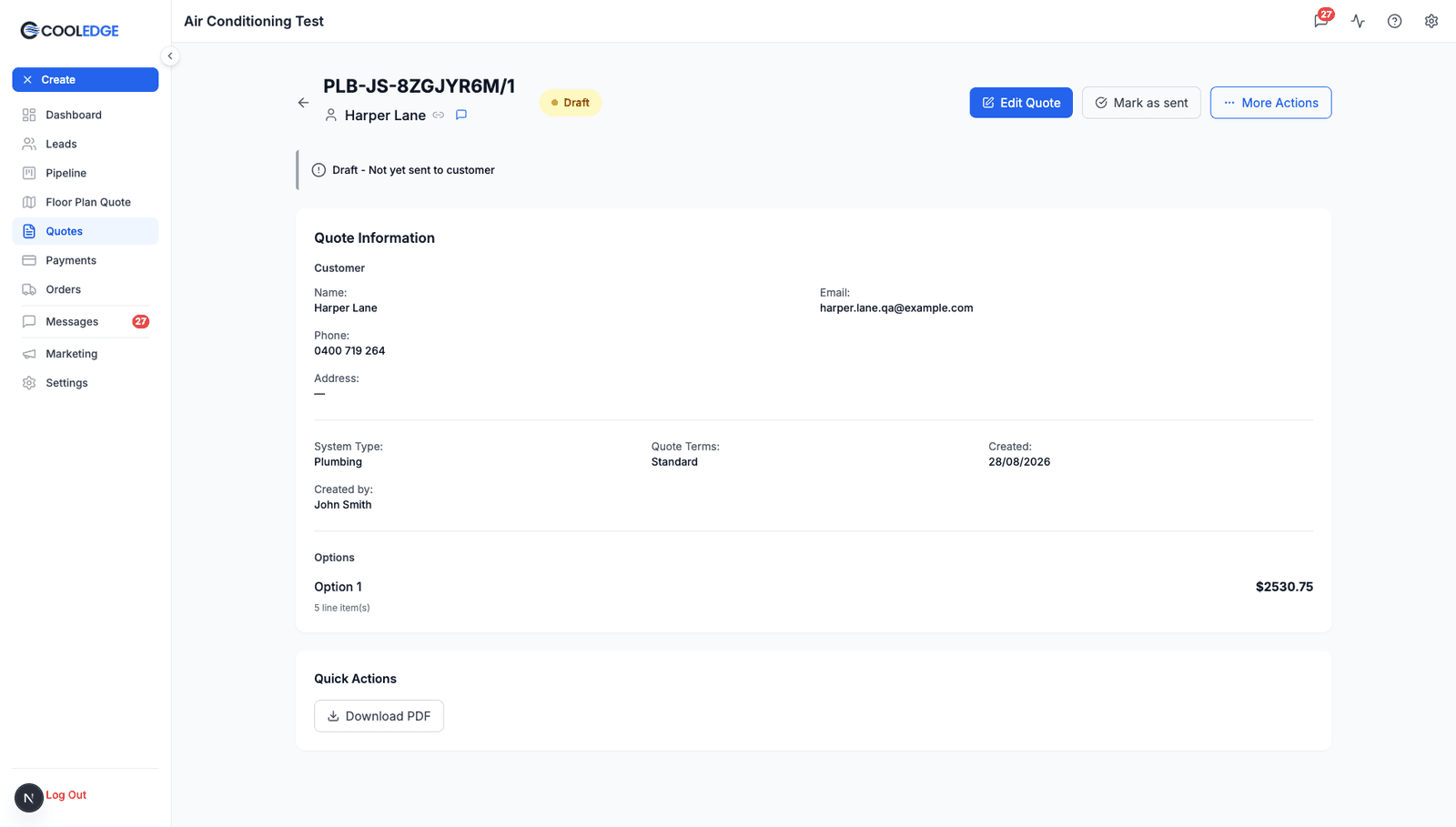
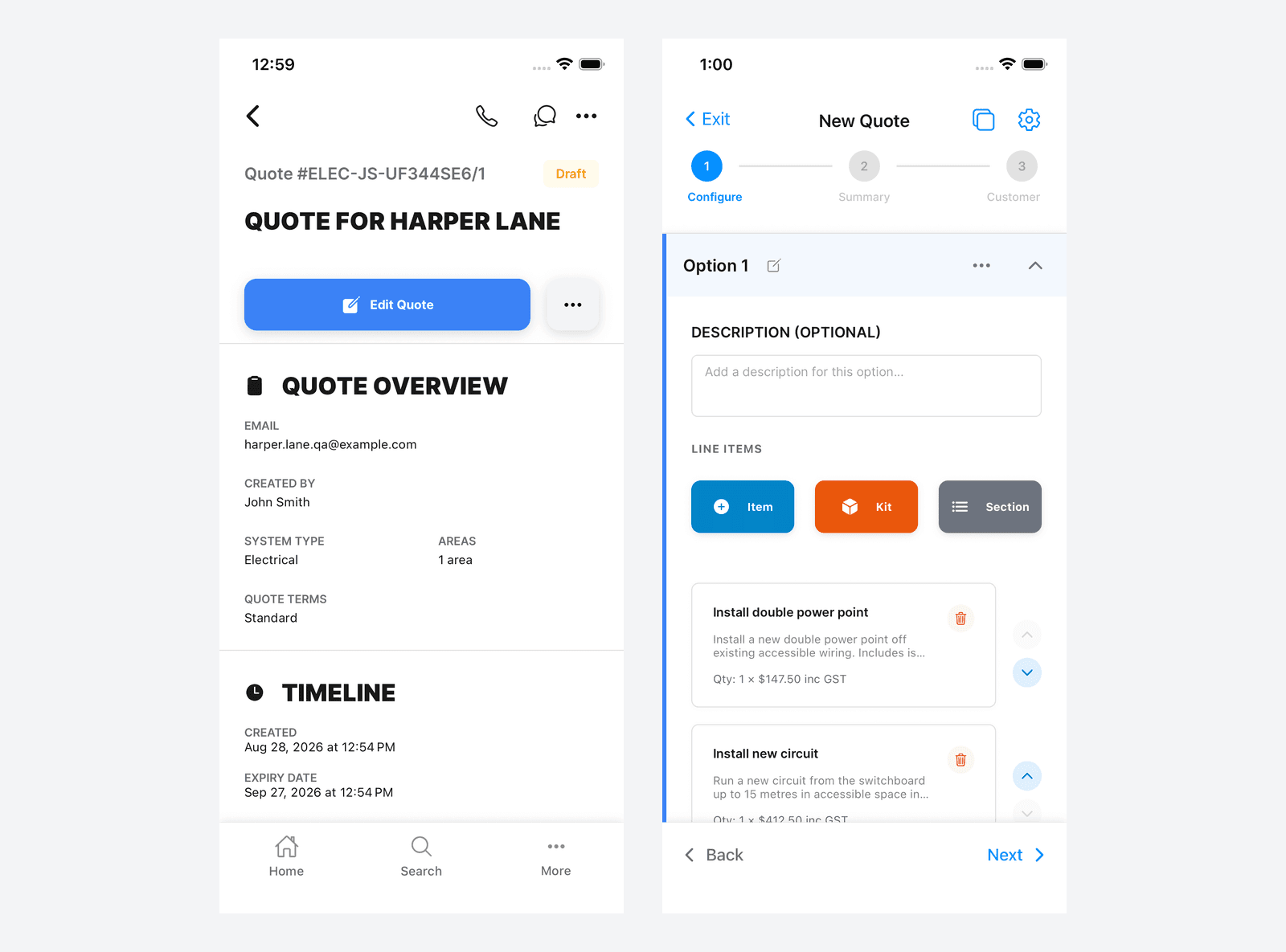
Plumbing quotes get a PLB- reference and electrical quotes get an ELEC- reference, so you can tell them apart in the quotes list at a glance. The detail page shows the System Type ("Plumbing" or "Electrical") with the options, totals and activity you'd see on any other quote.
From Sent to Paid
Downstream, a trade quote behaves like any other Cooledge quote:
- PDF and public quote link. Send the PDF or the online quote page, labelled by trade, where the customer reviews and accepts
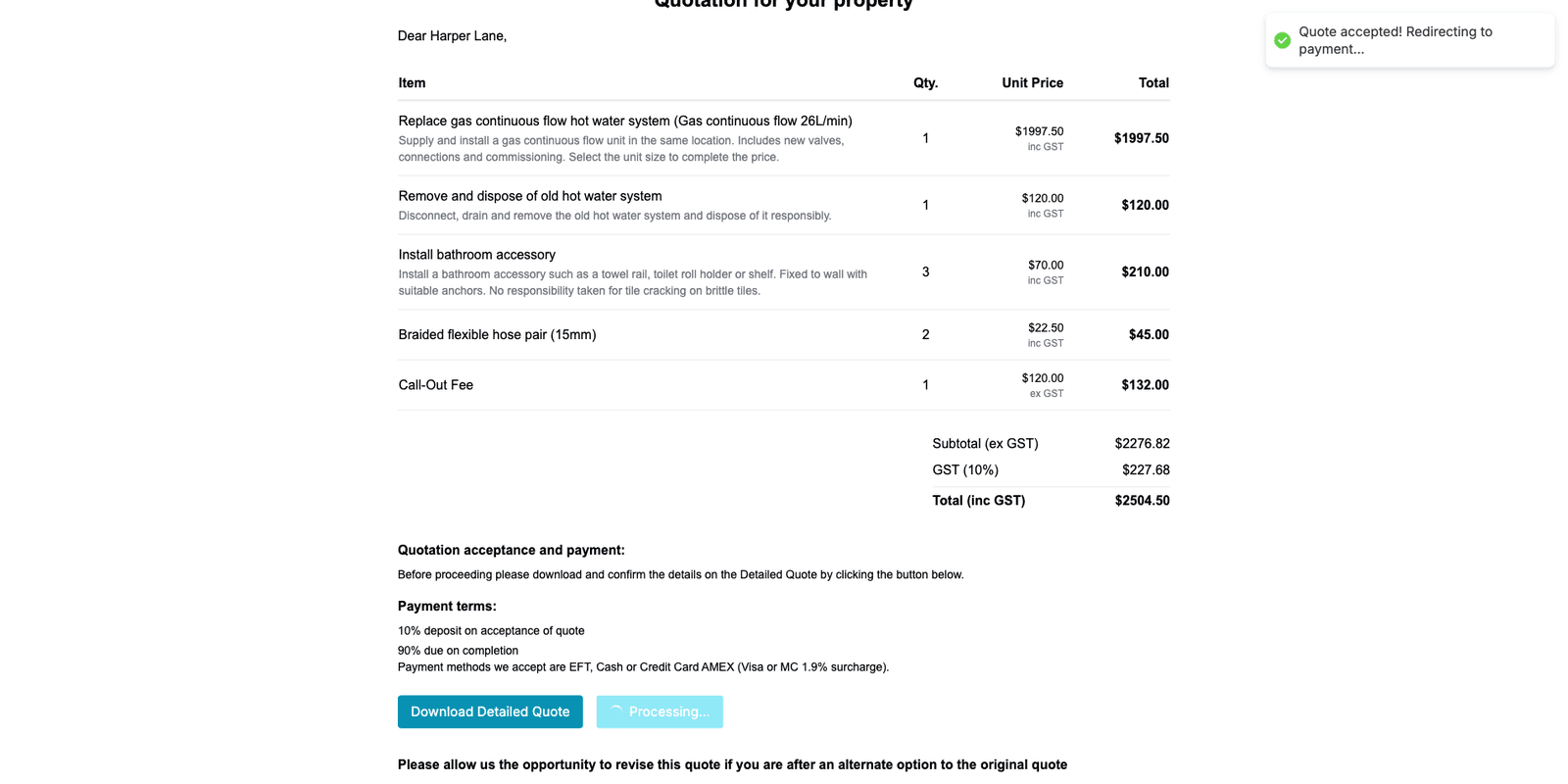
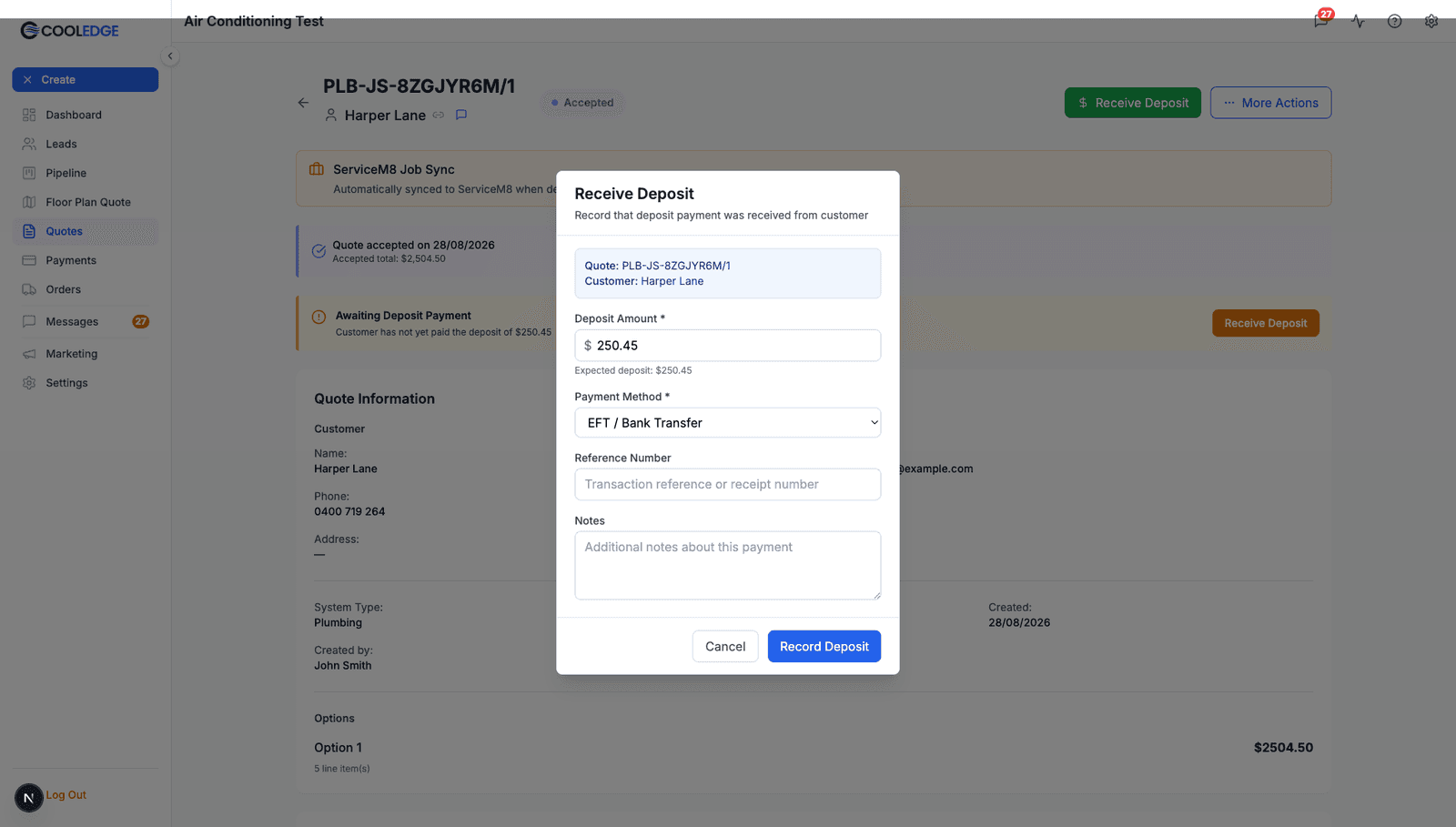
- Deposits. The deposit comes from your payment terms, exactly as it does on an air conditioning quote. A card deposit is taken on acceptance. A customer who picks bank transfer or cash is telling you how they intend to pay, and you record the money with Receive Deposit when it arrives. Set the deposit to 0% and the customer just accepts. See Understanding Deposits
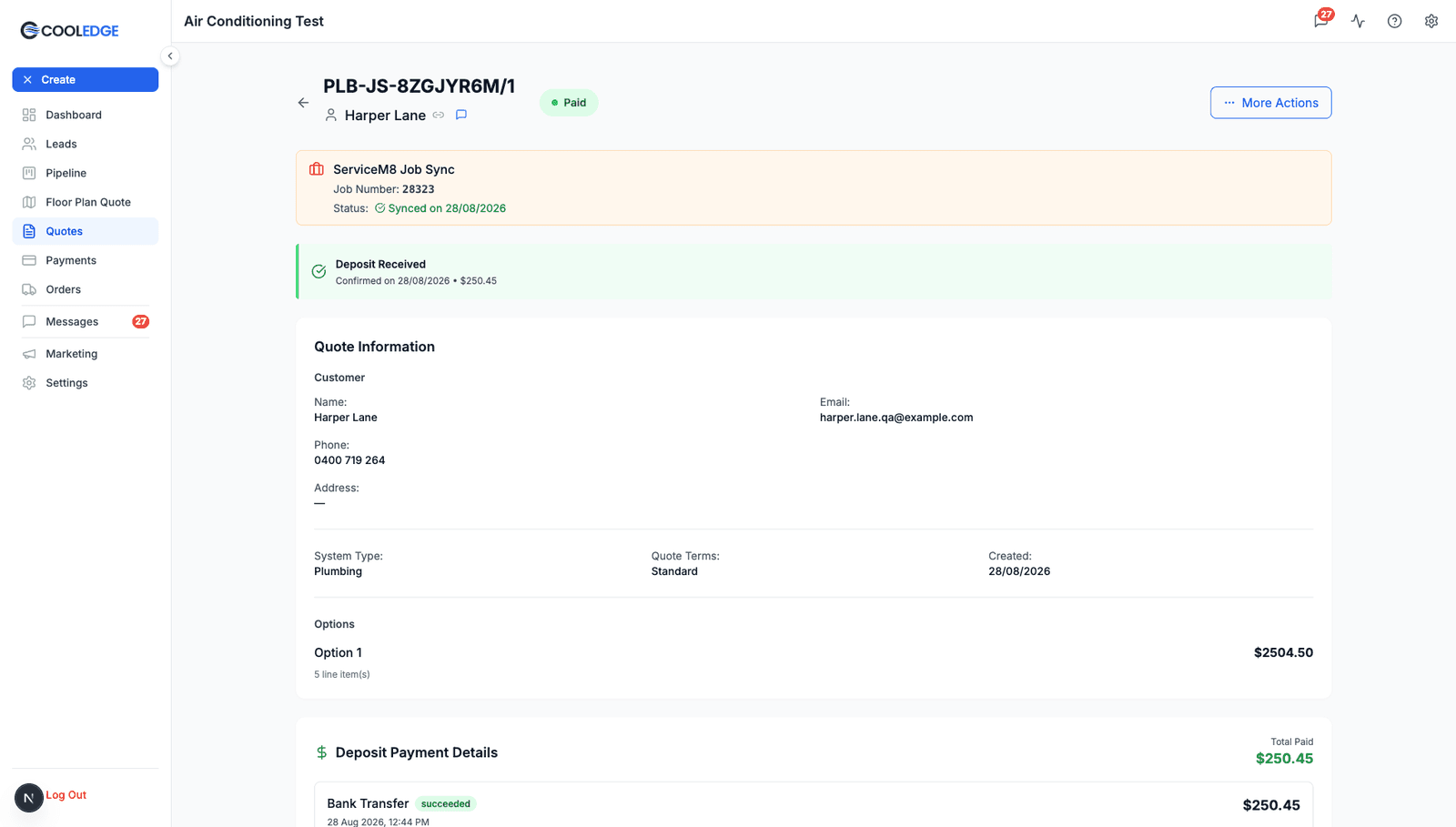
- Job creation, invoicing and accounting. Turn the accepted quote into a job, invoice it and let your integrations do their thing. Here's a plumbing quote marked Paid with its deposit received and its ServiceM8 job sync panel
Quoting on the Mobile App
The full flow works in the Cooledge app: create, pick tasks, edit and produce the PDF. The update arrives over the air rather than through the app store, so there's nothing to install. If the new quote types aren't showing yet, fully close the app and open it again. The app reads the same catalogue and the same favourites as the portal.
Creating a Quote on Your Phone
The Create Quote sheet offers Plumbing Quote and Electrical Quote (with the same industry gating as the portal). A new quote opens on the Configure step with buttons for tasks, parts and products, free-form items, kits and sections.
Picking Tasks
The task picker searches as you type. Unit-based tasks show their from-price, the same as the portal. Category pills sit at the top and picking one reveals its subcategory pills, so Tapware splits into Traditional Taps, Mixers and Outdoor.
Units and Add-ons
The task detail sheet works the same as desktop: pick the unit, tick the add-ons and watch the total update before adding it all to the quote.
Favourites and Quantities
The Favourites pill filters to your starred tasks (stars are shared with the portal) and every line has a quantity stepper.
Parts and Price Adjustments
Add parts and products from the same categorised picker. Hand-edited prices work here too: an adjusted line keeps its adjusted-from caption on mobile.
Reviewing and Saving
The starter price notice appears on mobile as well, with the same subtotal, GST and total summary.
Detail, Editing and the PDF
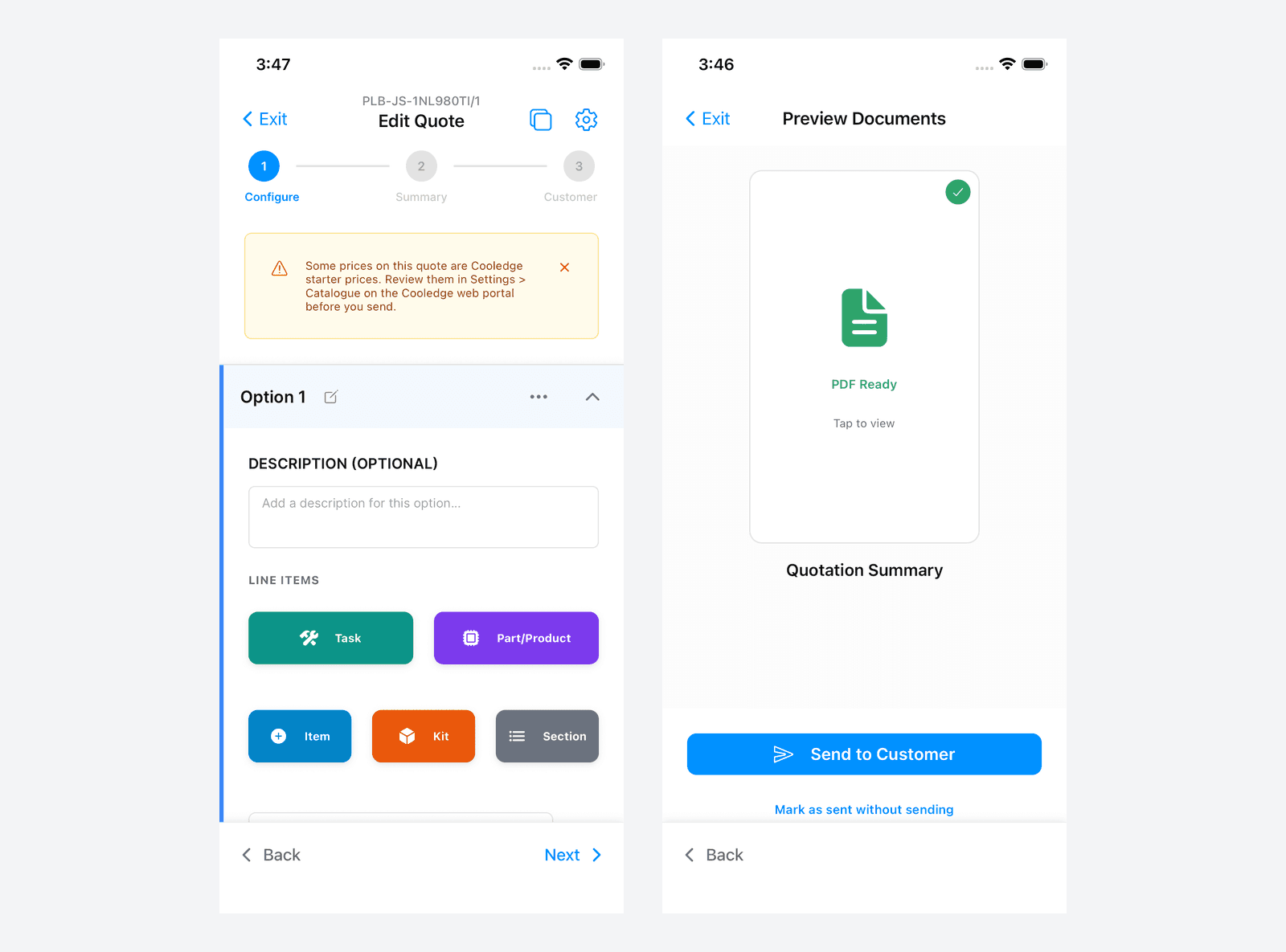
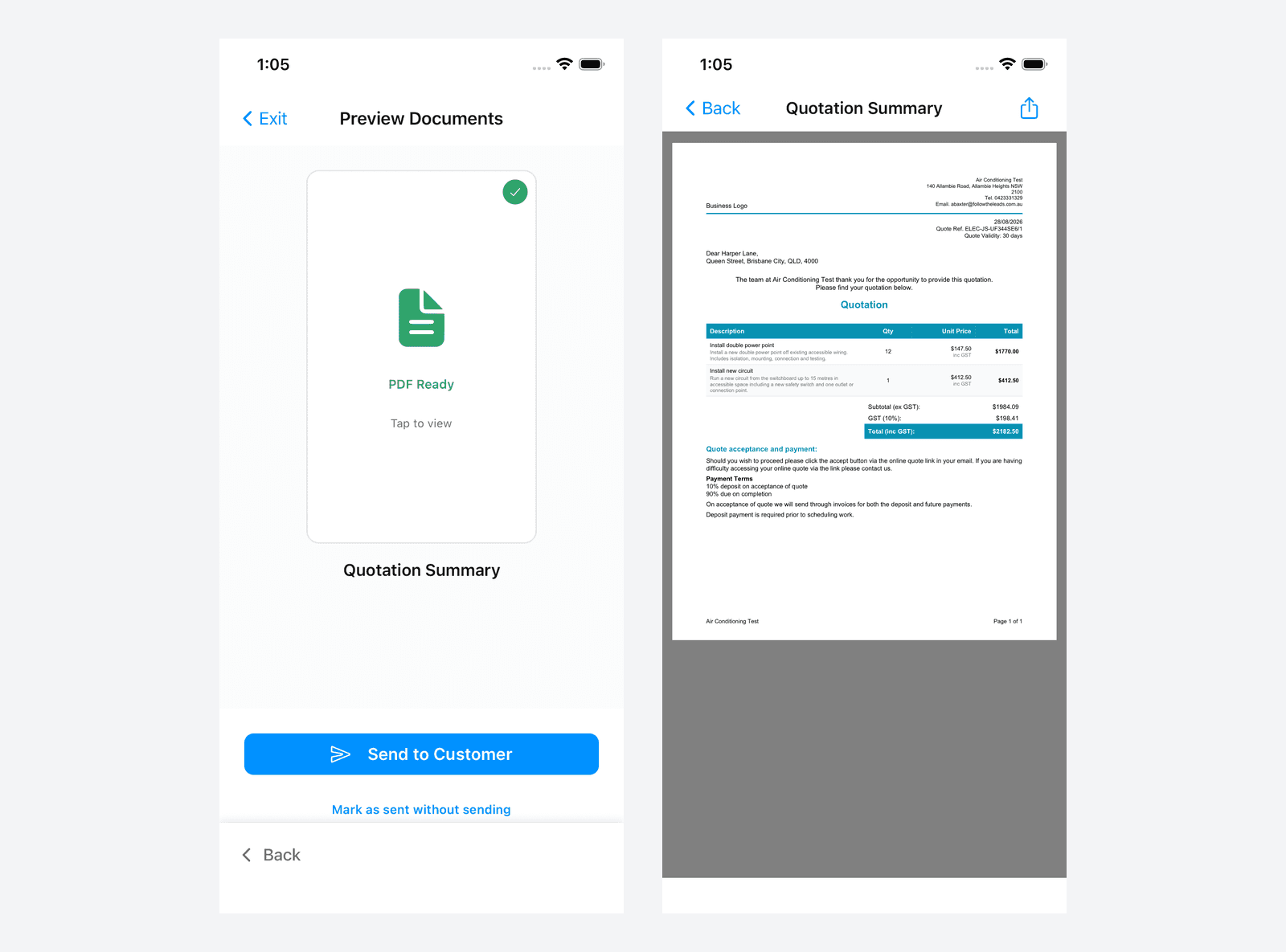
A saved trade quote's detail screen shows its trade, Edit Quote reopens the editor and the finished quote produces a PDF you can preview and send from your phone.
Tips & Troubleshooting
- Plumbing Quote or Electrical Quote is missing from the quote type list. Add the industry under Settings → Company Settings. An AC-only business sees neither type
- Prices look generic or wrong. They're probably starter prices. The amber notice on the quote tells you when that's the case; fix the pricing in Settings → Catalogue so every future quote is right, or hand-edit the line for a one-off
- A task shows "from" instead of a price. It needs a unit chosen. Open the task's detail sheet and pick one from the Unit dropdown
- A task you never offer keeps showing in the picker. Turn it off in the catalogue (Settings → Plumbing Catalogue → Tasks) and it drops out of the picker on desktop and mobile
- Catalogue changes aren't showing in the app. Changes can take up to 2 hours to show in the mobile app. Fully closing and reopening the app applies them straight away
Related Articles:
- Trade Catalogue (Plumbing & Electrical) →: the pricing engine behind these quotes
- Quoting Basics →: general quoting guide
- Sending Documents →: the send screen, email and SMS
- ServiceM8 Integration →: sync accepted quotes as jobs
Need help with Plumbing & Electrical Quoting? Email us at support@cooledge.com.au
Was this article helpful?
Let us know if you found this information useful.
Still need help? Contact support
In this article
Use your browser's search (Ctrl+F) to quickly find specific topics within this article.
Browse all help articles →Related Articles
Ducted System Field Reference
Complete reference for all fields and options available when configuring ducted system quotes in Cooledge
Install Only Field Reference
Complete reference for all fields and options available when configuring install only quotes in Cooledge
Multi System Field Reference
Complete reference for all fields and options available when configuring multi system quotes in Cooledge