Google Business Profile Integration
Connect your Google Business Profile to sync reviews, track your rating and automate review collection
Google Business Profile Integration
Connect your Google Business Profile to Cooledge to automatically sync your reviews, track your rating and send customers directly to your Google listing for reviews.
What's Included
When you connect your Google Business Profile:
- Automatic review sync – Reviews appear in Cooledge throughout the day
- Rating tracking – Monitor your average rating and review count
- Direct review links – Customers are sent straight to your Google listing
- Review matching – Link Google reviews to customers in Cooledge
- Embeddable widgets – Display your Google reviews on your website
- Multiple locations – Connect every listing on the same Google account and split review requests between them
Prerequisites
Before connecting, you'll need:
- Google Business Profile – A verified listing for your business
- Owner/Manager access – Your Google account must have management rights
- Active Cooledge subscription – Any plan includes the reviews feature
Connecting Your Google Business Profile
Step 1: Navigate to Reviews
- Log in to the Cooledge portal
- Go to Marketing → Reviews in the sidebar
- Stay on the Overview tab
Step 2: Start Connection
- Click Connect Google Business Profile
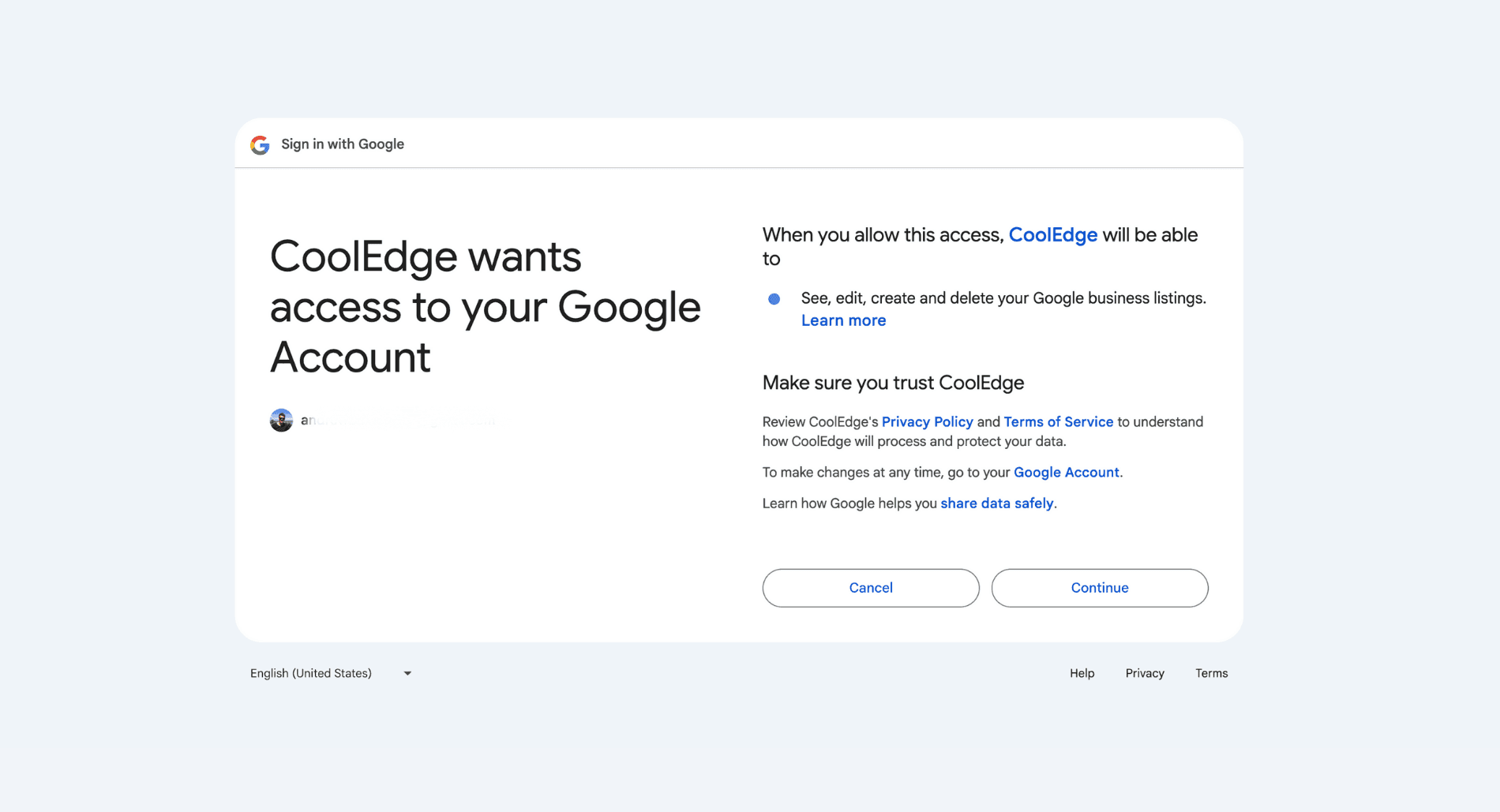
- You'll be redirected to Google's sign-in page
Step 3: Authorise Access
- Sign in with the Google account that manages your business
- Review the permissions Cooledge is requesting
- Click Allow to authorise
Step 4: Select Your Locations
If you manage more than one listing, tick every location you want to connect, then click Connect N locations. Add more later with Add location on Marketing → Reviews, or remove one with Remove (the last location can only be removed by disconnecting).
Once you're connected, the Google Business Profile card lists each location with its rating, review count and last sync.
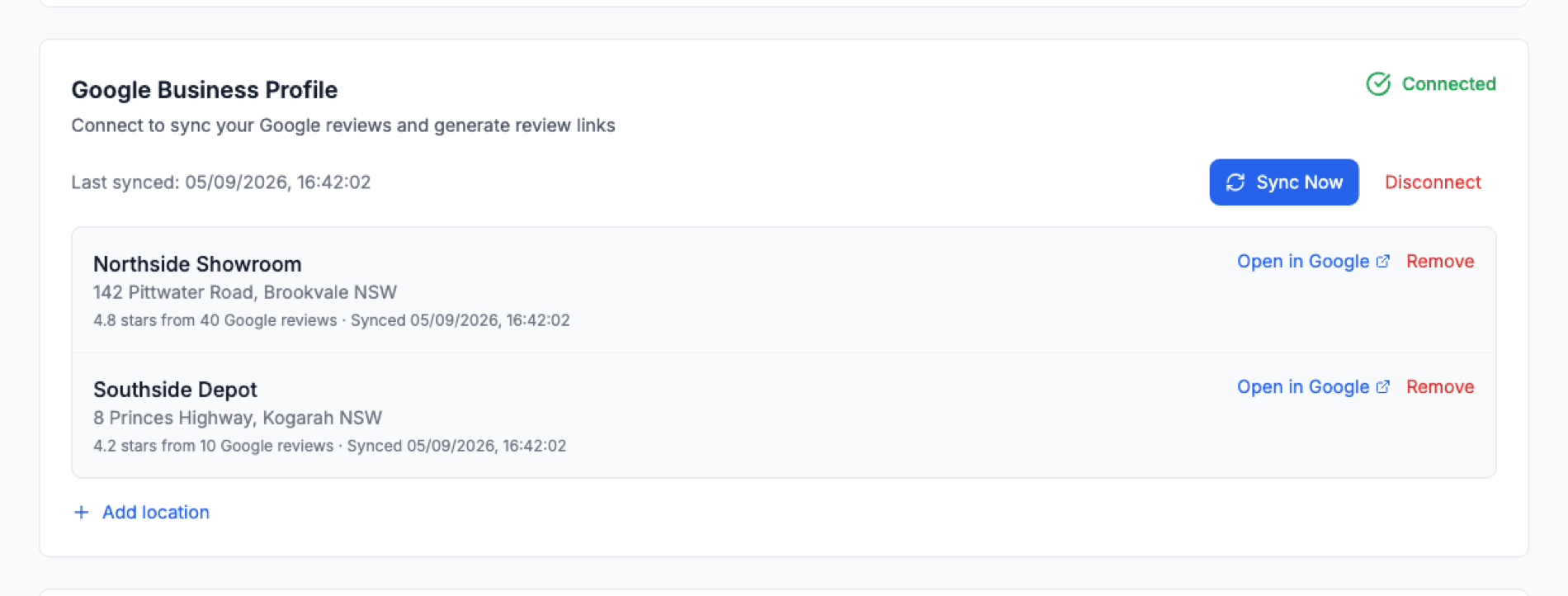
Managing Your Locations
| Action | Where |
|---|---|
| Add location | Marketing → Reviews → Overview, under the connected locations |
| Remove a location | Beside the location on the same card. Its synced reviews are deleted, your Google listing is untouched. Remove only appears once you have two or more locations |
| Split review requests | Marketing → Reviews → Automation, in the Review link routing card. Weights are relative and 0 excludes a location, but they cannot all be 0 |
| Filter by location | Marketing → Reviews → Reviews, in the Location dropdown |
| Choose what a widget shows | Marketing → Reviews → Embed or Quote Page, in the Locations control |
Every review, feedback item and scheduled request carries a location pill so you can tell at a glance which listing it belongs to.
How Review Sync Works
Once connected, Cooledge automatically syncs your Google reviews:
- Reviews sync automatically throughout the day
- Manual sync available anytime via "Sync Now" button
- New reviews appear in your Reviews dashboard
- Rating and review count update automatically
What Syncs
| Data | Description |
|---|---|
| Reviews | Full review text and star rating |
| Reviewer Name | Name displayed on Google |
| Review Date | When the review was posted |
| Profile Photo | Reviewer's Google profile image |
| Your Reply | If you've responded on Google |
Replying to Reviews
Once your reviews sync in, you can reply to them straight from Cooledge and let AI do the writing. Open a review on the Reviews tab and click Draft with AI for a ready-to-post reply in your business's voice, or switch on Auto-pilot to have your positive reviews answered automatically.
- AI drafts you can edit, regenerate or post with one click
- Auto-pilot posts replies to your 4 and 5 star reviews at natural times, while 1 to 3 star reviews always wait for your approval
- Edit posted replies without leaving Cooledge, even after they are live on Google
For the full guide, see AI Review Replies.
Review Matching
Cooledge automatically tries to match Google reviews to customers in your database.
Auto-Matching Logic
Reviews are matched based on:
- Timing – Review appeared shortly after customer clicked review link
- Name matching – Fuzzy match between reviewer and customer name
- Confidence score – Combined scoring determines match quality
Manual Matching
For reviews that aren't auto-matched:
- Go to Marketing → Reviews → Reviews tab
- Find the unmatched review
- Click the link icon on the review
- Search for and select the customer
- Confirm the match
Matched reviews help you:
- Track which customers left reviews
- Update customer records
- Identify repeat reviewers
Sending Customers to Google
When customers click to leave a review (from your automated requests or website widget), they're taken to the review form for the location their request was routed to (or the widget's chosen location).
The flow:
- Customer receives review request (SMS/email)
- They click the review link
- They rate their experience on your Cooledge landing page
- If they select 4 or 5 stars, leaving a public Google review is the prominent option. At 3 stars or below, private feedback comes first and the Google option stays available underneath
- Clicking "Leave a Public Google Review" takes them straight to Google
Troubleshooting
Connection Issues
"Unable to connect" error:
- Ensure you're signed into the correct Google account
- Check you have Owner or Manager access to the listing
- Try disconnecting and reconnecting
- Clear browser cookies and try again
Wrong location showing:
- Remove the location from the Google Business Profile card on Marketing → Reviews → Overview
- Click Add location and tick the right one
- If you don't see your business, verify your Google account has access to the listing
Sync Issues
Reviews not appearing:
- Check connection status on the Overview tab
- Click "Sync Now" to manually refresh
- Wait a few minutes – new reviews may take time to appear
- Verify the review exists on your Google listing
Missing recent reviews:
- Google can delay review visibility
- Try syncing again after 30 minutes
- Check if the review is still pending on Google
Token Expired
If your connection stops working:
- Go to Marketing → Reviews → Overview
- Click Disconnect on the Google Business Profile card, then Connect Google Business Profile to re-authorise with Google
- Tick your locations again and syncing resumes automatically
This can happen if:
- You changed your Google password
- You revoked Cooledge access in Google settings
- The authorisation token naturally expired
Disconnecting
To disconnect your Google Business Profile:
- Go to Marketing → Reviews
- Stay on the Overview tab
- Click Disconnect on the Google Business Profile card
- Confirm the disconnection
Disconnecting removes every connected location at once. To drop just one, use Remove beside it instead.
Note: Disconnecting will:
- Stop review syncing
- Remove the Google reviews already synced into Cooledge
- Cancel any queued review requests and switch the automatic triggers off
- Keep your private feedback and your review request history
- Disable direct Google review links
- Require reconnection to resume
Related: Automated Reviews & Reputation → | Review Widgets & Embedding →
Need help with Google Business integration? Email us at support@cooledge.com.au
Was this article helpful?
Let us know if you found this information useful.
Still need help? Contact support
In this article
Use your browser's search (Ctrl+F) to quickly find specific topics within this article.
Browse all help articles →Related Articles
Accounting Sync
How invoices, payments, supplier bills and credit notes move between Cooledge and your accounting software, what comes back and how to clear anything that stalls
Automating Cooledge with the API and MCP
How to connect scripts, AI assistants and other software to your Cooledge account the supported way, and why signing in with a script is not it.
Conversion Tracking Setup
Send your Cooledge booking and lead conversions to Google Analytics, Google Ads and Meta so you can measure and optimise your ad spend