Adding Items From a Supplier
Turn your supplier's pricebook into price list items, trade parts and AC units in a few clicks, each one following the supplier's price
Adding Items From a Supplier
Your supplier's pricebook, straight into the lists you quote from.
- Tick products on a supplier's Pricebook tab and add them to your price list, trade parts or AC units in one go
- Or click From supplier on the list you're working on and pick the products there
- Everything you add keeps its cost linked to the supplier's item, ready to refresh from their next price list
- Link any existing item, unit, material or task to a supplier item with Link to supplier item
- When a new pricebook lands, Update costs from supplier shows every cost that changed before anything is saved
- Search the supplier's products by name, SKU, model or outdoor model
Your supplier already keeps a price list. Once it's uploaded as a pricebook, you don't need to retype it into Cooledge. Pick the products you sell and add them to your price list, your plumbing or electrical parts or your AC units. Each one comes in with the supplier's price as its cost.
The cost stays linked to the supplier's item. When the supplier sends a new price list, upload it, click Update costs from supplier and review what changed. You can also link items you already have, so your whole catalogue can follow your supplier's prices.
What You Need
- A Growth or Scale plan (see Plans below)
- A supplier with a pricebook. See Supplier Pricebooks
- Portal access as an owner or admin. Adding items and linking costs happen in the Cooledge Portal on desktop
Two Ways In
From the supplier's Pricebook tab
- Open Settings, click Suppliers and click the supplier's row
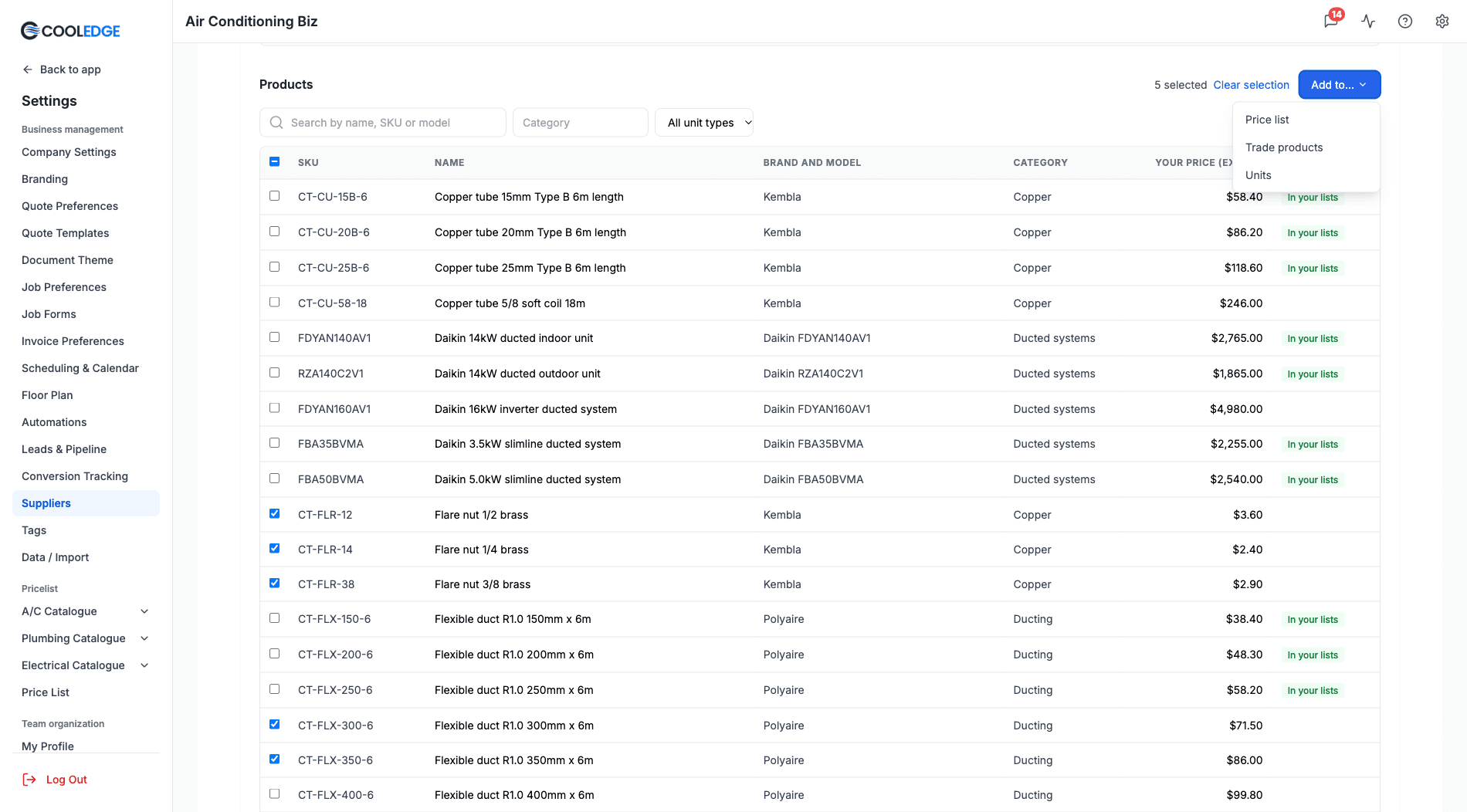
- Open the Pricebook tab and scroll to Products, below Recent imports
- Find the products you want. Type in Search by name, SKU or model, filter by Category or pick a unit type from All unit types (choose Parts to hide the units)
- Tick each product. The header checkbox or Select all ticks every product on the page you're looking at. Your ticks stay as you page through, up to 200 at a time
- Click Add to… and choose Price list, Trade products or Units
The count above the list shows how many you've ticked, with Clear selection to start again. Add to… only lists the lists your business has: Trade products shows for plumbing and electrical businesses, Units for air conditioning and ventilation businesses.
Products already in one of your lists wear an In your lists badge. See The In Your Lists Badge below.
From the list you're working on
Each list has its own From supplier button:
- Price list: click the arrow on Add item and choose From supplier
- Trade parts: From supplier on the Parts and Products page of your Plumbing or Electrical Catalogue
- Units: From supplier on the Units tab of each A/C and Ventilation Catalogue system
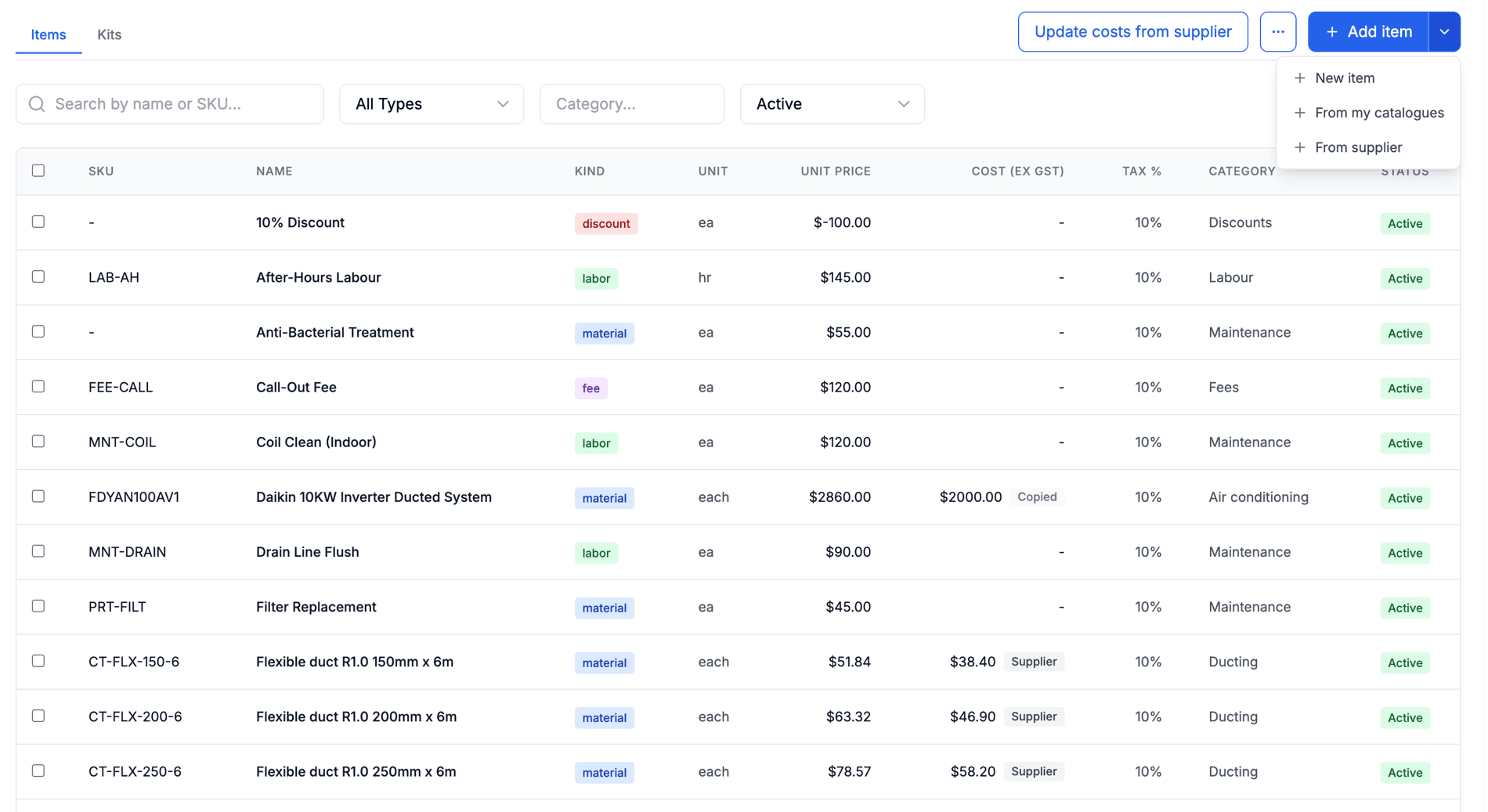
Pick the supplier and click Continue, tick the products and click Continue again. The list is already chosen for you, so you land straight on its step.
Adding to Your Price List
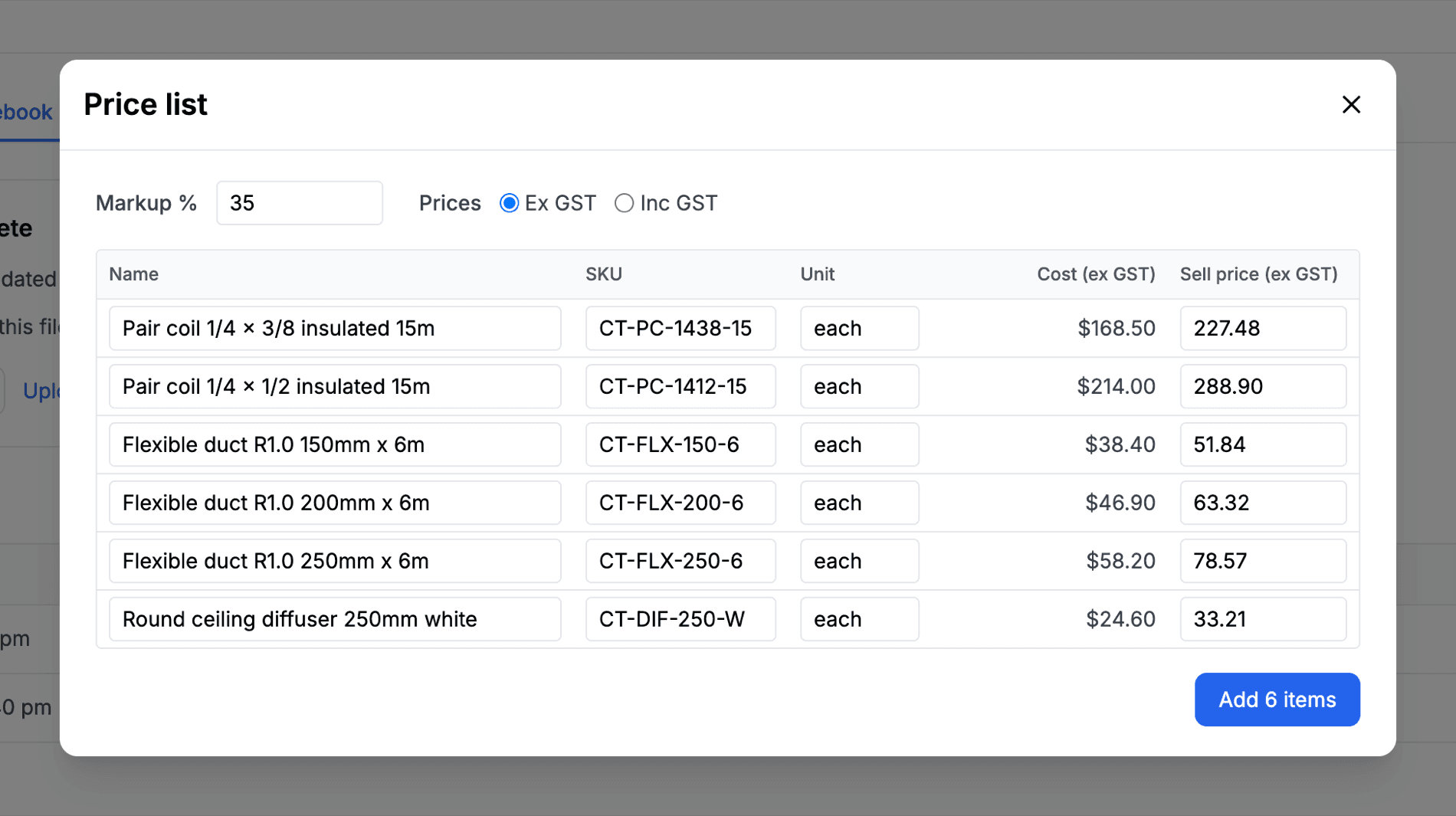
The price list step shows a row for each product with its Name, SKU, Unit, cost and sell price.
- Type a Markup % to fill every sell price from its cost. You can still change any sell price by hand afterwards
- Under Prices, choose Ex GST or Inc GST. It starts on your sales GST setting and switches both the cost and sell price columns
- Change a name, SKU or unit if you want your own wording
- Click Add N items
A product with no price yet shows No price yet in the cost column. Type its sell price yourself. It's still added and picks up its cost the next time you update costs.
Each item lands in your price list with its Cost (ex GST) filled in from the supplier. See Managing Your Price List for the rest of the item's fields.
Adding Trade Parts
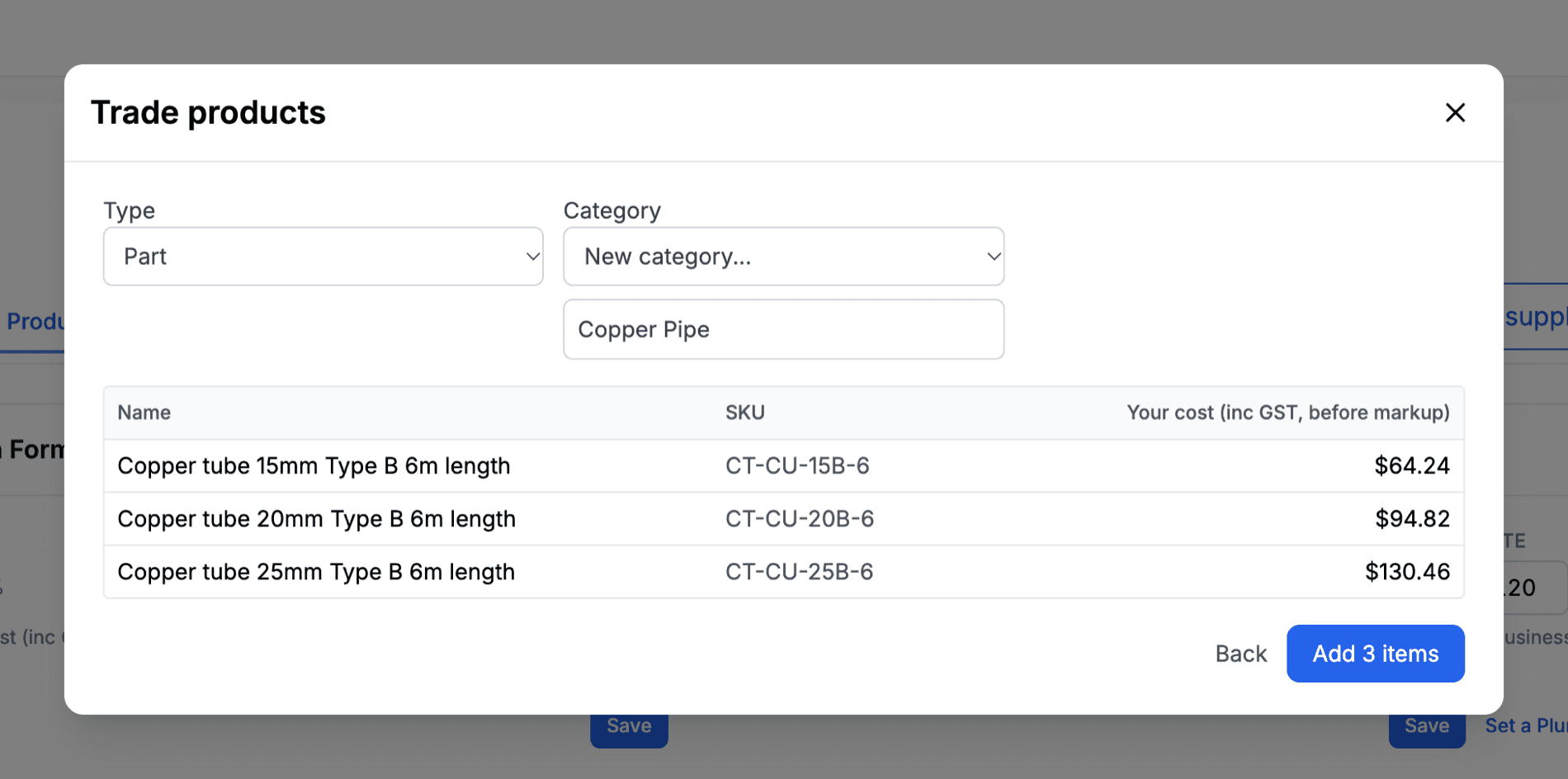
For plumbing and electrical businesses, the trade step adds the products to Parts and Products.
- Choose the Industry: Plumbing or Electrical (hidden when you started from that industry's page)
- Choose the Type: Part or Unit
- Choose a Category, or pick New category... and type your own
- Check the Your cost (inc GST, before markup) column
- Click Add N items
The industry, type and category apply to every product in the batch, so add parts and units in separate batches. Each new row is priced like any other trade part: your cost plus your unit markup. See Trade Catalogue.
Adding Units
On the units step, choose the Unit list to add to (it's already chosen when you start from a unit page). What happens next depends on how many products you ticked.
One unit at a time
Tick one product and click Continue. The Add Custom Unit form opens (Add Fan for fans), filled in from the pricebook: the name, brand, model, cost and any unit details the pricebook has. Check it, fill any gaps and save. The new unit's cost follows the supplier's item.
On split and ducted lists, a supplier that lists the indoor and outdoor units separately is handled too. Tick the indoor and the outdoor together (marked in the pricebook's Indoor or outdoor column) and both fill the one unit, with its cost set to the two prices added together.
If the unit saves but its cost can't be linked, you'll see "The unit was added, but its cost could not be linked. Open it and choose Link to supplier item."
Several units at once
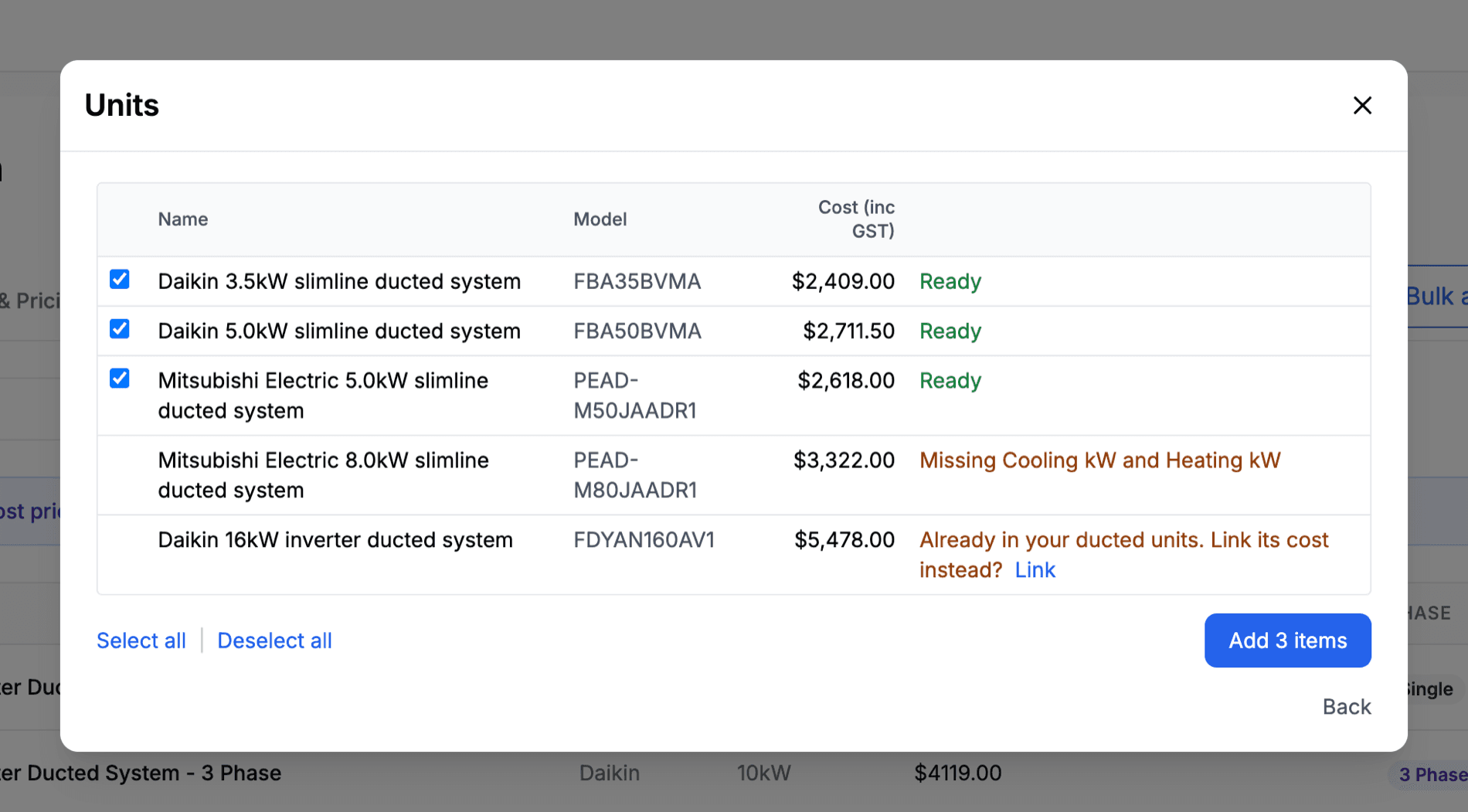
On the split, multi, ducted and VRV lists, ticking more than one product opens a review. Each row shows the Name, Model and Cost (inc GST) with a status:
- Ready: it can be added. Ready rows are ticked for you, and Select all | Deselect all works over them
- Missing and the details it needs, for example "Missing Cooling kW and Heating kW". Add the unit on its own and fill those in, or add the details to your pricebook (see Pricebook Uploads for AC Units)
- Already in your ducted units. Link its cost instead? (with your list's name): this product, or a unit with the same model, is already in that list. Click Link to make that unit's cost follow this product instead of adding a second copy
- No price yet: the supplier has no price for it
- Half of a system. Add it one at a time and link both items.: an indoor or outdoor unit on its own. Tick the pair and add them as one unit
Click Add N items to add the ticked Ready rows.
Ventilation and subfloor fans
Fans are added one at a time. Tick more than one and you'll see "Ventilation and subfloor fans are added one at a time."
What Gets Skipped
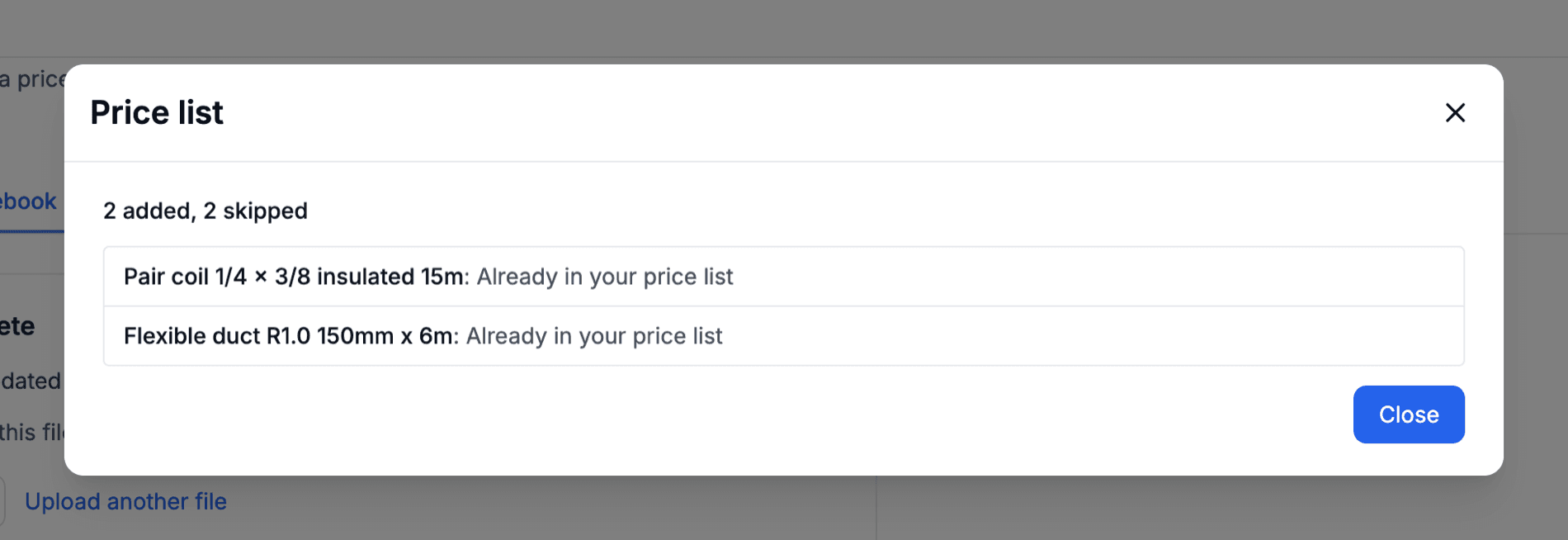
When an add finishes you'll see a summary such as 12 added, 2 skipped. If anything was skipped, a list shows each skipped product with the reason:
- Already in your price list, Already in your trade products or the unit list's name (such as Already in your ducted units): that product is already in the list. Your existing row is left alone
- No price yet (trade parts and units): the supplier has no price for it, so there's no cost to add
- Missing and the details it needs, or Half of a system. Add it one at a time and link both items. (units): see Several units at once
- Supplier item not found (price list): the product was removed from the pricebook while you were adding it
- The supplier item is no longer available. (price list and trade products): the product was switched off by a later pricebook upload
- That SKU is already used by another item in your price list. Change the SKU and try again.: another price list item, archived ones included, already has that SKU. Change the SKU on the price list step and add it again
- Could not be added. Try again. (price list): something went wrong partway through. The products counted as added are in your list, so tick the skipped ones and add them again
Units are checked again when you click Add N items. A unit that changed since the review is skipped with the same status the review would now show.
The In Your Lists Badge
On the Pricebook tab's Products list, In your lists marks a product that's already in at least one of your lists, as an item that follows its price or one that was copied from it.
Only switched-on rows count. An archived price list item or a switched-off unit, material, part or task doesn't, so a product whose only row is switched off has no badge and can be added again. To bring the old row back instead, switch it back on.
Keeping Costs in Step
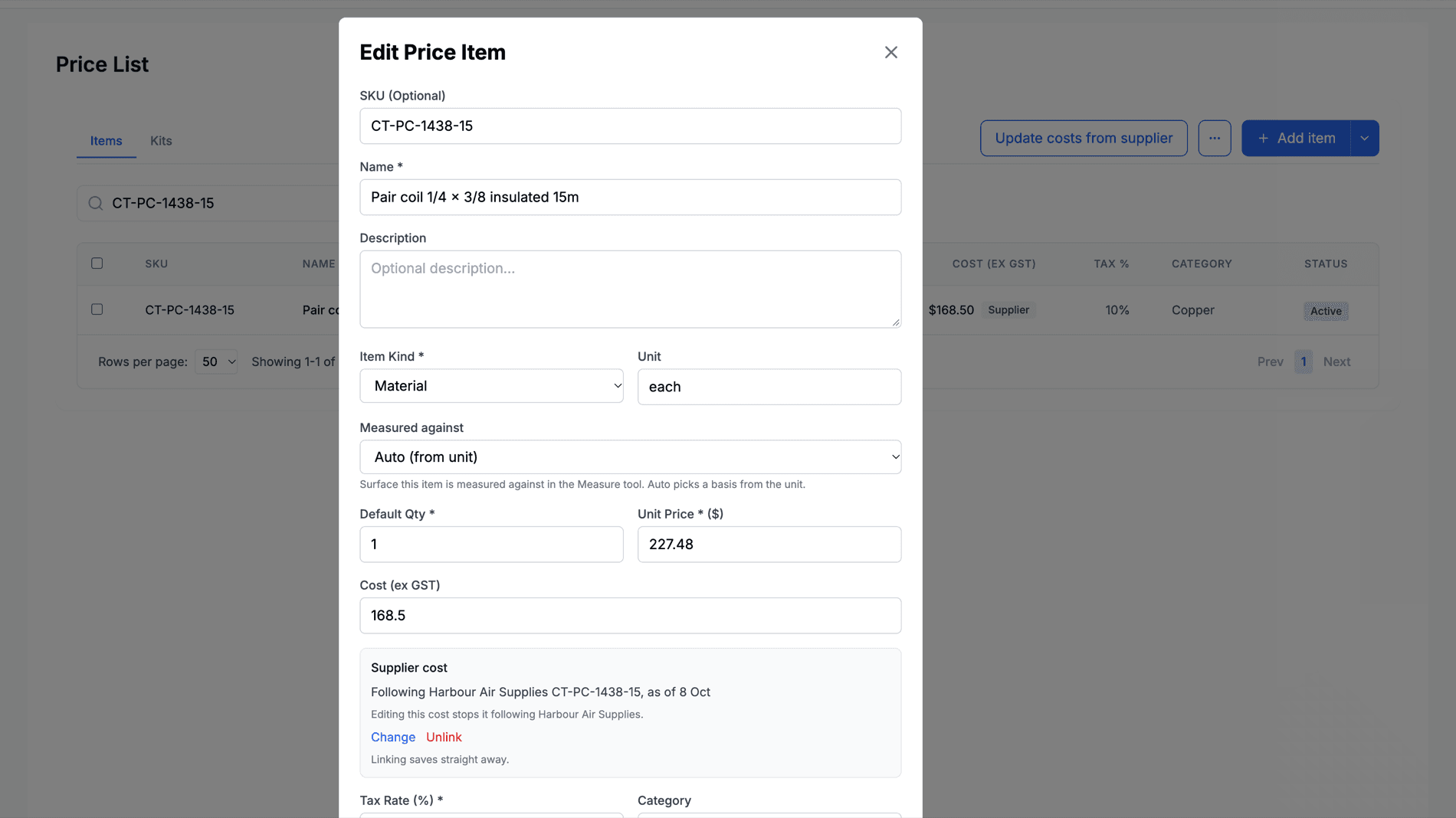
The Supplier cost section
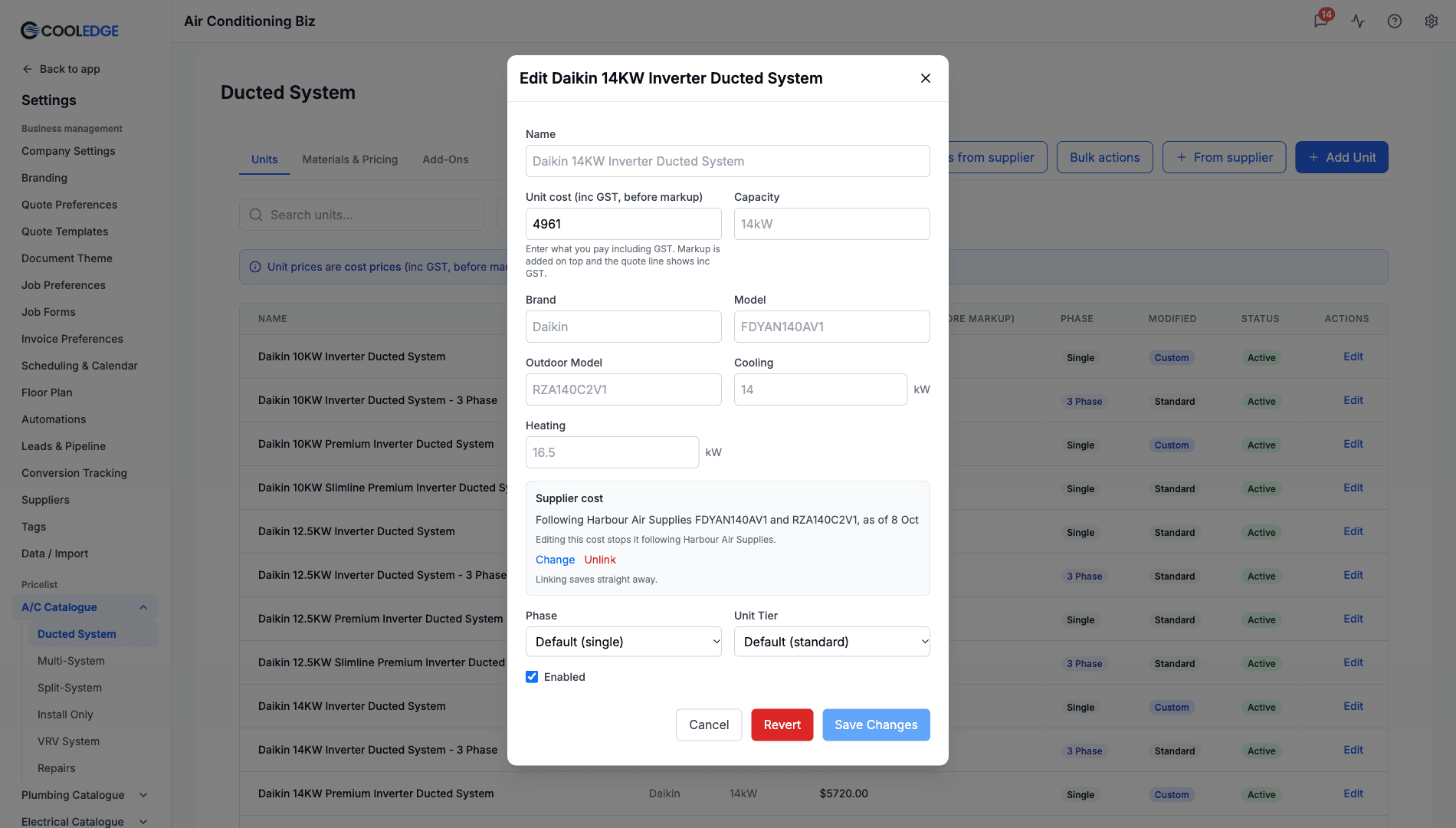
Open any item to edit it and you'll find a Supplier cost section under its cost field. It's on price list items (once saved), units, fans, materials, trade parts and trade tasks. For a task it sets the parts cost.
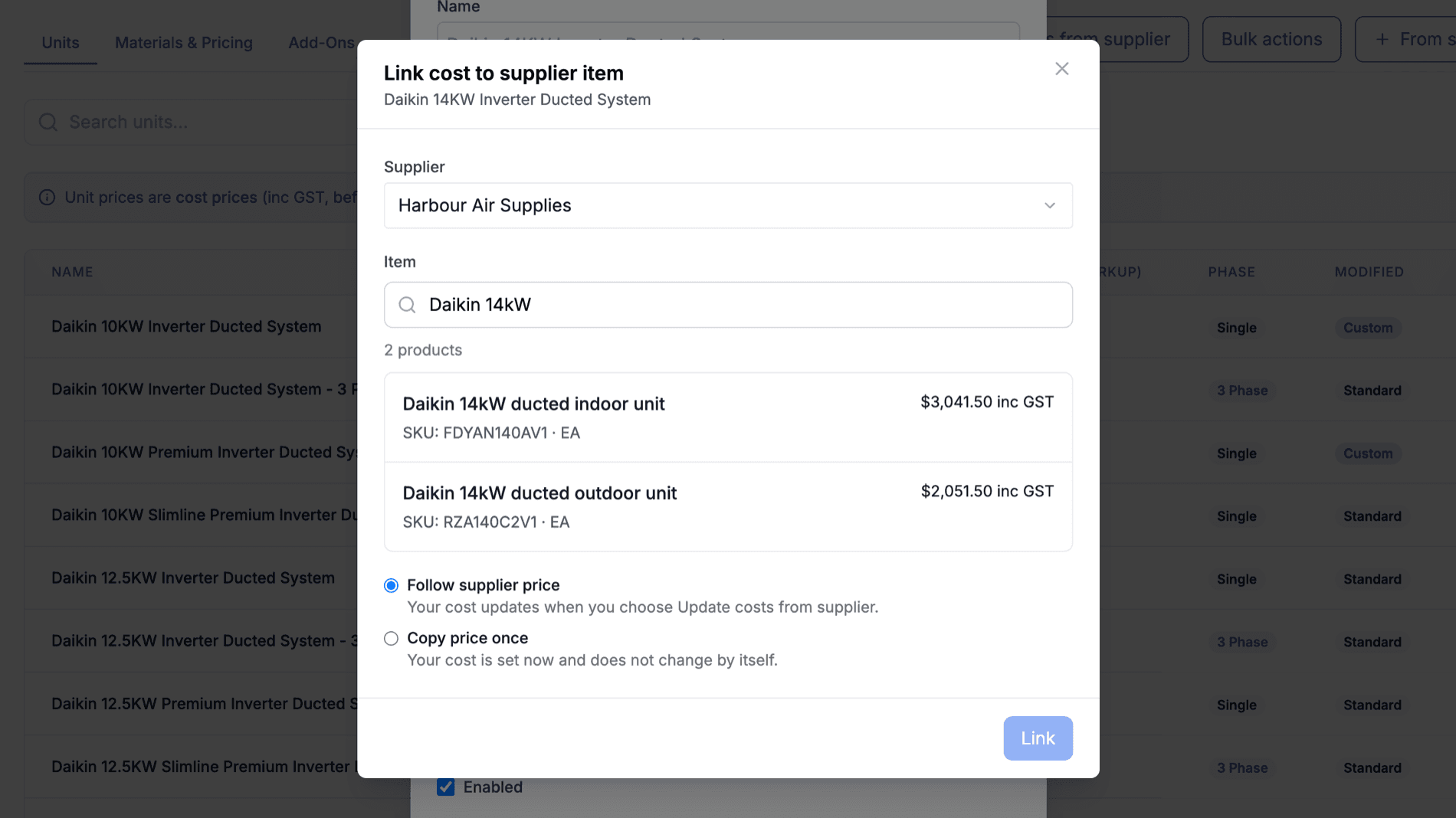
Click Link to supplier item to open Link cost to supplier item:
- Choose the Supplier
- Search for the Item by name, SKU or model
- Choose how the cost should behave:
- Follow supplier price: your cost updates when you choose Update costs from supplier
- Copy price once: your cost is set now and does not change by itself
- Click Link
Linking saves straight away, without waiting for the form's own save. The section then reads, for example:
- "Following Harbour Air Supplies CT-PC-1438-15, as of 12 Sep"
- "Following Harbour Air Supplies CT-PC-1438-15, no price yet" (it takes a cost once the supplier has a price)
- "Copied from Harbour Air Supplies CT-PC-1438-15 on 12 Sep"
- "The supplier item is no longer available." (a later pricebook switched it off)
From there:
- Change picks a different supplier item
- Unlink stops the cost following the supplier. Your cost stays as it is
- Follow this price turns a copied cost into one that follows
Typing a new cost yourself also stops it following. While a cost follows a supplier, the section reminds you: "Editing this cost stops it following" and the supplier's name.
Units with two items
Some suppliers sell a split or ducted system as an indoor unit and an outdoor unit. In the link dialog for a split or ducted unit, tick Add the outdoor unit as a second item and pick the outdoor unit too. The dialog shows the sum, for example "Indoor FDYAN100 $2,950.00 plus outdoor RZAS100 $2,240.00", and that total becomes the unit's cost.
Purchase order links
Linking a unit's cost to one supplier item also makes it the part your purchase orders use for that supplier, unless you've already linked a different part. In that case your purchase order link is kept and you'll see "Your purchase orders still use" with that part's SKU "for this unit." Change it on the supplier's Links tab if you want them to match.
If a unit already has a purchase order link, the Supplier cost section offers it, for example "Harbour Air Supplies MSZ-LN25VG2V is linked for purchase orders." Click Use it for cost to follow it.
Update costs from supplier
Update costs from supplier sits at the top of your price list, every unit page, every Materials & Pricing tab and both trade catalogue pages. It checks every item on that page that follows a supplier price.
- Click Update costs from supplier
- Review each row's Item, Supplier, Current cost and New cost. A line at the top counts the costs that changed
- Every changed cost is ticked. Untick any you want to leave
- Click Update N costs
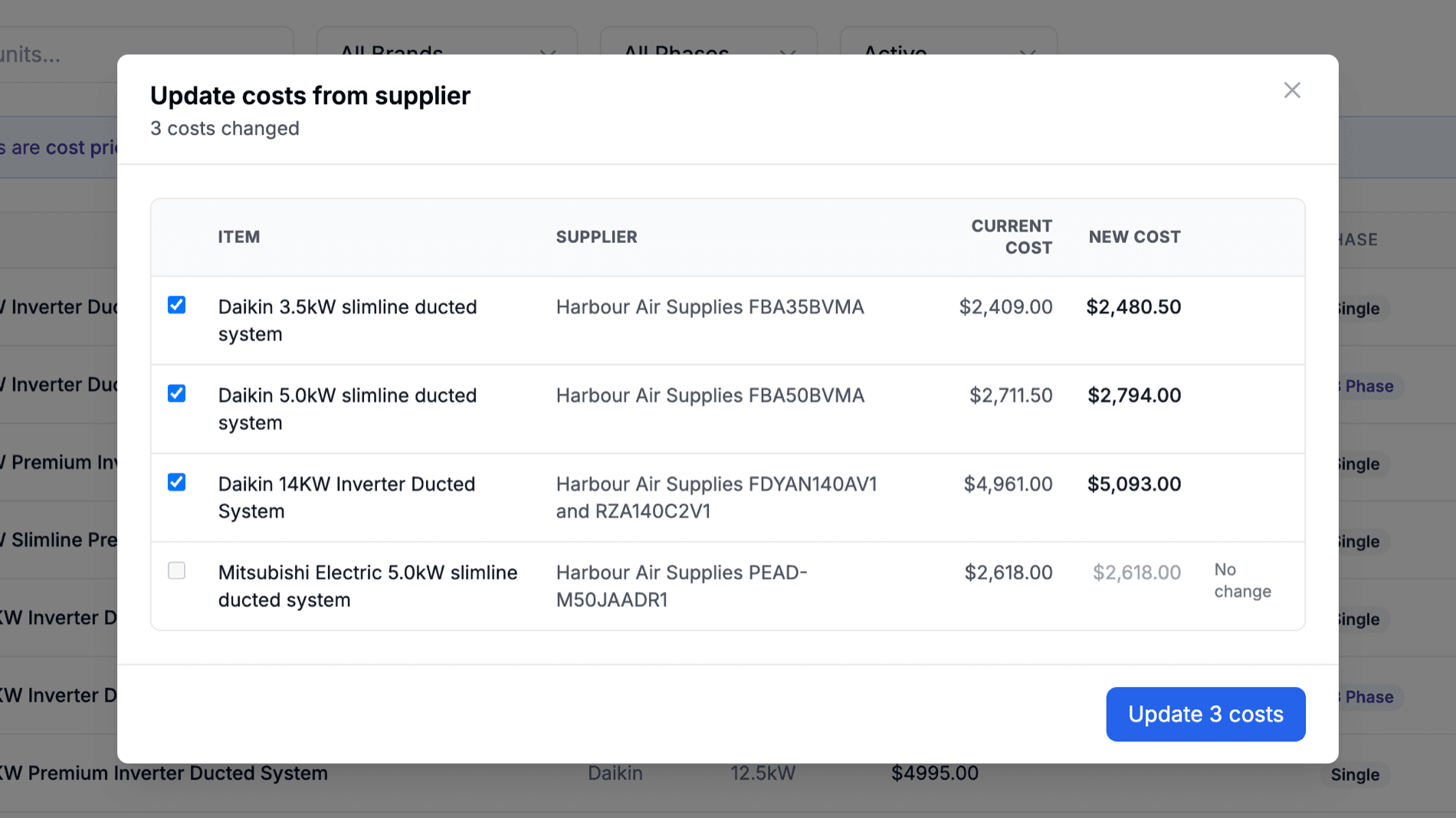
Some rows carry a note instead of a change:
- No change: the supplier's price is the same
- No price yet: the supplier has no price for it
- No longer in the pricebook: a later upload switched the item off. Open the item and pick another with Change
- Flat price set, so the quoted price will not change: the cost updates, but a flat price still decides the quote
- Labour hours not set, so the quoted price will not change
Nothing changes until you click Update N costs. If a price changed while the review was open, that row asks you to review it again.
What a new cost changes. For units, materials and trade parts and tasks, the quoted price is built from the cost plus your markup, so a new cost flows through to new quotes. On the price list, only the Cost (ex GST) changes. Your sell price stays where you set it. Quotes and invoices you've already created never change.
Supplier and Copied badges
Rows that follow a supplier price wear a Supplier badge, and copied costs wear Copied. Hover over either for the full summary. You'll see them on the price list, unit pages, materials lists and trade catalogue pages.
Pricebook Uploads for AC Units
A pricebook doesn't need a Name column. Only SKU and Price are required. When the Name column is left unmapped, or a new product's Name cell is blank, Cooledge builds a name from the brand, series, capacity, unit type and model (or uses the SKU if none of those are there). A product that's already in the pricebook keeps the name it has.
To add AC units in bulk without gaps, open AC unit details (optional) on the Map columns step and map any of these ten columns:
| Column | What it's for |
|---|---|
| Unit type | Split, Ducted, Multi, VRV, Ventilation or Subfloor. Starts the add on the right list |
| Capacity | The size as you sell it, such as 7.1kW |
| Cooling kW | Rated cooling output |
| Heating kW | Rated heating output |
| Outdoor model | The outdoor unit's model |
| Phase | Single or three phase |
| Tier | Standard or premium |
| Series | The product series (VRV units need one) |
| Indoor or outdoor | Whether the row is an indoor or outdoor unit. Multi and VRV units need it. On split and ducted lists it marks the two halves of one system |
| Indoor category | The indoor category for VRV indoor units |
If a value can't be read, the row still imports with its price and the result says, for example, "3 rows had unit details that could not be read". Download a sample CSV on the upload step to see the columns in use.
See Supplier Pricebooks for the full upload guide.
Searching by Model
Searching a supplier's products matches the name, the SKU, the model and the outdoor model. That works in Link cost to supplier item, the Products list, Choose part when creating purchase orders and From catalogue on a purchase order.
The search on your own unit pages (Search units...) matches the unit's name, brand, model and outdoor model too.
Turning Units Off in Bulk
On the split, multi, ducted and VRV unit pages, Bulk actions switches a batch of units on or off and changes their prices. See Bulk Actions in the A/C catalogue guide.
Plans
Adding items from a supplier and linking costs come with the Growth and Scale plans, the same as pricebooks. They also work while you're trialling one of those plans and while a failed payment is being retried.
On other plans the From supplier and Update costs from supplier buttons still show, but they open "Supplier cost links are not available on your current plan. Upgrade to Growth or Scale." If your subscription isn't active, you'll see "Supplier cost links need an active subscription."
Only owners and admins can add items or change cost links.
See Pricing to compare plans.
Common Questions
Does uploading a new pricebook change my costs? Not by itself. Upload the file, then click Update costs from supplier on each page and review the changes. Nothing is saved until you click Update N costs.
Will my quote prices change? For units, materials and trade parts and tasks, the next quote uses the new cost plus your markup. Price list sell prices don't move. Quotes and invoices you've already created never change.
What's the difference between following and copying? A followed cost updates whenever you choose Update costs from supplier. A copied cost is set once and then left alone. You can switch a copy to following with Follow this price.
I typed over a linked cost. What happened? The cost stopped following the supplier and keeps the figure you typed. To follow again, open the item and use its Supplier cost section: Follow this price if it's offered, otherwise Link to supplier item.
Why does a product say "In your lists" when I can't see it? Something in one of your lists still follows it or was copied from it, and that row is switched on. Check the unit pages, materials, trade catalogue and price list. Switched-off and archived rows don't count.
Why can't I add more than 200 products? You can tick up to 200 at a time. Add those, then tick the next batch.
Can I add from a supplier on the mobile app? No. Adding items and linking costs happen in the Cooledge Portal on desktop.
Related Articles
- Supplier Pricebooks: Upload a supplier's price list and map its columns
- Managing Your Price List: Item fields, cost and the Add item menu
- Trade Catalogue: Plumbing and electrical tasks, parts and markups
- A/C Catalogue: Units, materials and bulk actions
Need help adding supplier items? Email us at support@cooledge.com.au
Was this article helpful?
Let us know if you found this information useful.
Still need help? Contact support
In this article
Use your browser's search (Ctrl+F) to quickly find specific topics within this article.
Browse all help articles →Related Articles
CSV Import and Export for Price Lists
Bulk import products and pricing or export your entire price list to a CSV file
Managing Your Price List
Create and manage materials, labour rates, fees and discounts for faster invoicing
Price Kits (Bundled Pricing)
Create flat-rate bundles of products and labor for faster quoting and invoicing