Tracking Expenses and Receipts
Snap a receipt on your phone and Cooledge fills in the supplier and total for you. Attach expenses to a job and they flow into your Job Profitability widget.
Tracking Expenses and Receipts
Snap the receipt. Save the expense. Done.
- Take a photo of any paper receipt on your phone and the AI fills out the form for you
- Or upload a PDF receipt from the portal (email receipts work too)
- Attach the expense to a job so the cost lands on your Job Profitability widget
- Type expenses in by hand for cash purchases or jobs you haven't scanned yet
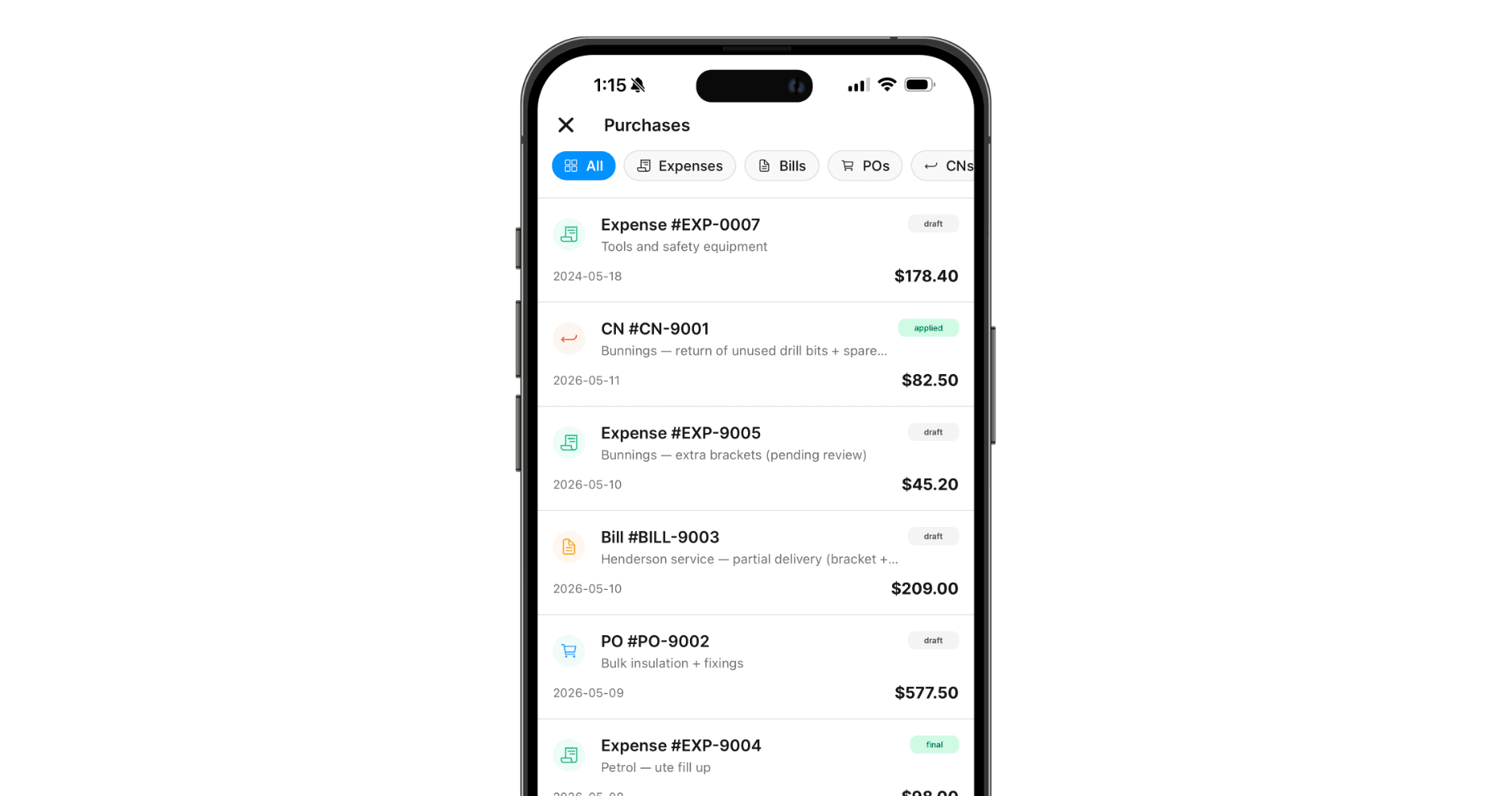
- Everything lives in one place: the Purchases hub on desktop and Purchases on your phone
Cooledge gives you a fast way to keep track of what you're spending and which jobs to charge it to. The headline feature is receipt scanning on the mobile app: take a photo at the supplier counter, the AI reads the receipt in a few seconds, you check it over and tap Save. No more shoeboxes full of crumpled dockets.
You can also enter expenses by hand if you've got a cash purchase or you just want to type the total in. Either way, every expense can be linked to a specific job so it counts towards that job's profit, or left as a general business expense for overheads.
If you've ever spent half a Sunday going through receipts to work out what each job cost you, this is the feature that gives that Sunday back.
What You Need
Before you can start tracking expenses, make sure you have:
- An active Cooledge subscription (any plan)
- The Cooledge mobile app if you want to snap photos of receipts on site
- Portal access if you'd rather work from a computer (upload PDFs, paste in totals, etc.)
Right now Cooledge handles Australian dollars only. Multi-currency support is coming. If you're working in another currency for the moment, hold off or run it through the manual entry as a converted total.
Where to Find It
You can capture an expense from a few places. Pick whichever is in front of you.
On the mobile app
- Anywhere in the app: tap the big blue Plus button (the FAB) and choose New Expense. Quickest path when you're standing at the trade counter.
- From a job: open the job, scroll to the Purchases section, tap the + in the section header. The expense is pre-attached to that job.
- From the Purchases list: tap More in the bottom nav, then Purchases. Hit the FAB on that screen to start a new expense. (This list is only visible to owners, admins and internal admins.)
On the portal
- Purchases hub: open Purchases in the sidebar. Click + New in the top right and choose Expense. From there you can either pick a job to attach it to or choose General (no job).
- From a job: open any job, click the Purchases tab, then click New Expense.
Snapping a Receipt on Mobile
This is the headline workflow. Three taps and you're done.
- Open Capture expense from any of the entry points above.
- Tap Scan receipt.
- Choose Take photo to use the camera, or Choose from library if you already snapped the receipt earlier.
- Once the photo is locked in, Cooledge uploads it and sends it through the AI receipt reader. You'll see Reading receipt... for a few seconds.
- The form fills in with what the AI found. Check it over. Fix anything that looks off.
- Tap Save. Done.
If you don't want the camera, the library option pulls from your phone's photo roll. Handy if your apprentice photographed the docket and AirDropped it to you, or if you've already taken the photo before opening Cooledge.
What the AI Pulls Out
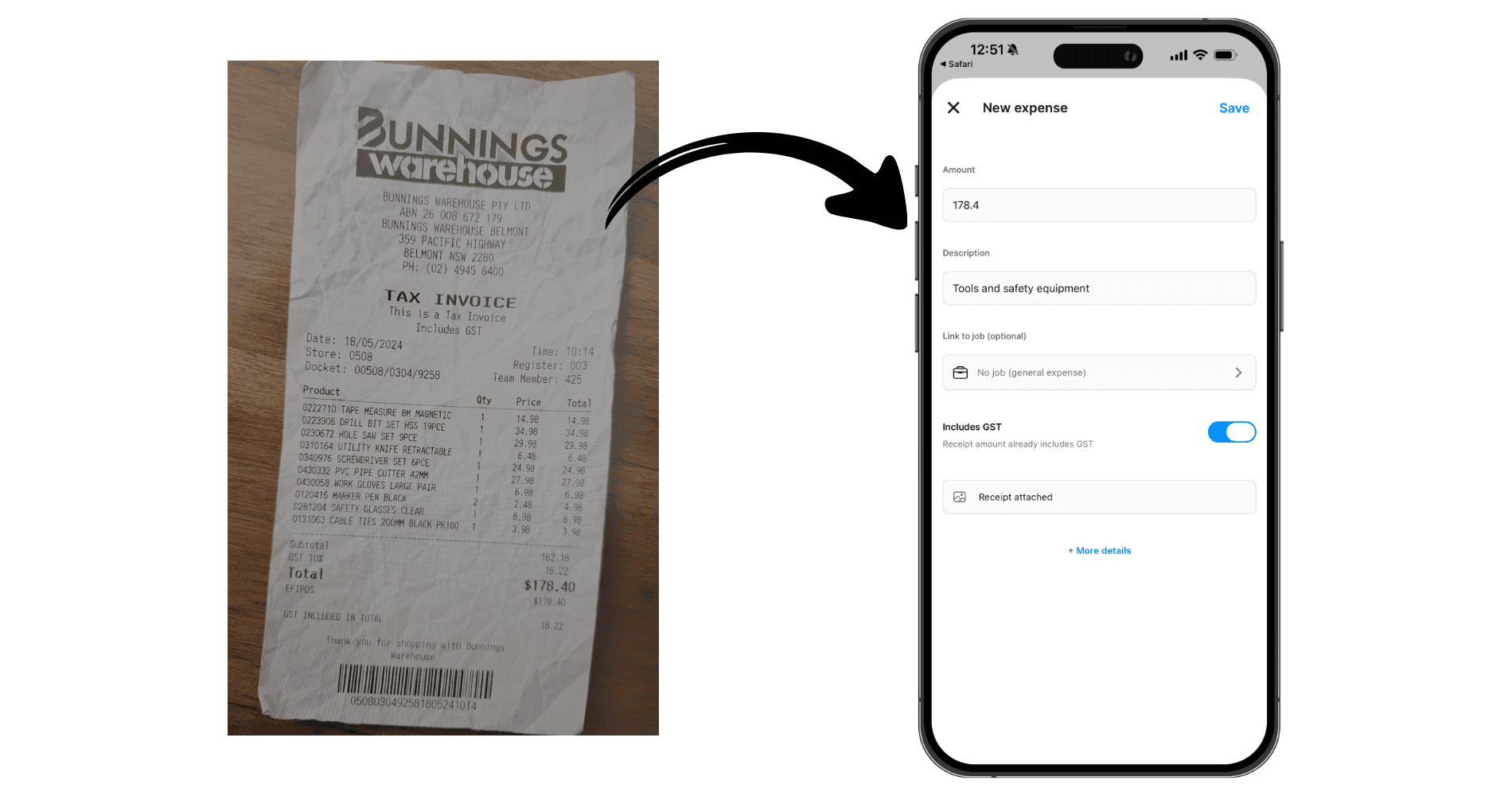
For each receipt, Cooledge tries to read:
- Supplier name (e.g. "Bunnings Warehouse Hawthorn", "Reece Plumbing")
- Total amount (the final dollar figure on the receipt)
- GST amount (so the form knows whether your total includes GST)
- Purchase date (when you bought it)
- Description (a short summary of what you bought, based on the receipt content)
Each of those gets a confidence score. If the AI wasn't sure about a field (for example the receipt was crumpled or the print was faint) you'll see a small yellow warning chip next to that field. That just means: have a quick look and double-check before you save. It's not an error. It's a nudge.
Heads up: the receipt scanner reads the total, not every single line on the receipt. The expense gets saved as one line item using the total. If you want to split a big receipt across multiple jobs or break it into individual parts, do that yourself in the form (the portal lets you add as many lines as you want).
If the AI Couldn't Read the Receipt
Sometimes it just can't make it out. A blurry shot, a thermal-paper receipt that's already faded, a folded corner over the total. You'll see a Couldn't read receipt message asking you to enter it manually. Two options:
- Try again: tap the yellow Try again button. Sometimes a second pass works.
- Type it in yourself: just fill in the amount, description and date by hand. The photo stays attached as a record of what you spent.
The receipt photo is saved either way, so even when the AI gives up, you've still got the picture on file for your accountant.
Adding an Expense Without a Receipt
Not every expense has a receipt. Cash tip to the assistant. Couple of bolts from the bottom of the ute. A supplier you forgot to grab a docket from. No worries.
- Open Capture expense.
- Tap Add manually instead of Scan receipt.
- Type in the amount, a description (e.g. "Hex bolts from Mike's hardware"), the date and any other details.
- Tap Save.
The expense behaves exactly the same as a scanned one, just without a photo attached.
Attaching to a Job vs General
Every expense in Cooledge is either tied to a specific job or marked as general.
- Attached to a job: the cost flows into that job's Job Profitability widget. So when you're looking at Job #487 and you see Profit: $1,240, that number already has your supplier runs baked in. This is what you want for parts, materials, hire fees, anything you bought specifically for that job.
- General (no job): for overheads. Office printer ink. Fuel that isn't job-specific. Tools that get used across many jobs. These show up in your Purchases hub but they don't get charged against any one job.
When you open Capture expense from a job's Purchases section, the job is already attached. When you open it from the FAB or the Purchases list, you'll see a Link to job (optional) field. Tap it to pick a job, or leave it empty for a general expense.
Editing Line Items
A receipt gets saved as a single line with the total. For most expenses that's all you need. But if you bought a few different things and want to split them out (especially handy if you want to charge some at cost and some at markup), open the expense on the portal and use the lines editor.
In the portal lines editor you can:
- Add a line with its own description, quantity and unit price
- Remove lines you don't need
- Change quantities and amounts as you type; totals at the bottom recalculate live
- Set a charge mode per line (only when the expense is attached to a job):
- Included: cost is already covered in the quoted price
- Pass-through: bill the customer at exactly what you paid
- Markup: bill cost plus a markup percentage
- Internal: internal use only, not billed
- Reorder lines with the up and down arrows
Subtotal, tax and total at the bottom of the table update as you go. No need to hit a "calculate" button.
From the Portal
The portal flow gives you a bit more room and adds a few things the phone doesn't:
- Upload PDF receipts instead of photos. Great for email receipts (forward the PDF to your computer, then drag it in).
- Attach the receipt after saving. Click Save Draft or Save and Add Receipt, then drag your file into the receipt panel. PDFs and images up to 10MB are supported.
- Replace or remove a receipt later if you grabbed the wrong file
- Download the receipt with the original filename so you can hand it to the accountant
Otherwise the portal form covers the same fields: supplier, date, description, lines and notes. Save as Draft if you're not finished, or save as Final when you're done.
Where Your Expenses Live
After you save, expenses show up in two places:
The Purchases Hub (across-business view)
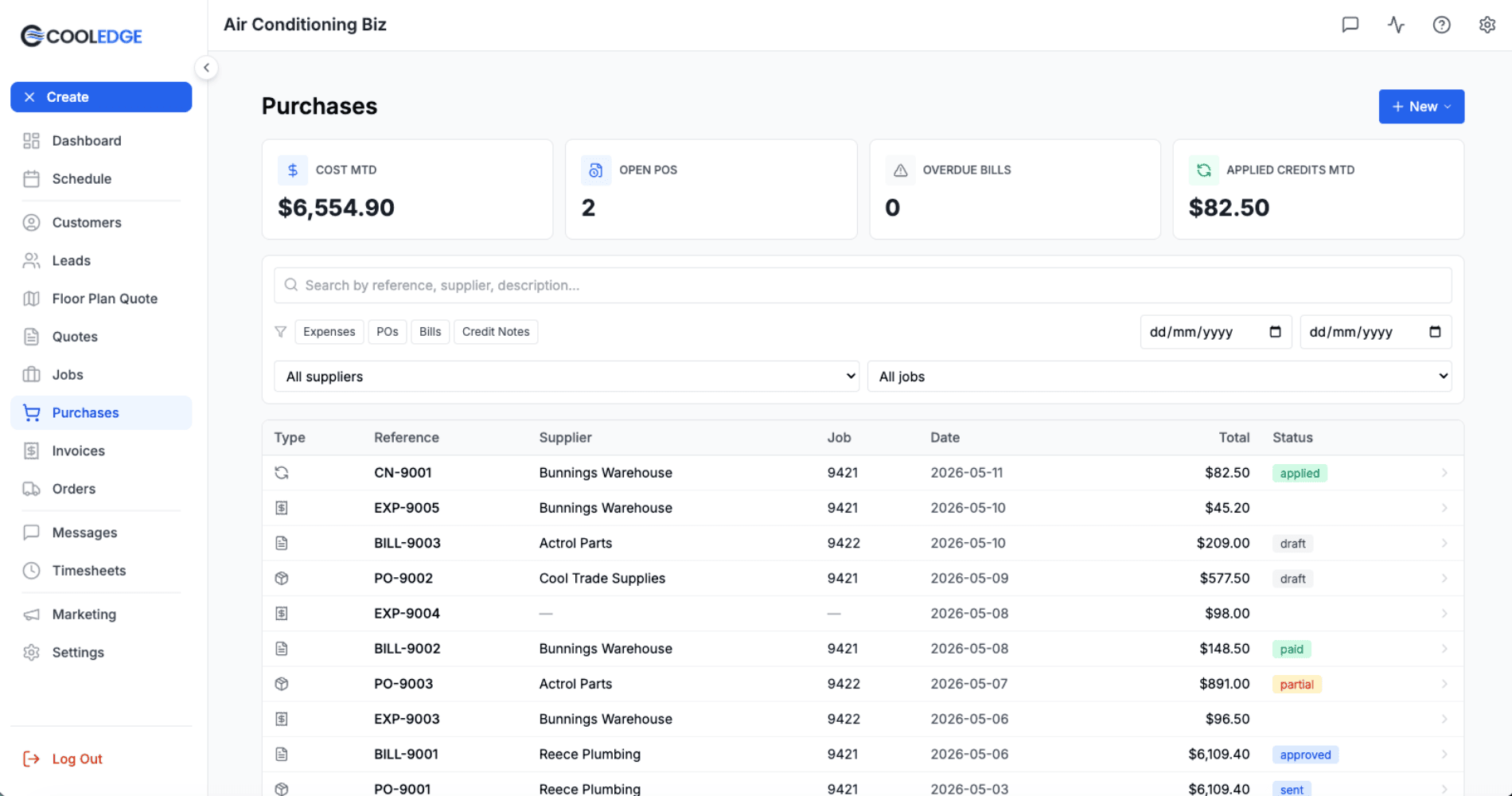
Sidebar: Purchases. This is your one-stop shop for everything you've bought: expenses, purchase orders, supplier bills and credit notes all in one list. Filter by:
- Type: just expenses, just POs, etc.
- Status: draft vs final
- Date range: this month, last quarter, whatever
- Supplier: all your Bunnings runs, all your Reece bills
- Job: everything bought for Job #487
- Search: free-text search across descriptions and references
Click any row to open it inline. No page reload.
The Purchases Tab on Each Job
Open any job and click the Purchases tab. You'll see every expense, PO, bill and credit note tied to that job. The Job Profitability widget pulls from this list, so what you see here is what counts towards the job's bottom line.
On mobile, the same info shows up as a Purchases section inside the job detail screen.
Tips for Best Receipt Scans
The AI is pretty smart but it can't read what it can't see. A few quick wins:
- Good light. Step out of the dim corner of the storeroom if you can.
- Whole receipt in the frame. If the total is cut off, the AI can't read it.
- Flat surface. Smooth the receipt out on the bonnet or the counter before snapping.
- One receipt per photo. Don't try to capture three Bunnings dockets in one shot.
- Snap it straight after the purchase. Thermal receipts fade fast in the ute on a hot day. The sooner you photograph it, the sharper the AI's read.
- If it's blurry, retake it. Better a second photo than a bad first read.
A clean, well-lit photo of a fresh receipt scans almost perfectly. A creased two-week-old receipt sitting in a hot glove box will give the AI a harder time, but you can always fix the form by hand.
Quick example
You finish a job at the Williams place and head to Bunnings on the way back to the depot for some hex bolts and a bit of conduit. Spend $48.20 on the card.
- Walk out to the ute. Open Cooledge.
- Open the job (Williams) and tap the + in the Purchases section. Or just tap the universal FAB and pick New Expense, then choose the Williams job.
- Tap Scan receipt, then Take photo. Snap the docket flat on the bonnet.
- Wait three seconds. The form fills with $48.20, Bunnings Warehouse, today's date plus a description like "Hex bolts and conduit".
- Check the amount matches the docket. Tap Save.
You've just turned a Bunnings run into a tracked cost on the Williams job. The docket photo is filed under that job for the accountant. Total time: about 15 seconds.
Common Questions
Do I have to attach a receipt? No. The receipt is optional on every expense. You can save an expense with just an amount, description and date.
What file types can I upload from the portal? JPG, PNG and PDF, up to 10MB. The mobile camera uploads as a JPG automatically.
Can I edit an expense after I've saved it? Yes. Open it from the Purchases hub or the job's Purchases tab and change whatever you need. The receipt photo can be replaced or removed too.
What does "low confidence" mean on a field? The AI wasn't 100% sure it read that bit correctly. Just look at the receipt photo and check the value before you save. If it's right, no action needed.
Why is there no "supplier" field on the mobile quick-expense form? We kept the phone form lean so it's quick to fill in at the counter. Open the expense on the portal afterwards to add or change the supplier.
Can I split one receipt across two jobs? On the portal: yes. Open the expense, add a second line, change the quantities or amounts, then save. You can also create two separate expenses if that's tidier.
Does the customer ever see my expenses? No. Expenses are internal cost records. They feed into your Job Profitability but they never show up on a customer-facing quote, invoice or PDF.
Where do I see how much I've spent this month? Open the Purchases hub on the portal. The stats cards at the top show monthly totals across all your purchase types.
Related Articles:
- Purchase Orders →: Raise POs to send to your suppliers
- Supplier Bills and Credit Notes →: Match bills against POs and track credit notes
- Job Profitability →: How costs flow into your bottom-line job profit
- Managing Suppliers →: Set up suppliers so receipts auto-match
Need help tracking expenses? Email us at support@cooledge.com.au
Was this article helpful?
Let us know if you found this information useful.
Still need help? Contact support
In this article
Use your browser's search (Ctrl+F) to quickly find specific topics within this article.
Browse all help articles →Related Articles
Job Profitability
See revenue, costs and margin live on every job. As you add expenses and supplier bills, the numbers update automatically.
Managing Suppliers
Save your supplier directory once. Cooledge uses the order email to send purchase orders. Every PO and bill stays linked back.
Purchase Orders
Send purchase orders to your suppliers from any job. Cooledge emails a clean PDF, you reconcile the bill when it arrives.