Document Theme Customisation
Customise the look and feel of your quotes, invoices and PDF documents with branded themes, colours and fonts
Document Theme Customisation
Make your quotes and invoices look professional and on-brand. Document themes let you customise colours, fonts, headings and accent styles across all your PDF documents, online quote pages and payment pages.
Getting Started
- Go to Settings > Document Theme from the main menu
- You'll see a selection of theme presets to choose from
- Pick one that matches your brand, then fine-tune the details
Theme Presets
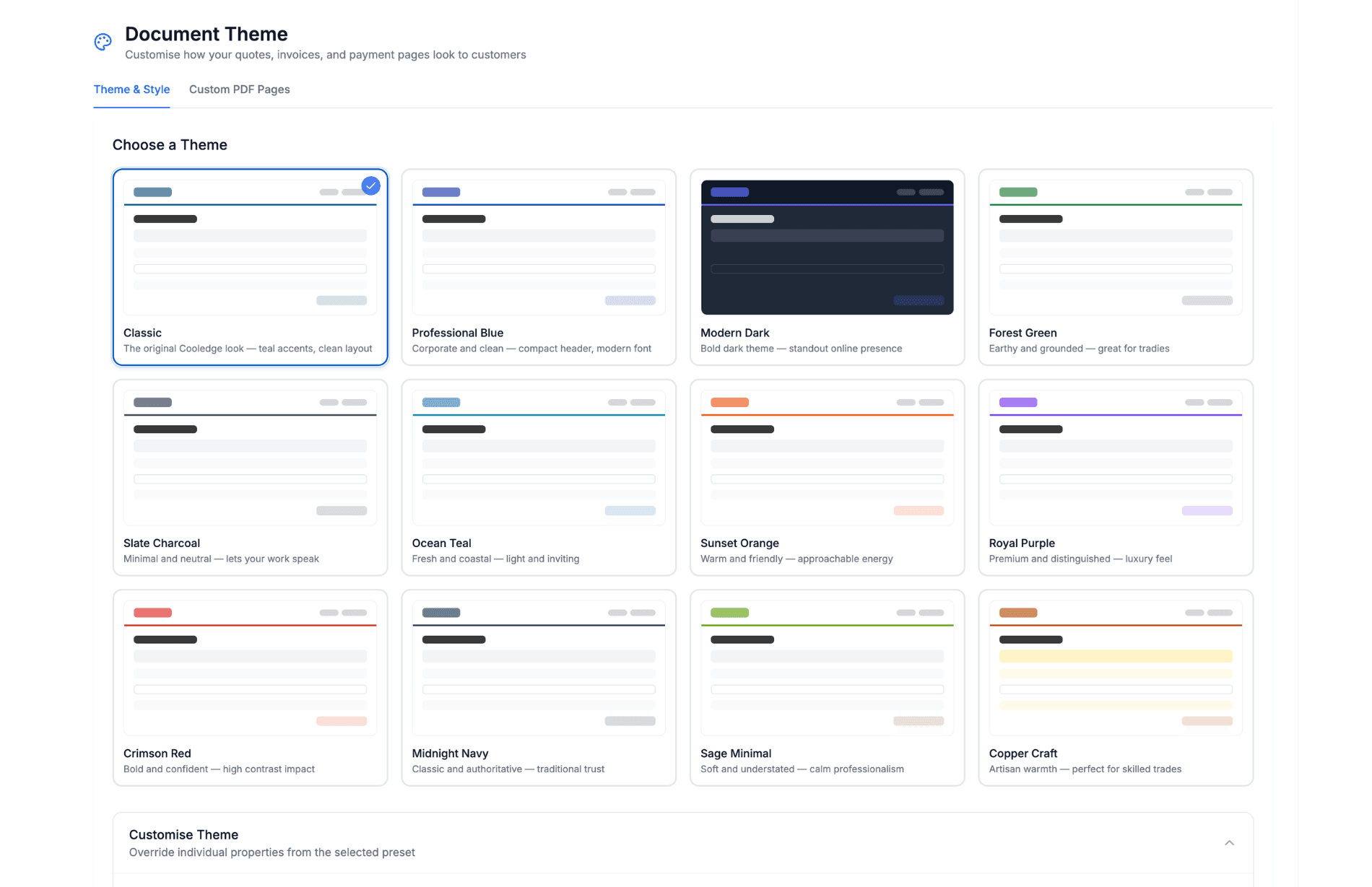
CoolEdge includes 12 professionally designed presets:
- Classic . The original CoolEdge look. No changes to your existing documents
- Corporate Blue . Clean and professional with blue accents
- Modern Dark . Dark navy with crisp white headings
- Forest Green . Natural greens for an earthy, trusted feel
- Ocean Teal . Fresh teal tones with a modern edge
- Sunset Orange . Warm orange accents that stand out
- Crimson Red . Bold red for a strong, confident impression
- Midnight Navy . Deep navy with subtle sophistication
- Slate Grey . Neutral and understated
- Royal Purple . Rich purple for a premium feel
- Warm Earth . Earthy browns and warm tones
- Charcoal . Dark and minimal
Each preset changes heading colours, table header styles, accent bars, highlight backgrounds and overall document feel.
If your business already has documents and you don't want anything to change, leave the preset on Classic. Your documents will look exactly as they always have.
Customising Colours
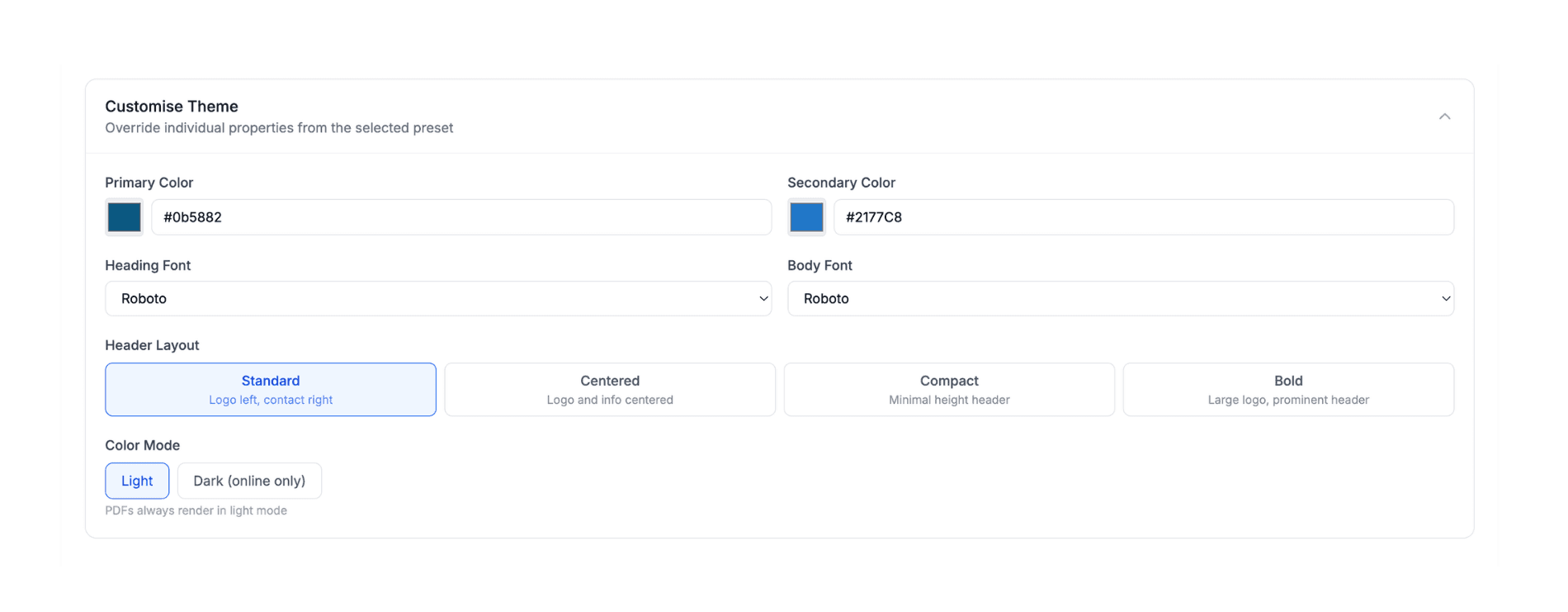
After choosing a preset, you can customise individual colours:
- Primary Colour . Used for headings, table headers and accent bars
- Secondary Colour . Used for sub-headings and supporting elements
- Accent Highlight . Background colour for callout boxes and highlighted rows
Use the colour picker or enter a hex code directly. Changes preview in real time.
Font Selection
Choose a heading font that matches your brand:
- System default (clean and fast-loading)
- Georgia (classic serif)
- Roboto (modern sans-serif)
- And more options available
The body text uses a clean system font stack for maximum readability across all devices and PDF renderers.
What Gets Themed
Your theme automatically applies to:
- PDF quotes . Coloured headings, branded table headers, accent highlights
- PDF invoices . Same branded styling as quotes
- Online quote pages . The page your customer sees when they view a quote link
- Payment pages . Branded experience when customers pay online
How It Works in PDFs
For non-classic presets, your PDFs get enhanced styling:
- Section headings use your primary colour
- Table headers get a solid primary colour background with white text
- Option rows are highlighted with your accent colour
- Totals rows stand out with accent highlighting
- Header divider uses your primary colour
The classic preset keeps the original neutral styling so existing businesses see no change.
Tips
- Your theme applies to documents generated from both the web dashboard and the mobile app
- Changing your theme affects all future documents. Previously generated PDFs are not changed
- If you're unsure, start with a preset close to your brand colours and adjust from there
Related Articles
Was this article helpful?
Let us know if you found this information useful.
Still need help? Contact support
In this article
Use your browser's search (Ctrl+F) to quickly find specific topics within this article.
Browse all help articles →Related Articles
Auto Duct Layout
Visual duct designer on the ducted floor plan wizard. Auto-route or draw by hand. Includes outdoor unit and refrigerant pipework. Drives the take-off.
Business Callouts (Why Choose Us)
Display trust-building callout points on your public quote pages to increase acceptance rates
Custom PDF Pages
Add professional cover pages, warranty info, maintenance plans and more to your quote and invoice PDFs