Stripe Connect & Payments
Set up Stripe payments to collect deposits and manage customer payments
Stripe Connect & Payments
Learn how to set up Stripe payments to collect deposits from customers, manage payment processing and integrate payment collection with your Cooledge quotes.
1. Understanding Stripe Integration
What is Stripe Connect?
Stripe Connect is a payment platform that allows you to collect payments directly from your customers:
- Customer Payments: Collect quote deposits and invoice payments by card
- Secure Processing: Industry-leading payment security. Card details never touch Cooledge
- Global Support: Accept payments from customers worldwide
- Automated Handling: Seamless integration with the online quote and invoice pages
How Stripe Works with Cooledge
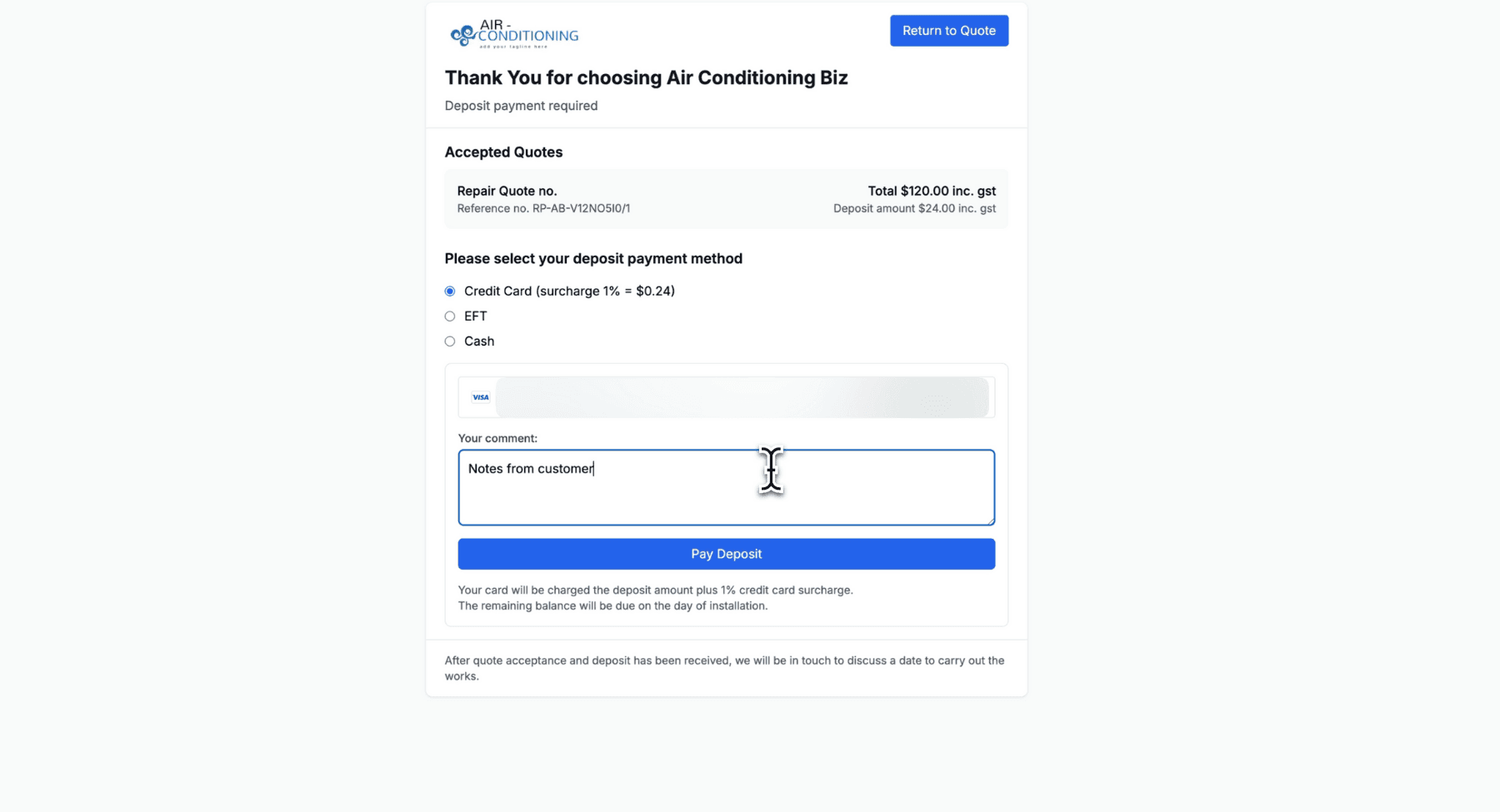
- Quote Integration: A card option on the quote accept page
- Deposit Collection: Take the deposit the moment a customer accepts, with the quote marked Paid straight away
- Invoice Payments: A Pay link on invoices you send, and Take Payment on the invoice in the portal
- Payment Tracking: Payments land on the Cooledge Payments page. Payouts and fees stay in your own Stripe dashboard
Benefits of Stripe Integration
- Faster Payments: Reduce time between quote acceptance and payment
- Professional Image: Branded payment experience
- Payment Security: PCI-compliant payment processing
- Payment Tracking: Real-time payment status updates
- Reduced Admin: Automated payment handling and reconciliation, no more manual payment headaches
2. Setting Up Stripe Connect
Prerequisites
Before setting up Stripe, you'll need:
- Business Registration: Legal business entity
- Bank Account: Business bank account for deposits
- Tax Information: Business tax identification numbers
- Business Address: Valid business address
- Identity Verification: Business owner identification
Stripe Account Creation Process
- Stripe Registration: Create a Stripe account for your business
- Business Verification: Complete Stripe's business verification process
- Bank Account Setup: Connect your business bank account
- Tax Information: Provide required tax information
- Identity Verification: Complete identity verification requirements
Already have a Stripe account, you can connect that rather then creating a new account!
Connecting Stripe to Cooledge
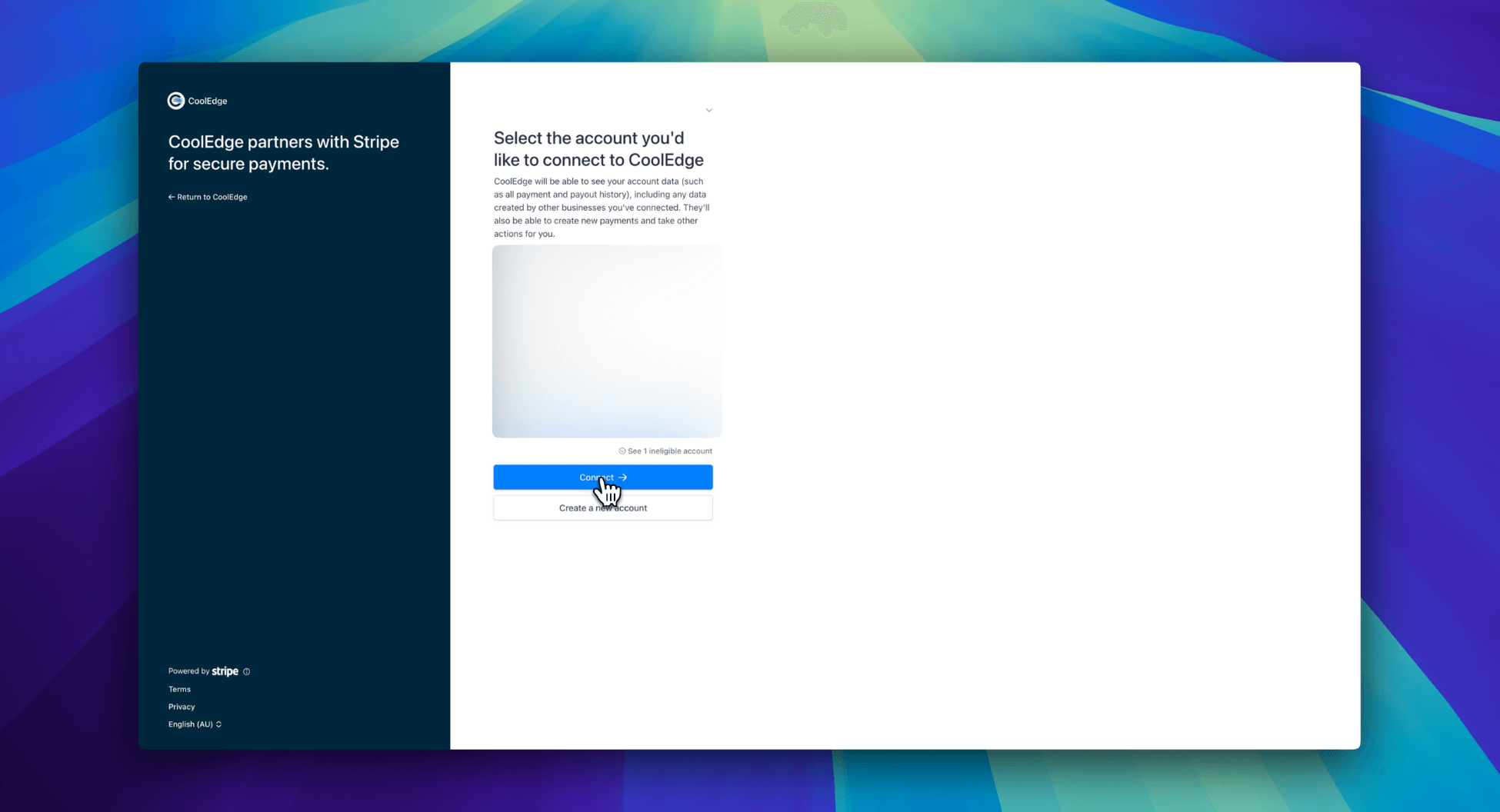
- Dashboard Navigation: Go to Settings > Payments in Cooledge
- Connect Stripe: Click "Connect Stripe Account" button
- Authorization: Authorise Cooledge to access your Stripe account
- Verification: Verify the connection is successful
- Payment Settings: Configure payment options and settings from within your Stripe account
3. Payment Configuration
Deposit Amounts
The deposit is always a percentage of the quote total, set in Settings > Quote Preferences > Payment Terms per work type and client type. There is no fixed-dollar deposit setting and no per-quote override.
- Set the percentage to 0 for quotes that need no deposit at all. The customer accepts without paying
- Set it to 100 to ask for the whole amount up front. The accept page changes its wording to "Payment required"
- The Terms box on the same tab is free text that prints on your quotes. It does not follow the percentage, so edit both
Cooledge works the amount out on the server from those terms, so the figure a customer is charged is never taken from their browser. See Understanding Deposits.
Payment Methods
Card, through Stripe. The quote accept page takes Visa, Mastercard and American Express, plus debit cards. Wallets such as Apple Pay and Google Pay are not offered on the quote accept page. On the public invoice payment page the methods shown are whatever your own connected Stripe account has enabled.
Bank transfer and cash are not Stripe payments. They are your own instructions, written in Settings > Quote Preferences > Deposit Payment Methods and shown to the customer when they pick that option. Choosing one records how they intend to pay. You record the money yourself when it arrives.
Quote Payment Integration
When customers view an online quote:
- Payment Button: Pay Deposit on the accept page, or Confirm acceptance on a quote with no deposit
- No surcharge: the customer is charged exactly the deposit amount. Card surcharges are not allowed in Australia from 1 October 2026
- Secure Processing: Payments processed through Stripe, on your connected account
- Receipt Generation: Stripe emails the customer its own receipt for the charge
- Status Updates: The quote moves to Paid as soon as the card payment is verified
4. Managing Customer Payments
Payment Status Tracking
Monitor payment status in your dashboard:
What the Payments Page Shows:
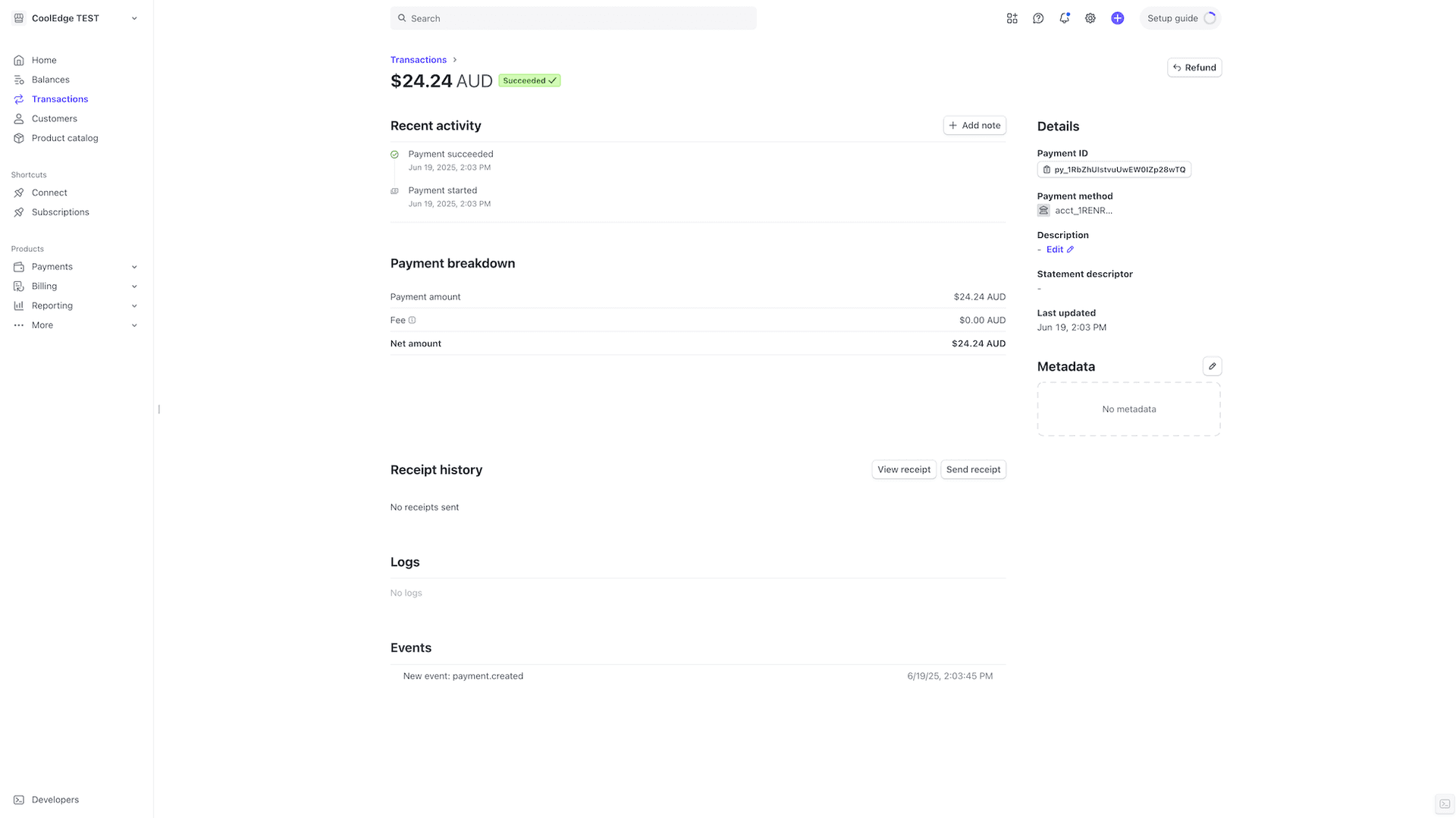
- Succeeded: money Cooledge has a record of receiving. This is what the list holds
- Reversed: a succeeded payment you corrected afterwards. The amount is struck through with a Reversed chip and stops counting toward what has been paid
There is no "Refunded" or "Disputed" state in Cooledge. Refunds and disputes are handled in your Stripe dashboard, and if you want the Cooledge record to match, reverse the payment here as well. See Managing Payments.
Receipts on a Payment:
- View card receipt (Stripe) opens Stripe's hosted receipt for the charge
- Download receipt (PDF) generates your own branded receipt
Dashboard Visibility:
- Quote Status: The quote shows Paid, or an Awaiting Deposit Payment panel
- Payment History: Every payment on an invoice, with method, date and reference
- Customer Information: A Payments tab on each customer
Handling Payment Issues
Declined Cards:
- The customer can try again. A declined card returns an error on the page and the payment attempt is cancelled, so they can enter a different card. Nothing retries in the background
- Alternative Methods: They can pick bank transfer, cash or one of your custom options instead
- Manual Processing: You can record the money yourself with Receive Deposit on the quote, or Record Payment on an invoice
Refunds and Disputes:
- Refund Processing: Process refunds through Stripe dashboard
- Dispute Management: Handle customer disputes through Stripe
- Documentation: Maintain records for dispute resolution
- Customer Communication: Communicate with customers about payment issues
5. Stripe Dashboard and Management
Accessing Your Stripe Dashboard
- Direct Access: Log into your Stripe account directly
- Cooledge Integration: A View in Stripe Dashboard link on each card payment in Cooledge, which opens that charge in Stripe. Balances and payouts live in Stripe only
- Mobile Access: Stripe mobile app for on-the-go management
- Team Access: Manage team access to Stripe account
Key Stripe Features
Transaction Management:
- Payment History: Complete transaction history
- Search and Filters: Find specific payments quickly
- Export Data: Export payment data for accounting
- Custom Reports: Generate custom financial reports
Customer Management:
- Customer Profiles: Maintain customer payment information
- Payment Methods: Manage saved customer payment methods
- Communication: Send receipts and payment communications
Financial Reporting
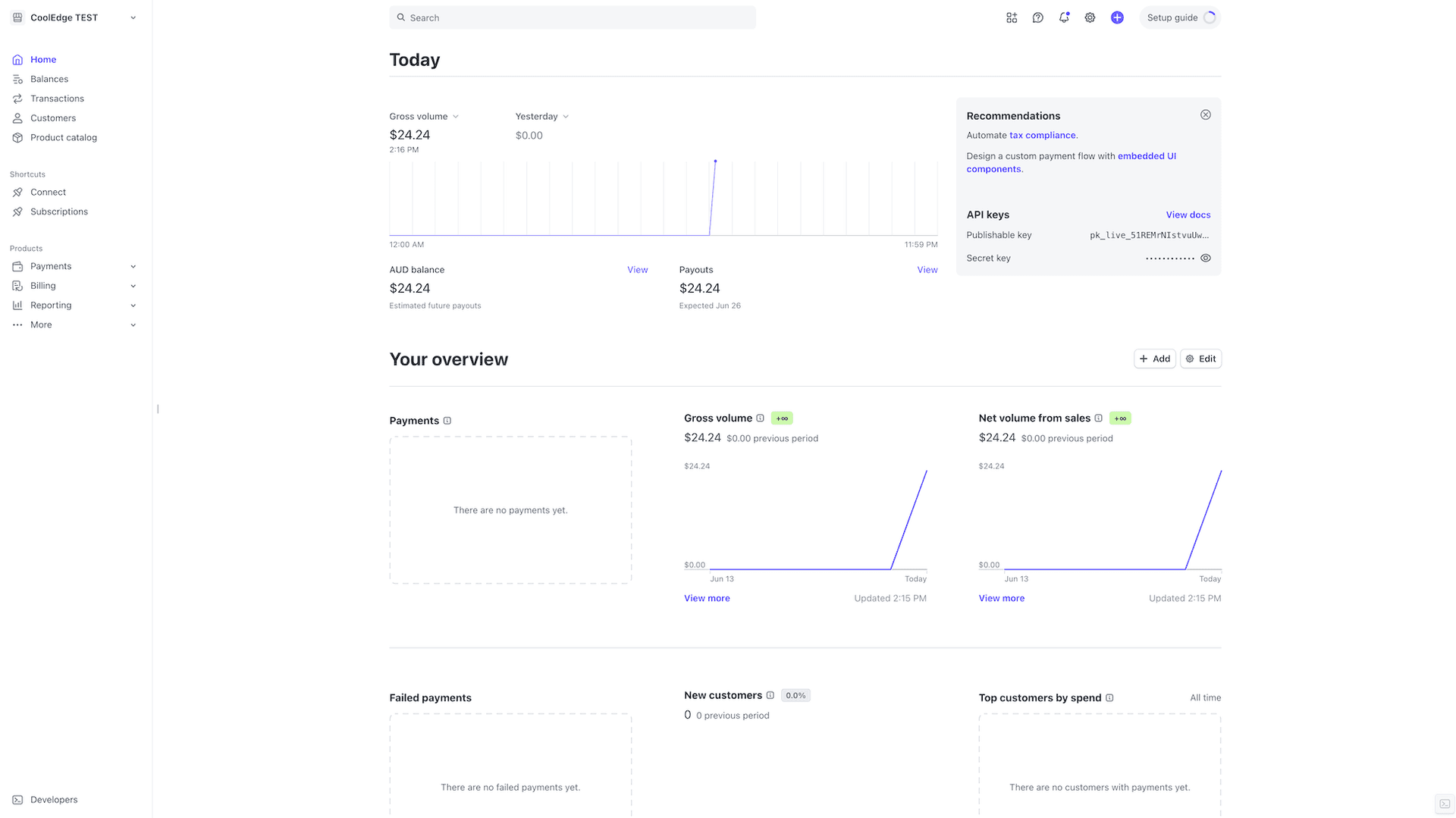
- Revenue Tracking: Monitor total revenue and trends
- Payment Analytics: Understand payment patterns
- Fee Management: Track Stripe processing fees
- Tax Reporting: Generate reports for tax purposes
6. Security and Compliance
Payment Security
Stripe provides enterprise-level security:
Security Features:
- PCI Compliance: Stripe is PCI DSS Level 1 certified
- Data Encryption: All payment data encrypted in transit and at rest
Your Responsibilities:
- Account Security: Secure your Stripe dashboard access
- Access Management: Control who has access to Stripe account and payment data
Compliance Requirements
- Data Protection: Comply with data protection regulations
- Financial Regulations: Adhere to local financial regulations
- Tax Compliance: Ensure proper tax handling and reporting
- Record Keeping: Maintain proper financial records
7. Fees and Pricing
Stripe Processing Fees
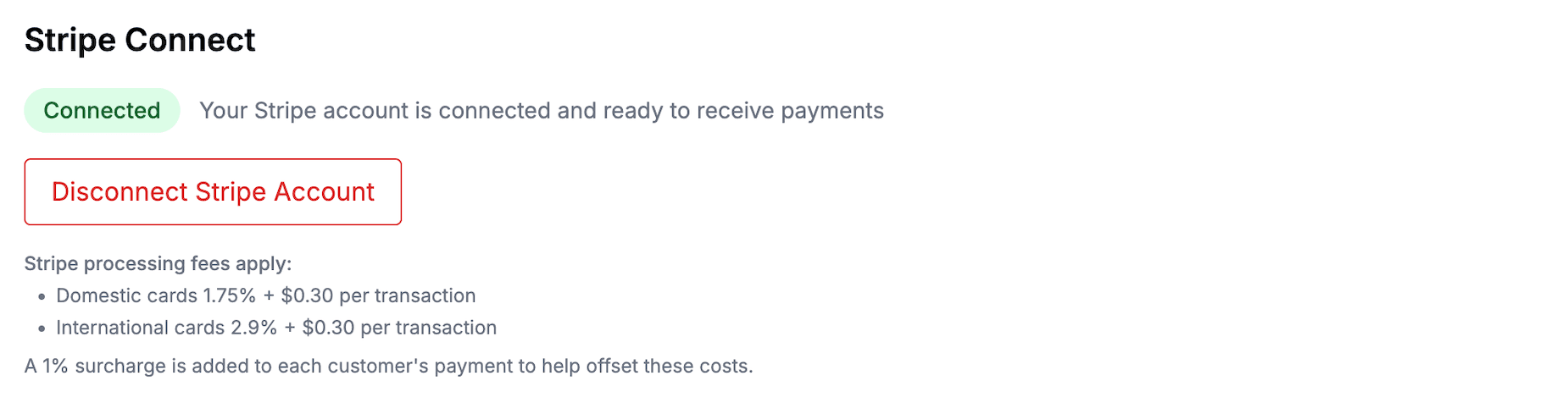
- Domestic cards 1.75% + $0.30 per transaction
- International cards 2.9% + $0.30 per transaction
Your customer pays exactly the amount on the quote or invoice. From 1 October 2026, Visa, Mastercard, eftpos and American Express no longer allow businesses in Australia to add a surcharge for paying by card, and the rule follows the day the customer pays, not the day you sent the invoice. Cooledge removed its 1% card surcharge ahead of that date.
Covering card fees in your pricing. Stripe's fees come out of each payment. If you take a lot of card payments and want to cover that cost, build it into your prices rather than adding a fee at payment time, for example with the Unit markup and Materials markup on the Materials tab of each system in your catalogue settings, or in your Price List. Payments by bank transfer or cash have no Stripe fee. The ACCC warns that relabelling a card surcharge as a different kind of fee may be misleading. See the ACCC guidance on card surcharges.
Standard Rates:
- Credit Cards: Percentage + fixed fee per transaction
- International Cards: Additional fees for international cards
- Currency Conversion: Fees for currency conversion
- Refunds: Refund processing fees
8. Where Payments Go Next
Accounting Software
Payments recorded in Cooledge push to Xero, QuickBooks or MYOB against the invoice they belong to, coded to the payment account you nominate. Payments you add at your provider come back the other way and can move a Cooledge invoice to Part-Paid or Paid. See Accounting Sync.
The Payments Page
Payments in the main menu lists every invoice payment and quote deposit together, with search, filters, sorting and receipts. See Managing Payments.
API and Webhooks
Invoices carry their Amount Paid through the Cooledge public API, and webhooks fire on invoice.paid and quote.paid so your own systems can react when money lands. Both are on the Growth and Scale plans. See the developer guide.
Not in Cooledge. There are no recurring or subscription charges for your customers, no instalment plans, no automatic late fees and no automated invoice reminder emails. Splitting a job into a deposit and a balance, or into progress invoices, is done with invoices rather than a payment schedule.
9. Troubleshooting Payment Issues
Common Payment Problems
Setup Issues:
- Account Verification: Complete all Stripe verification requirements
- Bank Account: Ensure bank account details are correct
- Business Information: Verify business information accuracy
- Identity Verification: Complete identity verification process
Payment Processing Issues:
- Failed Payments: Check customer payment method validity
- Declined Cards: Verify card details and limits
- Integration Problems: Verify Stripe-Cooledge connection
Customer Issues:
- Receipt Issues: Ensure customers receive payment confirmations
- Refund Requests: Handle refund requests promptly
Getting Payment Support
- Stripe Support: Use Stripe's comprehensive support resources
- Cooledge Support: Contact support@cooledge.com.au for integration issues
- Documentation: Reference Stripe and Cooledge documentation
Next Steps: Review troubleshooting guide → or learn about leads marketplace →
Need help with payments? Email us at support@cooledge.com.au
Was this article helpful?
Let us know if you found this information useful.
Still need help? Contact support
In this article
Use your browser's search (Ctrl+F) to quickly find specific topics within this article.
Browse all help articles →