Linking Quotes to Jobs
Connect a quote to a job from the quote side, and what the link types mean
Linking Quotes to Jobs
Attaching an existing quote to a job is driven from the quote.
- The control is Create / Link Job on the quote, and it appears once the quote is Accepted or Paid
- The job's Quotes tab is read-only. There is no button on it
- A Create / Link Job link cannot be undone. A quote visit link or a lead link can be changed or removed in the portal, but nothing can be unlinked from the mobile app
Two different links land in the same list. This guide is about the Create / Link Job link, the one that carries a type of Primary, Variation or Adhoc. A quote raised from a job, such as from a quote visit, is also tied to that job, and that link, along with a lead link, can be changed or removed later. See Linking Leads to Quotes and Jobs. Both kinds show together on the job's Quotes tab, so it is worth knowing which one you are looking at.
What is Quote-to-Job Linking?
Linking connects a quote to a job so the quote, its line items and its history sit with the work. It is what turns a won quote into something you can schedule and invoice.
Typical reasons to link:
- The quote has been paid and now needs a job to do the work on
- You are sending a second quote for extra work on a job that already exists
- The job was created manually and you are attaching the quote after the fact
Where the Link is Made
On the quote. Open the quote and click the green Create / Link Job button at the top right.
The button shows on a quote with a status of Accepted or Paid. A Draft or Sent quote does not have it, which is the usual reason people cannot find it. It is also hidden on an Accepted quote whose deposit is marked as not required, and on quotes synced from ServiceM8.
This works the same way in the portal and in the mobile app.
The Create / Link Job Modal
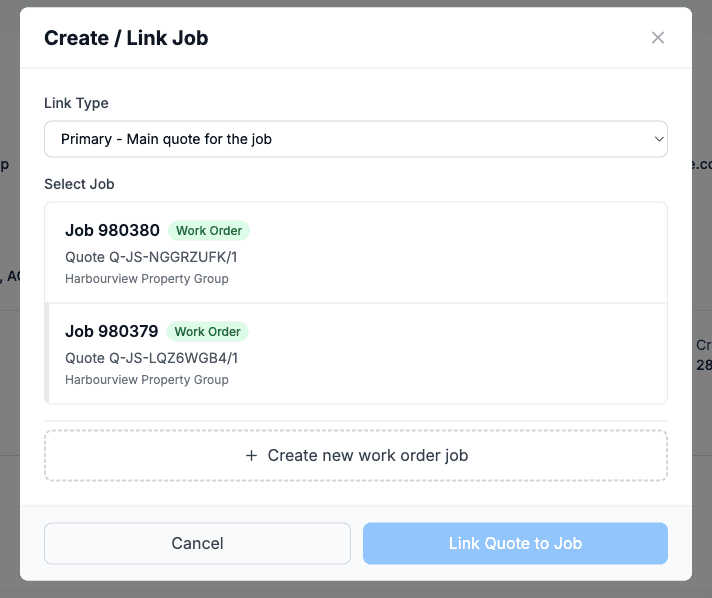
1. Link Type
A dropdown with three choices:
- Primary - Main quote for the job. The quote the job exists to deliver
- Variation - Scope change or addition. A revised or extended quote on work already underway
- Adhoc - Additional ad-hoc work. Extra work that came up but belongs to the same job
The link type shows next to the quote on the job's Quotes tab afterwards, so pick the one that will make sense to whoever reads it later.
2. Select Job
Below the dropdown is the list of active jobs for this customer. Each row shows the job number, its status badge and its description.
- A job at the same site as the quote is flagged with an amber Same site badge. That is the strongest hint you are about to avoid creating a duplicate job
- If the customer has nothing open, the list reads No active jobs found
3. Convert a Quote Visit
If the quote was created from a job in the first place, such as from a quote visit, a green panel sits at the top of the modal:
Convert linked quote visit to work order
It names the job it came from. This is almost always the right choice, because it turns that Quote Visit into a Work Order and keeps the bookings, notes and history where they already are, rather than starting a second job.
4. Or Start Fresh
+ Create new work order job at the bottom makes a brand new job from the quote's customer and site.
Finish with Link Quote to Job.
Creating Quotes from a Job
You can also go the other way and raise a quote from a job. In the portal that is More Actions → Create New Quote; on mobile it is Finish Visit & Create Quote at the end of a quote visit. Either way the quote is tracked against that job from the start, so you never have to link it by hand.
The quote shows on the job with an Unsent badge while it is still a draft. Once it is sent the job goes onto a "Pending Quote" hold until the customer responds.
The job header carries a Linked to line of its own, with a Link or Change control. That one is for the job's lead rather than its quotes, so it will not attach an existing quote to the job. See Linking Leads to Quotes and Jobs.
For the full workflow, see Quote Visits.
Viewing Linked Quotes
On the Job
Open the job and click the Quotes tab. Each linked quote is listed with:
- The quote reference
- Its link type: Primary, Variation or Adhoc
- The accepted amount
- Its status badge
- An icon that opens the quote in a new tab
If nothing is linked, the tab reads No linked quotes.
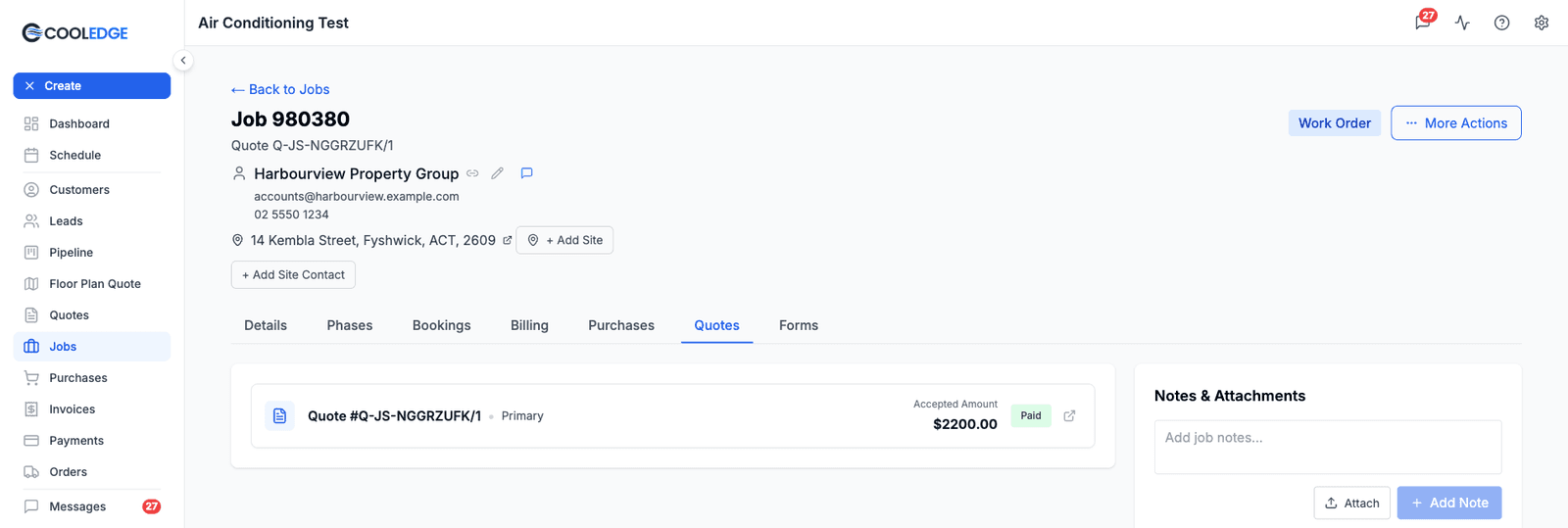
This tab is read-only. It is a window onto the links, not a place to manage them. There is no "link existing quote" button and no way to remove a link.
On the Quote
A linked quote shows the job it belongs to at the top, and the job number is a link straight through to it.
Unlinking a Quote
Which answer you get depends on how the quote reached the job.
A Create / Link Job link is permanent. Once you have used Create / Link Job, there is no unlink control on the job, none on the quote and no API behind one. Removing that link is not something the product can currently do.
A quote visit link can be changed. A quote that reached the job because it was raised there, such as from a quote visit, shows a Linked to line in its header. Use the control on that line to move the quote to a different job or to detach it altogether, and it drops off that job's Quotes tab straight away. There is no status gate on this, so even an Accepted or Paid quote can be detached this way. See Linking Leads to Quotes and Jobs.
If you used Create / Link Job on the wrong quote:
- Link the quote to the correct job as well. The wrong link stays, but the right one exists
- Add a note on the wrong job saying which quote does not belong to it, so nobody bills from it
- If the wrong job has nothing else on it, More Actions → Cancel Job takes it out of your active lists
Cancelling the job is a last resort, and only for the Create / Link Job case. If the quote is on the job because it was raised there, fix it from the quote's Linked to line instead of cancelling anything.
It is worth being deliberate at the point of clicking Link Quote to Job, because that is the only moment you get a choice.
Multiple Quotes on One Job
A job can carry several quotes, which is normal when the work grows or the customer is comparing options:
Options: a budget quote and a premium quote, one accepted and one not, both kept on the job for the record.
Extra work: the original install quote, then a Variation for extra vents, then an Adhoc for a thermostat upgrade.
Revisions: the first quote and the revised one, both retained so the negotiation is visible.
Give each one a link type that says what it is, and each keeps its own status.
Nothing stops the reverse either, linking one quote to more than one job, but that is rarely what you want and it cannot be undone.
Best Practices
Link Once, Deliberately
Because a Create / Link Job link is permanent, take the extra second to read the Same site badge and the green convert panel before you click. They exist to stop you making a duplicate job you then cannot tidy up.
Use the Link Types Honestly
Primary is the quote the job is for. Everything after it is a Variation or Adhoc. A job with three Primary quotes tells the next person nothing.
Say What Each Quote Covers
When you send more than one quote for a job, describe them clearly ("Option A, split system", "Additional work, extras"). The description is what your team and the customer both go by.
Common Questions
Why can't I see the Create / Link Job button? The quote is probably still Draft or Sent. The button appears once the quote is Accepted or Paid. It is also hidden on an Accepted quote whose deposit is marked as not required, and on quotes synced from ServiceM8.
Can I link a quote to a job from the job's Quotes tab? No. That tab is read-only and always has been. Go to the quote.
What if I link the wrong quote? A Create / Link Job link cannot be undone. Link the right one as well, note it on the job and cancel the wrong job if it is otherwise empty. If the quote is on the job because it was raised there, use the Linked to line in the quote's header to move it or detach it.
Can I link quotes after the job is completed? Yes. There is no time limit on linking.
Does linking change the quote? No. The quote keeps its reference, its status and its contents. Linking only adds the connection.
Next Steps
- Understanding Jobs - How jobs work
- Quote Visits - Creating quotes from jobs and the quote visit workflow
- Linking Leads to Quotes and Jobs - Lead links, quote visit links and how to change or remove them
- Putting Jobs on Hold - How the "Pending Quote" hold works
- Creating Invoices - Bill for jobs with linked quotes
- Creating and Managing Jobs - Full job management guide
Was this article helpful?
Let us know if you found this information useful.
Still need help? Contact support
In this article
Use your browser's search (Ctrl+F) to quickly find specific topics within this article.
Browse all help articles →