Job Notes and Attachments
Add notes, photos and documents to a job, keep the whole history in one feed and see what you already know about a repeat customer
Job Notes and Attachments
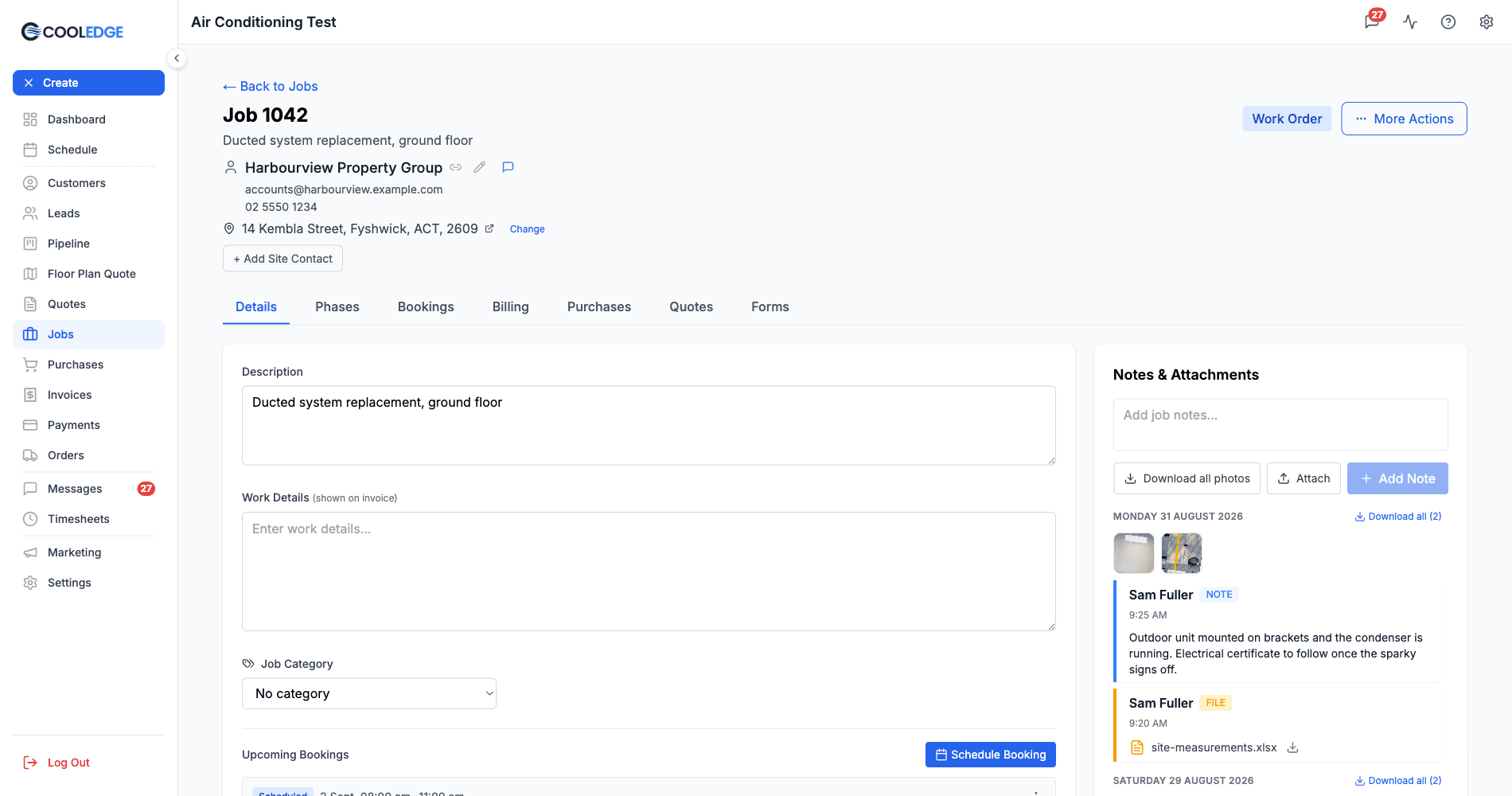
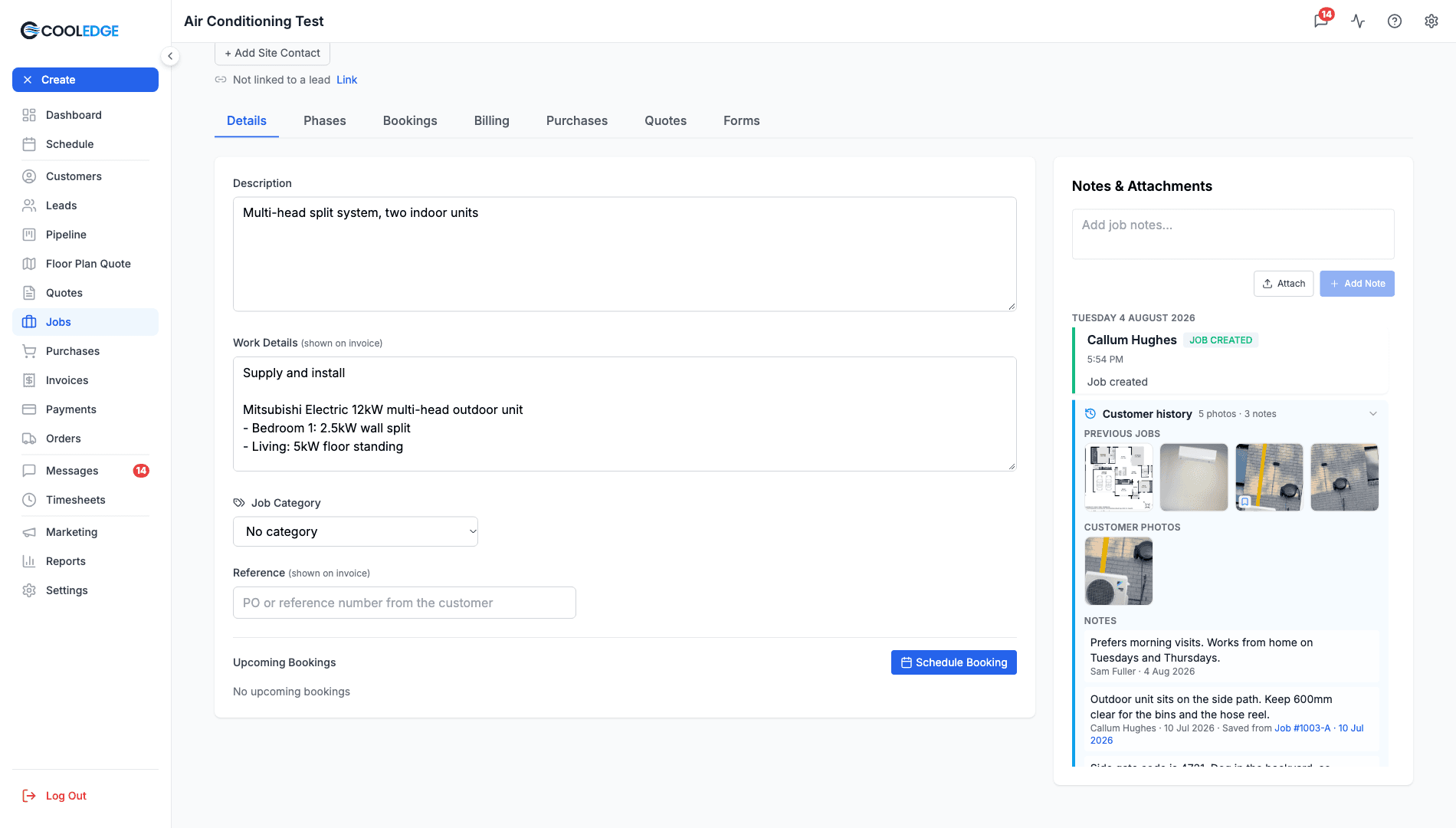
Notes & Attachments is a panel, not a tab, on a wide screen.
- At 1400px and wider it sits permanently down the right-hand side of the job, beside whichever tab you are on
- Narrower than that, it collapses into an eighth tab
- Photos show as thumbnails grouped by day and open in a lightbox you can step through, with downloads one at a time or as a zip. PDFs and other files open in a new browser tab
- On a job, Remove appears on your own entries only, so a colleague's notes and files stay put. On a customer, the business owner can remove anything
- On a repeat customer's job, a Customer history panel at the bottom of the feed shows photos and notes from earlier visits
What are Notes and Attachments?
Every job has a Notes & Attachments feed where you can write notes, upload photos from site and attach documents. The feed is split into days, newest first, with photos in a grid inside each day. Every entry is stamped with who added it and when.
The feed also carries entries the system writes itself, such as JOB CREATED and hold changes. When the customer has history with you, a Customer history panel sits under JOB CREATED. See Customer History below.
Where to Find It
On a wide screen (1400px or more): the panel is always there, down the right-hand side of the job. You do not have to go looking for it, and it stays put while you move between Details, Bookings and Billing.
On a narrower window: the panel becomes an eighth tab, after Forms, and takes the full width of the page.
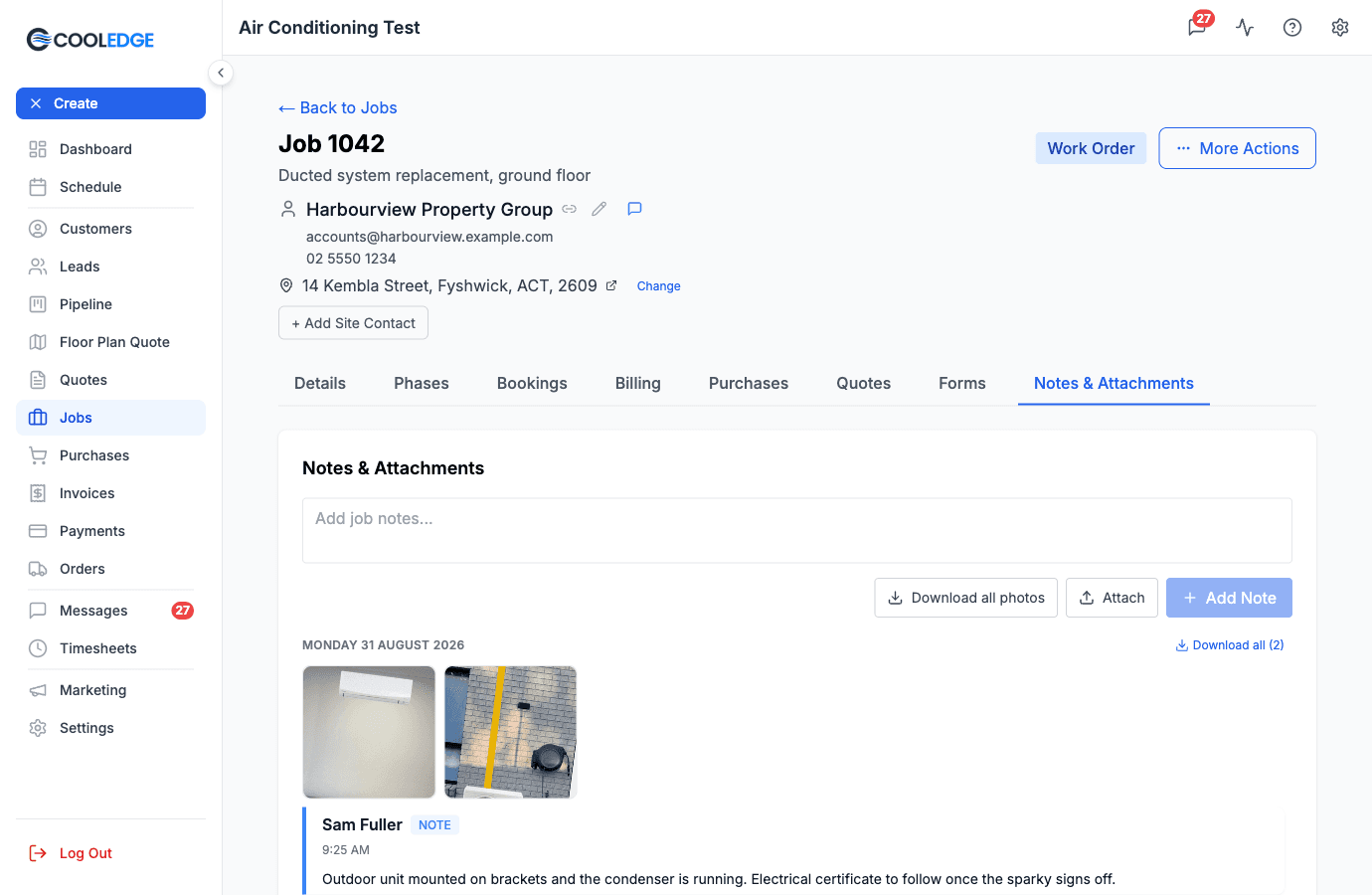
Both layouts hold exactly the same feed. If a colleague tells you to click the Notes tab and you cannot find one, your window is simply wide enough that the panel is already on screen.
Adding a Note
Notes are quick text updates: what you did, what is left, what the customer said.
- Click the box at the top of the panel. It reads Add job notes...
- Type the note. It can be as short or as long as you need
- Click + Add Note
Pressing Enter adds a new line rather than posting, so use the button.
Your name and the time are recorded automatically, and the entry is tagged NOTE.
What to Put in Notes
Good notes are specific about what happened or what is needed. Something like "Ducted system installed. Awaiting electrical certification" or "Need to order 2x return air grilles before final visit" tells the next person exactly where things stand.
Include dates when you talk about future work, and name parts and models. Write it for a teammate who was not there, so they do not have to ring you to understand it.
Uploading Attachments
Drag and Drop
Drag files from your computer straight onto the panel. A Drop your files here overlay appears while you are dragging, and the upload starts as soon as you let go.
The Attach Button
- Click Attach
- Pick one or more files in the file browser
- They upload as soon as you confirm
What You Can Upload
There is no file type restriction, so photos, PDFs, certificates and spreadsheets all work. In practice it is mostly site photos and PDFs.
Images are compressed in your browser before they upload. The long edge is capped at 1600px and the file is re-encoded as a JPEG, which keeps site photos readable without filling up storage. Documents are uploaded untouched.
Reading the Feed
The feed is split into days, newest first, each with its own heading such as Friday 28 August 2026.
Inside a day, photos sit together in a grid of thumbnails. Everything else is a row with a coloured bar down its left edge and a badge saying what it is:
- NOTE for text you wrote
- PDF for a PDF
- FILE for anything else
- JOB CREATED and hold entries, which the system writes
Under the badge you get the author's name, the date and time, and then either the note text or the filename.
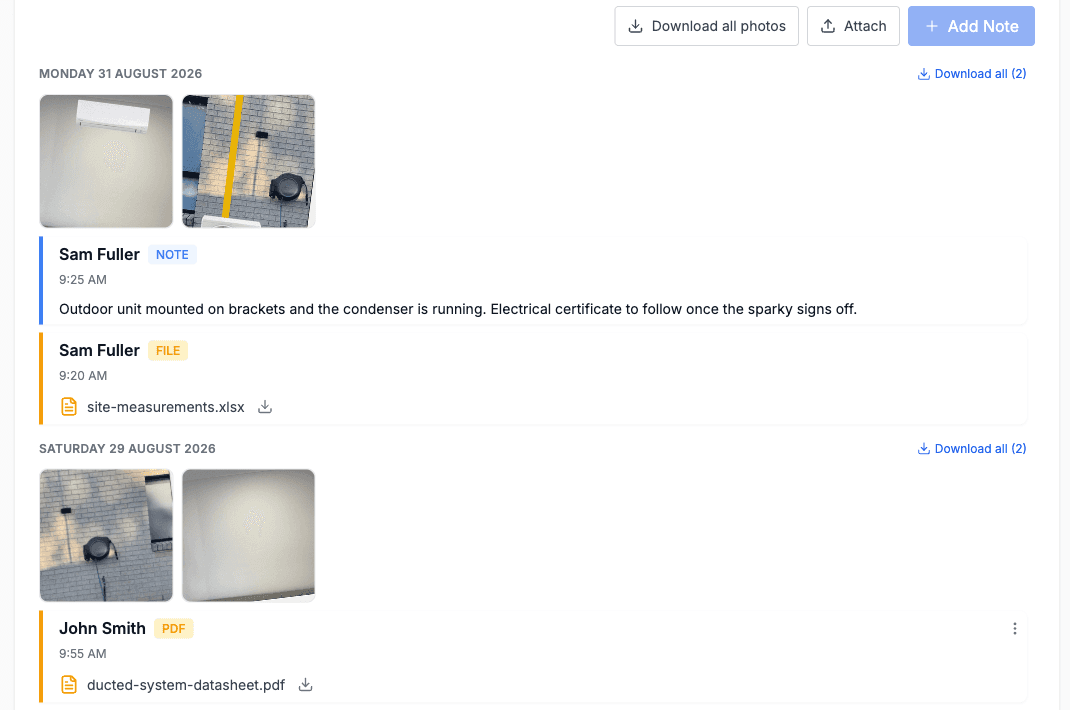
Opening and Downloading
Photos. Click a thumbnail to open it in the lightbox. Use the arrows or your keyboard's left and right keys to step through every photo on the job, across days; the strip along the bottom shows where each day starts. The download icon saves the photo you are looking at.
Download all. Each day heading has a Download all link when it holds more than one photo, and Download all photos sits above the feed once the job has more than one photo anywhere. Both give you a zip named after the job, with the original filenames inside.
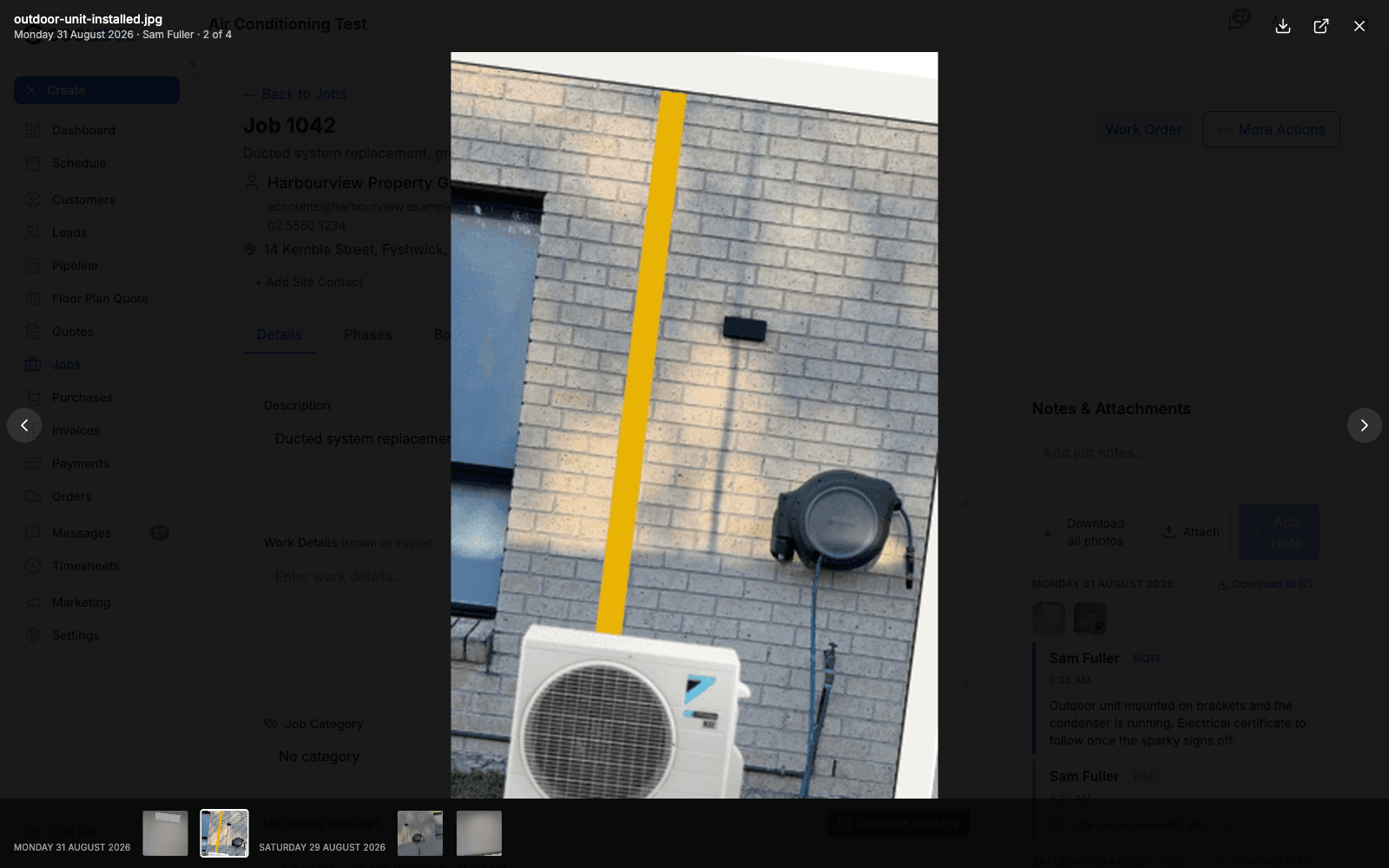
PDFs and other files. Click the filename to open the file in a new browser tab, or the download icon beside it to save it with its original name.
The Three-Dot Menu
On the job feed it appears only on items you added, never on a colleague's and never on the system entries. On a photo it sits in the corner of the thumbnail, on everything else at the right of the row.
Save to Customer copies the note or file onto the job's customer, so it survives past the job. It is on the job feed only, since on a customer the item is already there.
Remove deletes the item. You get a confirmation first, then it is gone permanently and cannot be recovered.
The Same Feed on a Customer
A customer has its own Notes & Attachments feed, built the same way as the job's: the panel down the right at 1400px and wider, a tab below that, day headings, a photo grid, the lightbox and the same downloads. A few things differ.
It holds what belongs to the customer, not to one job. Notes and files you add here, plus anything you sent over with Save to Customer from a job. Rows that came from a job carry a From Job #1042 link back to it, so you can see where a photo was taken without leaving the customer.
There is no Save to Customer in the menu. The item is already on the customer, so the three-dot menu offers Remove only.
The owner can remove anything. On a customer, the three-dot menu appears for the person who added the item and for the business owner. Admins and team members still see it on their own entries only. Removing a file that was saved from a job takes it off the customer and leaves the original on the job.
The zips are named customer-photos, not after a job number, since the photos can span several jobs.
The badges are simpler. A customer row is either NOTE or FILE, so a PDF here reads FILE where the same file on the job reads PDF.
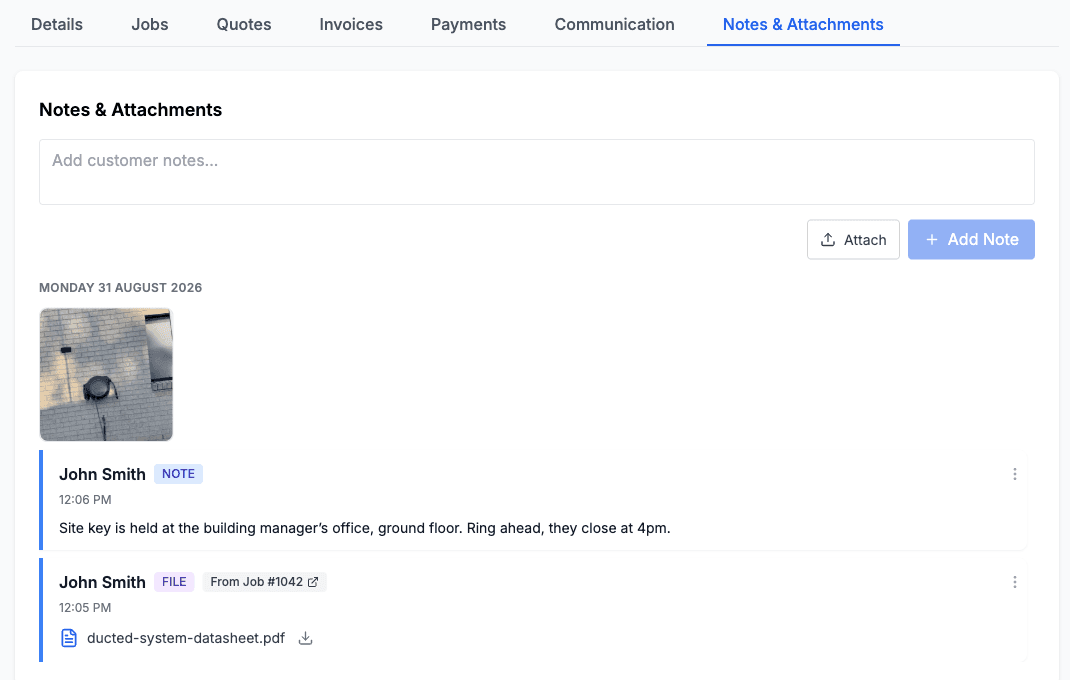
Use it for the things that outlive a job: a site key photo, a switchboard shot, an access note, the strata contact's letter. Job specific evidence is better left on the job.
Customer History
When you open a job for a customer you have worked for before, you should not have to go digging through old jobs to find out what is behind the ceiling or where the side gate key lives. The job's feed carries a Customer history panel that brings it to you.
It sits at the bottom of the feed, directly under the JOB CREATED entry, with a blue stripe down its left edge so it reads as separate from the job's own notes. The header shows how much is in it, for example 5 photos · 3 notes. It works the same in the portal and in the mobile app, and it is live: anything added to the customer or to an earlier job shows up next time you open the job.
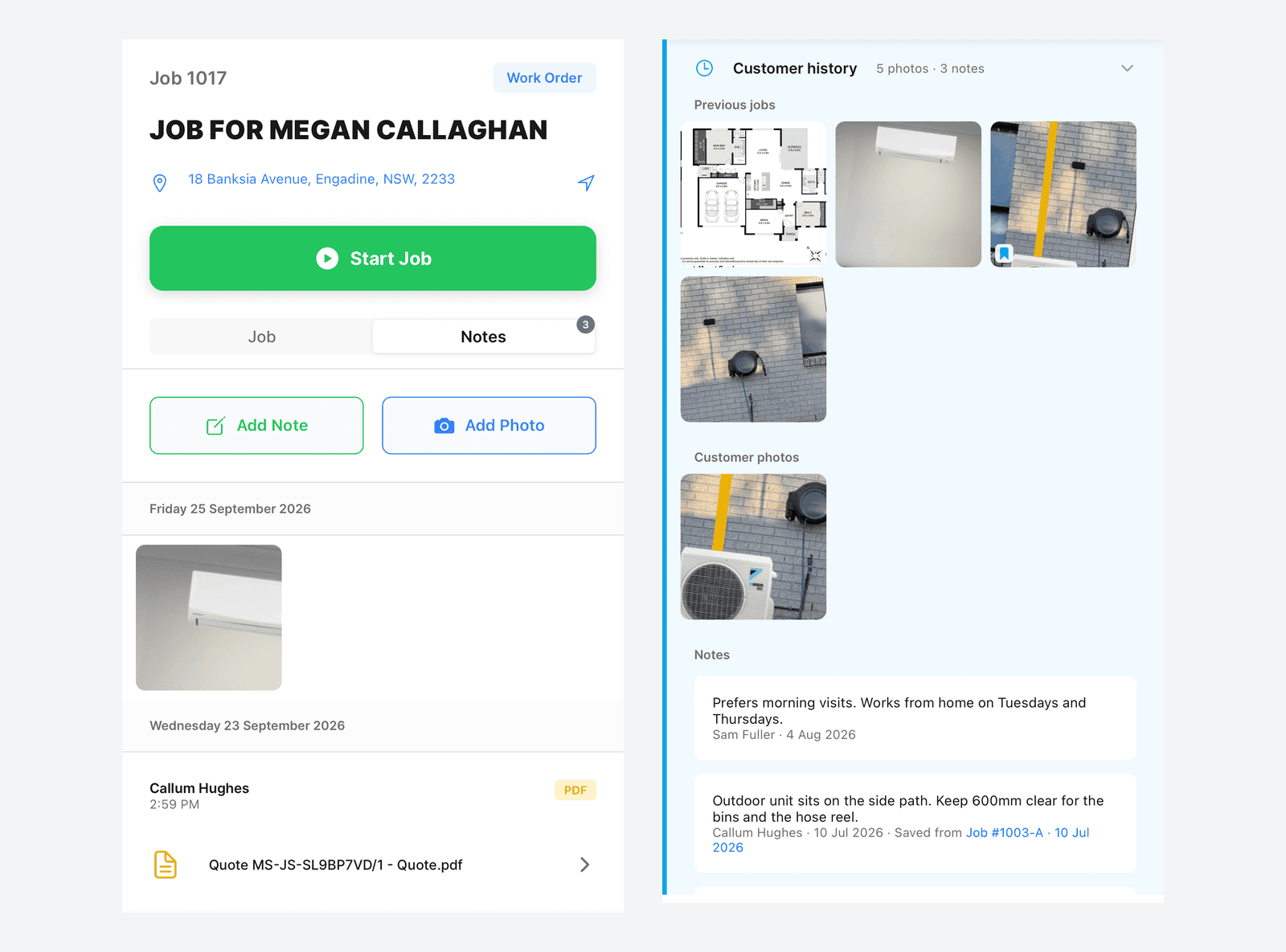
In the mobile app it sits in the same place on the job's Notes tab, under JOB CREATED. The Notes tab itself shows a count of the job's own notes, photos and files.
What's in It
Three groups, each newest first:
- Previous jobs. Photos from the customer's other jobs at the same site as this job, up to the 20 most recent jobs. If this job has no site, it uses all of the customer's other jobs. A small bookmark in the corner of a photo means it was also saved to the customer.
- Customer photos. Photos on the customer record: ones uploaded straight onto the customer, plus photos saved to the customer from a job that is not already in Previous jobs (a job at another site, for example).
- Notes. Every note on the customer, with who wrote it and when. A note that was saved from a job also says where it came from, such as Saved from Job #1003-A · 10 Jul 2026, with a link back to that job.
Each photo group shows two rows of thumbnails, then Show all with the total. Notes show the three newest, then Show all. Show less folds them back up.
A few things are left out on purpose. Anything saved to the customer from this job is already in the feed above, so it does not appear twice. Customer history holds photos and notes only, so PDFs and other files stay on their own job or customer. The Notes field on the customer's details is not included either.
The panel only appears when there is something to show. A brand new customer, or a job with no customer, has no panel at all.
Collapsing It
Click the Customer history header to fold the panel down to that one line, and click it again to open it. Cooledge remembers your choice on that device for every job, so if you prefer it closed, it stays closed until you open it again. The mobile app remembers its own setting separately.
Opening Photos
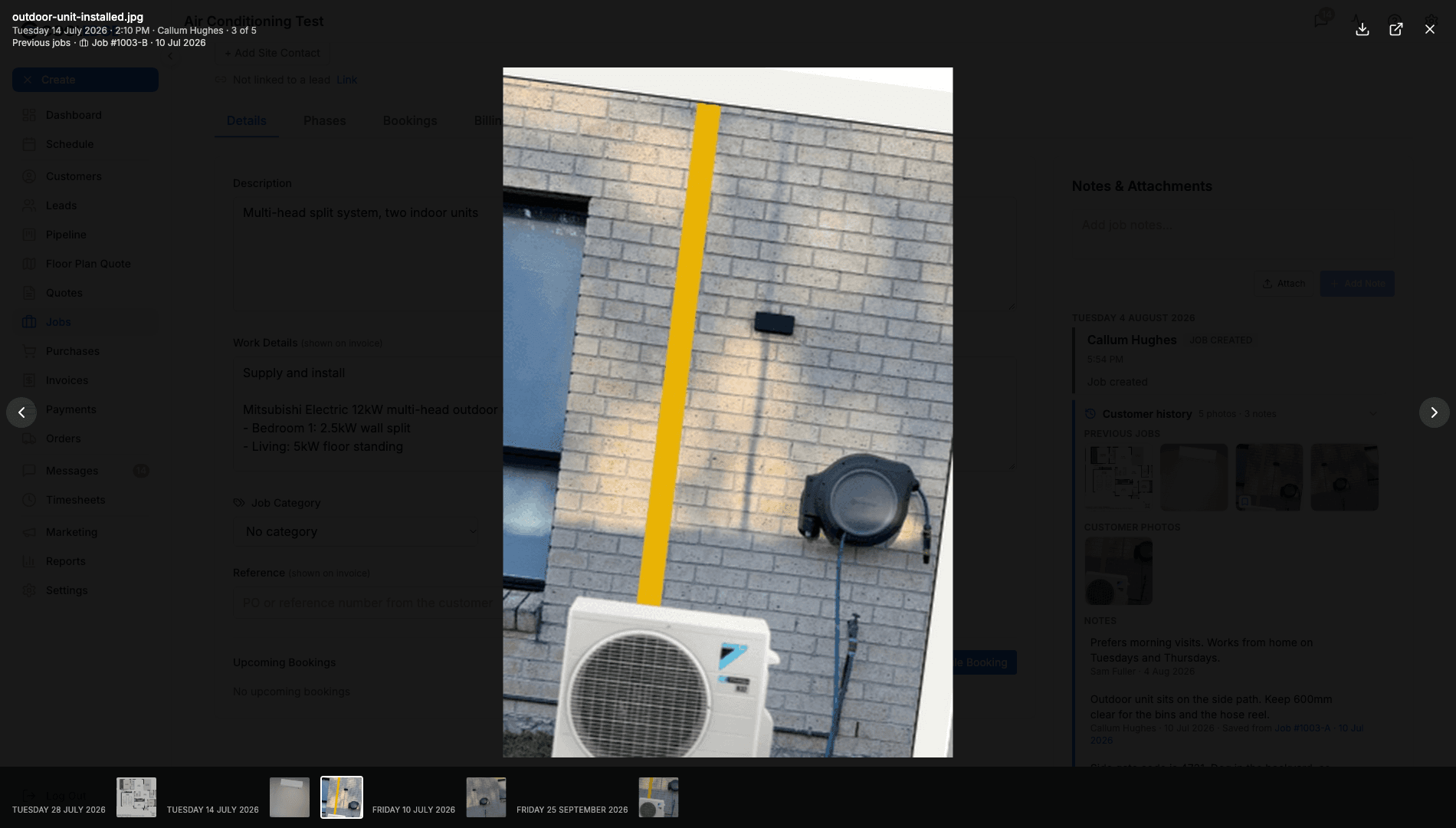
Click any photo to open it in the lightbox. One lightbox covers both photo groups, so the arrows step through Previous jobs first and then Customer photos without closing.
Under the filename, each photo is labelled with its group, Previous jobs or Customer photo, followed by the job it came from, for example Job #1003-B · 10 Jul 2026. The job label links to that job, and its date is when that job was created. A photo uploaded straight onto the customer has no job label. Download works the same as on the job's own photos.
Removing Something from the Customer
Customer photos and notes can be removed from the panel, so a stale access note or an out of date photo does not follow the customer around forever.
- In the portal, hover a customer photo and click the bin icon in its corner, or click the bin beside a note. The lightbox has a bin too, when you are allowed to remove the photo.
- In the mobile app, press and hold the photo or the note.
Only the person who added it, or the business owner, can remove it. Admins and team members can remove the things they added. The bin simply does not appear on anything else.
You always get a Remove from customer? confirmation first:
- For something that was saved from a job, it reads "It will no longer show on the customer. It stays on Job #1003-A." The original stays on that job.
- For anything added straight onto the customer, it reads "It will be deleted from the customer."
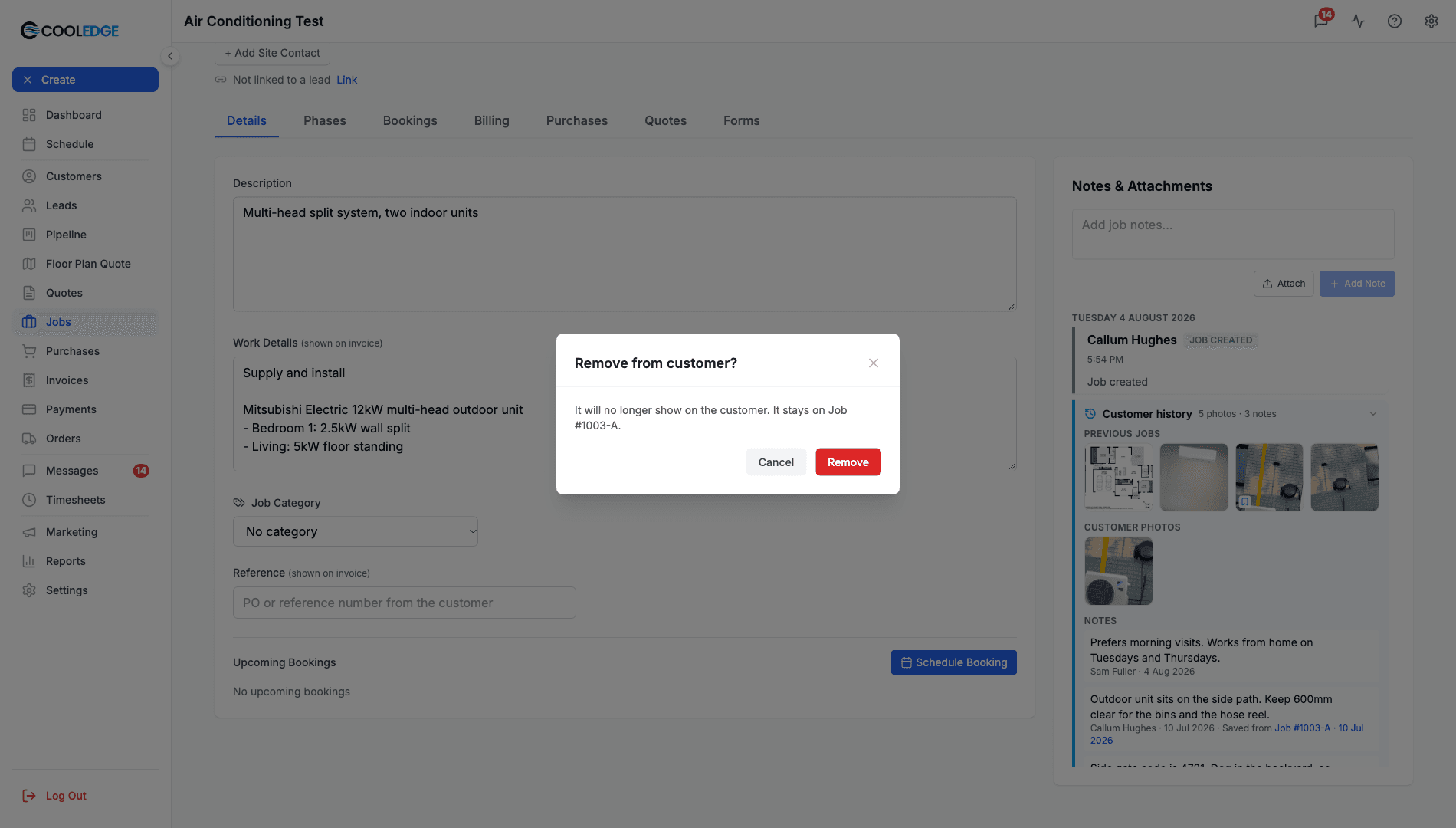
Previous jobs photos cannot be removed from here. They belong to their job, not to the customer. Open that job to manage them.
Removing something from the customer removes it from the Customer history panel on every job for that customer.
Restricted Team Members
Restricted team members (the role used for subcontractors who should not see costs) see Customer history on the jobs they are booked on, with the same photos and notes. Job numbers in the panel are plain text for them unless they are booked on that job too, and they can remove only what they added.
Restricted team members also do not see quote PDFs or invoice PDFs, on a job's feed or on a customer, and cannot open them anywhere. Report PDFs, parts lists, form PDFs and files people upload still open as normal. They also cannot generate quote, report or parts list PDFs themselves.
Using Notes and Attachments Well
Take Photos On Site
Before starting: existing equipment, problem areas, site access. During: work in progress, anything unexpected you found, materials used. After: the finished install, the tidied workspace, new equipment with model numbers readable.
That visual record is what protects you if the job is questioned months later.
Write Down Conversations
When a customer asks for something or makes a decision, note it straight away:
- "Customer approved colour change from white to black, adds $200"
- "Customer okay to move the outdoor unit 2 metres left"
- "Reminded customer about the 6 week lead time on parts"
Upload Certificates
Electrical compliance certificates, warranty registrations, council approvals and equipment manuals all belong on the job. When the customer rings in two years asking for one, it is where you will look.
Keep Notes Readable
Proper sentences, no all-caps, spell the model numbers correctly. Someone else has to act on what you wrote.
Common Questions
Can customers see notes and attachments? No. They are internal. Nothing here reaches a quote, an invoice or the customer portal.
What if I upload the wrong file? Remove it from the three-dot menu, then upload the right one.
Can I edit a note after posting it? No. Remove it and write a new one.
Why can't I delete a colleague's note? By design. The job feed is a record of who said what, so Remove appears on your own entries only. On a customer, and in Customer history, the business owner can also remove a colleague's entry.
Can I delete a note or a photo from my phone? Yes. Press and hold the note, the photo or the file row and an Actions sheet slides up. It offers Share on a file, Save to Customer on the job feed, Copy Text on a note and Delete on entries you added (on a customer, the owner gets Delete on every entry). Delete asks you to confirm first. Removing a file that was saved to a customer from a job takes it off the customer and leaves it on the job.
Why don't I see Customer history on this job? The panel only appears when there is something in it. Check that the job has a customer, and that the customer has notes, photos of its own or photos on another job at the same site. A first job for a new customer has nothing to show yet. Photos from a job at a different site only appear if someone saved them to the customer. If you can see the Customer history header but nothing under it, you collapsed it: click the header to open it again.
Why can't I remove that photo? Either it is in Previous jobs, which belong to their own job and cannot be removed from here, or someone else added it. Only the person who added a customer photo or note, or the business owner, can remove it.
I removed a photo and it is still in Customer history. A colleague saved the same photo to the customer too. Removing takes away your save and leaves theirs, so the photo stays until they (or the owner) remove it as well.
Why can't my restricted team member open the quote PDF? Restricted team members cannot see or open quote PDFs or invoice PDFs, because those carry your prices. Report PDFs, parts lists, form PDFs and uploaded files still work for them. If they need a price, an owner, admin or team member can pass it on.
Is Customer history a copy made when the job was created? No. It is read fresh each time you open the job, so it always reflects the customer as they are now. If the customer or site on the job changes, the panel follows.
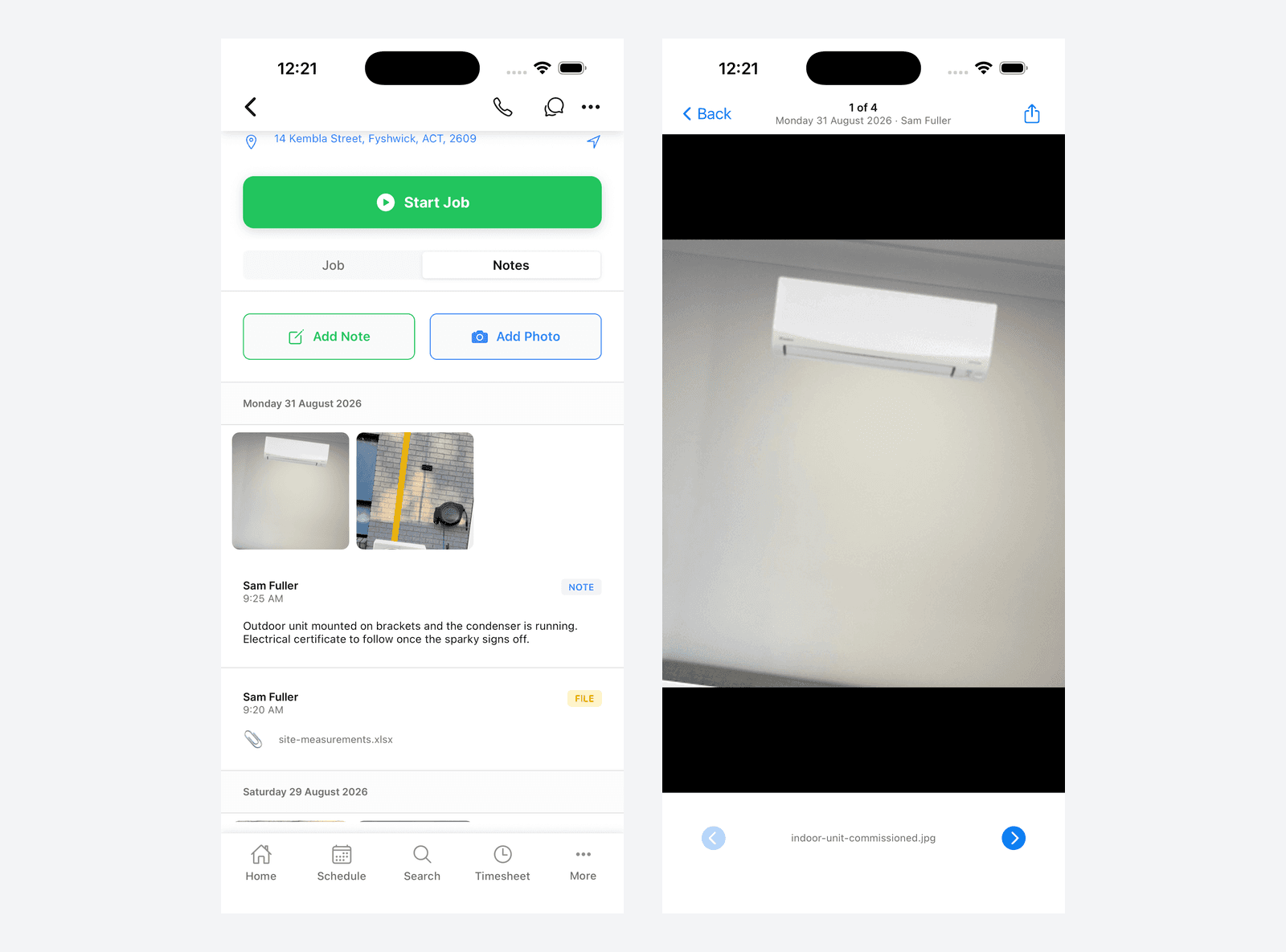
Can I upload from my phone? Yes. The mobile app has a Notes tab on the job with Add Note and Add Photo, and Add Photo opens an Add Photo or File sheet. Take Photo lets you keep shooting with a Take another prompt and Choose from Library lets you pick up to 20 photos at once. Choose File attaches PDFs and other documents on app version 2.2.0 or later. Photos are grouped by day there too and tapping one opens a viewer you can step through and share from. The Notes tab on the job and on the customer shows a count of what is in it, so you can tell at a glance whether there is anything to read. On a job the count covers the job's own notes, photos and files, not Customer history.
I can't find the Notes & Attachments tab. Your browser window is 1400px or wider, so the panel is already open on the right of the page.
Related Articles
- Understanding Jobs - How jobs work overall
- Creating and Managing Jobs - Set up and edit job details
- Managing Customer Sites and Contacts - Sites decide which earlier jobs show in Customer history
- Using the Calendar - Schedule work and manage bookings
Was this article helpful?
Let us know if you found this information useful.
Still need help? Contact support
In this article
Use your browser's search (Ctrl+F) to quickly find specific topics within this article.
Browse all help articles →