Handling Booking Conflicts
Understand when staff are double-booked and how to resolve or override scheduling conflicts
Handling Booking Conflicts
What is a Booking Conflict?
A booking conflict happens when you try to schedule a staff member for two things at the same time. Cooledge automatically detects this and warns you before creating the booking.
Example conflict:
- John is already booked 9:00 AM - 12:00 PM
- You try to book John 10:00 AM - 2:00 PM
- Conflict! John can't be in two places at once
The system prevents accidental double-booking.
When Conflicts Are Detected
Conflicts are checked when:
- Creating a new booking with staff assigned
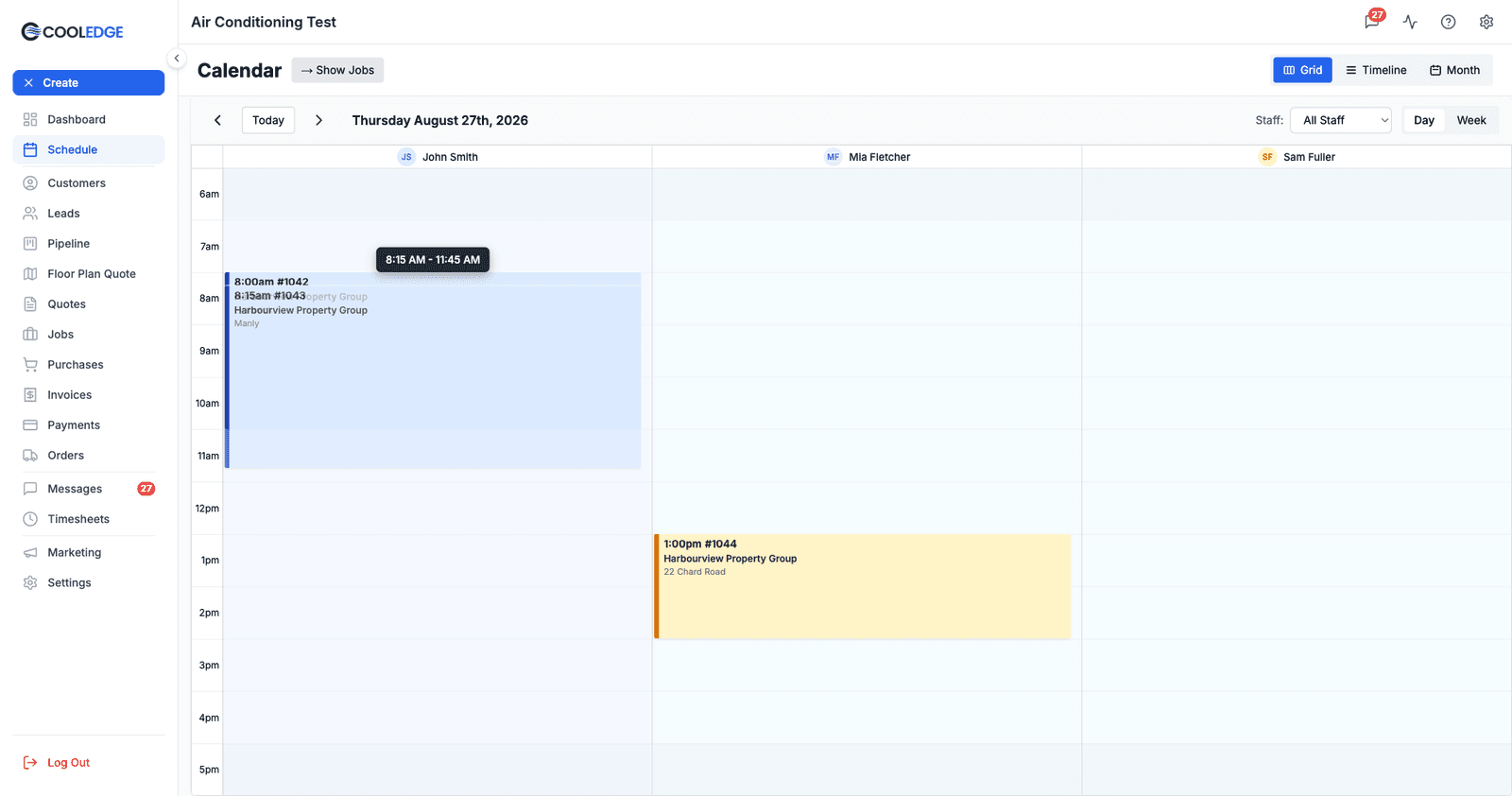
- Dragging a booking to a new time on the calendar
- Resizing a booking to a longer or shorter duration
- Adding staff to an existing booking
- Changing booking times in the edit modal
You don't need to do anything to turn it on.
It is not quite the same check on both apps, though. The portal runs it on the server, on its way to saving the booking. The mobile app saves bookings itself and runs its own copy of the check on the phone first. The two follow the same rules, read the same Allow overlapping bookings without warnings setting and reach the same answer, but they are two separate pieces of code, so the wording you see differs. What each looks like is set out below.
The Conflict Modal
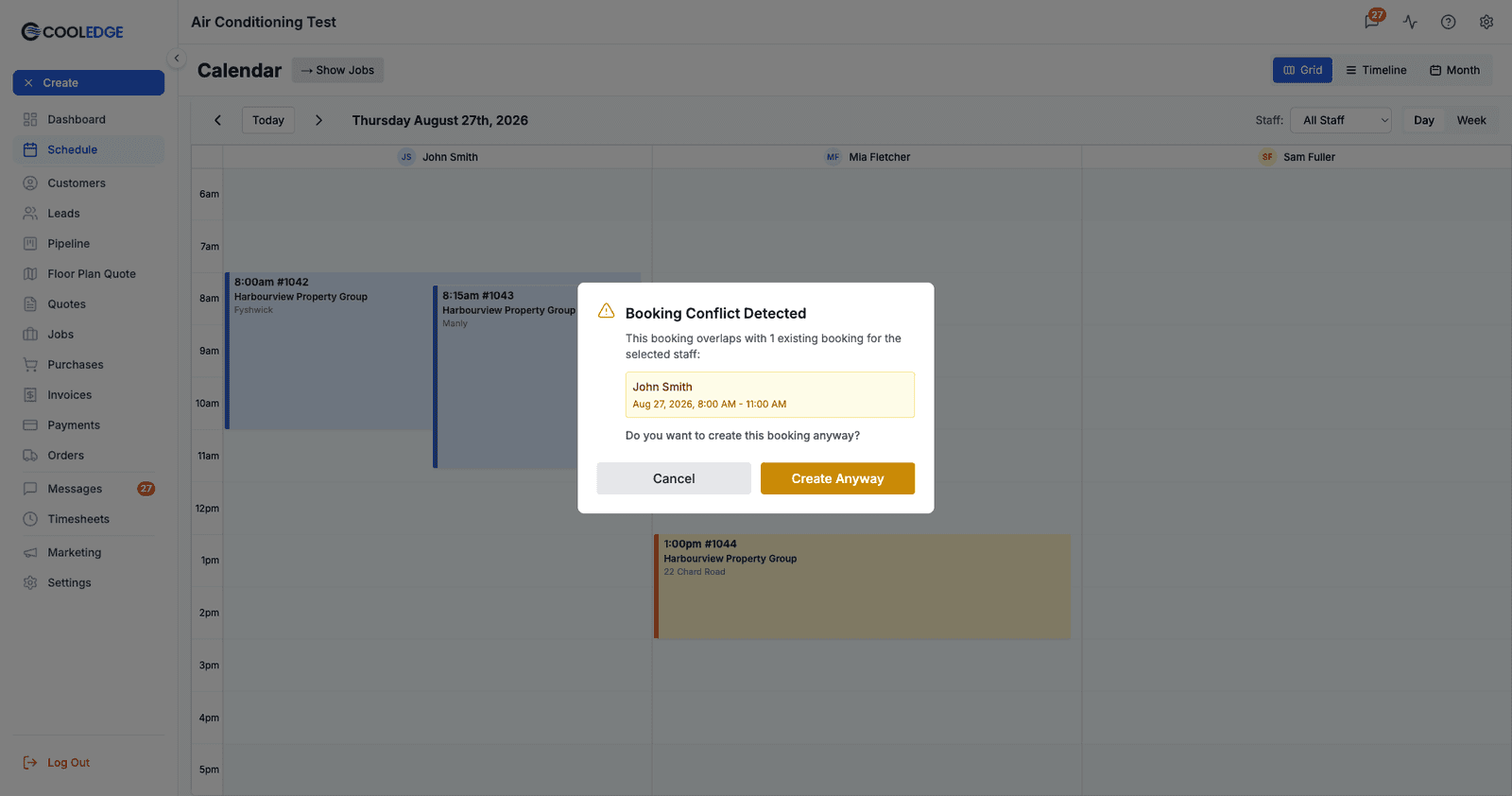
When a conflict is found you'll see a Booking Conflict Detected modal. It tells you how many existing bookings you're clashing with, then lists them:
Conflict Details
- Staff member name - who is double-booked
- Existing booking time - the date and times they're already committed to
If more than one booking clashes, every one is listed, so you can see the full picture before deciding.
What it doesn't show is which job or customer the clashing booking belongs to, or the new time you were trying to move to. If you need either, click Cancel and look at the cards on the calendar.
Your Options
The modal gives you two buttons:
1. Cancel
- Nothing is created or moved
- A dragged booking snaps back to where it was
- Go back and try a different time or staff member
2. Create Anyway
- Overrides the warning
- The booking is created or moved despite the overlap
- Both bookings then exist on the calendar, stacked in the same slot
The button says Create Anyway even when you're moving an existing booking rather than creating a new one.
That is the portal. The mobile app words it differently, covered next.
The Same Warning on Mobile
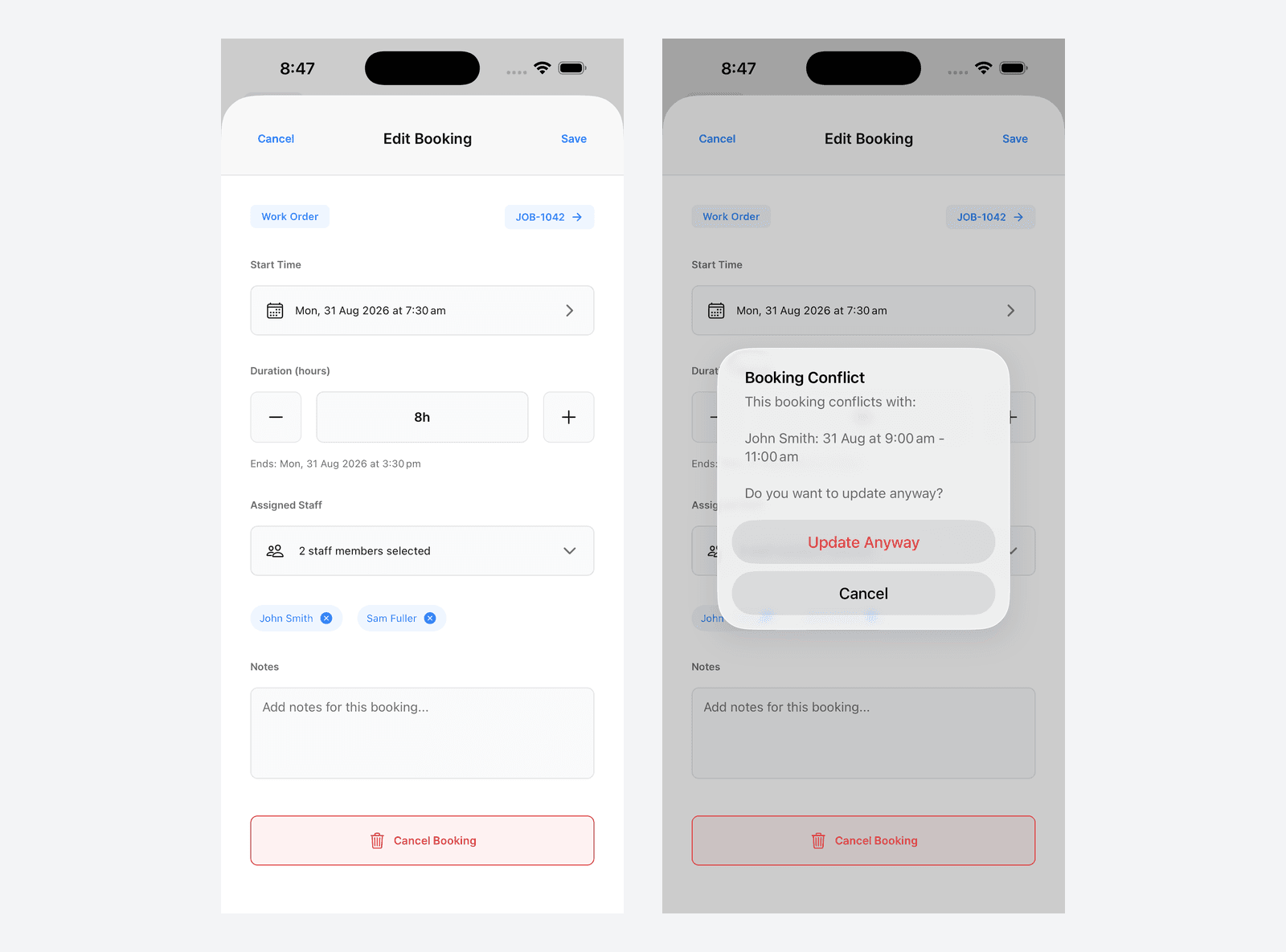
On the phone the clash arrives as a standard iOS alert rather than a modal, headed Booking Conflict. It reads:
This booking conflicts with:
John Smith: 31 Aug at 9:00 am - 11:00 am
Do you want to update anyway?
Its two buttons are Update Anyway and Cancel, so the override is worded "Update" here and "Create" on the portal. Update Anyway is styled as the destructive choice and sits above Cancel.
Everything else matches the portal. Each assigned person is listed separately if more than one clashes, only Scheduled and In Progress bookings are counted and back-to-back bookings never clash. It also still doesn't tell you which job the other booking belongs to. If you need that, tap Cancel and go looking.
One difference that matters. Because the mobile check runs on the phone rather than the server, it is the app asking the question, not the database enforcing an answer. Nothing at the database level stops two overlapping bookings existing, on either app. The warning is a warning on both.
When to Book Anyway (Override)
Sometimes double-booking makes sense. Office staff can handle multiple short tasks like phone calls and quotes at once. Travel time bookings might overlap when staff are finishing one job and driving to the next. For multi-person jobs, one person might be the lead on both. Emergency work sometimes must be scheduled immediately regardless of conflicts, and administrative time bookings don't always represent physical presence.
However, don't override if the staff member genuinely can't be in two places - on-site installs, customer visits and field work need proper scheduling. In those cases, find a different time or assign different staff instead.
Preventing Conflicts
Check the Calendar First
Before creating a booking:
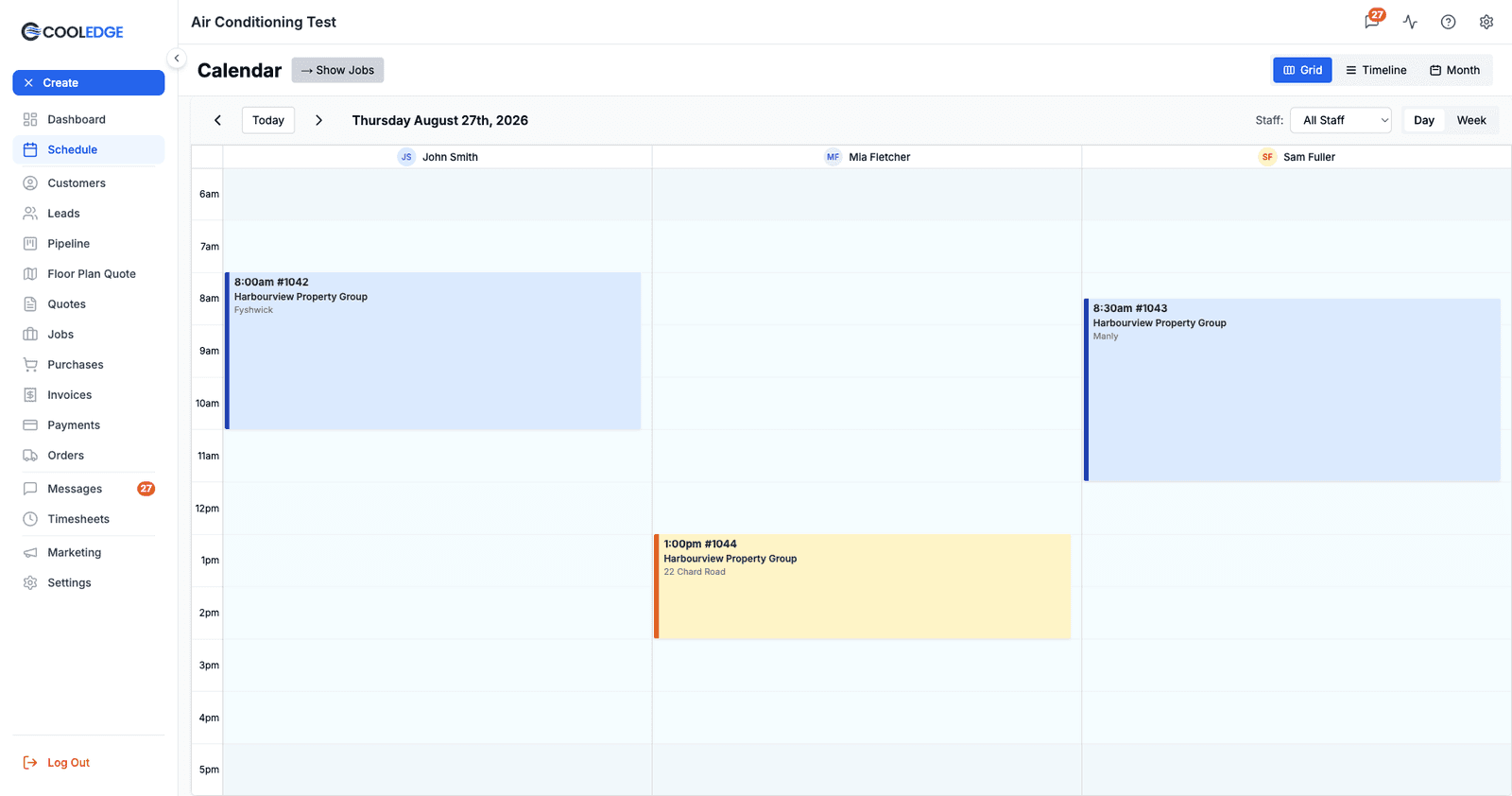
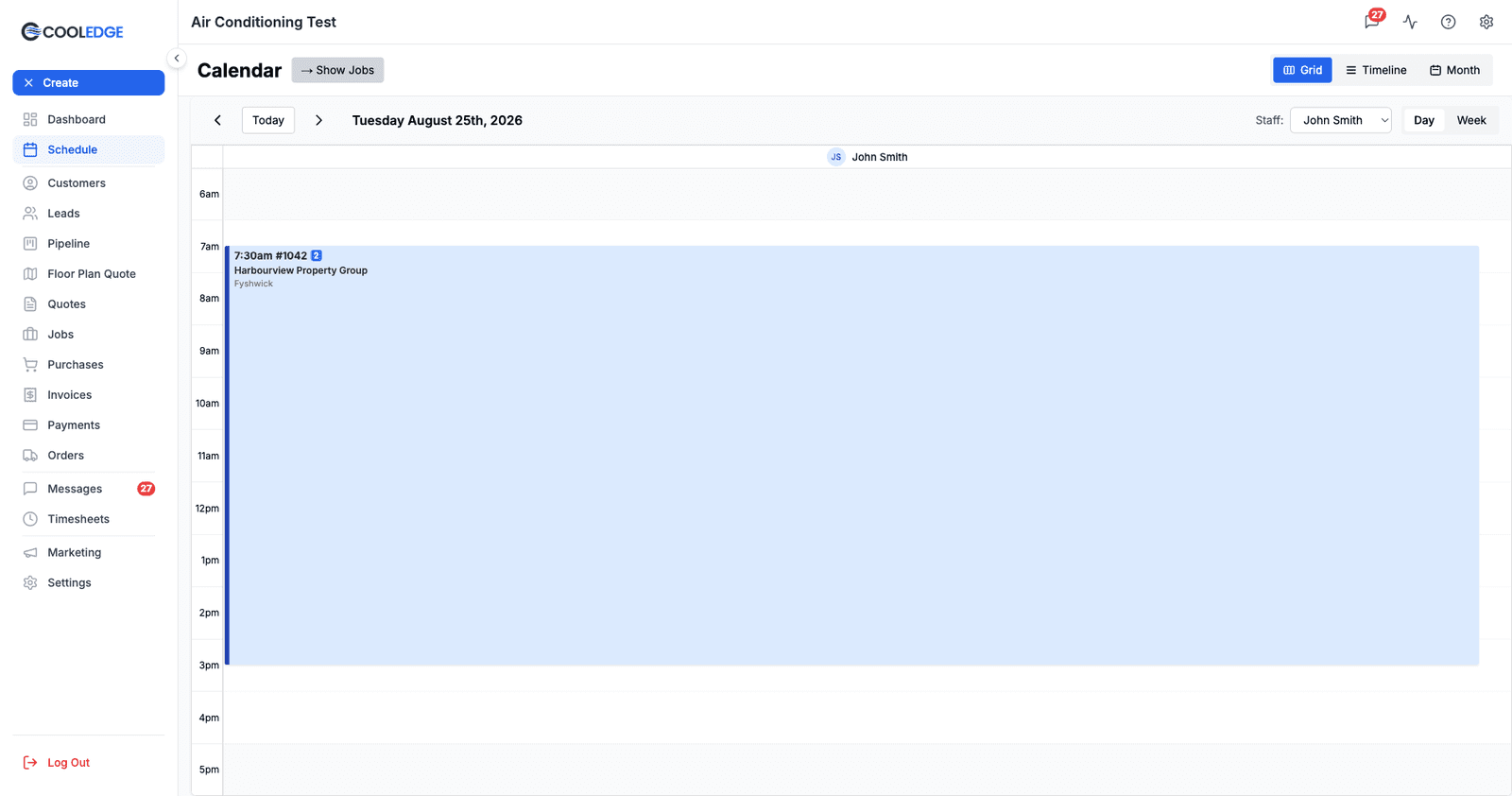
- Switch to Grid view with the Day toggle, which gives each staff member one wide column
- Look down that person's column
- Find an empty time slot
- Drag across it to create the booking there
Booked time is shaded and labelled; free time is empty. Reading the column before you drag prevents most conflicts before they happen.
Use Drag and Drop
When you drag a booking on the calendar:
- You can see exactly where other bookings are
- Drop it into an empty slot
- Much easier to avoid conflicts visually
Filter by Staff in Sidebar
To concentrate on one person's day:
- Use the Staff dropdown at the top right of the calendar
- Pick the staff member
- The calendar narrows to just their bookings, including multi-staff ones they're part of
The Jobs sidebar has its own All Staff filter, which is a different thing: it narrows the job list to jobs that already have a booking assigned to that person.
Managing Allowed Overlaps
As a business owner/admin, you can change how conflict detection works:
Settings Location
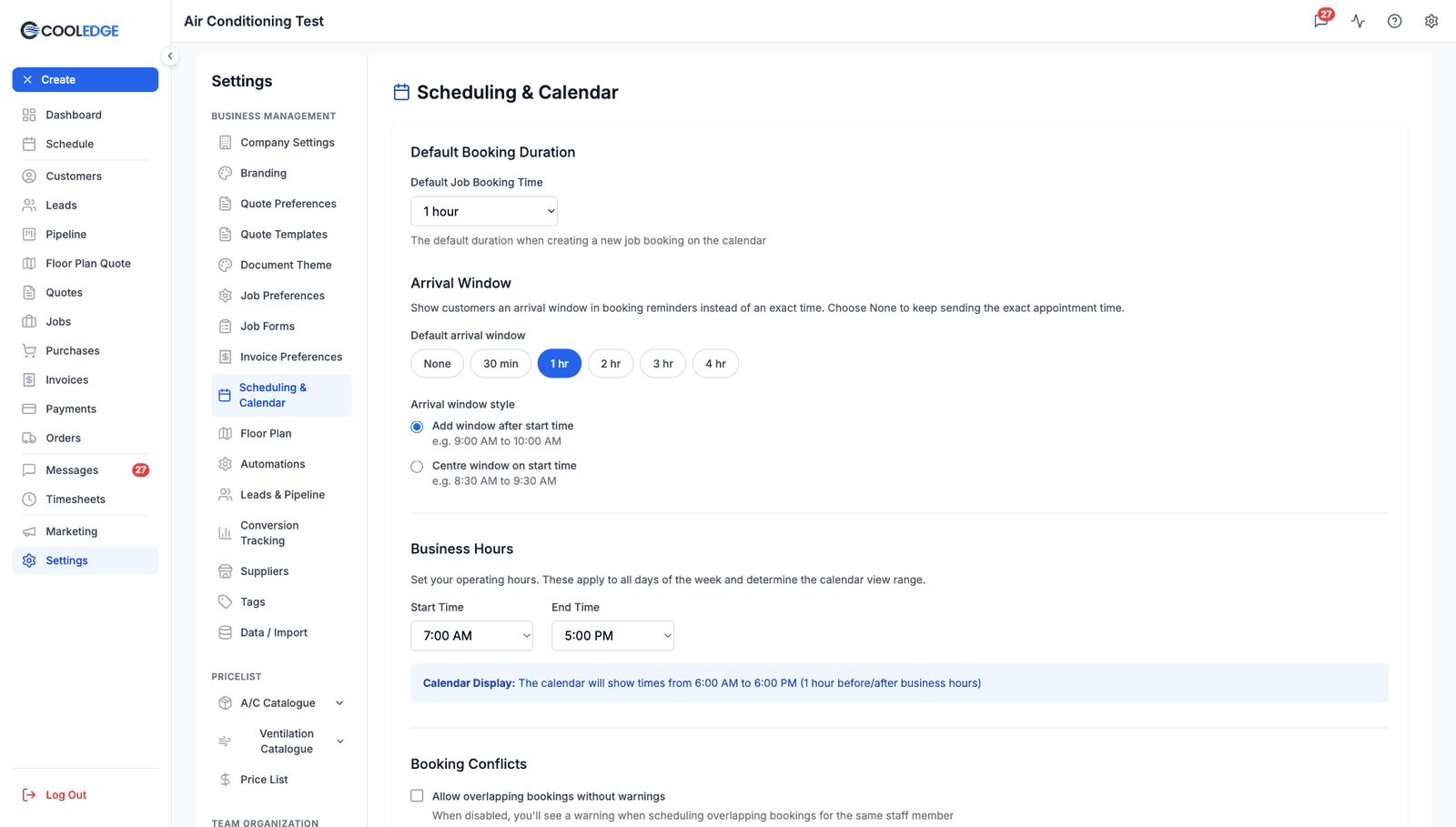
Settings > Scheduling & Calendar, in the Booking Conflicts section. The tick box reads Allow overlapping bookings without warnings.
Two Options
Unticked (Default, Recommended)
- Cooledge checks for conflicts every time
- You get the warning modal when an overlap is detected
- Prevents accidental double-booking
- Best for: field staff, installers, technicians who are on-site
Ticked
- No conflict checking at all
- Bookings overlap freely with no prompt
- Best for: office staff, administrative roles, flexible scheduling
When to Allow Overlaps
Turn this on if:
- Your team mostly does office work or phone calls
- Multiple short bookings are normal
- You handle scheduling conflicts manually
- The warnings are becoming annoying
Most businesses should keep this OFF to prevent double-booking field technicians.
How Conflict Detection Works
What Gets Checked
- Only Scheduled and In Progress bookings. Those are the two statuses that can produce a conflict
- Time overlaps - any amount of overlap triggers the warning, even one minute
- Per staff member - each person's schedule is checked independently
What Doesn't Get Checked
- Unscheduled bookings - they have no times yet
- Done bookings - the work is finished
- Bookings with no start or end time - they're skipped
- Different staff - if John and Sarah are both free, there's no conflict
There is no "cancelled" booking status. Bookings are only ever Unscheduled, Scheduled, In Progress or Done, so a job you're no longer doing needs its booking deleted, or the job itself set to Cancelled.
Overlap Logic
Two bookings overlap if:
-
New booking starts during existing booking
Existing: 9 AM - 12 PM, New: 10 AM - 2 PM ✗ -
New booking ends during existing booking
Existing: 10 AM - 2 PM, New: 9 AM - 11 AM ✗ -
New booking completely contains existing booking
Existing: 10 AM - 11 AM, New: 9 AM - 2 PM ✗ -
New booking is completely contained
Existing: 9 AM - 2 PM, New: 10 AM - 11 AM ✗
No overlap:
- Existing: 9 AM - 12 PM, New: 12 PM - 2 PM ✓ (touching exactly is fine)
Put simply, two bookings clash when the new one starts before the existing one ends and ends after the existing one starts. Both have to be true. Here is the same rule as a table, using an existing 9 AM to 12 PM booking:
| New booking | Starts before 12 PM? | Ends after 9 AM? | Result |
|---|---|---|---|
| 10 AM - 2 PM | Yes | Yes | Clash |
| 8 AM - 11 AM | Yes | Yes | Clash |
| 8 AM - 2 PM (swallows it) | Yes | Yes | Clash |
| 10 AM - 11 AM (inside it) | Yes | Yes | Clash |
| 12 PM - 2 PM | No | Yes | No clash |
| 7 AM - 9 AM | Yes | No | No clash |
Because the comparison is strict at both ends, a booking that finishes exactly when the next one starts is never a conflict. Back-to-back is fine; one minute of genuine overlap is not.
Common Scenarios
Scenario 1: Installing Multiple Systems Same Day
Situation: You're booking John for two installs on the same day.
Solution:
- Book first install: 8 AM - 12 PM
- Book second install: 1 PM - 5 PM (leaves lunch gap)
- No conflict because times don't overlap
Scenario 2: Travel Time Between Jobs
Situation: John finishes a job at 12 PM but the next job is 30 minutes away, starting at 12 PM.
Options:
- Better: Book second job starting at 12:30 PM or 1 PM to account for travel
- Or: Create a "Travel" task booking for 12:00 PM - 12:30 PM
- Or: Override the conflict if you know he can make it
Scenario 3: Office Staff Answering Phones
Situation: Sarah answers phones all day but also has quote appointments.
Solution:
- Turn on "Allow Booking Overlaps" in Settings
- Both phone coverage and quote bookings can overlap
- Manage her time manually
Scenario 4: Multi-Staff Job
Situation: You need John and Sarah both on-site 9 AM - 12 PM.
Solution:
- Create ONE booking
- Assign both John AND Sarah to it (multi-staff booking)
- No conflict because it's the same booking for both
Resolving Conflicts
If you see a conflict warning, here's how to fix it:
Option 1: Change the Time
- Click Cancel on the conflict modal
- Try a different time slot
- Earlier or later in the day
Option 2: Choose Different Staff
- Click Cancel
- Assign a different staff member who's available
- Or split the work between two people
Option 3: Move the Existing Booking
- Click Cancel
- Find the conflicting booking on the calendar
- Drag it to a different time
- Come back and create your new booking
Option 4: Override
- Click Create Anyway on the conflict modal
- The booking is created with the overlap
- Handle the scheduling manually
Tips for Busy Calendars
Use Day and Week views Month view has no time axis, so you can't judge slots in it. Switch to Grid or Timeline for detailed scheduling.
Color-code by status Jobs in different statuses have different colors. This helps you prioritize what must be scheduled.
Check capacity before quoting Before giving a customer a date, check your calendar to make sure you have staff available.
Build in buffer time Don't book jobs back-to-back. Leave 30 to 60 minutes between for travel, lunch or overruns.
Common Questions
What if I override a conflict by mistake? You can move or delete the booking afterward. Go to the calendar, find the double-booked time slot and fix it.
Can I see all conflicts at once? Not automatically, but if you look at a staff member's column/row in Day view, you'll see any overlapping bookings visually.
Do customers see conflict warnings? No. Conflicts are internal only for your scheduling team.
What if someone is sick or unavailable? Reassign their bookings to another staff member, or delete them. There's no cancelled status for a booking, so a booking you leave in place keeps blocking that person's time.
Can I get notified when conflicts happen? Currently no automatic notification. The conflict modal appears immediately when you try to create the booking.
Related Articles
- Creating Bookings - How to schedule work
- Moving and Editing Bookings - Change times and staff
- Multi-Staff Bookings - Assign multiple people to one booking
- Using the Calendar - Navigate calendar views
Was this article helpful?
Let us know if you found this information useful.
Still need help? Contact support
In this article
Use your browser's search (Ctrl+F) to quickly find specific topics within this article.
Browse all help articles →Related Articles
Understanding Booking Colors and Status
Learn what each color on your calendar means and how to quickly scan your schedule
Creating Bookings
Schedule work for jobs or add tasks to your calendar with drag-and-drop or the create button
Moving and Editing Bookings
Learn how to drag bookings to new times, resize them, reassign staff and edit details