GoHighLevel Two-Workflow Snapshot Integration
Connect a GoHighLevel agency Location to Cooledge using the two-workflow Snapshot, so marketing-stage contacts and opportunities stay in sync with Cooledge jobs, quotes and invoices.
GoHighLevel Two-Workflow Snapshot Integration
This guide is for agencies who run GoHighLevel (GHL) and want a Location to talk to Cooledge.
Available on the Growth and Scale plans. The GoHighLevel integration is part of Cooledge's API and integrations access, which Starter plans do not include. Upgrade to Growth or Scale to connect a Location.
The integration ships as a single GHL Snapshot that contains two workflows. One workflow sends contacts and opportunities from GHL into Cooledge. The other workflow receives Cooledge events back out into GHL so your pipeline reflects what happens once a lead becomes real work.
The division of responsibility is deliberate:
- GHL is the source of truth for marketing-stage contacts and opportunities. Lead capture, nurture sequences and pipeline stages live in GHL.
- Cooledge is the source of truth for jobs, quotes and invoices. Once a contact becomes a customer with real work attached, Cooledge owns that record and reports state changes back.
You apply the Snapshot once per Location, set a few custom values, paste in one URL from Cooledge and then choose which Cooledge events you want pushed back into GHL. The Cooledge side of the setup is done by the account owner, so have them on hand for steps 3, 5 and 6.
What the Snapshot installs
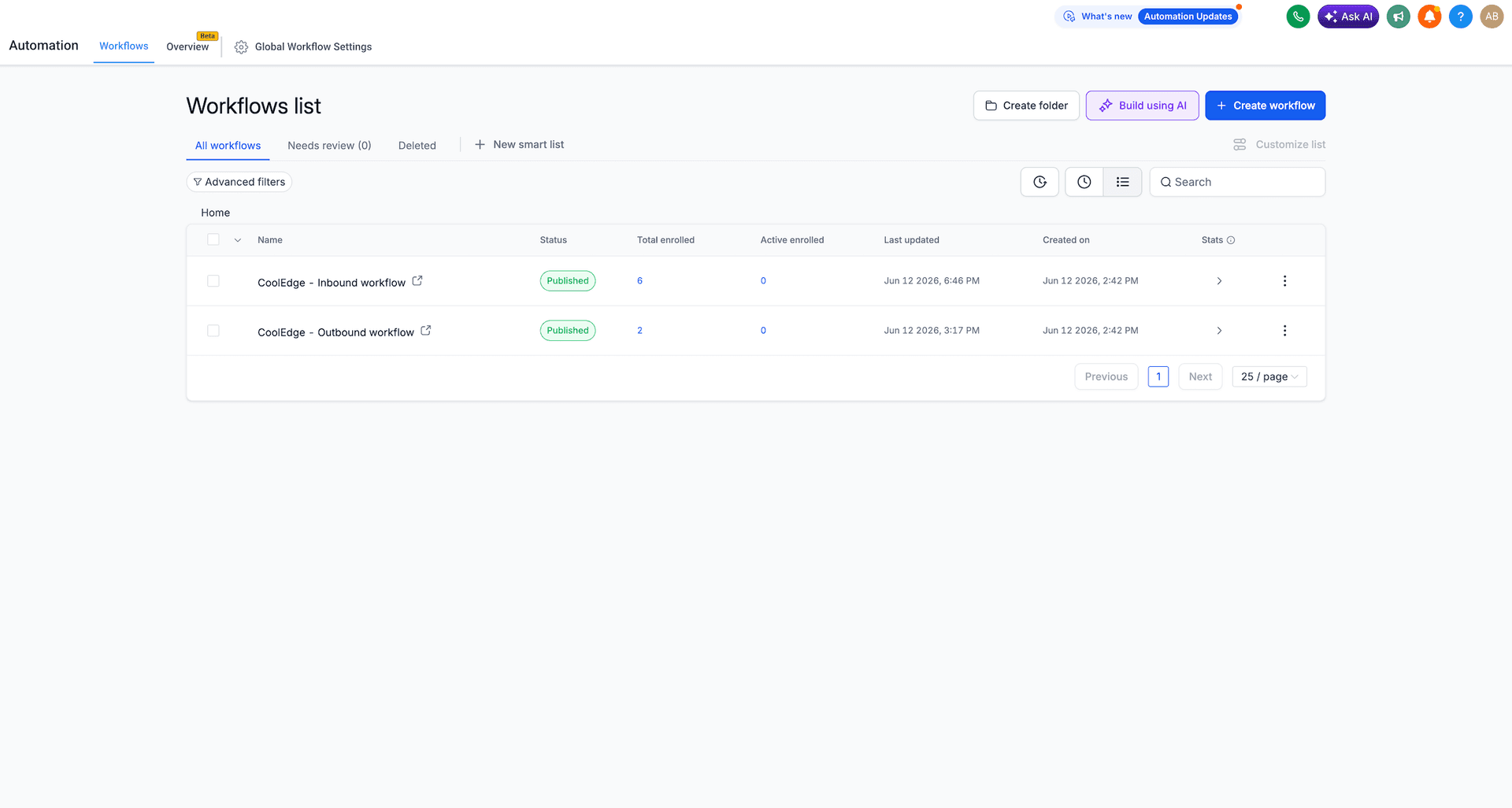
Applying the Snapshot to a Location adds four things:
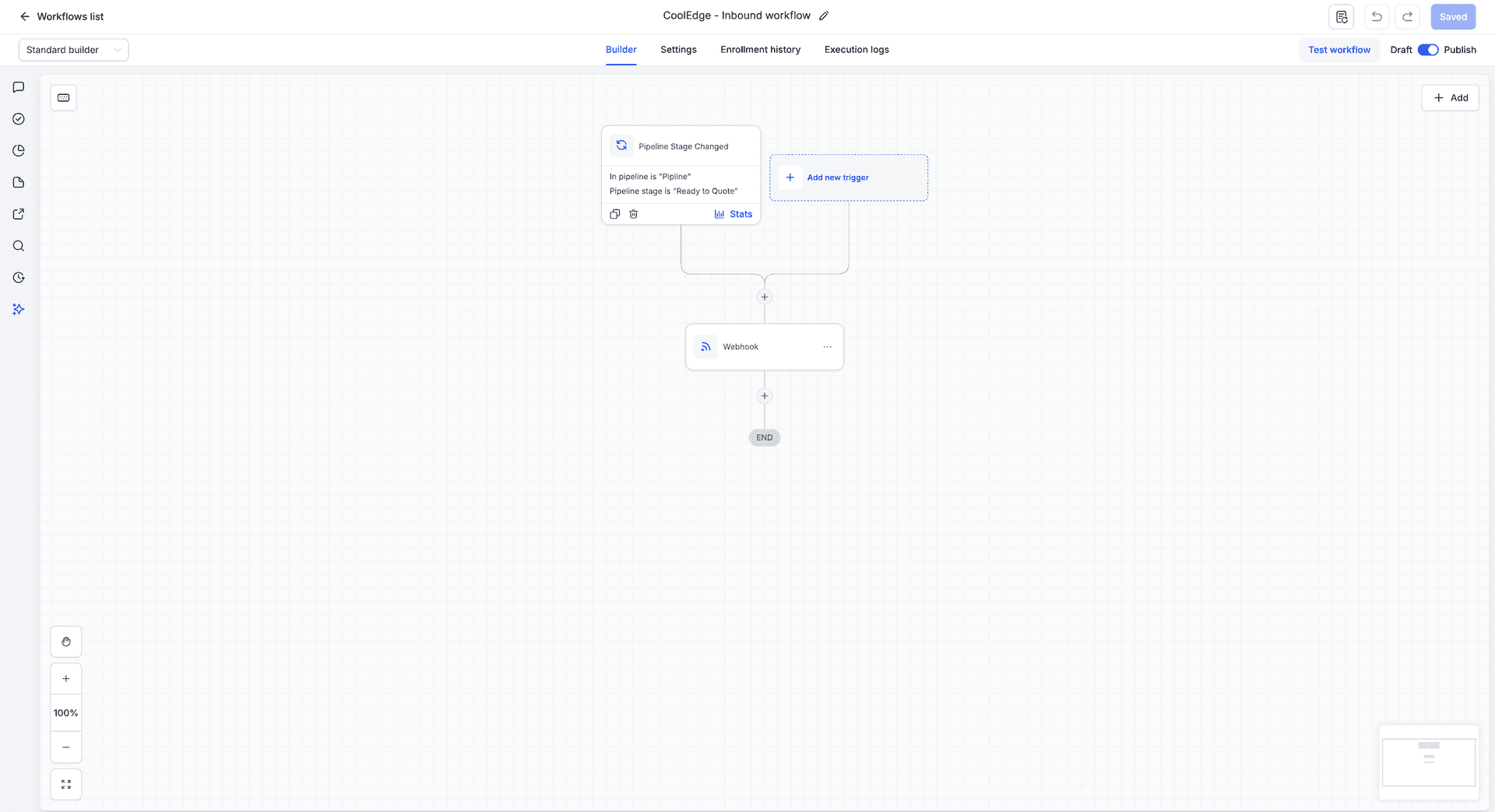
- Two workflows. An inbound workflow sends GHL contacts and opportunities into Cooledge. An outbound workflow receives Cooledge events back into GHL. Both arrive in Draft.
- Two custom values.
cooledge_inbound_urlandcooledge_inbound_secret. They arrive empty and you fill them in during setup (step 3). - Three contact tags.
cooledge-quote-sent,cooledge-quote-acceptedandcooledge-deposit-paid. The outbound workflow applies these to a contact as the matching Cooledge events arrive. They are optional: if you do not want them, delete the tag actions from the outbound workflow. - One demo pipeline. A pipeline named "Pipeline" with the stages New Lead, Contacted, Ready to Quote, Quote Sent and Quote Accepted. It is a basic starting example so the workflows have stages to point at. Replace it with your own pipeline and re-link the stages when you finish the outbound workflow (step 7).
Setup walkthrough
- Import the Snapshot. Open the share link for the Cooledge reference Snapshot. GHL will add it to your agency account as an available Snapshot.
- Apply the Snapshot to a Location. Pick the Location you want connected to Cooledge and load the Snapshot into it. This creates both workflows in that Location.
- Set the two custom values. In Cooledge, open the GHL settings card to find the values you need. In the GHL Location go to Settings → Custom Values and set:
cooledge_inbound_urlto the inbound URL shown on the Cooledge card.cooledge_inbound_secretto the inbound secret shown on the Cooledge card.
- Publish the inbound workflow. Snapshot imports arrive in Draft. The inbound workflow needs no extra configuration, so open it and publish it first. Leave the outbound workflow in Draft for now: GHL will not let you save it until its trigger has received a sample request, and the next two steps produce that sample.
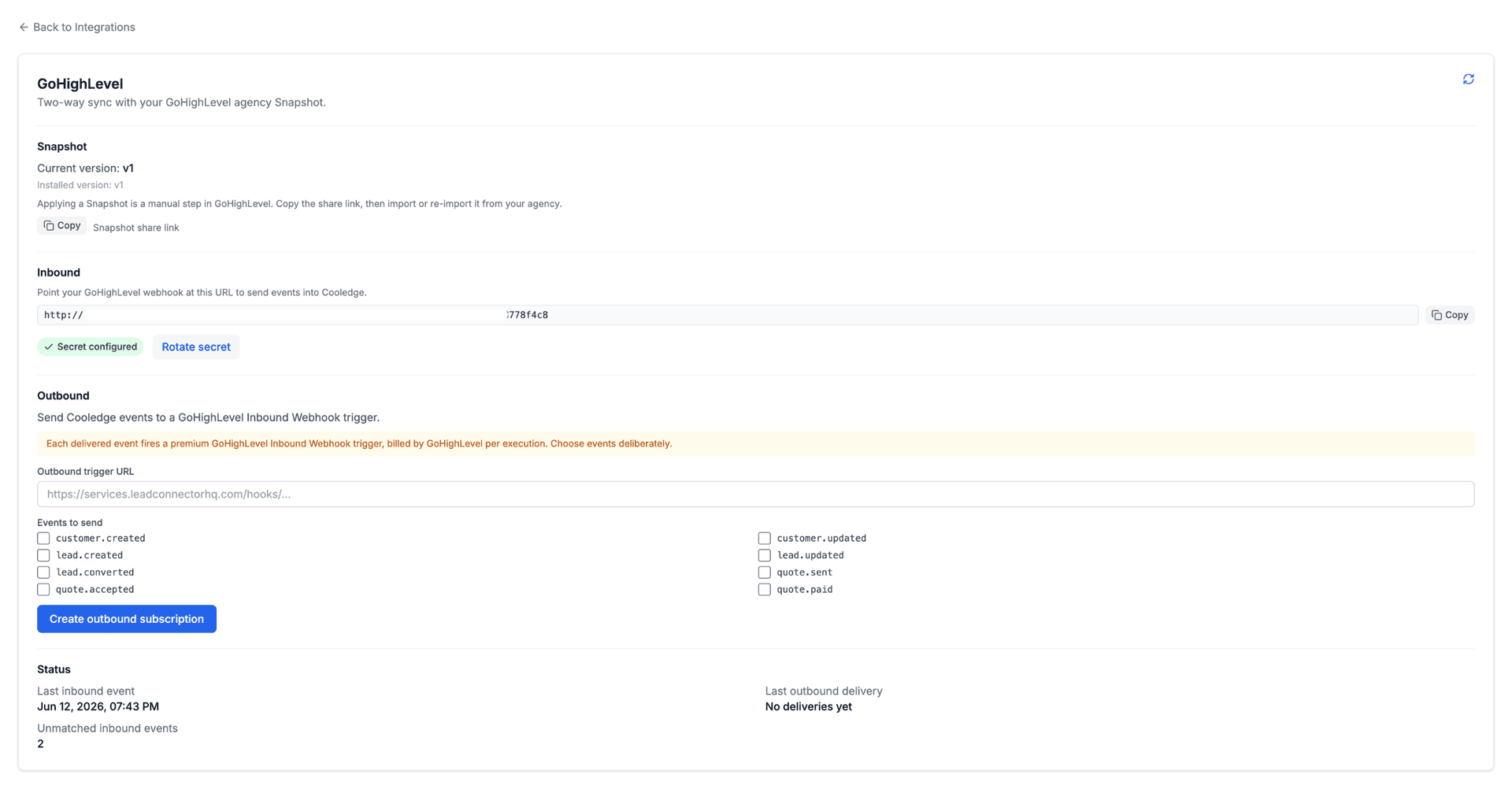
- Copy the agency outbound trigger URL into Cooledge and choose events. The outbound workflow starts from a GHL Inbound Webhook trigger that gets its own fresh URL in this Location after import (the URL exists even while the workflow is a draft). Copy it into the matching field on the Cooledge GHL settings card, then select the event types you want delivered. Send only what your GHL automations actually use. See the costs note below for why this matters.
- Click "Send test event" on the Cooledge card. Once the subscription is created, the card shows a Send test event button. It delivers a signed, clearly test-marked
quote.acceptedsample to the trigger URL with the full production key set. That single click gives GHL the sample request its trigger needs. (No Cooledge access at hand? The no-code fallback is to create a test contact with an email or phone in the GHL Location, open an opportunity in the imported pipeline and move its stage, withlead.createdamong the selected events.) - Finish and publish the outbound workflow. Open it, pick the most recent request in the trigger's mapping reference, then re-link your pipeline and the target stage in each branch (pipeline and stage IDs are per Location, so imported opportunity actions arrive with unlinked references). Save and publish.
Inbound custom-data contract
The inbound workflow uses a GHL Webhook action to call Cooledge. That action must set the custom-data pairs below. These are the fields Cooledge reads to identify the contact and opportunity and to dedupe repeat deliveries.
| Key | Value | Required | Notes |
|---|---|---|---|
opportunity_id | {{opportunity.id}} | Yes | Dedupe key. If this is missing the request is rejected with HTTP 422. |
contact_id | {{contact.id}} | Required in practice | Cooledge still processes the lead if it is absent, but the lead is flagged as missing its contact link and degrades gracefully. |
snapshot_version | v1 | Yes | Literal string. Lets Cooledge map the payload to the right contract version. |
pipeline_stage | {{opportunity.pipeline_stage}} | Optional | Mirrors the GHL pipeline stage onto the Cooledge lead and stays current as later deliveries report stage changes. |
cooledge_inbound_secret | {{custom_values.cooledge_inbound_secret}} | Fallback | The x-cooledge-ghl-secret header is the primary carrier of the secret and takes precedence. This custom-data pair is a fallback for setups where the header cannot be set. |
Two failure modes are worth calling out:
opportunity_idmissing returns HTTP 422 and the request is not processed. The opportunity id is the dedupe key, so Cooledge cannot accept the lead without it.contact_idmissing still processes the lead, but Cooledge flags it as incomplete because it has no GHL contact to link back to.
Available outbound event types
Nine outbound event types are available. The outbound workflow fires when Cooledge sends one of these to your Location:
customer.createdcustomer.updatedlead.createdlead.updatedlead.convertedlead.wonquote.sentquote.acceptedquote.paid
Every payload uses the same envelope plus a correlation block that lets GHL match the event back to the right contact and opportunity. Here is an example quote.accepted payload:
{
  "version": "v1",
  "event_type": "quote.accepted",
  "event_id": "evt_01HZX9Q7M3K8F2N4P6R8T0V2W4",
  "business_id": "biz_8f2a1c9e",
  "occurred_at": "2026-06-06T03:21:44.512Z",
  "external_ghl_contact_id": "cont_7Yh2KpQ9",
  "external_ghl_opportunity_id": "opp_3Df8La1Z",
  "customer_name": "Jordan Avery",
  "customer_email": "jordan.avery@example.com",
  "customer_phone": "+61400111222",
  "quote_id": "quote_a1b2c3d4",
  "customer_id": "cust_5Gk9Rm2P",
  "quote_reference": "Q-1042",
  "accepted_total": 4850.00,
  "accepted_at": "2026-06-06T03:21:44.512Z",
  "job_number": "J-2031"
}
The envelope is always version, event_type, event_id, business_id and occurred_at. The correlation block is external_ghl_contact_id, external_ghl_opportunity_id, customer_name, customer_email and customer_phone. The remaining keys are flat top-level fields carrying the event-specific detail. For quote.accepted those are quote_id, customer_id, quote_reference, accepted_total, accepted_at and job_number. The customer name, email and phone on quote events reflect the point-in-time snapshot the quote was sent with, while the two external_ghl_* ids are the live correlation keys.
Lead events carry the lead record itself. Here is an example lead.created payload:
{
  "version": "v1",
  "event_type": "lead.created",
  "event_id": "evt_01HZXA2B7C9D1E3F5G7H9J1K3M",
  "business_id": "biz_8f2a1c9e",
  "occurred_at": "2026-06-12T01:05:12.118Z",
  "external_ghl_contact_id": "cont_7Yh2KpQ9",
  "external_ghl_opportunity_id": "opp_3Df8La1Z",
  "customer_name": "Jordan Avery",
  "customer_email": "jordan.avery@example.com",
  "customer_phone": "+61400111222",
  "lead_id": "lead_9Xw4Tn6V",
  "customer_id": null,
  "name": "Jordan Avery",
  "email": "jordan.avery@example.com",
  "phone": "+61400111222",
  "status": "new",
  "source": "ghl",
  "lead_type": "inbound"
}
lead.updated carries the lead record plus archived (boolean). lead.converted fires when a lead becomes an active opportunity, meaning its first quote or job is created or it is qualified manually. It carries lead_id, customer_id, converted_via, quote_id and job_id alongside the correlation block. lead.won fires when the deal is won, when a quote is accepted or paid or the first invoice is paid on a lead with no quote, and carries lead_id, customer_id, won_via, quote_id, invoice_id and job_id.
A few rules for consumers:
- Payloads are additive only. New keys may appear over time. Existing keys keep their meaning.
- One shape per event type. An event type has the same payload shape no matter which part of Cooledge produced it. A workflow that reads
nameofflead.updatedworks for every origin. - Ignore unknown keys. Do not fail a workflow because a key you did not expect showed up.
- Dedupe on
event_id. The same event may be delivered more than once. Treatevent_idas the idempotency key. - Do not assume delivery order. Each delivery is retried independently, so events can arrive out of order. Use
occurred_atto sequence events for the same lead or customer.
Costs note
The inbound side is free. The GHL Webhook action that calls Cooledge does not consume GHL execution credits.
The outbound side is not free. The outbound workflow is started by GHL's premium Inbound Webhook trigger, which GHL bills per execution. Every Cooledge event you choose to send becomes one billed GHL execution. That is why step 5 asks you to pick outbound events deliberately. Turn on only the events your GHL automations actually act on.
Cooledge also protects your execution budget on repeats: an inbound delivery that changes nothing (a retry or duplicate) produces no outbound events at all.
Security and forward compatibility
Outbound delivery is currently protected by two things working together:
- The outbound trigger URL is unique and obscure per Location. It is not guessable and you should treat it as a secret.
- Cooledge sends an HMAC signature header with each outbound delivery so the Location can verify the payload came from Cooledge.
This is the current approach, not the final one. A future release will add a Cooledge marketplace app with GHL OAuth that replaces the URL-plus-header scheme with native signed delivery through the marketplace.
Because of that, do not build long-lived business-critical workflows that assume this URL-plus-header scheme is permanent. When the marketplace app ships, the delivery mechanism will change and you will need to re-point your outbound automations.
Need a hand with an integration? Contact support